
1. Kupu Whakataki
This manual provides detailed instructions for the setup, operation, and maintenance of your Lemnoi S72 4G Cellular Outdoor Security Camera. This solar-powered camera offers 2K resolution, PTZ functionality, two-way audio, and motion detection, operating independently via a 4G cellular network without the need for Wi-Fi. Its IP66 waterproof design ensures reliable performance in various outdoor environments.
2. Ihirangi mokete
Manatokohia ko nga mea katoa kei raro nei kei roto i to kete:
- Lemnoi S72 4G Cellular Outdoor Security Camera
- Solar Panel with mounting bracket
- Tauira Whakatau USB
- Nga Tiu Whakapiri me nga Mono Taiepa
- Pre-installed SIM Card (with initial data)
- 32GB Micro SD Card
- Pukapuka Kaiwhakamahi

3. Hua Neke Atuview
The Lemnoi S72 camera is designed for robust outdoor surveillance, offering advanced features for remote monitoring.
3.1 Nga waahanga matua
- 4G Cellular Connectivity: Operates on a 4G network, eliminating the need for Wi-Fi.
- Whakahikohia te Ra: Integrated 6W solar panel and 10400mAh battery for continuous operation.
- 2K Ultra HD Resolution: Provides clear video footage.
- Tirohanga Po Tae: Offers clear, full-color night vision up to 20 meters.
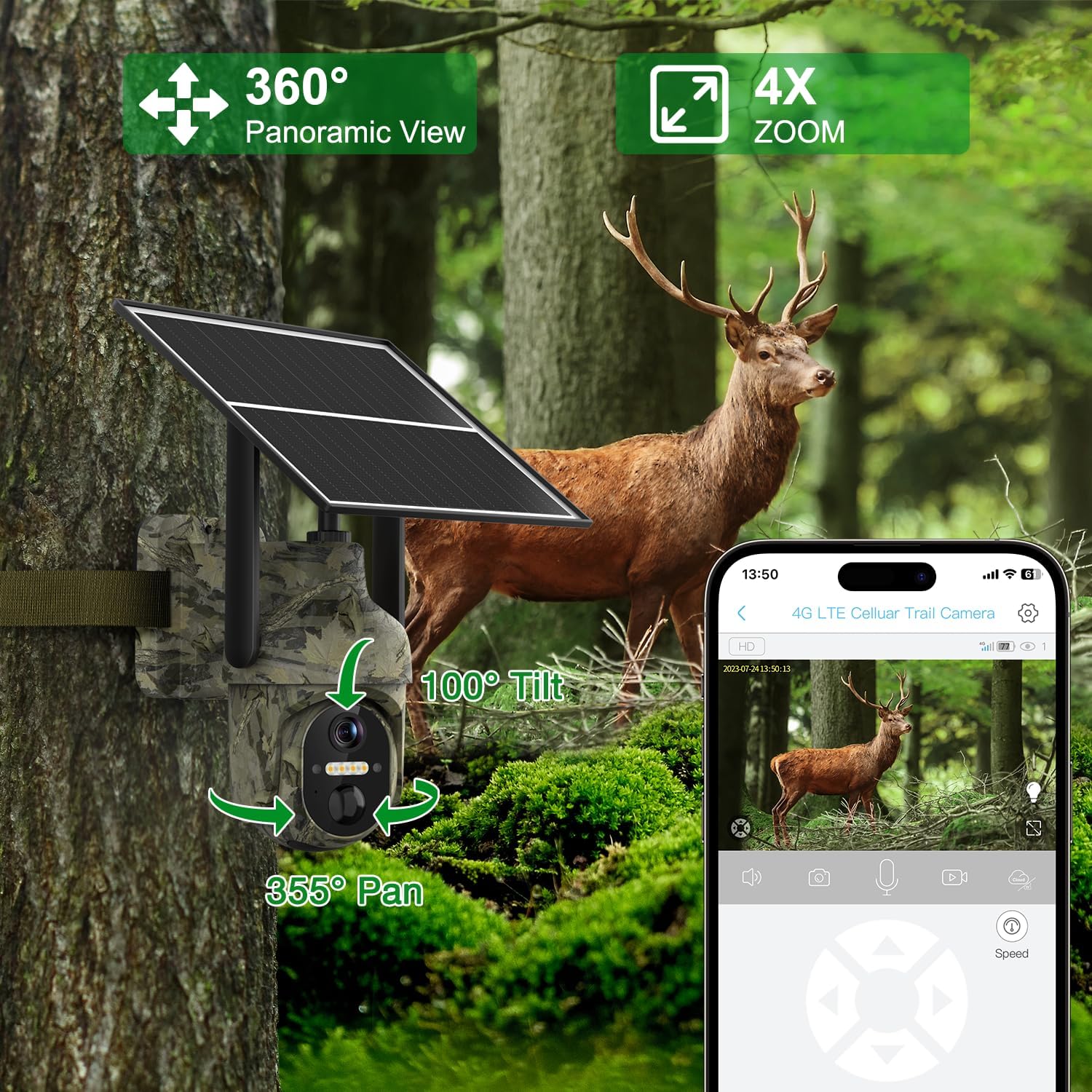
- Ngā Mahi a te PTZ: 355° horizontal pan and 100° vertical tilt for comprehensive coverage.
- Rapu Motini Ataata: AI algorithms distinguish between people, animals, and vehicles, sending instant alerts.
- Ororongo Ara-rua: Built-in speaker and microphone for remote communication.
- Dual Storage: E tautoko ana i te kāri Micro SD (tae atu ki te 128GB) me te rokiroki kapua.
- IP66 parewai: Durable design for all-weather outdoor use.

4. Tatūnga
4.1 Initial Camera Preparation
- Kōkuhu Kāri SIM: The camera comes with a pre-installed SIM card. If you wish to use your own local carrier's SIM card, carefully remove the pre-installed card and insert your activated SIM card. Ensure the PIN code on your SIM card is disabled before insertion.
- Micro SD Card Insertion: The camera includes a 32GB Micro SD card. Insert it into the designated slot. The camera supports up to 128GB.
- Whakahiko: Locate the power switch, usually near the SIM/SD card slots, and turn the camera ON. Wait for the indicator light to turn blue, signifying it's ready for connection.

4.2 Taupānga Tāuta me te Hononga
Download the UBox app from your smartphone's app store (iOS or Android). Follow these steps to connect your camera:
- Install the UBox app on your smartphone.
- Allow all necessary permissions when opening the app for the first time.
- Rēhita he pūkete ka takiuru.
- Tap "Add a Device" and then "Setup 4G Device".
- Follow the on-screen prompts to scan the QR code located on your camera.
- Once successfully added, the camera will appear in your device list.
4.3 Tāutanga Tinana
Choose a suitable location for your camera and solar panel. Ensure the solar panel receives ample direct sunlight for optimal charging.
- Maunga te Kamera: Use the provided mounting bracket and screws to securely attach the camera to a wall or other stable surface.
- Whakanuia te Paewhiri Solar: Install the solar panel in a location that maximizes sun exposure. The long cable allows flexibility in placement relative to the camera.
- Tūhono Paewhiri Solar: Plug the solar panel's USB cable into the camera's charging port. Ensure the rubber stopper is properly sealed to maintain weatherproofing.

5. Mahi
5.1 Ora View me te Mana PTZ
Open the UBox app and select your camera from the device list to access the live feed. Use the on-screen controls to pan (355° horizontally) and tilt (100° vertically) the camera to adjust the viewing angle. You can also use the digital zoom feature.

5.2 Te Motini me nga Matohi
The camera features advanced AI motion detection. When motion is detected, the camera will record footage and send instant alerts to your smartphone. You can customize alert settings, including specific time periods for receiving notifications.
- AI Algorithms: Distinguishes between people, animals, and vehicles to minimize false alarms.
- Matohi Inamata: Receive real-time notifications on your mobile app.
- Custom Alert Time: Set specific schedules for motion detection and alerts.


5.3 Ororongo Waa-rua
Utilize the two-way audio feature to communicate through the camera. Tap the microphone icon in the UBox app to speak, and listen through the camera's built-in speaker. This is useful for interacting with visitors or deterring unwanted guests.

5.4 Matakite Po
The camera automatically switches to night vision in low-light conditions. It supports both infrared (black and white) and color night vision (spotlight mode) for clear visibility up to 20 meters.
5.5 Kōwhiringa Rokiroki
Kua tuhia te footagE rua ngā huarahi e taea ai te penapena:
- Kaari SD Micro: All recordings are saved locally on the inserted Micro SD card. You can playback recorded footage directly from the card.
- Rokiroki Kapua: The camera offers cloud storage for viewing stored videos and offline footage. A 30-day trial is typically included, with subscription options for extended usage.

6. Tiaki
- Te horoi: Horoia te arotahi kāmera me te papa rā i ia wā ki te wai ngohengohe,amp cloth to ensure optimal performance and charging efficiency.
- Tiaki Pūhiko: Ensure the solar panel is positioned to receive maximum sunlight daily to keep the internal battery charged. Avoid prolonged periods without sunlight to prevent battery depletion.
- Whakahōu Firmware: Check the UBox app periodically for firmware updates to ensure your camera has the latest features and security enhancements.
7. Te Raru
If you encounter issues with your Lemnoi S72 camera, refer to the common questions and answers below:
- Q1: Can I use Wi-Fi without a data plan?
A1: No, this 3G/4G LTE surveillance camera is designed for off-grid and remote areas without Wi-Fi coverage. It functions anywhere with 3G/4G coverage using the included SIM card. - Q2: The 4G cellular phone surveillance camera SIM card is included in the package?
A2: Yes, the package comes with a SIM card that includes 300MB of initial traffic for free use. Additional usage requires a paid data plan. - Q3: Ka taea e au view the live stream via Wi-Fi or is a 4G cellular network required for live streaming?
A3: The 4G cellular security camera uses the inserted SIM card to connect to the 4G network. Other accessible configurations using the mobile phone can be obtained through the Ubox application using cellular 4G/5G or Wi-Fi. - Q4: The included SIM card does not work?
A4: First, insert the SIM card into the phone, disable the PIN code, and then insert it into the camera to check if it works properly. If it still doesn't work, try configuring the PIN code manually. - Q5: How do I know if I can use my SIM card?
A5: To ensure your own SIM card can be used normally, enter the PIN code as indicated when turning on the phone; otherwise, the SIM card may be blocked by the PIN code and cannot be used.

8. Whakatakotoranga
| Āhuahira | Taipitopito |
|---|---|
| Tauira | S72 |
| Hangarau Hononga | 4G Pūkoro |
| Puna Mana | Solar Powered (6W solar panel, 10400mAh battery) |
| Whakataunga Hopu Ataata | 2K Ultra HD (1080p effective) |
| Viewing Koki | 130 Waeine |
| Taumahinga PTZ | Pania Whakapae 355°, Honga Poutū 100° |
| Awhe Tirohanga Po | Up to 20 meters (Color Night Vision) |
| Te Motini | AI Humanoid, Animal, Vehicle Detection |
| Ororongo | Ororongo Waa-rua |
| Rokiroki | Micro SD (tae atu ki te 128GB), Cloud Storage |
| Taumata Atete Wai | IP66 parewai |
| Te Waahi Mahi | -30°C ki te 60°C |
| Rauemi | Kirihou |
9. Pūtāhui me te Tautoko
Your Lemnoi S72 4G Cellular Outdoor Security Camera is covered by a manufacturer's warranty. Please refer to the product packaging or contact Lemnoi customer support for specific warranty terms and conditions.
For technical assistance, troubleshooting, or any inquiries, please contact Lemnoi customer support through the contact information provided in your product packaging or on the official Lemnoi webpae.