
1. Kupu Whakataki
The Grandstream GWN7002 is a multi-WAN Gigabit VPN router designed to provide robust and secure network solutions for businesses. It features a built-in firewall and supports comprehensive wired, wireless, and VPN networks across single or multiple locations. This manual provides essential information for setting up, operating, and maintaining your GWN7002 router.
2. Hua Neke Atuview
The GWN7002 router offers a versatile set of ports and features to meet diverse networking requirements.
2.1 Paewhiri Mua
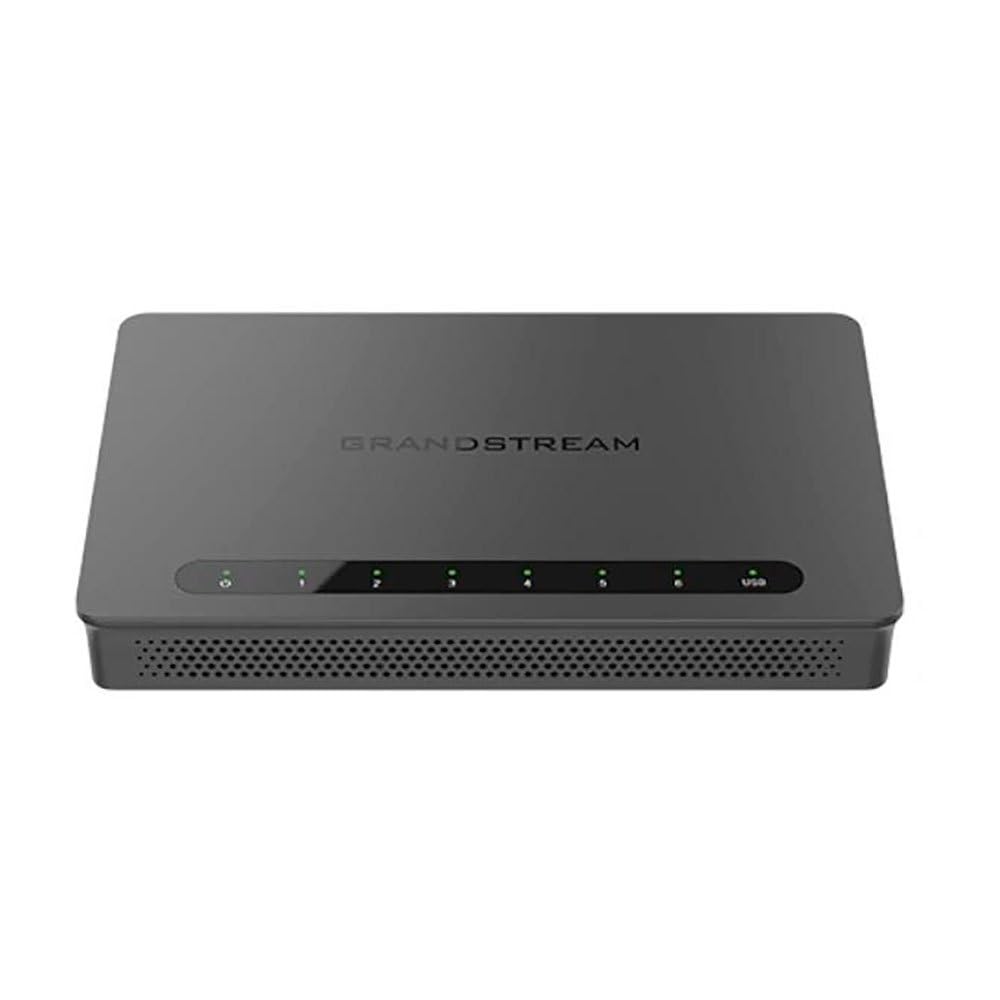
The front panel of the GWN7002 features LED indicators for power, system status, and port activity, providing a quick visual status of the device's operation.
2.2 Paewhiri Whakamuri me nga Tauranga
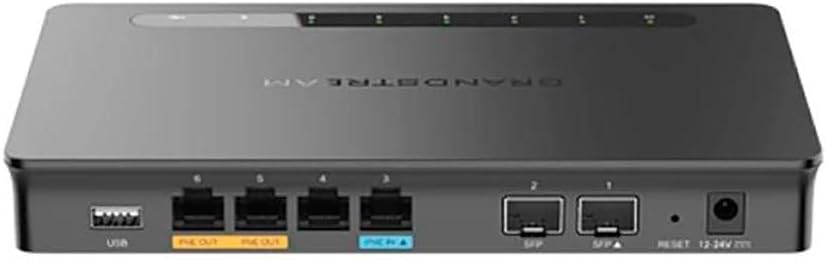
Kei roto i te papa o muri nga momo tauranga mo te honohono:
- Ngā Tauranga WAN/LAN: Multiple Gigabit RJ45 ports for flexible WAN/LAN configuration.
- Tāuru PoE: One GbE RJ45 port with IEEE 802.3af/at PoE Input, allowing the router to be powered via Ethernet.
- Putanga PoE: Two GbE RJ45 ports with 48V Passive PoE output or IEEE 802.3af, capable of powering compatible devices.
- Tauranga SFP: Gigabit SFP ports for fiber optic connectivity.
- Tauranga USB: Mo te hono i te rokiroki o waho me etahi atu taputapu USB.
- Patene Tautuhi Anō: Whakamahia hei tautuhi anō i te pūrere ki ngā tautuhinga wheketere.
- Whakauru Hiko: DC power input (12-24V) for standard power adapter connection.
3. Tatūnga
Follow these steps for initial setup of your Grandstream GWN7002 router.
3.1 Ihirangi mokete
Manatokohia kei roto i to kete nga mea e whai ake nei:
- GWN7002 Router Unit
- Pūurutau Hiko
- Aratohu Timata Tere (he tuhinga rite ranei)
3.2 Tāuta Pūmārō
- Hono Hono: Connect the provided power adapter to the router's DC power input. Alternatively, if using PoE, connect an Ethernet cable from a PoE switch or injector to the PoE Input port.
- Tūhono WAN: Connect your internet service provider's modem or main network line to one of the configurable WAN ports using an Ethernet cable.
- Tūhono Pūrere LAN: Connect your local network devices (computers, switches, access points) to the LAN ports using Ethernet cables.
- Whakahiko: Ensure all connections are secure, then power on the router. Wait for the system LED indicators to stabilize.
3.3 Whirihoranga Tuatahi
Uru ki te pouara web-based configuration interface for initial setup:
- Hono ki LAN: Ensure your computer is connected to a LAN port of the GWN7002.
- Urunga Web UI: Tuwhera a web pūtirotiro me te tomo i te wāhitau IP taunoa (te tikanga
192.168.1.1or check the Quick Start Guide) in the address bar. - Takiuru: Enter the default username and password (typically 'admin' for both, or as specified in the guide).
- Whāia te Ruānuku: The router may present an initial setup wizard. Follow the on-screen prompts to configure basic network settings, including WAN connection type, LAN IP address, and Wi-Fi settings (if applicable).
4. Mahi
This section covers key operational aspects of the GWN7002 router.
4.1 Tautuhinga Whatunga
- Tūmau DHCP: Configure the DHCP server to automatically assign IP addresses to devices on your local network.
- IP pateko: Assign static IP addresses to specific devices if needed.
- VLAN: Create and manage Virtual Local Area Networks (VLANs) for network segmentation and improved security.
4.2 Multi-WAN Configuration
The GWN7002 supports multiple WAN connections for enhanced reliability and bandwidth.
- Taurite Uta: Distribute internet traffic across multiple WAN links to optimize bandwidth utilization.
- Karekau: Configure a backup WAN connection to automatically take over if the primary connection fails, ensuring continuous internet access.
4.3 Tautoko VPN
Utilize the built-in VPN capabilities for secure remote access and site-to-site connections.
- Tūmau VPN: Set up the router as a VPN server to allow remote users to securely connect to your local network.
- Kiritaki VPN: Configure the router to connect to an external VPN server.
- Kawa Tautoko: The router supports various VPN protocols, including IPsec, L2TP, and OpenVPN.
4.4 Firewall and Security
- Tātaritanga Mōkihi: Configure rules to filter incoming and outgoing network packets based on various criteria.
- Mana Uru: Manage network access for specific devices or users.
- QoS (Kounga o te Ratonga): Prioritize network traffic for critical applications to ensure optimal performance.
5. Tiaki
Regular maintenance ensures the optimal performance and security of your router.
5.1 Whakamohoa Firmware
Keep your router's firmware updated to benefit from the latest features, security patches, and performance improvements. Download the latest firmware from the Grandstream website and follow the instructions in the web UI to perform the upgrade.
5.2 Whirihoranga Tārua me te Whakaora
Regularly back up your router's configuration settings. This allows you to quickly restore your settings in case of a factory reset or device replacement.
5.3 Tautuhi Tautuhi
To restore the router to its factory default settings, press and hold the Reset button on the rear panel for approximately 10 seconds while the device is powered on. Release the button when the system LEDs begin to flash. The router will reboot with default settings.
6. Te Raru
This section addresses common issues you might encounter with your GWN7002 router.
6.1 Kaore he Hononga Ipurangi
- Manatokohia kei te mahi tika to pouwhanga me te whai hononga ipurangi hohe.
- Check the Ethernet cable connection between the modem and the router's WAN port.
- Ensure the WAN settings in the router's web UI are correctly configured (e.g., DHCP, Static IP, PPPoE).
6.2 Ngā Tere Whatunga Pōturi
- Tirohia te tere o to kaiwhakarato ratonga ipurangi.
- Ensure all Ethernet cables are Cat5e or higher for Gigabit speeds.
- Monitor network traffic in the router's web UI to identify any bandwidth-intensive applications or devices.
- Adjust QoS settings to prioritize critical traffic.
6.3 VPN Connection Issues
- Verify VPN server/client settings, including IP addresses, authentication methods, and encryption.
- Check firewall rules to ensure VPN traffic is not being blocked.
- Ensure the remote network is reachable.
7. Whakatakotoranga
| Hunga Hua | 9.25 x 9.84 x 2.17 inihi |
| Taumaha Tūemi | 1.11 pauna |
| Tauira Tuemi | GWN7002 |
| Kaihanga | Aromatawai |
| Hangarau Hononga | Wi-Fi (Note: This is a wired router, Wi-Fi connectivity refers to its ability to manage Wi-Fi access points) |
| Āhuahira Motuhake | QoS |
| Tauranga | Multiple Gigabit RJ45 ports (1x PoE Input, 2x PoE Output), Gigabit SFP ports, USB port |
| Tautoko VPN | Built-in VPN support for secure access |
| Maha-WAN | Supports multiple WAN connections for load balancing and failover |
| Tae | Pango |
8. Nga korero haumaru
Please observe the following safety precautions to prevent damage to the device or injury to yourself:
- Kaua e tukuna te taputapu ki te wai, ki te makuku ranei.
- Kaua e tuu te taputapu ki te taha o nga puna wera, ki te ra tika ranei.
- Whakamahia te urutau hiko anake me te taputapu.
- Me whakarite kia tika te hau huri noa i te taputapu kia kore ai e wera rawa.
- Kaua e ngana ki te whakatuwhera, ki te whakatika ranei i te taputapu. Tirohia nga kaimahi ratonga whai tohu.
9. Pūtāhui me te Tautoko
For warranty information and technical support, please refer to the documentation included with your product or visit the official Grandstream webpae. Puritia to rihiti hoko mo nga kereme whakamana.