
1. Kupu Whakataki
The BOTSLAB W302 Outdoor Dual-Lens Security Camera is designed to provide comprehensive surveillance for your home or business. Featuring advanced dual-lens technology, it offers a 170° super-wide viewing angle and crystal-clear 4MP resolution. This manual provides detailed instructions for setting up, operating, and maintaining your security camera to ensure optimal performance.
2. Ihirangi mokete
Tena koa tirohia ko nga mea katoa kei raro nei kei roto i to kete. Mena kei te ngaro, kua pakaru ranei etahi taonga, tena koa whakapiri atu ki te tautoko a nga kaihoko.
- Waeamera x 1
- Taiapa x 1
- Turanga whakapiri x 1
- Warning sticker x 1
- He aratohu tere tere x 1
- Pūurutau hiko x 1
- Pokai kowiri x 1

Figure 2.1: All components included in the BOTSLAB W302 camera package.
3. Nga Hua o te Hua
- Dual-Lens Vision: Captures a wide 170° super-wide viewing angle with 4MP (2MP+2MP) resolution for seamless panoramic images without blind spots.
- Tirohanga Po Tae: Provides continuous color views 24/7, even in low light, thanks to automatic light adaptation (ColorGuard) and up to 100ft night vision range.
- Smart Security & Precise Alerts: Detects people and vehicles with motion detection, sending precise alerts. Features a customizable siren and light alarm for enhanced security.
- Aroturuki Whakakahangia e te AI: Intelligently focuses on humans, offering close-up views and dual live views (wide panorama and close-up) simultaneously via the Botslab app.
- Hononga Tuturu: Supports faster and more stable dual-band Wi-Fi (2.4GHz/5GHz).
- Ororongo Ara-rua: Stay connected and communicate with visitors or deter intruders.
- Hoahoa parerangi: IP66 rated, ensuring reliable performance in temperatures from -20°C to 60°C.
- Whakauru Whare Ataata: Ka hono pai ki a Amazon Alexa me Google Assistant mō te whakahaere reo.

Figure 3.1: Dual-Lens Vision with 170° Super-Wide Angle.

Figure 3.2: Non-Stop Color Night Vision.

Figure 3.3: Smart Security with Person, Vehicle, and Motion Detection.
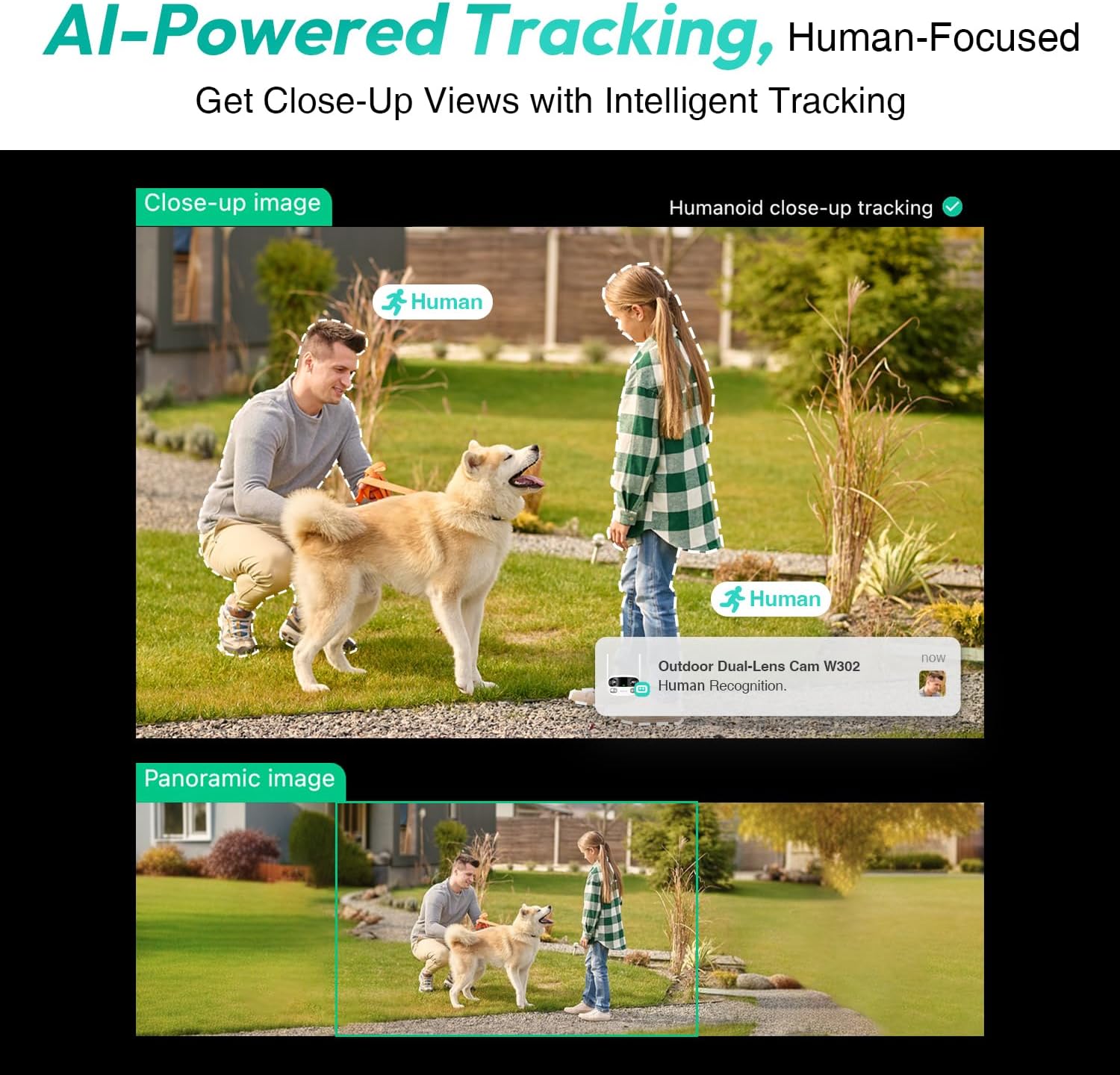
Figure 3.4: AI-Powered Human Tracking with Dual Live Views.
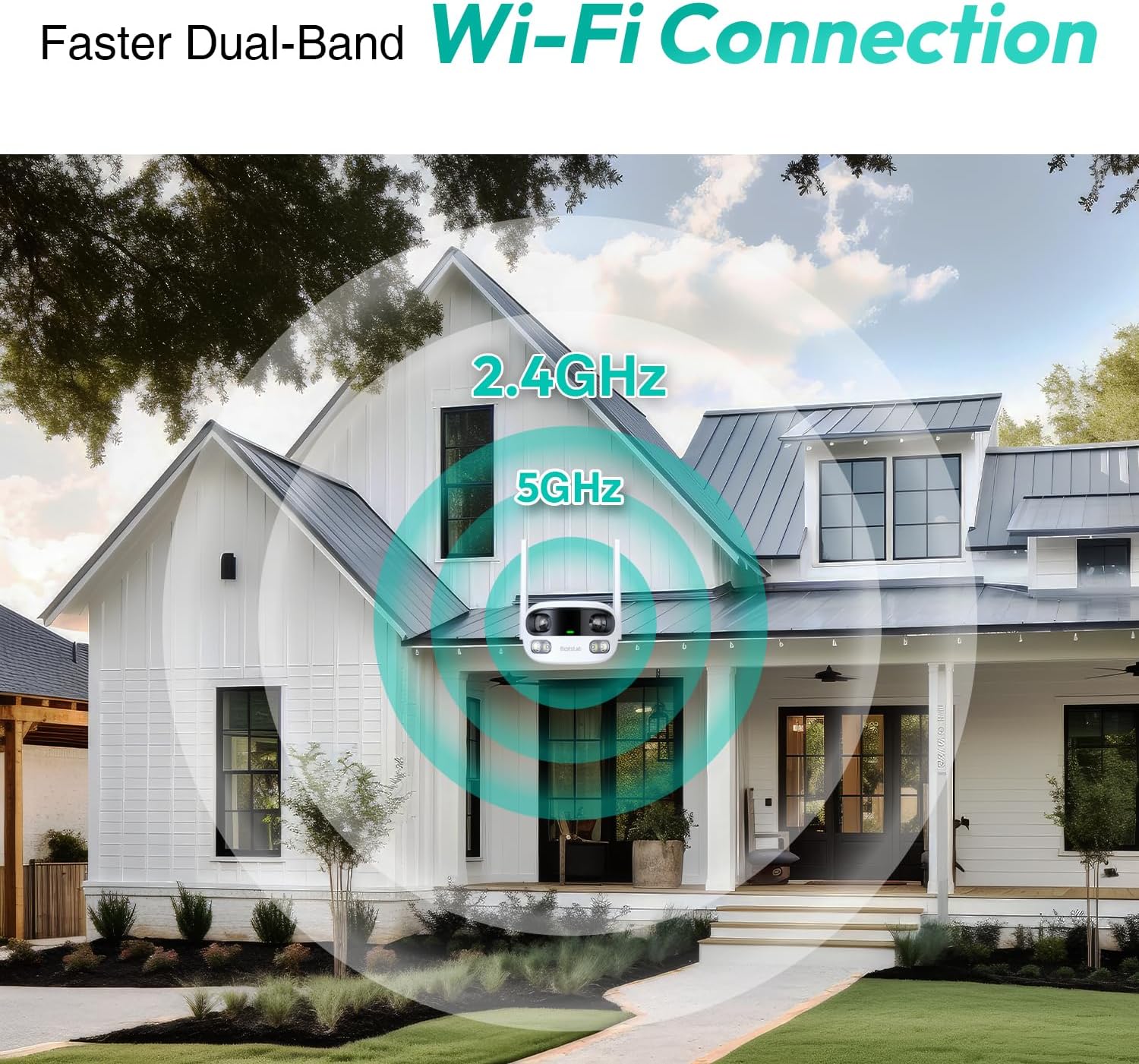
Figure 3.5: Faster Dual-Band Wi-Fi Connection.

Figure 3.6: Two-Way Audio Communication.

Pikitia 3.7: Hoahoa Ātete ki te Huarere IP66.

Figure 3.8: Alexa & Google Assistant Integration.
4. Tatūnga me te Tāuta
Follow these steps to properly install your BOTSLAB W302 camera.
- Kōwhiria he Tauwāhi: Tīpakohia he waahi o waho me te maama view of the area you wish to monitor. Ensure it's within Wi-Fi range and near a power outlet.
- Maunga te Taiapa: Use the provided positioning sticker to mark drill holes on the wall or ceiling. Drill the holes, insert expansion tubes, and securely fasten the bracket with screws.
- Āpitihia te Kāmera: Rotate the camera body and screw it onto the bracket. Adjust the camera's position and tighten the bracket.
- Hono Hono: Plug the power adapter into the camera and then into a power outlet. The indicator light will turn green and start flashing when ready for pairing.

Figure 4.1: Versatile Installation Options (Wall and Ceiling).
Ataata 4.1: Kua mutuview of the Botslab Security Camera Outdoor, including its features and installation process. This video is provided by Botslab Security.
5. Whirihoranga Taupānga
The Botslab app is essential for controlling and monitoring your camera. Download and install the app on your smartphone (available on App Store and Google Play).
- Rēhita/Takiuru: Open the Botslab app and register a new account or log in with an existing one.
- Tāpiri Pūrere: Tap 'Add Device' or the '+' icon in the app.
- Karapa QR Code: Matawai te waehere QR kei raro o to kaamera.
- Tūhono ki Wi-Fi: Follow the in-app instructions to connect the camera to your 2.4GHz or 5GHz Wi-Fi network. Ensure your phone is near the camera during this process.
- Herea Pūrere: The app will bind the device to your account. Once connected, the indicator light on the camera will turn solid blue.
Ataata 5.1: He korero taipitopitoview of the Botslab W302 Outdoor Dual Lens Security Camera, including app setup and features. This video is provided by Galaxy Tech Review.
6. Nga Tohutohu Whakahaere
Once configured, you can access and control your camera through the Botslab app.
- Ora View: Access the live feed from both lenses. You can switch between close-up and panoramic views, or use the left/right mode for individual lens feeds.
- Pan/Topa: In panoramic mode, slide the bottom image to pan left or right. Pinch to zoom on the close-up image.
- Ororongo Ara-rua: Tap the phone icon to speak through the camera's speaker. Tap the mute icon to silence audio from the camera's microphone.
- Siren & Light Alarm: Activate the siren and floodlights manually from the app to deter intruders.
- Motion/Vehicle/Person Detection: Enable these features in the app settings to receive precise alerts.
- Rohe Tūmataitinga: Tautuhia nga waahi motuhake i roto i te kamera view that will not be monitored for privacy.
- Matakitenga po: The camera automatically adapts to low light. You can choose between full-color night vision (using floodlights) or infrared night vision.

Figure 6.1: Dual Live Views on the Botslab App.

Figure 6.2: Siren & Light Alarm for Instant Deterrence.

Figure 6.3: Configuring Privacy Zones.

Figure 6.4: Smart Security with Precise Alerts.
7. Kōwhiringa Rokiroki
The BOTSLAB W302 offers flexible storage solutions for your recorded footage.
- Botslab Cloud Storage: Includes a one-year trial with 7-day storage for motion-detected clips at 5-minute intervals.
- Rokiroki Paetata: Supports up to 256GB MicroSD cards (not included). The MicroSD card slot is located under a protective cover at the bottom of the camera.

Figure 7.1: Cloud and Local Storage Options.
8. Whakatakotoranga
| Āhuahira | Whakatakotoranga |
|---|---|
| Whakataunga Hopu Ataata | 4 MP |
| Viewing Koki | 170 Waeine |
| Hangarau Hononga | 2.4GHz/5GHz Wi-Fi |
| Whakatauranga Tiaki o te Ao | IP66 |
| Te Waahi Mahi | -20°C ki te 60°C |
| Te Hototahi Whare Ataata | Amazon Alexa, Kaiawhina a Google |
| Rokiroki rohe | Up to 256GB MicroSD (Not Included) |
| Puna Mana | Wired (AC power cord included) |
| Tae | White Pro |
| Taumaha Tūemi | 1.63 pauna |
9. Tiaki
- Te horoi: Me horoi i nga wa katoa te arotahi kamera me te tinana ki te ngohengohe, damp he kakahu hei tango i te puehu me te paru. Kaua e whakamahia nga matū kino.
- Whakahōu Firmware: Check the Botslab app periodically for firmware updates to ensure optimal performance and security.
- Tuku Hiko: Ensure the camera is connected to a stable power source. Avoid using unofficial power adapters.
- Whakaha Kaari SD: If using local storage, regularly back up important footage and format the MicroSD card to maintain performance.
10. Te Raru
- Kāmera Tuimotu: Check Wi-Fi connection and power supply. Try restarting the camera and your router.
- Kounga Ataata Kino: Ensure the lens is clean. Check your Wi-Fi signal strength. Adjust camera placement if necessary.
- Nga take motini: Verify detection zones are correctly set in the app. Adjust sensitivity settings.
- Nga raruraru ororongo-rua: Tirohia ngā tautuhinga hopuoro me te kaikōrero i roto i te taupānga. Me whakarite kei te rawaka ngā taumata oro.
- Kāri SD Kaore i te tuhi: Ensure the MicroSD card is inserted correctly and is not full. Format the card if issues persist.
11. Pūtāhui me te Tautoko
BOTSLAB is committed to providing high-quality products and excellent customer service.
- Taurangi Kounga: Enjoy a 365-day quality guarantee.
- Āwhina Hangarau: Kei te waatea te tautoko hangarau mo te wa roa.
- Whakahoki: Ngā hokinga kore utu mō ngā rā 30.
- Fast Support: Expect support within 48 hours.
Mo etahi atu awhina, tirohia global.botslab.com whakapā ranei service@botslab.com.