
CUPEISI YQ10S MAX
CUPEISI YQ10S MAX Android 15 Tablet User Manual
Model: YQ10S MAX | Brand: CUPEISI
1. Kupu Whakataki
This manual provides detailed instructions for the setup, operation, maintenance, and troubleshooting of your CUPEISI YQ10S MAX Android 15 Tablet. Please read this manual thoroughly before using your device to ensure proper functionality and to maximize your user experience. Keep this manual for future reference.

Image 1.1: CUPEISI YQ10S MAX Android 15 Tablet with included accessories (keyboard, mouse, stylus, and protective case).
2. Ihirangi mokete
Manatokohia kei roto katoa nga mea kua whakarārangihia i raro nei i roto i to kete hua:
- CUPEISI YQ10S MAX Android 15 Tablet
- Papapātuhi Ahokore
- Kiore Nihokikorangi
- Foldable Protective Cover
- Stylus
- Momo-C taura
- Kaitohu
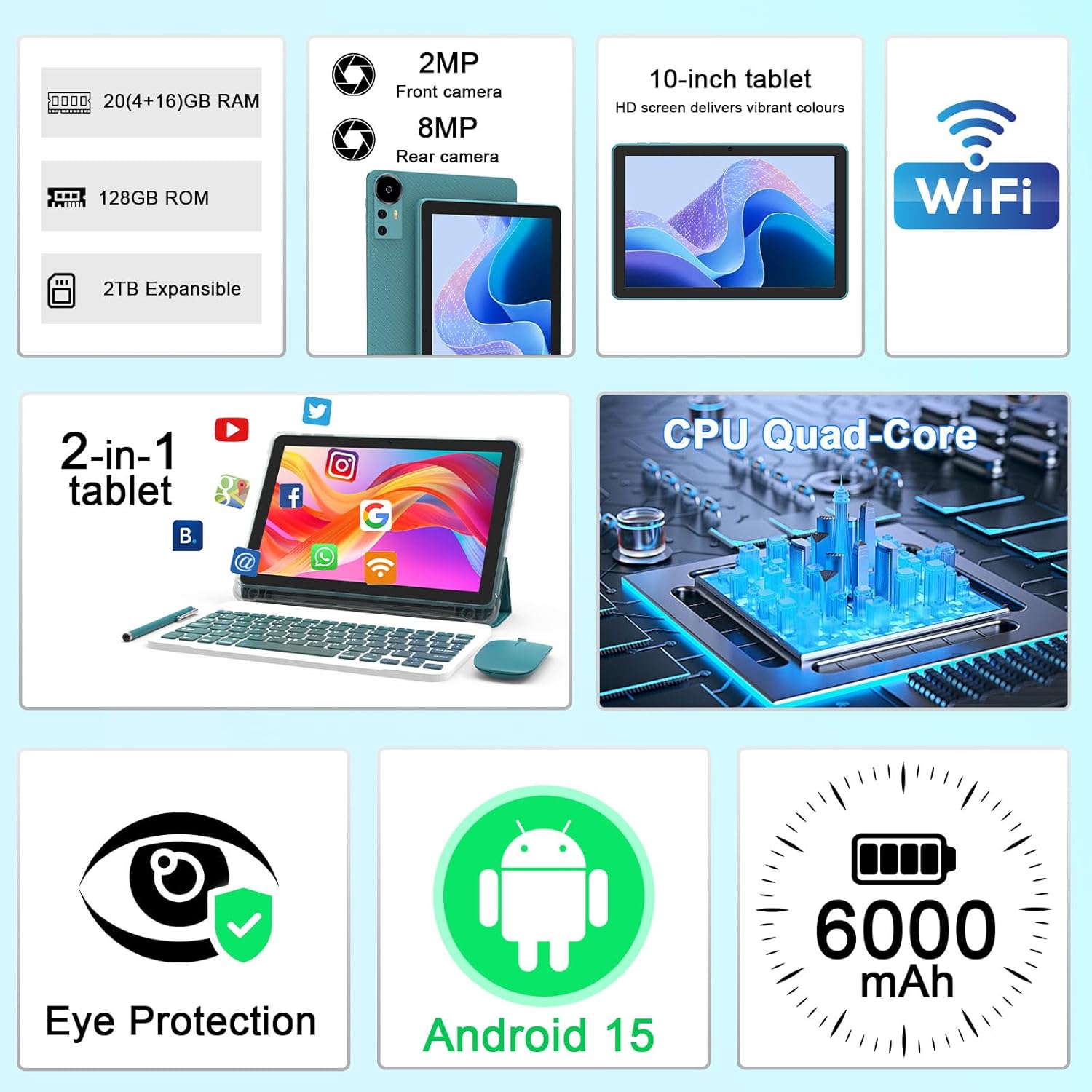
Whakaahua 2.1: Ka mutuview of key features and included components.
3. Tatūnga Tuatahi
3.1 Kei te Hiko / Weto
- Hei Whakahiko: Press and hold the power button located on the side of the tablet until the screen illuminates.
- Hei Whakaweto: Pēhia te pātene mana, me te pupuri tonu, kātahi ka tīpako i te 'Whakaweto' mai i ngā kōwhiringa e puta ana i te mata.
- Hei Tīmata anō: Press and hold the power button, then select 'Restart' from the options.
3.2 Te Whakataki i te Papa
Before first use, fully charge the tablet. Use the provided Type-C cable and charger.
- Connect the Type-C cable to the tablet's charging port.
- Honoa te pito o te taura ki te urutau hiko.
- Monohia te urutau hiko ki te putanga pakitara.
- The battery icon on the screen will indicate charging status. A full charge typically takes several hours.

Image 3.1: Battery and charging information.
3.3 Connecting Accessories (Keyboard, Mouse, Stylus)
The tablet supports Bluetooth connectivity for the included keyboard and mouse.
- Whakahohe Nihokikorangi: Haere ki Tautuhinga > Nga taputapu hono > Nihokikorangi ka huri.
- Pair Keyboard/Mouse: Put the keyboard or mouse into pairing mode (refer to their individual instructions if needed). Select the device name from the list of available Bluetooth devices on your tablet to pair.
- Stylus: The included stylus is typically passive and does not require pairing. It can be used directly on the screen for navigation or drawing.
3.4 Hononga Wi-Fi
Connect your tablet to a Wi-Fi network for internet access.
- Haere ki Tautuhinga > Whatunga me te ipurangi > Wi-Fi.
- Whakakāhia te Ipurangi Ahokore. Ka matawai te papahiko mō ngā whatunga e wātea ana.
- Tīpakohia te whatunga e hiahia ana koe mai i te rarangi.
- Mena ka akiakihia, whakauruhia te kupuhipa whatunga ka paato Tūhono.
4. Mahi Taketake
4.1 Te whakatere i te Android 15
Your tablet runs on Android 15, offering an intuitive user interface. Swipe gestures, tap actions, and the navigation bar (Back, Home, Recents) are standard for interaction. The Google Mobile Services (GMS) certification ensures access to the Google Play Store and other Google applications.

Whakaahua 4.1: Ngā āhuatanga o te pūnaha whakahaere Android 15.
4.2 Tautuhinga Whakaatu
The 10.1-inch IPS display with 1280x800 resolution provides clear visuals. You can adjust display settings to suit your preferences:
- Tirohanga: Adjust screen brightness from the quick settings panel or in Tautuhinga > Whakaatu.
- Aratau Panui: Enable 'Reading Mode' in display settings to reduce blue light emission, which can enhance comfort during extended reading sessions.
- Rahi Momotuhi: Whakaritehia te rahi o te kuputuhi kia pai ake te panui.

Image 4.2: Details of the 10.1-inch HD screen display.
4.3 Whakahaere Rokiroki
The tablet features 128GB of internal storage and 20GB RAM (4GB physical + 16GB virtual expansion). Storage can be expanded up to 2TB using a microSD card (not included).
- Tirohia te Rokiroki: Haere ki Tautuhinga > Rokiroki ki view internal and external storage usage.
- Kōkuhu Kāri MicroSD: Locate the microSD card slot on the tablet, insert the card gently until it clicks into place.

Image 4.3: Storage and RAM configuration.
4.4 Whakamahinga Kaamera
Kei te papahiko he kāmera muri 8MP me te kāmera mua 2MP.
- Whakatuwheratia te Taupānga Kāmera: Patohia te ata kamera i runga i te mata o to kaainga, i to pouaka taupānga ranei.
- Huri Kāmera: Whakamahia te ata pana kāmera hei whakawhiti i waenga i ngā kāmera o mua me muri.
- Hopukia ngā Whakaahua/Ataata: Patohia te paatene kati hei tango whakaahua, ka tiimata/whakamutua te rekoata ataata.

Image 4.4: Camera specifications and modes.
4.5 Whakahoki Rongorau
The tablet supports Widevine L1, enabling high-definition streaming from platforms like Netflix, Hulu, YouTube, and Prime Video.
- Me whakarite he hononga ipurangi pumau mō te kounga pai o te romaroma.
- Download streaming apps from the Google Play Store.

Image 4.5: Widevine L1 support for multimedia streaming.
4.6 Mahi maha
Android 15 enhances multitasking capabilities. Use the 'Recents' button to switch between open applications or utilize split-screen mode for running two apps simultaneously.
- Split-Screen: From the 'Recents' view, tap the app icon at the top of an app's card and select 'Split screen'. Choose a second app to open alongside it.
- The included keyboard and mouse facilitate a laptop-like experience for productivity tasks.

Image 4.6: Tablet used in 2-in-1 mode with keyboard and mouse.
5. Tiaki me te Tiaki
5.1 Te horoi
- Whakamahia he kakahu ngohengohe, kore-raro hei horoi i te mata me te tinana o te papa.
- A ape i te whakamahi i nga matū kino, te horoi horoi, te rehu aerosol ranei.
- Me whakaweto te hiko o te papahiko, ā, me momotu hoki i te mono i mua i te horoinga.
5.2 Tiaki Pūhiko
- A ape i te tuku i te papa ki nga wera nui (wera, makariri ranei).
- Kaua e waiho te papa kia kore e tukuna kia pau rawa mō te wā roa.
- Use only the provided charger and cable to prevent damage to the battery.
5.3 Whakahōu Pūmanawa
- Takitaki me te whakauru i nga whakahōu rorohiko kia pai ai te mahi, te haumaru, me te uru ki nga ahuatanga hou.
- Haere ki Tautuhinga > Pūnaha > Whakahoutanga o te punaha ki te tirotiro mo nga whakahou e waatea ana.
6. Te Raru
If you encounter issues with your tablet, refer to the following common problems and solutions:
6.1 Nga Take Mana
- Tablet won't turn on: Me whakarite kua utaina te pākahiko. Honoa te rihi ka tatari mo etahi meneti i mua i te ngana ki te hiko ano.
- Tablet freezes: Pēhia me te pupuri i te paatene hiko mo te 10-15 hēkona kia kaha ki te whakaara ano.
6.2 Raruraru Hononga
- Kāore te Ipurangi Ahokore e hono ana: Tirohia mēnā kua whakahohea te Wi-Fi i roto i ngā tautuhinga. Tīmata anō i tō pouara me te papahiko. Kia tika te kupuhipa e tāuruhia ana e koe.
- Ko te taputapu Nihokikorangi kaore i te takirua: Ensure the Bluetooth accessory is in pairing mode and within range. Restart Bluetooth on the tablet and try pairing again.
6.3 Performance Lags
- Mahinga puhoi: Close unused applications running in the background. Clear cache data for frequently used apps. Consider adding a microSD card for additional storage if internal storage is nearly full.
- Taupānga e takataka ana: Ensure apps are updated to their latest versions. Clear the app's cache and data (Tautuhinga > Taupānga > [Ingoa Taupānga] > Rokiroki).
7. Whakatakotoranga Hua
| Āhuahira | Whakatakotoranga |
|---|---|
| Waitohu | CUPEISI |
| Ingoa Tauira | CP31M (Item model number: YQ10S MAX) |
| Pūnaha Mahi | Android 15 |
| Rahi Mata | 10.1 Inihi |
| Whakatau Mata | 1280 x 800 Pika (HD) |
| Tukatuka | 2.0 GHz Matua-whā |
| RAM | 20GB (4GB physical + 16GB expansion) |
| Rokiroki Roto | 128 GB |
| Rokiroki Whakawhanui | Up to 2TB with microSD card (not included) |
| Momo Ahokore | 802.11ax (Wi-Fi 6.0, 2.4G/5G) |
| Nihokikorangi | BT 5.0 |
| Kāmera Whakamuri | 8 MP |
| Kāmera Mua | 2 MP |
| Pūhiko Raukaha | 6000 mah |
| Toharite Pūhiko Ora | 6-8 Hours (usage dependent) |
| Ahu (LxWxH) | 9.7 x 6.5 x 0.3 inihi |
| Taumaha Tūemi | 0.176 hekere |
| Tae | NavyBlue |
8. Pūtāhui me te Tautoko
For warranty information, please refer to the warranty card included in your product packaging or contact CUPEISI customer support directly. If you require technical assistance or have questions not covered in this manual, please reach out to our support team through the contact information provided with your purchase.
Ask a question about this manual
Ask about setup, troubleshooting, compatibility, parts, safety, or missing instructions. Manuals+ will review the question and use this page’s manual context to help answer it.