
1. Hua Neke Atuview
The Xmenha Kids Wireless Bluetooth Cat Ear Headphones, Model KE11, are designed to provide an engaging audio experience for children. These headphones feature a unique design with light-up cat ears and heart-shaped LED lights on the earcups. They offer multiple connectivity options, including Bluetooth wireless, a 3.5mm audio cable for wired use, and a memory card slot for MP3 playback. An adjustable noise-canceling microphone is integrated for clear communication.
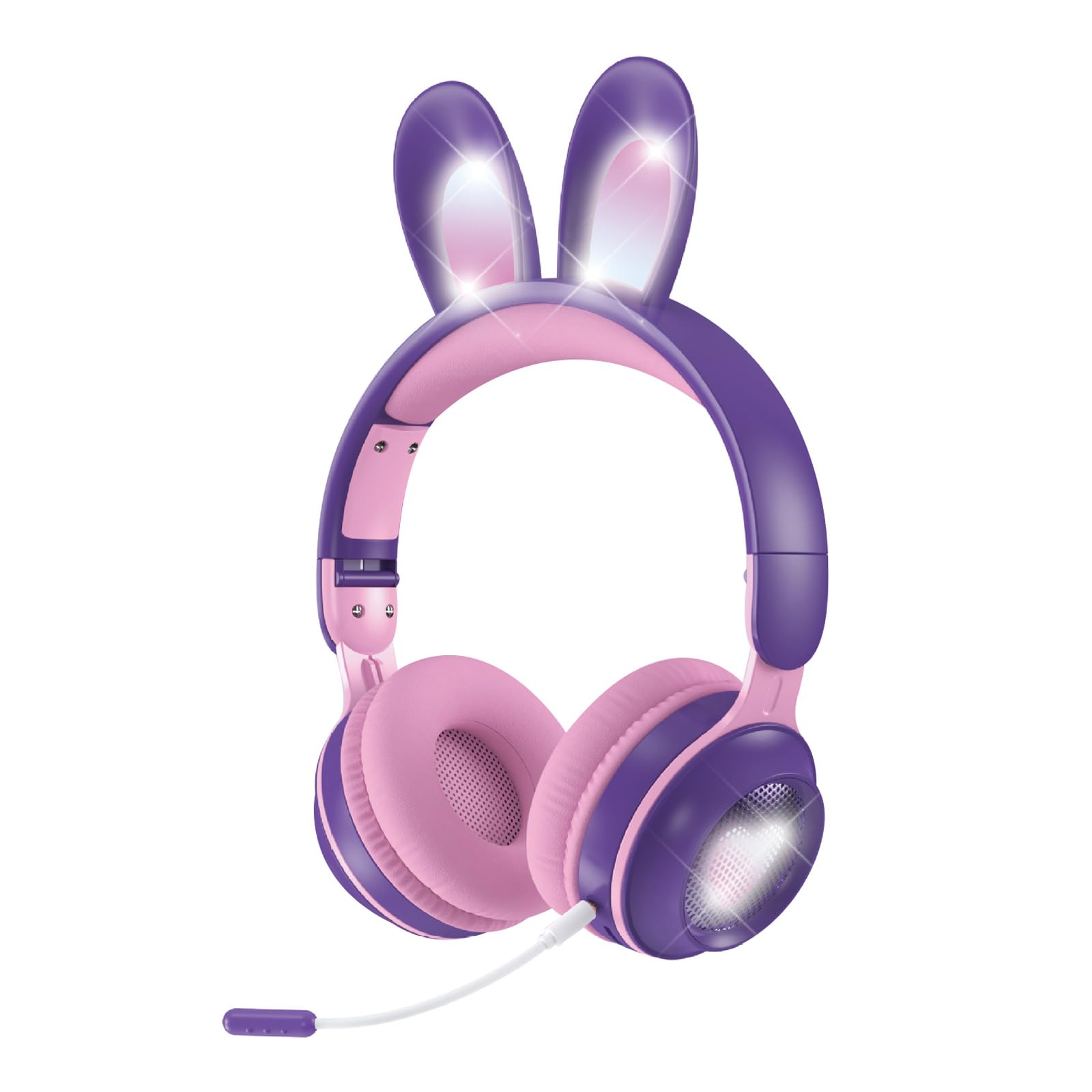
Figure 1: Xmenha Kids Wireless Bluetooth Cat Ear Headphones in Purple.
Āhuatanga matua:
- Light-Up Cat Ears & Heart-Shaped LED Lights: Unique multi-color gradient LED lights on earcups and cat ears.
- Kōwhiringa Hononga Maha: Supports Bluetooth wireless, 3.5mm audio cable, and memory card (not included) for MP3 playback.
- Adjustable Headband & Soft Earmuffs: Provides a comfortable fit and improved sound isolation.
- Hoahoa Kopa: Easy to carry and store, suitable for travel.
- Puoro-roto: Adjustable noise-canceling microphone for clear voice communication.
- Hototahi Whānui: Works with smartphones, tablets, gaming consoles, Chromebooks, Kindle Fire, Switch, and iPad.
Video 1: This video demonstrates the features and various color options of the Xmenha Kids Bluetooth Headphones, including the light-up cat ears and microphone.
2. Ihirangi mokete
Tena koa tirohia nga mea kei roto i te kete i runga i te wetewete pouaka kia mohio kei te noho katoa nga taonga:
- Xmenha Kids Wireless Bluetooth Cat Ear Headphones (1 unit)
- Waea Ororongo 3.5mm (1 wae)
- USB-C Uea Whakatau (1 wae)
- Pukapuka Kaiwhakamahi (tenei tuhinga)
3. Mana me nga Tohu
Familiarize yourself with the headphone controls and ports:

Figure 2: Illustration of upgraded Bluetooth 5.0 technology and various ports on the headphones.
- Pātene Hiko: Typically located on one earcup, used for powering on/off and Bluetooth pairing.
- Pātene Rōrahi: Used to adjust audio volume.
- Pātene Mahi-maha: For play/pause, answer/end calls (functionality may vary).
- Tauranga Whakatau USB-C: Mo te hono i te taura utu.
- 3.5mm Jack Ororongo: Mo te hononga waea ma te whakamahi i te taura ororongo whakauru.
- Mokamoka Kaari Pumahara: For inserting a microSD card (not included) for MP3 playback.
- Tauranga hopuoro: For connecting the adjustable microphone.
- Tohu LED: Shows power status, charging status, and Bluetooth pairing mode.
4. Tatūnga me te Hononga
4.1 Te Whakataki i nga Waea
- Honoa te taura utu USB-C kua whakaratohia ki te tauranga utu i runga i nga taringa.
- Honoa te pito kē atu o te taura USB-C ki tētahi urutau hiko USB (kāore i te whakaurua) ki te tauranga USB rānei o te rorohiko.
- The LED indicator will show the charging status. Charging time is approximately 2.5 hours.
- Once fully charged, the LED indicator will change (refer to specific LED behavior in the full manual if available).
4.2 Kei te Hiko / Weto
- Hei Whakahiko: Press and hold the Power button for approximately 3 seconds until the LED indicator lights up and you hear an audible prompt.
- Hei Whakaweto: Press and hold the Power button for approximately 3-5 seconds until the LED indicator turns off and you hear an audible prompt.
4.3 Takirua Nihokikorangi
- Me mohio kua weto nga taringa.
- Press and hold the Power button for approximately 5-7 seconds until the LED indicator flashes rapidly (usually blue and red alternately), indicating pairing mode.
- I runga i to taputapu (smartphone, tablet, etc.), whakahohea te Nihokikorangi me te rapu mo nga taputapu e waatea ana.
- Select "Xmenha KE11" (or similar name) from the list of found devices.
- Once paired, the LED indicator will stop flashing and remain solid blue, and you will hear a connection confirmation sound.
4.4 Hononga Waea
Hei whakamahi i nga taringa ki te aratau waea:
- Honoa tetahi pito o te taura oro 3.5mm ki te hononga oro 3.5mm i runga i ngā paneoro.
- Honoa te pito kē atu o te taura oro ki te hononga putanga oro o tō pūrere.
- Ka huri aunoa nga taringa ki te aratau waea. Ka monoa te mahi Nihokikorangi.
4.5 Memory Card Playback
The headphones support playback from a microSD card (not included).
- Carefully insert a microSD card with MP3 audio files into the memory card slot on the headphones.
- The headphones should automatically detect the card and begin playing music.
- Use the headphone controls to manage playback (play/pause, skip tracks).
5. Mahi
5.1 Whakahoki Ororongo
- Purei/Tatari: Patohia te paatene Maha-mahi kotahi.
- Runga Runga: Pēhia te pātene Volume Up.
- Raro Raro: Pēhia te pātene Volume Raro.
- Riu Panuku: Press and hold the Volume Up button (or specific button, refer to product diagram).
- Riu o mua: Press and hold the Volume Down button (or specific button, refer to product diagram).
5.2 Te Whakamahinga o te Hopuoro
The adjustable microphone can be used for voice calls or in-game communication.
- Connect the microphone to its dedicated port on the headphones.
- Whakatikatikahia te tūnga o te hopuoro kia tino pai ai te kohi reo.
- When a call comes in (in Bluetooth mode), press the Multi-function button to answer. Press again to end the call.

Figure 3: Headphones with an adjustable noise-canceling microphone for clear communication.
5.3 Light Show Activation
The headphones feature light-up cat ears and heart-shaped LED lights on the earcups.
- The lights typically activate automatically when the headphones are powered on.
- Some models may have a dedicated button to toggle the lights on/off or change light modes. Refer to the product diagram for specific controls.
6. Tiaki me te Tiaki
- Te horoi: Whakamahia he kakahu ngohengohe, maroke hei horoi i nga taringa. Kaua e whakamahi i nga kai horoi me nga whakarewa.
- Rokiroki: Ki te kore e whakamahia, penapenahia nga taringa ki te waahi makariri, maroke. Ko te hoahoa kopaki ka taea te rokiroki kiato.
- Aukati i te makuku: Although the product description mentions
Ask a question about this manual
Ask about setup, troubleshooting, compatibility, parts, safety, or missing instructions. Manuals+ will review the question and use this page’s manual context to help answer it.