
Nextbase NBIQ1KUS
NEXTBASE iQ 1K Smart HD Dash Cam Pro Manual Kaiwhakamahi
Model: NBIQ1KUS
Waitohu: Nextbase
1. Hua Neke Atuview
The Nextbase iQ 1K Smart HD Dash Cam Pro is a connected in-car camera system designed to record driving footage and monitor vehicle security. It features 4G/LTE connectivity, GPS, and advanced AI-powered functions for parking surveillance and emergency response.
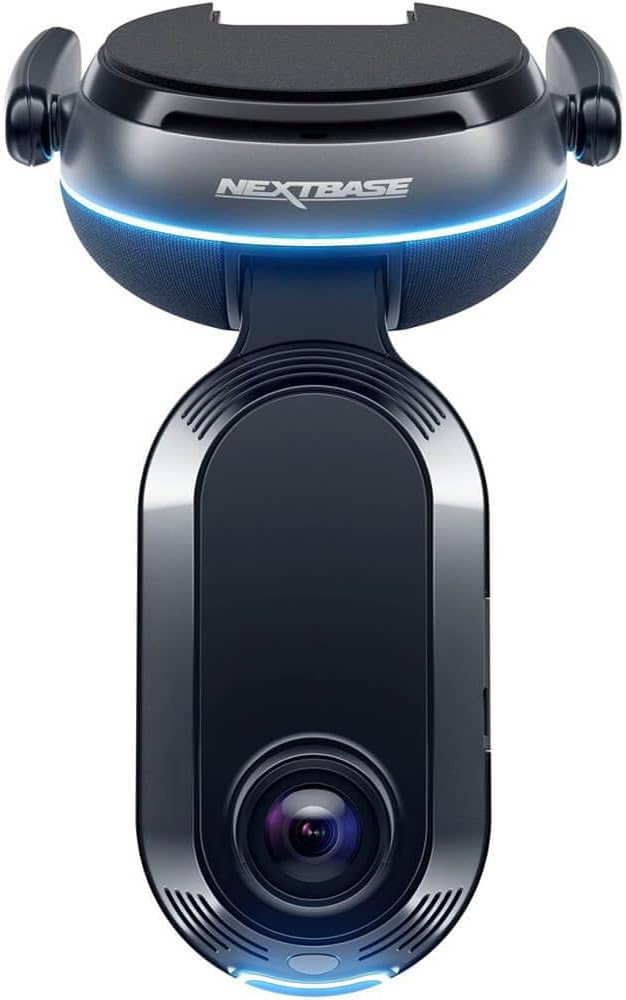
Whakaahua: Mua view of the Nextbase iQ 1K Smart HD Dash Cam Pro, showing the main lens and the Nextbase logo with a blue light accent.
Āhuatanga matua:
- Smart Sense Parking: Monitors vehicle surroundings for threats using proximity sensing and AI.
- Guardian Mode: Allows setting speed and location limits, providing alerts if exceeded. Remote viewing of camera feeds is available via the iQ app.
- Witness Mode: Activates recording and shares live footage with a trusted contact upon voice command ("start Witness Mode").
- Emergency SOS Response: Automatically dispatches emergency services with location and medical details if an accident is detected and the driver is unresponsive.
- Roadwatch AI (Coming Soon): Analyzes recorded footage to determine the speed of surrounding vehicles.
- Dual Dashcam: Records both front and rear views (with optional rear camera).
- GPS whakauru: For location tracking and incident mapping.
- 4G/LTE Connectivity: Enables remote access and real-time alerts.
2. Ihirangi mokete
The Nextbase iQ 1K package typically includes the following items:
- Nextbase iQ 1K Dash Cam Unit
- Mounting Bracket (adhesive or suction cup)
- Power Cable (OBD-II or 12V car charger)
- 64GB Micro SD Card
- Installation Tool (e.g., cable tidy tool)
- Aratohu Timata Tere
Note: Specific contents may vary. Refer to your product packaging for a complete list.
3. Tatūnga me te Tāuta
Proper installation ensures optimal performance and safety. It is recommended to have the dash cam professionally installed to conceal wiring and ensure secure mounting.
3.1 Te Whakamau i te Kāmera Papaaho
- Kōwhiria he Tauwāhi: Kōwhiria he tūranga i runga i tō matapihi tuatahi e kore e ārai i a koe view of the road. Typically, this is behind the rearview whakaata.
- Horoia te Matapihi Matapihi: Ensure the chosen area is clean and dry before applying the mount.
- Whakapirihia te Maunga: Secure the adhesive mount to the windshield. Apply firm pressure for at least 60 seconds. Allow the adhesive to cure for 24 hours before attaching the dash cam.
- Āpitihia te Cam Dash: Slide the iQ 1K dash cam onto the mounting bracket until it clicks into place.

Image: A Nextbase iQ dash cam is shown mounted on the car windshield, positioned behind the rearview mirror, from the driver's perspective. The road ahead is visible through the windshield.
3.2 Hononga Hiko
The iQ 1K dash cam is powered via the OBD-II port. This allows for continuous power, enabling parking surveillance features.
- Kimihia te tauranga OBD-II: The OBD-II port is typically located under the dashboard on the driver's side.
- Tūhono Taura Hiko: Plug the provided power cable into the OBD-II port.
- Taura Ara: Carefully route the power cable along the vehicle's trim to conceal it and prevent obstruction. Use the included installation tool if necessary.
3.3 Micro SD Card Insertion
The 64GB Micro SD card must be inserted before first use.
- Kimihia Mokamoka Kaari SD: The Micro SD card slot is usually on the side of the dash cam unit.
- Kōkuhu Kāri SD: Gently push the Micro SD card into the slot until it clicks into place. Ensure it is inserted in the correct orientation.
3.4 Initial Setup via Nextbase iQ App
The Nextbase iQ app is required for initial setup and full functionality.
- Tikiake App: Download the Nextbase iQ app from your smartphone's app store.
- Power On Dash Cam: Tīmatahia tō waka kia whakamahia te kāmera papaaho.
- Pūrere Takirua: Follow the in-app instructions to pair your smartphone with the iQ 1K dash cam. This typically involves scanning a QR code displayed on the dash cam or within the app.
- Whirihorahia nga Tautuhinga: Adjust settings such as video resolution, parking mode sensitivity, and emergency contacts within the app.
4. Nga Tohutohu Whakahaere
4.1 Driving Mode
When your vehicle is in motion, the iQ 1K automatically records continuous footage. Important events (e.g., impacts) are detected by the G-sensor and saved as protected files.
4.2 Smart Sense Parking
This feature monitors your vehicle when parked. It uses proximity sensors and AI to detect movement around your car and can trigger alerts or recordings.

Image: A smartphone displays the Smart Sense Parking feature, illustrating detection zones around a vehicle. Next to it, a car is parked with a shopping cart in close proximity, demonstrating a potential threat scenario.
4.3 Guardian Mode
Guardian Mode allows you to set parameters for vehicle usage. If speed or location limits are exceeded, you will receive alerts. You can also access live feeds from the dash cam via the iQ app to monitor the vehicle remotely.

Image: A person is shown monitoring their smartphone, which displays the Guardian Mode interface. The screen shows multiple live camera feeds from the dash cam, including views from inside and outside the vehicle.
4.4 Witness Mode
To activate Witness Mode, verbally command "start Witness Mode." The dash cam will then lock onto the incident and share live footage with a pre-selected trusted contact.

Image: A smartphone displays a "Witness Mode Activation" notification. Adjacent to it, a scene depicts a person reaching into a car window, illustrating a situation where Witness Mode might be activated.
4.5 Emergency SOS Response
In the event of a severe accident where the driver is unresponsive, the iQ 1K can automatically alert emergency services. It transmits the vehicle's location and pre-configured medical details to aid responders.

Image: A smartphone screen displays the Emergency SOS setup interface. To the right, a car is shown in a field, indicating it has been involved in an accident, demonstrating the function of Emergency SOS.
4.6 Ora View
Utilize the Nextbase iQ app to access a live feed from your dash cam at any time, from any location. This feature allows you to monitor your vehicle and intervene if unusual activity is detected.

Image: A person is shown viewing their smartphone, which displays a live feed from the dash cam, including front and cabin views, demonstrating the Live View āhuatanga.
4.7 Cloud Storage and Data Access
The iQ 1K uses its 4G connection to upload important event footage to the cloud. This ensures that recordings are accessible even if the dash cam is removed or damaged. Access your data via the Nextbase iQ app.

Image: A person is shown relaxing and reading a book while simultaneously viewkāmera papaahotage on their smartphone, illustrating the convenience of accessing data anytime, anywhere.
5. Tiaki
- Kaari SD Micro: Format the Micro SD card regularly (e.g., monthly) using the Nextbase iQ app or the dash cam's settings to maintain optimal recording performance and prevent data corruption. Replace the SD card if it shows signs of degradation or error messages.
- Whakapai Arotahi: Periodically clean the dash cam lenses with a soft, lint-free cloth to ensure clear video recordings. Avoid abrasive materials or harsh chemicals.
- Whakahōu Firmware: Ensure your dash cam's firmware is up to date. Updates are typically managed through the Nextbase iQ app and can improve performance, add features, and fix bugs.
- Mount Check: Regularly check that the dash cam mount is securely attached to the windshield.
6. Te Raru
This section addresses common issues you might encounter with your Nextbase iQ 1K dash cam.
| Raruraru | Take pea | Rongoā |
|---|---|---|
| Kāore te kāmera papaaho e whakakā. | No power from OBD-II port; faulty cable; dash cam issue. |
|
| Video recordings are blurry or unclear. | Dirty lens; protective film still on lens; incorrect focus; low resolution setting. |
|
| Micro SD card errors or recording failures. | Corrupted SD card; incompatible SD card; full SD card. |
|
| App connectivity issues (e.g., Live View not working). | Poor 4G/LTE signal; app glitch; dash cam not connected to network. |
|
7. Whakatakotoranga
| Āhuahira | Taipitopito |
|---|---|
| Ingoa Tauira | NBIQ1KUS |
| Whakataunga Hopu Ataata | 1080p (Front and Cabin) |
| Tuhinga o mua View | 140 Waeine |
| Hangarau Hononga | Wireless (4G/LTE) |
| GPS | GPS Whakahohe |
| Nga waahanga motuhake | Built-in infrared Cabin Camera, Live View via Nextbase iQ app, 4G Connectivity, Smart Sense Parking, Guardian Mode, Witness Mode, Emergency SOS |
| Nga Waahanga kei roto | Memory Card (64GB Micro SD Card) |
| Momo Whakaeke | Interior Front Mount |
| Hunga Hua | 8.66 x 5.31 x 4.53 inihi |
| Taumaha Tūemi | 2.14 pauna |
| Tae | Pango |
| Kaihanga | Whai muri |
| Te Ra Tuatahi Wātea | Mahuru 26, 2023 |
8. Pūtāhui me te Tautoko
For warranty information and technical support, please refer to the official Nextbase website or contact Nextbase customer service directly. Details regarding warranty periods and claims procedures are typically provided with your product documentation or available online.
Rauemi ipurangi:
- Nextbase Official Webpae: www.nextbase.com
- Nextbase Support Page: (Check official webpae tukutuku mō ngā hononga tautoko motuhake)
It is recommended to register your product on the Nextbase webpae tukutuku hei whiwhi whakahōutanga me te whakahaere i ngā kereme pūtāhui.
Ask a question about this manual
Ask about setup, troubleshooting, compatibility, parts, safety, or missing instructions. Manuals+ will review the question and use this page’s manual context to help answer it.