
1. Hua Neke Atuview
The TP-Link Deco X1500 is a Wi-Fi 6 Mesh System designed to provide seamless, whole-home Wi-Fi coverage. This 3-pack system utilizes advanced Wi-Fi 6 technologies to deliver faster speeds, connect more devices, and reduce latency for a superior network experience. It creates a unified network that automatically selects the best connection as you move throughout your home.

Image: A single TP-Link Deco X1500 Mesh WiFi 6 unit, showcasing its compact white cylindrical design.
Āhuatanga matua:
- Faster Connections: Wi-Fi 6 achieves speeds up to 1,500 Mbps: 1,201 Mbps on 5 GHz and 300 Mbps on 2.4 GHz.
- Tūhono Pūrere Anō: OFDMA and MU-MIMO technologies quadruple capacity for simultaneous transmission to multiple devices.
- Enhanced Seamless Coverage: Achieve perfect whole-home coverage with a clearer and stronger Wi-Fi signal generated by Wi-Fi 6.
- Rooputanga Tino-Hakaroa: Reduced latency enables more responsive gaming and video chats.
- Whatunga Kotahi: Multiple units form a whole-home network that automatically selects the best connection as you move around your home.
- Robust Parental Controls: Whakaitihia te wa ipurangi me te aukati i te kore tika websites based on unique profilei hangaia mo ia mema o te whanau.
- Tatūnga Whakangāwari: The Deco app guides you step-by-step through the setup process.
2. Ihirangi mokete
Manatokona kei roto katoa nga mea kei roto i to kete:
- 3 x Deco X1500 wae
- 1 x RJ45 Itarangi taura
- 3 x Kaihuri hiko
- 1 x Aratohu Whakauru Tere
3. Tohutohu Tatūnga
Setting up your Deco X1500 Mesh System is straightforward using the TP-Link Deco app. Follow these steps for initial installation:
- Tikiake te Deco App: Rapua 'TP-Link Deco' in the App Store (iOS) or Google Play Store (Android) and download the application.
- Sign Up or Log In: Open the Deco app and sign up for a TP-Link ID. If you already have one, log in.
- Honoa te Waehe Whakapaipai Matua:
- Whakawetohia to pouwhanga.
- Honoa tetahi wae Deco ki to pouwhanga ma te whakamahi i te taura Itarangi kua whakaratohia.
- Power on your modem, then power on the Deco unit.
- A pee i nga Tohutohu-A-taupānga: The Deco app will automatically detect your Deco unit and guide you through the process of creating your Wi-Fi network name and password.
- Tāpirihia etahi atu Waehe Whakapaipai: Once the main Deco is set up, the app will prompt you to add the remaining Deco units. Place them strategically throughout your home for optimal coverage. The app will provide guidance on ideal placement.
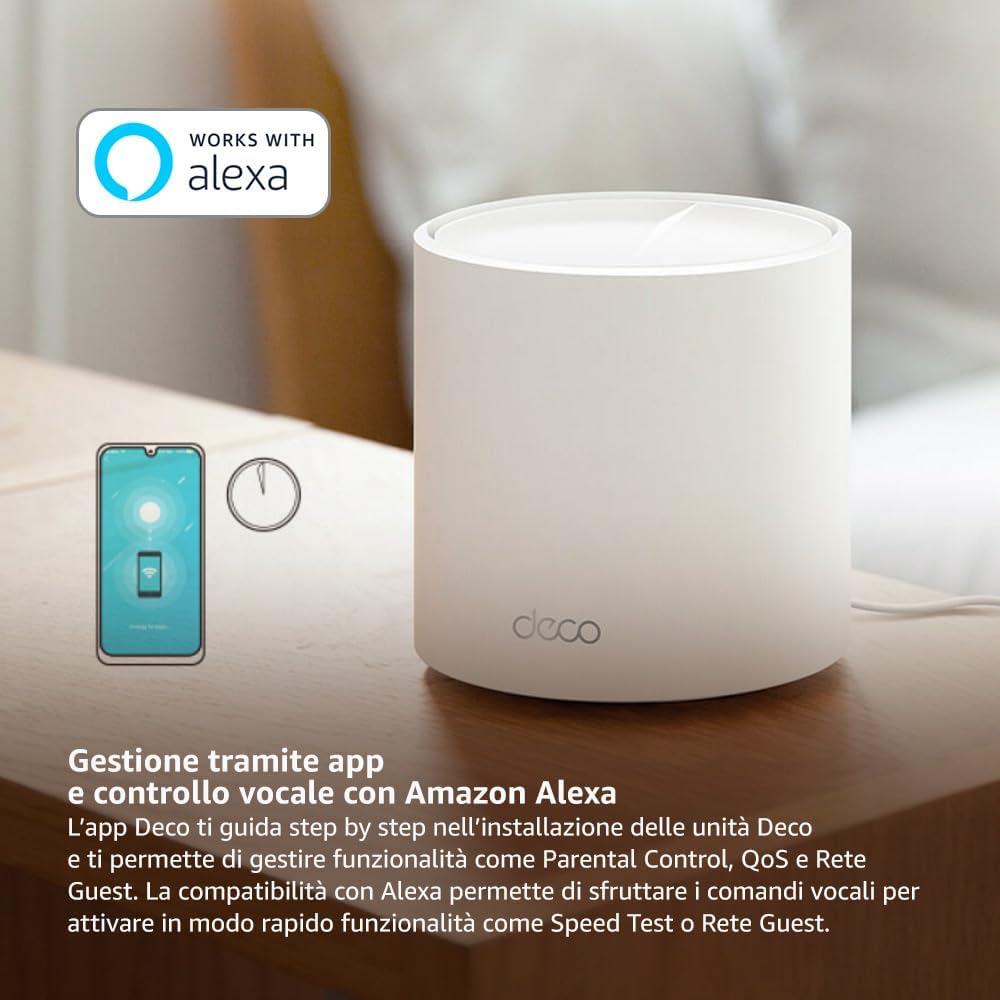
Image: A smartphone screen displaying the TP-Link Deco app, illustrating the step-by-step setup process for the mesh system.
4. Nga Tohutohu Whakahaere
The Deco X1500 system is managed primarily through the TP-Link Deco app, offering various features to control and optimize your home network.
Using the Deco App:
- Whakahaere Whatunga: View connected devices, monitor network status, and manage Wi-Fi settings.
- Mana Mātua: Hanga profiles for family members, set time limits, and block inappropriate content.
- Kounga o te Ratonga (QoS): Whakaritehia nga taputapu me nga mahi mo te mahi tino pai.
- Whatunga Manuhiri: Waihangatia he whatunga Wi-Fi motuhake mo nga manuhiri, kia noho haumaru to whatunga matua.
- pareketo: Utilize built-in HomeShield features for network protection.
Mana Reo me Amazon Alexa:
The Deco X1500 is compatible with Amazon Alexa. Link your TP-Link Deco account to your Alexa account to use voice commands for network functions, such as:
- Enabling or disabling the Guest Network.
- Running a speed test.
- Pausing Wi-Fi for specific profiles.

Whakaahua: Te muri view of a Deco X1500 unit, showing two Gigabit LAN/WAN auto-sensing Ethernet ports and the power input.
5. Tiaki
Regular maintenance ensures optimal performance and longevity of your Deco X1500 system.
Whakahōu Firmware:
- The Deco app will notify you of available firmware updates. It is recommended to keep your Deco units updated to the latest firmware for improved performance, security, and new features.
- Follow the in-app instructions to perform firmware updates. Do not power off the units during an update.
Te horoi me te tuunga:
- Clean the Deco units with a soft, dry cloth. Do not use liquid cleaners or aerosols.
- Place Deco units in open areas, away from obstructions like large metal objects, thick walls, or other electronic devices that may cause interference.
- Ensure adequate ventilation around each unit to prevent overheating.
6. Te Raru
If you encounter issues with your Deco X1500 system, refer to the following common troubleshooting steps.
Kaore he Hononga Ipurangi:
- Tirohia te Pouwhanga: Me whakarite kei te whakakāhia tō modem, ā, kei te hohe hoki te hononga ipurangi.
- Hononga taura: Manatokohia kua honoa pai te taura Ethernet e hono ana i te waeine matua Deco ki te pouwhanga.
- Tīmataria anō ngā Pūrere: Power cycle your modem and all Deco units. Wait a few minutes for them to restart and re-establish connections.
- Deco App Status: Check the Deco app for network status and any error messages.
Waitohu Wi-Fi ngoikore, Rohe Mate ranei:
- Whakatakoto Waeine: Adjust the placement of your Deco units. Try to place them equidistant from each other and the main Deco, avoiding physical obstructions.
- pokanoa: Move Deco units away from other electronics (microwaves, cordless phones, Bluetooth devices) that might cause wireless interference.
- Tāpirihia Ētahi Atu Wāhanga: For very large homes or those with multiple floors, consider adding more Deco units to expand coverage.
Device Cannot Connect to Wi-Fi:
- Kupuhipa Tika: Me whakarite kei te whakauru koe i te kupuhipa Wi-Fi tika.
- Hototahi Pūrere: Verify that your device supports the Wi-Fi standards used by the Deco system (802.11ax/ac/n/a/g/b).
- Tīmataria anō te Pūrere: Tīmata anō i te pūrere e ngana ana ki te hono atu.
- Check Blacklist: Ensure the device has not been accidentally blacklisted in the Deco app.
7. Whakatakotoranga
| Āhuahira | Whakatakotoranga |
|---|---|
| Waitohu | TP-Hono |
| Ingoa Tauira | Whakatau X1500 |
| Āhuahira Motuhake | Wi-Fi 6 |
| Karaehe Band Auautanga | Pee-rua |
| Paerewa Whakawhitinga Korerokore | 802.11ax |
| Pūrere Hototahi | PC, Waea atamai, Papa |
| Whakamahi Manakohia | Kainga |
| Hangarau Hononga | RJ45 |
| Tae | Mā |
| Kawa Haumaru | WPA3 |
| Number of Ports (per unit) | 2 x Gigabit LAN/WAN (auto-sensing) |
| Tikanga Mana | Taupānga |
| Rere Whakawhiti Raraunga | 1500 Megabits ia hekona |
| Whānuitanga o te Tauranga LAN | 1000 Mbps |
| Voltage | 110.0V |
| Max Upstream Data Transfer Rate | 1201 Megabits ia hekona |
| Te maha o nga Antenna | Roto |
| Te Hototahi Whare Ataata | Ae |
| Whakatupu Wi-Fi | Wi-Fi 6 |
| Taupoki (3-mōkihi) | Tae atu ki te 520 mita tapawha |
| Taumaha Tūemi | 1.8 Kirokaramu |
8. Nga Korero Whakaputanga
The TP-Link Deco X1500 Mesh System comes with a 3 tau te whakamana hua. This warranty covers defects in materials and workmanship under normal use. For specific terms and conditions, please refer to the warranty card included in your package or visit the official TP-Link webpae.
9. Tautoko
For further assistance, technical support, or to access additional resources, please visit the official TP-Link support webpae:
You can also find FAQs, updated manuals, and community forums on the support page.