
BOTSLAB G500H
BOTSLAB G500H Car Dash Cam User Manual
Model: G500H | Brand: BOTSLAB
1. Hua Neke Atuview
The BOTSLAB G500H is a dual dash camera system designed to provide comprehensive video surveillance for your vehicle. It features a 3K front camera and a rear camera, offering wide-angle views, advanced night vision, built-in GPS for tracking, and intelligent parking monitoring. This manual provides detailed instructions for setup, operation, and maintenance to ensure optimal performance and safety.

Image: The BOTSLAB G500H Dash Cam, showing the main unit, rear camera, and a smartphone displaying the live view me te aroturuki GPS.
2. Ihirangi mokete
Tirohia koa ko nga mea katoa kei raro nei kei roto i to kete:
- Front Camera (1x)
- Rear Camera (1x)
- Car Charger (1x)
- USB Power Cord (1x)
- Installation Pry Bar (1x)
- Pukapuka Kaiwhakamahi (1x)
- Electrostatic Film (1x)

Image: Visual representation of all components included in the BOTSLAB G500H Dash Cam package.
3. Tatūnga me te Tāuta
3.1 Te Whakamau i te Kāmera Papaaho
- Horoia te wāhi o tō matapihi mua e whakanohoia ai te kāmera papaaho. Kia kore he puehu, he hinu rānei.
- Apply the electrostatic film to the cleaned area. This helps protect your windshield and allows for easier removal.
- Attach the main dash cam unit to the electrostatic film using its adhesive mount. Position it to ensure a clear view of the road without obstructing your driving visibility.

Image: Illustration of the dash cam's wide viewing angles (150° front, 130° rear) for optimal road coverage.
3.2 Te Mana Hononga
- Connect the USB power cord to the main dash cam unit.
- Monohia te rihi hiko waka ki te putanga hiko 12V o tō waka (te putanga rama hikareti).
- Route the power cable neatly along the windshield and dashboard edges using the provided installation pry bar to tuck it away.
3.3 Whakamutunga Kaamera Whakamuri
- Honoa te taura kāmera o muri ki te waeine kāmera matua o te papaaho.
- Mount the rear camera on your vehicle's rear windshield, ensuring a clear view. Route the cable discreetly to the front unit.
Video: Official installation guide for the G500H dash cam, demonstrating the setup process for both front and rear cameras.
4. Nga Tohutohu Whakahaere
4.1 Recording Modes (Front & Rear)
The dash cam records continuously once powered on. The front camera captures in crisp 3K resolution, while the rear camera provides optimal coverage. The wide 170° angle ensures comprehensive recording of the road ahead and behind.

Whakaahua: Exampte whutage demonstrating the clear front (3K) and rear (720P) video quality, ensuring no blind spots.
4.2 Clear Night Vision
Equipped with an F1.5 aperture lens and a single infrared filter, the G500H provides full-color, high-quality video even in low-light conditions. This ensures clear and vivid footage at night, allowing for identification of details like license plates.
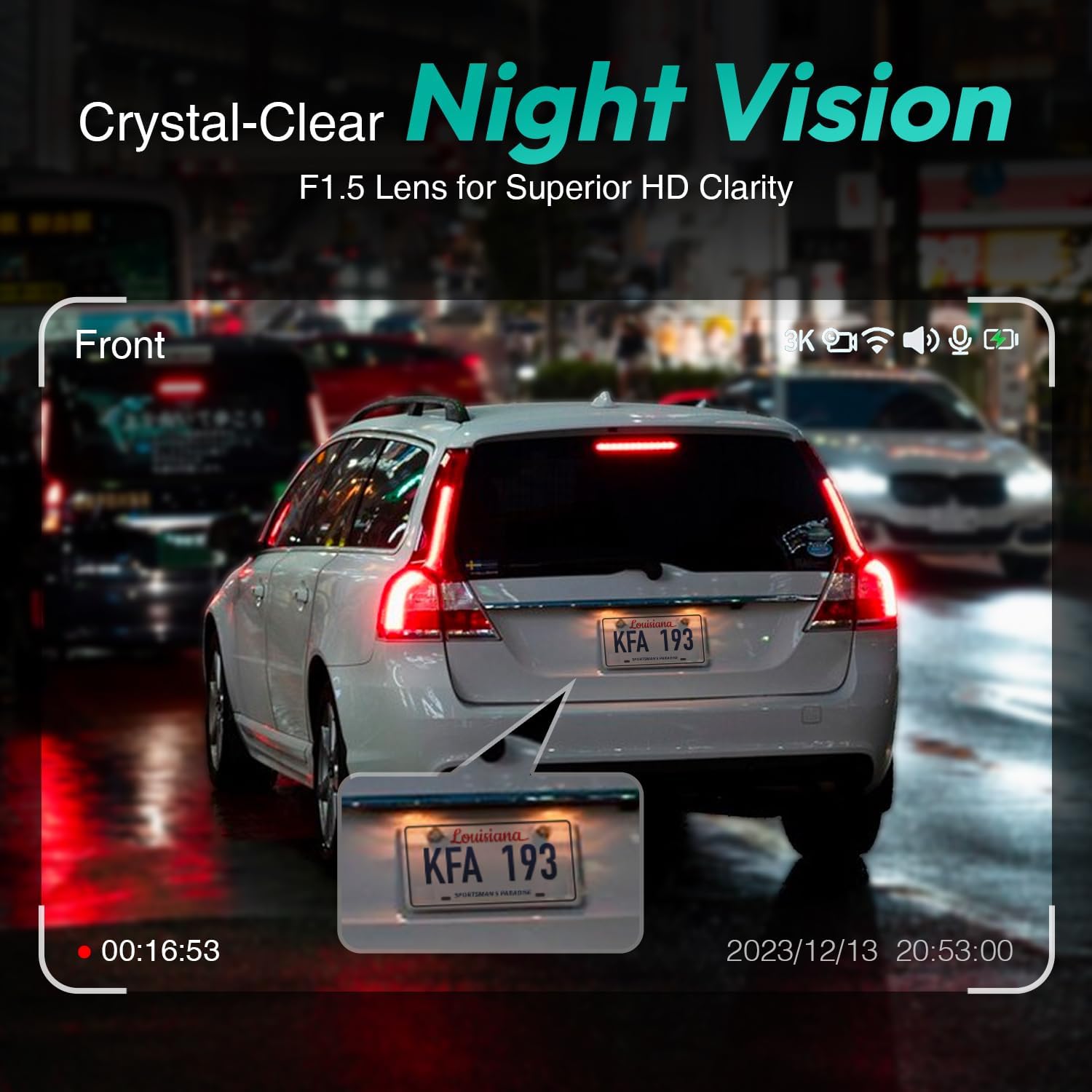
Image: A still from night vision footage, highlighting the clarity of a car's license plate in dark conditions.
4.3 Built-in GPS Integration
The integrated GPS automatically records your driving details, including speed, time, and location. You can view your routes on Google Maps directly from your smartphone, providing secure and personal data tracking.

Image: A smartphone displaying the dash cam's live view integrated with Google Maps, showing precise location tracking.
4.4 Driver Fatigue Reminder
For enhanced safety, the dash cam includes a Driver Fatigue Reminder feature. This system alerts you to potential fatigue, prompting you to take a break during long journeys.

Image: A driver receiving a visual alert for fatigue, emphasizing the safety feature of the dash cam.
4.5 Te Aroturuki Waka
When your vehicle is parked, the parking monitoring feature keeps an eye on your car. It can detect motion and impacts, recording events to provide an extra layer of security. Note: A dashcam hardware kit is required for this function, not included in the package.

Whakaahua: He rangi view illustrating the 24/7 parking monitoring feature, showing motion detection around a parked car.
4.6 Emergency Recording (G-Sensor)
In the event of a collision or sudden movement, the emergency recording feature automatically activates. It locks the current video footage, preventing it from being overwritten, and captures critical details of the incident. This is invaluable for insurance claims or traffic disputes.

Image: A visual representation of the emergency video protection feature, triggered by a collision, ensuring critical footage is saved.
4.7 Hononga Wi-Fi & Mana Taupānga
The dash cam supports 2.4GHz Wi-Fi connectivity, allowing you to connect it to your smartphone. Through the dedicated app, you can access live view, review recorded videos, take snapshots, and track driving trajectories, providing real-time insight and control.

Image: A graphic illustrating the stable 2.4GHz Wi-Fi connection between the dash cam and a smartphone for seamless data transfer.

Image: A driver using the smartphone app to view real-time road insight from the dash cam.
4.8 Seamless Loop Recording
The camera continuously records, automatically replacing the oldest videos with new ones when the memory card is full. Important clips, such as those triggered by the G-Sensor, are locked and will not be overwritten.

Image: A visual metaphor of a continuous film strip, representing the seamless loop recording function of the dash cam.
5. Tiaki
5.1 Whakahaere Kaari SD
The BOTSLAB G500H supports up to 128GB Micro SD cards. It is recommended to use a high-speed (Class 10 or higher) Micro SD card for optimal performance. Periodically format the SD card within the dash cam's settings to ensure stable recording and prevent data corruption. Note: Micro SD card is not included.

Whakaahua: He tata view of the dash cam highlighting the Micro SD card slot, indicating where to insert the memory card.
5.2 Te horoi
To maintain clear video quality, regularly clean the dash cam lenses with a soft, lint-free cloth. Avoid using abrasive cleaners or solvents that could damage the lens coating. Keep the dash cam unit free from dust and debris.
6. Te Raru
| Putanga | Take pea | Rongoā |
|---|---|---|
| Karekau te kamera i te hiko. | Karekau he hiko; hononga wewete. | Check car charger connection to vehicle's 12V outlet and to the dash cam. Ensure vehicle's power outlet is functional. |
| Ngā mutu tuhi, ngā foo rāneitagkua pirau a e. | SD card full or corrupted; incompatible SD card. | Format the SD card via the dash cam settings. Replace with a new high-speed (Class 10 or higher) Micro SD card if issues persist. Ensure card is up to 128GB. |
| Poor video quality (blurry/unclear). | He karāhe paru; kei runga tonu i te karāhe he kiriata tiaki. | Clean the camera lenses with a soft cloth. Remove any protective films from the lenses. |
| Nga take hononga Wi-Fi. | Incorrect app settings; interference. | Ensure the dash cam's Wi-Fi is enabled. Restart both the dash cam and your smartphone. Check app permissions. |
| Parking monitoring not working. | Hardware kit not installed; feature disabled. | Ensure the optional hardwire kit is correctly installed. Verify parking monitoring is enabled in the dash cam settings. |
7. Whakatakotoranga
| Āhuahira | Taipitopito |
|---|---|
| Tau tauira | G500H |
| Hunga Hua | 1.9 x 3 x 2.2 inihi |
| Taumaha Tūemi | 1.39 pauna |
| Whakataunga Hopu Ataata | 1944p (Mua) |
| Koki Arotahi o Mua | 150° Koki Whanui |
| Koki Arotahi o Muri | 130° Koki Whanui |
| Hangarau Hononga | 2.4GHz Wi-Fi |
| Nga waahanga motuhake | Parking Monitoring, Driver Fatigue Reminder, Built-In GPS, Loop Recording, G-Sensor |
| Momo Whakaeke | Maunga Wharerangi |
| Max SD Card Support | Up to 128GB (Micro SD) |
8. Pūtāhui me te Tautoko
BOTSLAB products are designed for reliability and performance. For detailed warranty information and customer support, please refer to the official BOTSLAB webpaetukutuku, whakapā atu ranei ki ta raatau ratonga kaihoko. Puritia to rihiti hoko mo nga kereme whakamana.
For a comprehensive user guide in PDF format, you can download it from the following link: BOTSLAB G500H User Manual (PDF)
Ask a question about this manual
Ask about setup, troubleshooting, compatibility, parts, safety, or missing instructions. Manuals+ will review the question and use this page’s manual context to help answer it.