
1. Neke atu i teview
The JOBY Fly X Mini Drone is a compact quadcopter designed for ease of use and aerial photography. It features a 6-axis gyroscope for stable flight, one-button takeoff and landing, and the ability to perform 360-degree flips. Equipped with an HD camera, it captures 720p video and JPEG images, transmitting footage via Wi-Fi to a compatible smartphone.

Image 1.1: The JOBY Fly X Mini Drone, showcasing its compact design and integrated camera.
2. He aha kei roto i te Pouaka
Me mohio kei te noho nga waahanga katoa i mua i te haere ki te tatūnga:
- JOBY Rere X Mini Drone me te kamera HD
- Mana Mamao
- 2 x Paehiko Lithium Ion (mo te haruru)
- Tauira Whakatau USB
- Nga Kaipupuri Tiaki
- Pukapuka Tohutohu (tenei tuhinga)
3. Tatūnga
3.1 Tāuta Pūhiko me te Whakatau
- Pūhiko Whakatau: Locate the battery compartment on the drone. Carefully insert one of the provided Lithium Ion batteries. Ensure it is securely connected.
- Kei te utu: Connect the drone battery to the USB charging cable. Plug the USB cable into a compatible USB power source (e.g., computer, wall adapter). The indicator light on the cable will show charging status. Charge until fully indicated.
- Pūhiko Kaiwhakahaere: Open the battery compartment on the remote control. Insert the required batteries (not specified in product data, typically AA or AAA, refer to physical product for exact type).
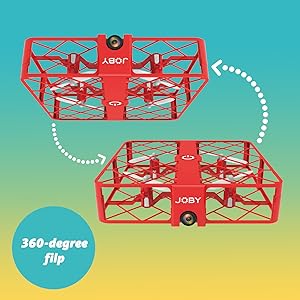
Image 3.1: Drone with its battery compartment open for installation.
3.2 Taupānga Taupānga me te Hononga Wi-Fi
To utilize the HD camera and view ora footage, download the dedicated drone control application on your smartphone (compatible with iPhone/Android). Refer to the packaging or a QR code on the drone for the specific app name.
- Whakakā i te Tarakona: Press the power button on the drone. The indicator lights will flash.
- Tūhono ki Wi-Fi: On your smartphone, go to Wi-Fi settings and connect to the drone's Wi-Fi network (usually named something like "JOBY_DRONE_XXXX").
- Whakarewa Taupānga: Open the drone control app. You should see the live camera feed from the drone.
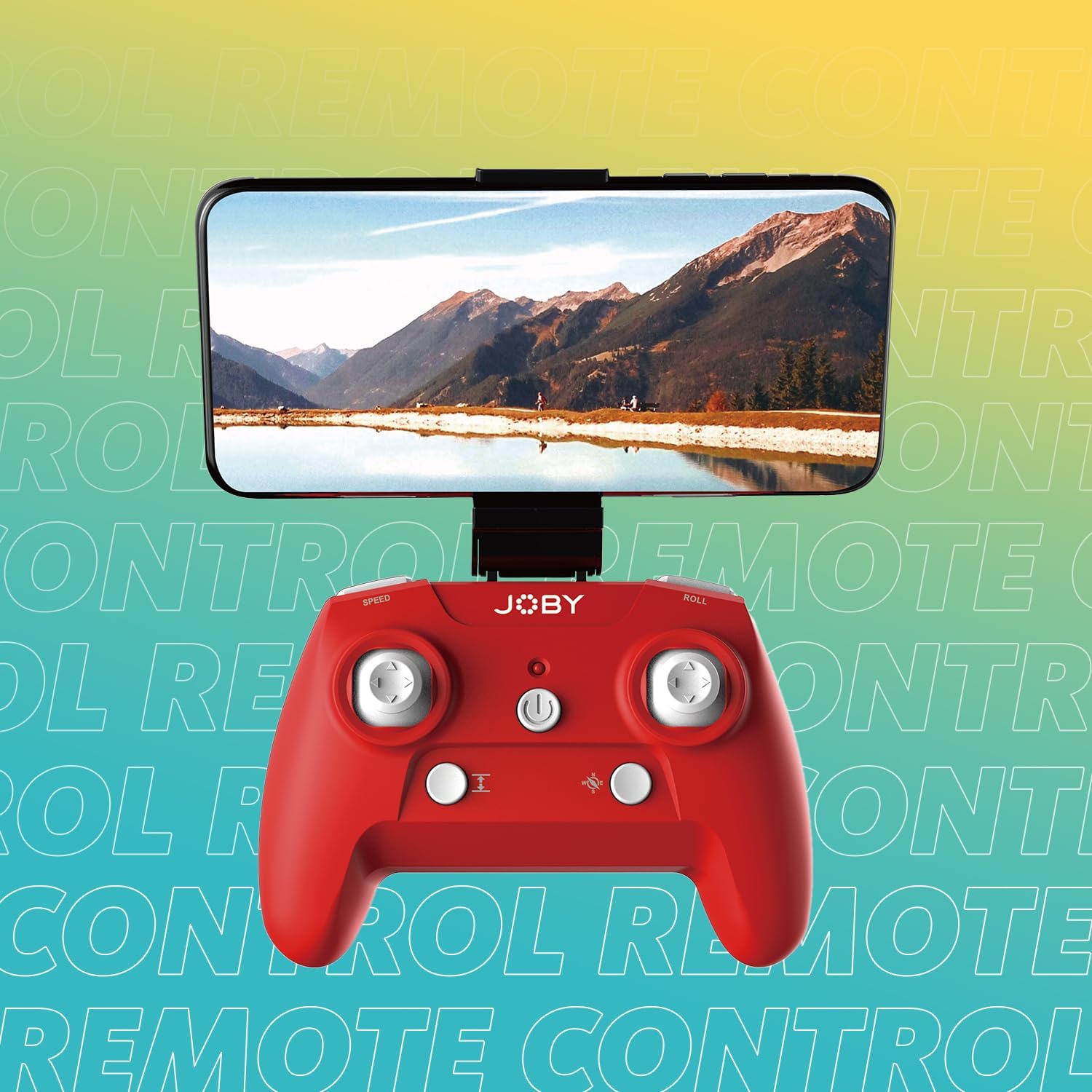
Image 3.2: Remote control with a smartphone attached, showing the live camera view.
4. Nga Tohutohu Whakahaere
4.1 Te Hia me te Tauhoa
- Whakakā i te Tarakona: Press the power button on the drone. The lights will flash, indicating it's ready for pairing.
- Kaiwhakahaere Whakakā: Patohia te paatene mana i runga i te mana mamao.
- Takirua: Pēhia te rākau maui (te pūwero) ki runga, kātahi ki raro. Ka mutu te kanapa o ngā rama o te waka rererangi, ā, ka totoka, he tohu kua angitu te hononga.
4.2 Whakarewa me te Taunga
- Te Tango Pātene Kotahi: After pairing, press the dedicated one-button takeoff/landing button on the controller. The drone will automatically ascend to a stable hovering height.
- Taunga Pātene Kotahi: Press the same one-button takeoff/landing button during flight, and the drone will automatically descend and land.
- Throw to Launch: For experienced users, the drone can be gently tossed into the air after pairing, and it will automatically stabilize.
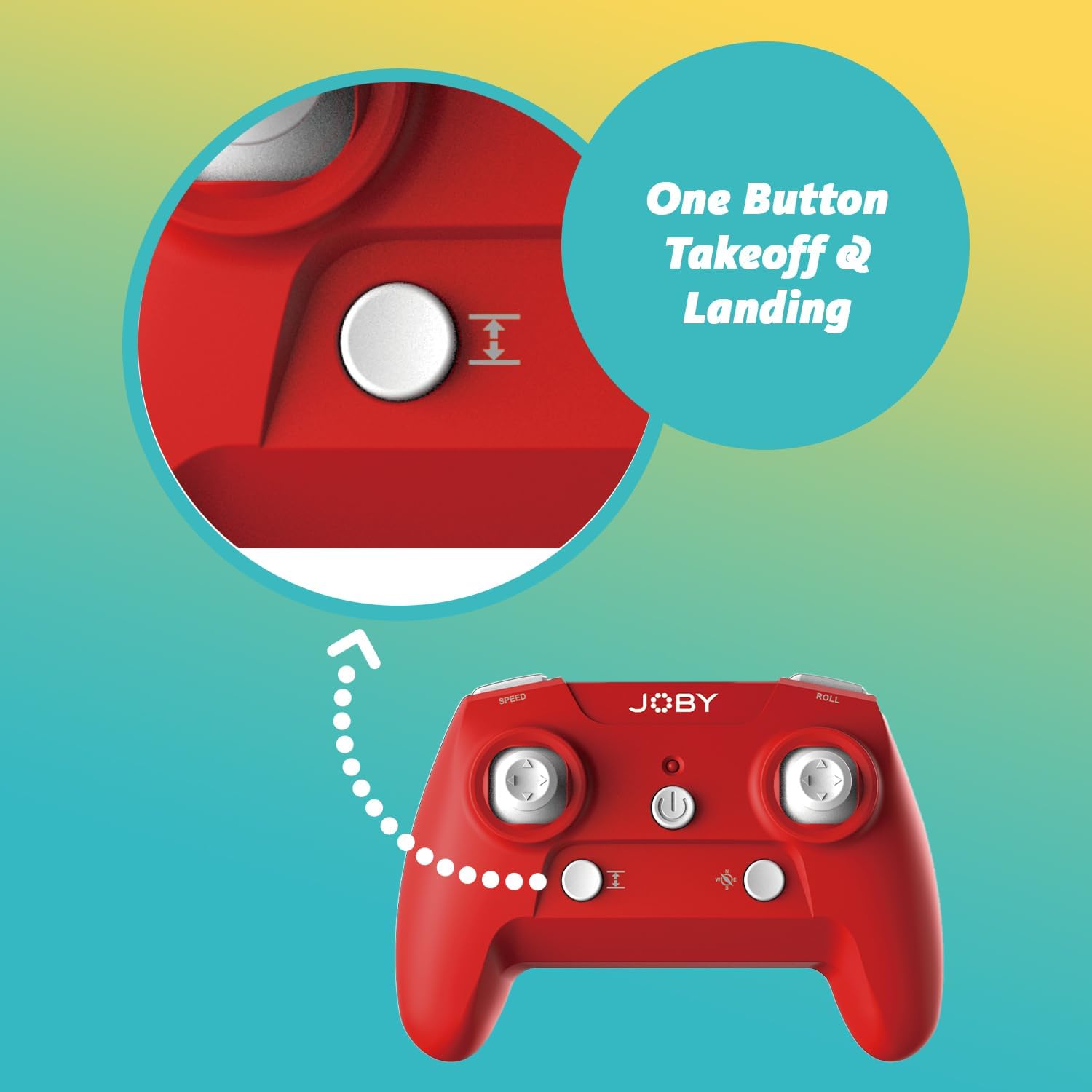
Image 4.1: Remote control highlighting the one-button takeoff/landing button.
4.3 Mana Rererangi
Whakamahia ngā rakau hari i runga i te mana mamao hei whakahaere i te waka rererangi:
- Rākau Harikoa Mauī (Whakateretere): Up/Down for ascend/descend; Left/Right for yaw (rotate).
- Rākau Mahi Matau (Ahunga): Up/Down for forward/backward; Left/Right for left/right strafe.
4.4 Nga waahanga motuhake
- 360-Degree Flip: Press the dedicated "Flip" button on the controller, then push the right joystick in the desired direction to perform an aerial flip.
- Taunga ohorere: In case of an emergency, activate the emergency landing function (refer to controller button layout for specific button) to quickly bring the drone down safely.

Image 4.2: Visual representation of the 360-degree flip feature.
4.5 Te Mahi Whakaata
The integrated HD camera captures 720p video and JPEG images. Control camera functions via the smartphone app:
- Hopu Whakaahua: Tap the camera icon in the app to take a still photograph.
- Hopu Ataata: Tap the video icon to start recording. Tap again to stop.
- Viewpāpāho ing: Access recorded photos and videos directly through the app's gallery.
Image 4.3: Detail of the drone's HD camera.
4.6 Ataata Ako
Video 4.4: This video demonstrates the unboxing, battery installation, pairing process, and various flight maneuvers of the JOBY Fly X Mini Drone, including indoor and outdoor flight examples.
5. Tiaki
Mā te tiaki auau ka tino pai te mahi me te roa o te ora o tō waka rererangi:
- Tirohanga Pourewa: Regularly check propellers for damage (cracks, bends). Replace any damaged propellers using the spare parts provided.
- Te horoi: Whakamahia he kakahu ngohengohe, maroke hei horoi i te tinana o te waka rererangi me te arotahi o te kāmera. Kaua e whakamahi i ngā matū kino, i ngā wai rānei.
- Tiaki Pūhiko: Store batteries in a cool, dry place. Do not overcharge or completely drain batteries. Remove batteries from the drone and controller during extended periods of non-use.
- Rokiroki: Store the drone in a safe place, away from direct sunlight and extreme temperatures.
6. Te Raru
- Kāore te Drone e Whakakā: Me whakarite kua whakakiia te pākahiko me te whakauru tika.
- Kaiwhakahaere Kaore i te Whakautu: Check controller batteries. Ensure the drone and controller are properly paired (refer to Section 4.1).
- Rererangi Kore-Pūmau: Perform a calibration (refer to the app or controller instructions for calibration steps). Check propellers for damage or obstructions.
- No Camera Feed/Poor Quality: Ensure your smartphone is connected to the drone's Wi-Fi network. Check for app updates. Ensure the camera lens is clean.
- Short Flight Time: Batteries may not be fully charged or may be nearing the end of their lifespan.
7. Whakatakotoranga
| Āhuahira | Taipitopito |
|---|---|
| Waitohu | Joby |
| Ingoa Tauira | Fly X Mini |
| Tauira Tuemi | JB01966-BWW |
| Ahu | 5.12"L x 5.12"W x 1.18"H |
| Taumaha Tūemi | 2.24 hekere |
| Whakataunga Hopu Ataata | 720p |
| Whakatau Putanga Ataata | 1280x720 Pika |
| Hōputu Hopu Ataata | MP4 |
| Hōputu Atahanga Tautoko | JPEG |
| Hangarau Hononga | Wi-Fi |
| Hangarau Mana Mamao | Wi-Fi |
| Awhe Morahi | 100 putu (tata ki te 30 mita) |
| Pūhiko | 2 pākahiko Lithium Ion (kei roto) |
| Rauemi | Kirihou |
| Taumata Pukenga | Kaimatamata |
8. Pūtāhui me te Tautoko
For warranty information and customer support, please refer to the official Joby webpaetukutuku, whakapā atu ranei ki ta raatau ratonga kaihoko. Puritia to tohu hoko mo etahi kereme whakamana.
Ka taea e koe te toro ki te Joby Store on Amazon mo etahi atu korero hua me nga rauemi tautoko.