
1. Kupu Whakataki
This manual provides instructions for the Compustar RFX-2WQ9-FM 2-Way LCD remote start and security system. This system includes a 2-way remote with an interactive LCD and an X1-LTE module for smartphone connectivity via the DroneMobile App.
2. Nga waahanga matua
- Smartphone Control via DroneMobile App
- 2-Way LCD Confirmation for commands
- 2-Way Alarm Alerts
- Interactive LCD Remote
- GPS Tracking (via DroneMobile App)
- Up to 3000 feet maximum range for remote
3. Waenga Pūnaha
The Compustar RFX-2WQ9-FM system includes the following main components:
- RFX-2WQ9-FM 2-Way LCD Remote
- X1-LTE Module for DroneMobile connectivity
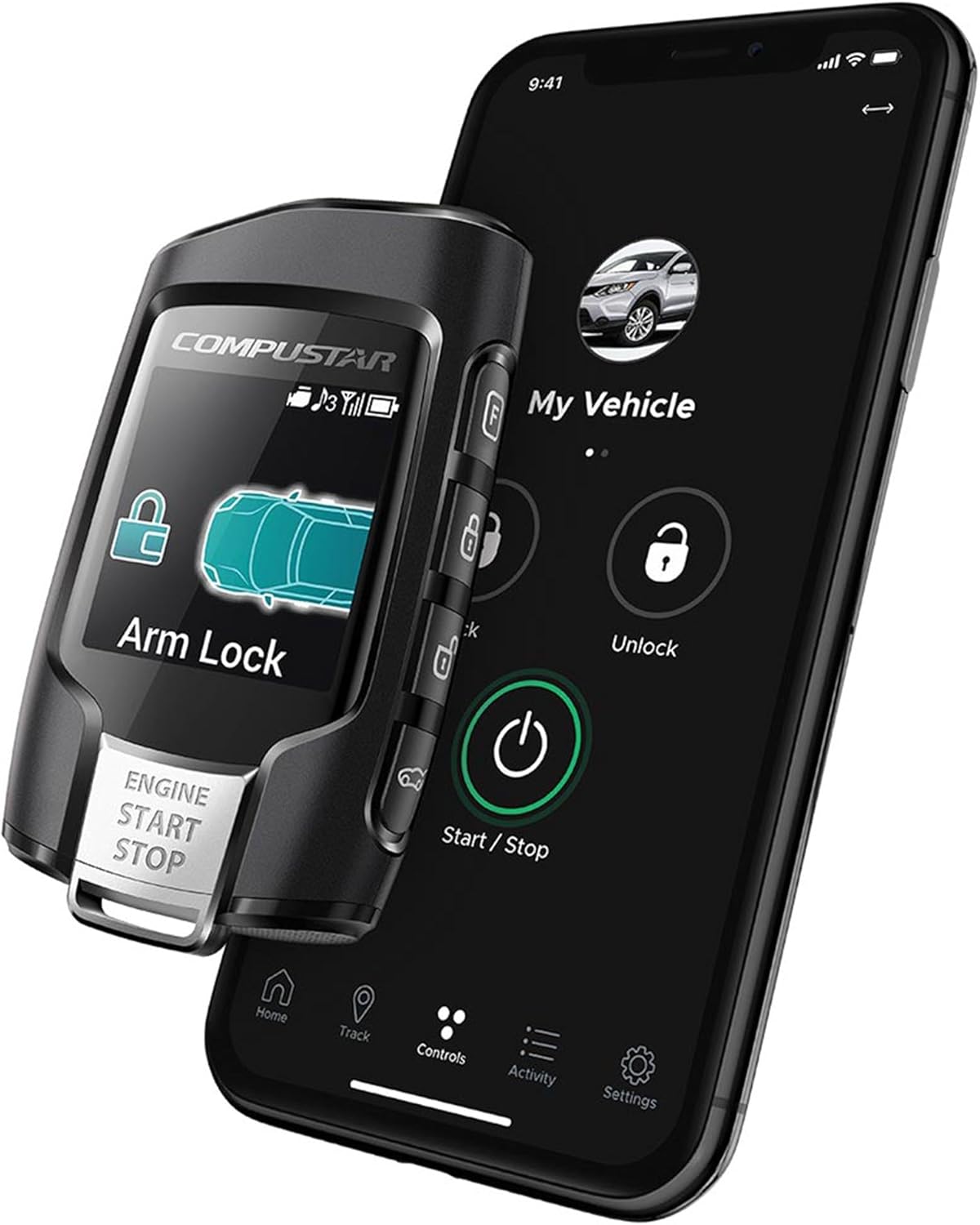
Figure 1: Compustar RFX-2WQ9-FM remote and smartphone app interface.

Figure 2: Compustar X1-LTE module.
4. Tatūnga me te Tāuta
4.1 Whakanoho Ngaio
The Compustar RFX-2WQ9-FM system requires professional installation into your vehicle. It is recommended to have this system installed by an authorized Compustar dealer to ensure proper functionality and to maintain warranty coverage.
4.2 DroneMobile App Setup
- Download the DroneMobile App from your smartphone's app store.
- Create a DroneMobile account or log in if you already have one.
- Activate the X1-LTE module within the app. A free 30-day trial is typically included upon activation.
- Follow the in-app instructions to link your vehicle and system.
5. Nga Tohutohu Whakahaere
5.1 Using the 2-Way LCD Remote
The RFX-2WQ9-FM remote features a 4-in-1 button on the front and additional side buttons for various functions. The LCD provides visual confirmation of commands and vehicle status.

Whakaahua 3: Mua view of the RFX-2WQ9-FM remote.
- Maukati: Tap the 4-in-1 button once or use the dedicated lock button (if available on the side). The remote LCD will confirm the lock command.
- Wewete: Double-tap the 4-in-1 button or use the dedicated unlock button (if available on the side). The remote LCD will confirm the unlock command.
- Tīmata/Kati Mamao: Hold the 4-in-1 button for approximately 2-3 seconds. The remote LCD will display confirmation of the engine start or stop command.
- Alarm Alerts: The 2-way remote will provide visual and audible alerts on its LCD screen if the vehicle's alarm is triggered.
5.2 Using the DroneMobile App
The DroneMobile App provides unlimited range control and GPS tracking for your vehicle, leveraging the X1-LTE module.
- Maukati/Wewete: Use the virtual buttons within the app interface to lock or unlock your vehicle.
- Tīmata/Kati Mamao: Use the virtual start/stop button in the app to remotely start or shut off your vehicle's engine.
- Aroturuki GPS: Access the tracking feature within the app to view your vehicle's current location.
- Tūnga Waka: The app displays real-time information about your vehicle's status, such as door lock status, engine status, and alarm status.
6. Tiaki
6.1 Whakakapinga Pūhiko Mamao
The RFX-2WQ9-FM remote requires 1 CR2 battery. When the battery level is low, an indicator will typically appear on the remote's LCD screen. To replace the battery:
- Whakatuwheratia marietia te mana mamaoasing. Refer to the diagram below for guidance (if available, otherwise consult a professional).
- Tangohia te pākahiko CR2 tawhito.
- Whakauruhia he pākahiko CR2 hou, kia tika te polarity.
- Katia te mana mamao casing haumaru.
Note: Dispose of used batteries responsibly according to local regulations.
6.2 Ngā Whakahōunga Pūnaha
Ensure your DroneMobile App is always updated to the latest version for optimal performance and new features. Firmware updates for the X1-LTE module are typically handled automatically or through your authorized dealer during service.
7. Te Raru
If you encounter issues with your Compustar RFX-2WQ9-FM system, consider the following troubleshooting steps:
- Mamao Kaore i te Whakautu:
- Check the remote battery level and replace if necessary.
- Ensure you are within the specified operating range (up to 3000 feet). Obstructions can reduce range.
- Verify the vehicle's main battery is charged.
- DroneMobile App Issues:
- Ensure your smartphone has an active internet connection (cellular data or Wi-Fi).
- Check if your DroneMobile subscription is active.
- Restart the DroneMobile App or your smartphone.
- Verify the X1-LTE module has power and cellular connectivity (check LED indicators).
- Remote Start Failure:
- Ensure all vehicle doors, hood, and trunk are closed.
- Check if the vehicle is in park (for automatic transmissions) or neutral with the parking brake engaged (for manual transmissions, if configured).
- Consult your authorized installer for specific vehicle-related issues.
For persistent issues, contact your authorized Compustar dealer or Compustar customer support.
8. Whakatakotoranga
| Āhuahira | Taipitopito |
|---|---|
| Tau tauira | RFX-2WQ9-FM |
| Momo Mamao | 2-ara LCD |
| Awhe Morahi | 3000 Puawai |
| Mana Waea atamai | Yes, via DroneMobile App (X1-LTE module included) |
| Aroturuki GPS | Yes, via DroneMobile App |
| Momo Pūhiko Mamao | 1 pākahiko CR2 (kei roto) |
| Taumaha Tūemi | 9.8 hekere |
| Ahu mōkihi | 6 x 5 x 2 inihi |
| Pūrere Hototahi | Cars, Trucks, Motorcycles, Smartphone |
9. Nga Korero Whakaputanga
The Compustar RFX-2WQ9-FM system is protected by a 1-Year Manufacturer's Warranty. For specific details regarding warranty coverage, terms, and conditions, please refer to the official Compustar warranty documentation provided with your product or visit the Compustar webpae.
10. Tautoko me te Whakapā
For technical assistance, installation inquiries, or warranty claims, please contact your authorized Compustar dealer where the system was purchased and installed. You can also visit the official Compustar website for additional resources and support contact information.
Compustar Official Webpae: www.compustar.com