
Kupu Whakataki
This manual provides essential information for the installation, operation, maintenance, and troubleshooting of the Cisco Catalyst C9300L-24P-4X-E Network Essentials Switch. This device is designed for enterprise-grade access, offering 24 Gigabit PoE+ ports and four 10 Gbps SFP+ uplinks for robust network connectivity.
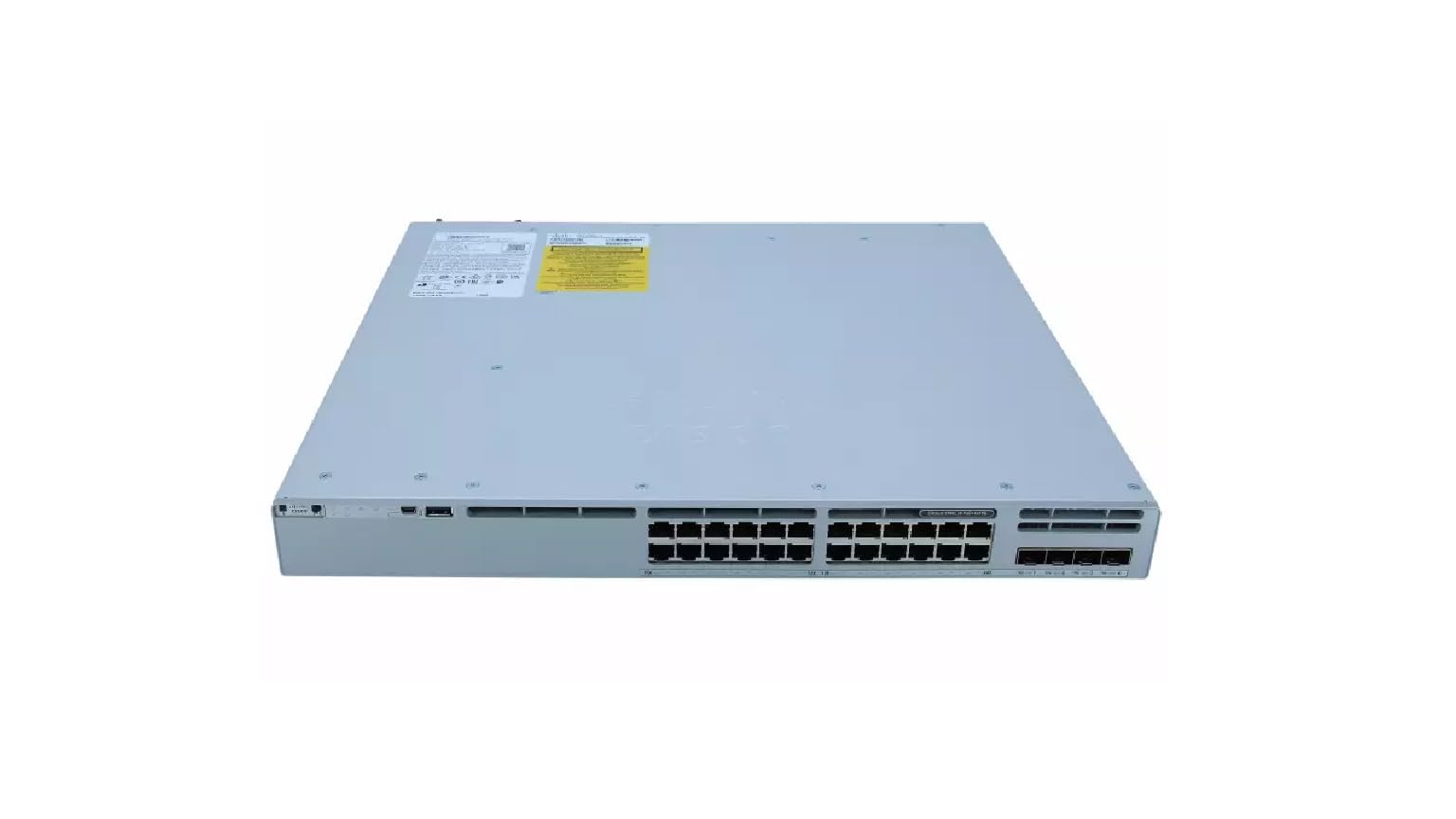
This image displays the rear panel of the Cisco Catalyst C9300L-24P-4X-E switch, highlighting the various ports, cooling fans, and the power supply unit.
Nga korero haumaru
Kia mau ki ngā mahi ārai haumaru e whai ake nei hei ārai i ngā whara me ngā pakaru o ngā taputapu:
- Me whakarite kia tika te tūnga whenua i mua i te honotanga o te hiko.
- Kaua e whakahaerehia te pana i roto i ngā taiao maku, tino makuku rānei.
- Use only approved power cords and accessories.
- Me whakarite kia pai te hau kia kore e wera rawa.
- Momotuhia te hiko i mua i te whakahaere i tētahi tikanga tiaki, tāutanga rānei.
Ihirangi mokete
Manatokohia kei roto i to kete nga mea e whai ake nei:
- Cisco Catalyst C9300L-24P-4X-E Switch
- Waea hiko
- Kete Whakamau Whatanga (mēnā e tika ana)
- Tauira Papatohu (RJ-45 ki DB-9)
- Tuhinga (Arahi Timata Tere, Moohiohio Haumaru)
Whakaahuatanga Tinana
The Cisco Catalyst C9300L-24P-4X-E switch features a robust design for network deployments. The rear panel includes:
- 24 Gigabit Ethernet PoE+ Ports: For connecting network devices and providing power over Ethernet.
- 4x 10Gbps SFP+ Uplink Ports: For high-speed connections to the distribution or core layer.
- Tauranga Papatohu: For command-line interface access.
- Tauranga USB: Mo file management and system configuration.
- Modular Power Supply Bay: For installing power supply units.
- Pū whakamatao: For thermal management.
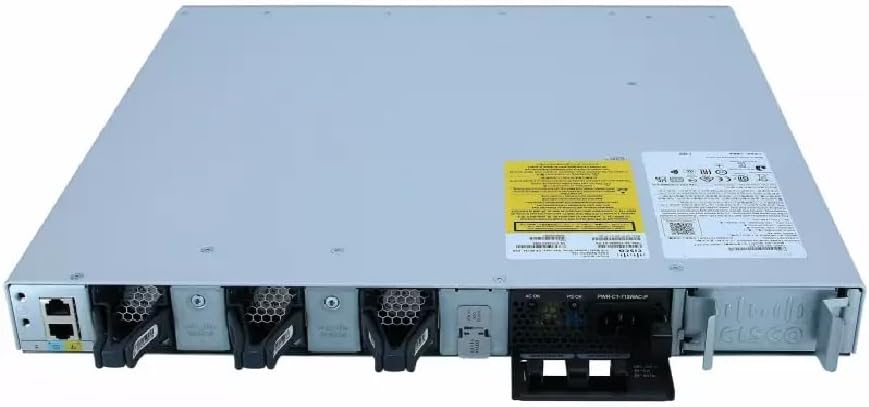
He taipitopito view of the rear panel of the Cisco Catalyst C9300L-24P-4X-E switch, illustrating the 24 Gigabit PoE+ ports, four 10Gbps SFP+ uplink ports, and the modular power supply bay.
Tatūnga
1. Te Wetewete me te Tirotiro
Carefully remove the switch from its packaging. Inspect the device for any signs of physical damage. If damage is found, contact your supplier immediately.
2. Whakapiki i te Whakawhiti
The switch can be mounted in a standard 19-inch equipment rack or placed on a desktop.
- Tāutanga Whakamau Whatanga: Attach the provided rack-mount brackets to the sides of the switch using the screws. Secure the switch into the rack using appropriate rack screws.
- Tāutatanga Papamahi: Ensure the surface is flat, stable, and allows for adequate ventilation around the switch. Attach the rubber feet (if provided) to the bottom of the switch.
3. Te Mana Hononga
Insert the power cord into the AC power connector on the rear of the switch. Connect the other end of the power cord to a grounded electrical outlet. Ensure the power supply is properly seated in its bay.
4. Hononga Whatunga
- Tauranga PoE+: Connect Ethernet cables from your network devices (e.g., IP phones, access points, surveillance cameras) to the 24 Gigabit PoE+ ports. These ports will provide both data connectivity and power.
- SFP+ Uplink Ports: Insert compatible SFP+ transceivers into the four 10Gbps SFP+ uplink ports. Connect fiber optic cables from these transceivers to your distribution or core network devices.
- Tauranga Papatohu: For initial configuration or troubleshooting, connect a console cable from your management workstation to the console port on the switch.
Te whakahaere i te Whakawhiti
1. Hia Tuatahi
After connecting power, the switch will automatically power on. Observe the system LED indicators for boot status. The system LED should turn green once the boot process is complete.
2. Whirihoranga Taketake
The Cisco Catalyst C9300L-24P-4X-E runs on Cisco IOS XE. Initial configuration can be performed via the console port using a command-line interface (CLI) or through a web-based graphical user interface (GUI) if enabled. Refer to Cisco's official documentation for detailed configuration guides.
3. Tohu LED
The switch features various LED indicators to provide status information:
- Arahina Pūnaha: Indicates overall system status (e.g., green for normal operation, amber for warning).
- PoE LED: Indicates Power over Ethernet status for the ports.
- Nga LED Tūnga Tauranga: Indicate link status and activity for each network port.
Te tiaki
Regular maintenance ensures optimal performance and longevity of your switch:
- Te horoi: Horoia te taha waho o te pana i ia wā ki te kakahu ngohengohe, maroke. Kia kore he puehu, he paru rānei i roto i ngā pūaha hau. Kaua e whakamahia he wai horoi tika ki runga i te taputapu.
- Whakahōu Firmware: Keep the switch firmware updated to the latest version provided by Cisco. This ensures access to new features, security patches, and performance improvements.
- Mana Taiao: Maintain the operating environment within specified temperature and humidity ranges to prevent hardware failure.
- Whakaha Uepu: Ensure all cables are neatly organized and properly secured to prevent accidental disconnections or damage.
Raparongoā
Mena ka pā mai he raruraru ki tō pana, whakaarohia ēnei mahi whakatau raruraru e whai ake nei:
- Kore Mana: Verify the power cord is securely connected to both the switch and the power outlet. Check the power source and any circuit breakers. Ensure the power supply unit is correctly installed.
- Kore Hononga Whatunga: Check the link status LEDs on the affected ports. Ensure Ethernet cables are properly connected and undamaged. Verify connected devices are powered on and functioning correctly.
- Kāore te Pūrere PoE e Whakakā ana: Confirm the PoE+ port is enabled and the device is PoE compatible. Check the PoE budget and ensure it's not exceeded.
- Mahinga Puturi: Check for network congestion, duplex mismatches, or errors on ports. Ensure uplink bandwidth is sufficient.
- Accessing the Switch: If unable to access via network, try connecting directly to the console port for CLI access.
Whakatakotoranga
| Āhuahira | Taipitopito |
|---|---|
| Waitohu | Cisco |
| Tau tauira | C9300L-24P-4X-E |
| Te maha o nga Tauranga | 24 Gigabit PoE+ ports, 4x 10Gbps SFP+ uplinks |
| Atanga | PoE, SFP+ |
| Rere Whakawhiti Raraunga | 1 Gigabits Per Second (Gigabit Ethernet), 10 Gigabits Per Second (Uplinks) |
| Voltage | 240 Volts (AC) |
| Momo Whakawhiti | Managed, Fixed, PoE+, Layer 2 |
| Momo Rauemi o te Pouaka | Kirihou |
| Pūrere Hototahi | Desktop, Laptop, Printer (and other network devices) |
Nga korero Whakaputanga
Ka tae mai tenei hua me te 90 ra iti pūtāhui. Please refer to the warranty documentation provided with your purchase for specific terms and conditions. For warranty claims, contact your reseller or the manufacturer's support channels.
Tautoko Hangarau
For further assistance, technical support, or advanced configuration guidance, please refer to the official Cisco documentation available on their website. You may also contact your authorized Cisco reseller or support provider for specialized assistance.
Tautoko Cisco Webpae: https://www.cisco.com/c/en/us/support/index.html