
VIMTAG 847
VIMTAG Light Bulb Security Camera Model 847 User Manual
He tohutohu whānui mō te tāutanga, te whakahaere, me te tiaki.
1. Kupu Whakataki
Thank you for choosing the VIMTAG Light Bulb Security Camera Model 847. This device is designed to provide reliable surveillance for your home, offering 2.5K/4MP high-definition video, pan/tilt functionality, night vision, two-way audio, and smart detection features. This manual will guide you through the setup, operation, and maintenance of your camera to ensure optimal performance.
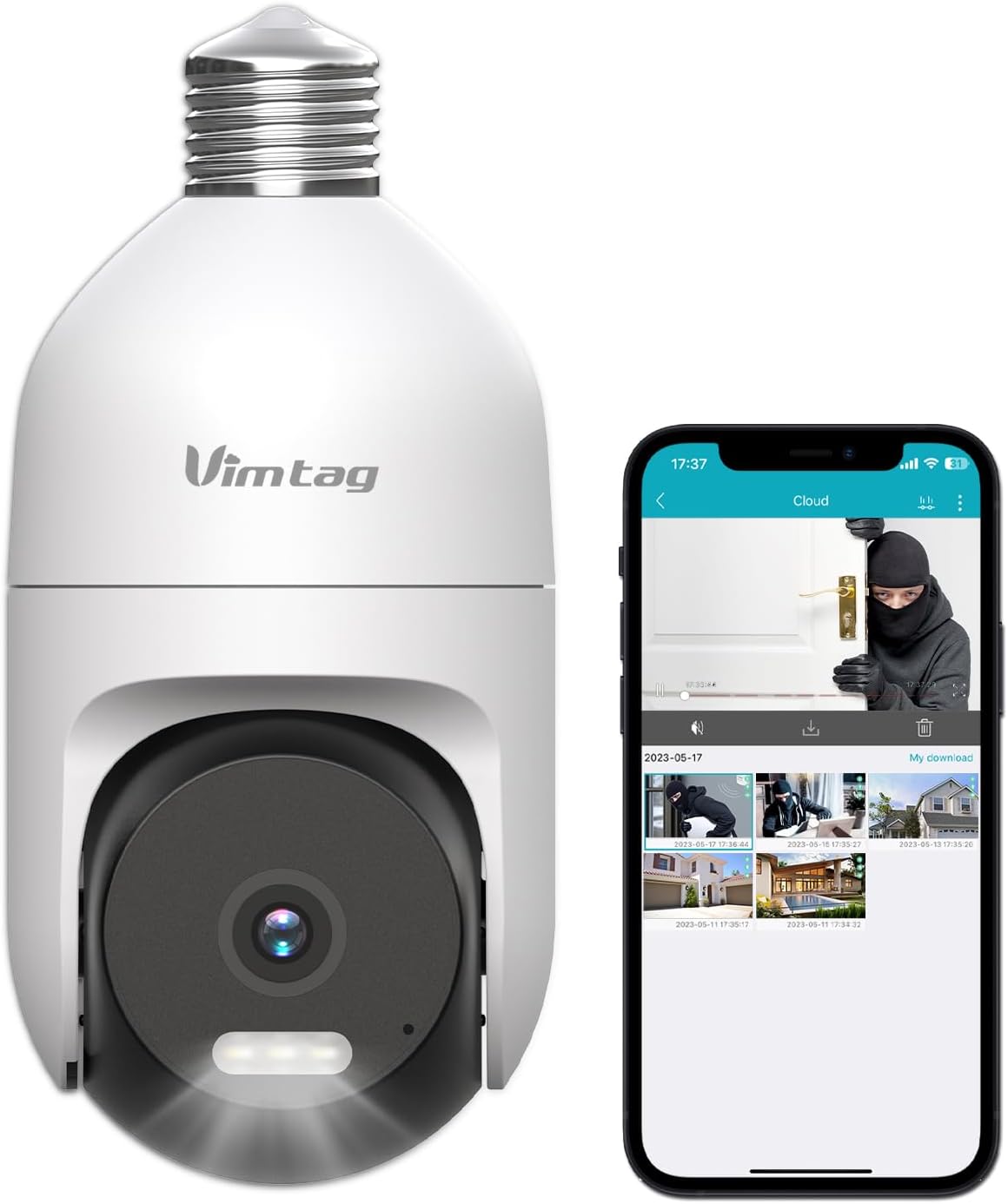
Image: The VIMTAG Light Bulb Security Camera Model 847, shown alongside a smartphone displaying its live feed.
2. Nga korero haumaru
- Ensure the power is off before installing or removing the camera from a light socket.
- Install the camera in a standard E27/E26 light bulb socket.
- Kaua e whakaatuhia te kāmera ki ngā pāmahana tino nui, ki te haumākū rānei i tua atu i te awhe mahi.
- Puritia te kamera mai i nga papa autō kaha.
- Kaua e ngana ki te wetewete, ki te whakatika rānei i te kāmera māu ake. Whakapā atu ki te ratonga kiritaki mō te āwhina.
- This camera is rated IP66 for weather resistance, suitable for outdoor use, but avoid submerging it in water.
3. Ihirangi mokete
The VIMTAG Light Bulb Security Camera package includes:
- VIMTAG Light Bulb Security Camera (Model 847)
- Pukapuka Tohutohu (tenei tuhinga)
Note: An SD card for local storage is not included and must be purchased separately if desired.
4. Hua Neke Atuview
The VIMTAG Light Bulb Security Camera features a compact design that fits into a standard light bulb socket. Key components include:
- Arotahi kāmera: Captures 2.5K/4MP video.
- Ngā rama rama whero (IR): Mo te tirohanga po pango me te ma.
- Maama: Provides color night vision and acts as a deterrent.
- hopuoro: For audio input during two-way talk and sound detection.
- Kaikōrero: For audio output during two-way talk and siren alarms.
- Kāniwha SD Kāri SD: Mo te rokiroki ataata o te rohe (tautoko ki te 512GB).
- Patene Tautuhi Anō: Used for factory reset (usually a small pinhole).
- E27/E26 Base: Standard light bulb screw-in base for power and mounting.
5. Tatūnga
5.1 Tāutanga Tinana
- Weto Whakakore: Ensure the power to the light socket is turned off at the circuit breaker before installation.
- Miro ki roto: Carefully screw the VIMTAG Light Bulb Camera into a standard E27/E26 light bulb socket. Ensure it is securely fastened.
- Whakahiko: Restore power to the light socket. The camera will power on and initiate its startup sequence.

Image: Illustration of screwing the camera into a light bulb socket.
5.2 Tikiake Taupānga me te Waihanga Pūkete
- Tikiake App: Rapua "Vimtag" in your smartphone's app store (iOS App Store or Google Play Store) and download the official VIMTAG taupānga.
- Puka Rehita: Whakatuwheratia te taupānga ka whai i ngā tohutohu kei te mata hei rēhita i tētahi pūkete hou mā te whakamahi i tō wāhitau īmēra, i tō nama waea rānei.

Image: A smartphone screen showing the VIMTAG app icon, indicating the app download step.
5.3 Camera Pairing and Wi-Fi Connection
- Tāpiri Pūrere: In the VIMTAG app, tap the "+" icon (usually in the top right or center) to add a new device.
- Tīpakohia te Momo Kāmera: Choose "Light Bulb Camera" from the list of device types.
- Follow In-App Prompts: The app will guide you through connecting the camera to your 2.4GHz Wi-Fi network. This typically involves scanning a QR code generated by the app with the camera lens or listening for an audio prompt.
- Whakaū Hononga: Once connected, the camera will indicate successful pairing (e.g., a voice prompt or LED indicator change), and its live feed will appear in the app.

Image: A smartphone screen showing the process of adding a new device, specifically selecting the light bulb camera.

Image: A smartphone displaying the live video feed from the VIMTAG camera after successful setup.
6. Te Whakahaere i te Kaamera
6.1 Ora View me te Mana Pan/Tilt Control
Once connected, open the VIMTAG taupānga me te whiriwhiri i to kamera ki view the live feed. Use the on-screen controls to pan (horizontal 355°) and tilt (vertical 100°) the camera lens to adjust the viewing angle. The camera offers 8x digital zoom for closer inspection.

Image: Multiple devices (phone, tablet, laptop, desktop) displaying the live feed from the VIMTAG camera, illustrating multi-terminal viewing.
6.2 Ororongo Waa-rua
The camera features a built-in microphone and speaker. Tap the microphone icon in the app to speak through the camera, and listen to audio from the camera's location. This allows for real-time communication with visitors or to deter intruders.

Image: A person speaking into a phone to communicate with a delivery person at the door via the VIMTAG camera's two-way audio.
6.3 Aratau Matakitenga Po
Ka tautokohia e te kaamera e rua nga momo tirohanga mo te po:
- Te tirohanga matakite a te po: Defaults to black and white infrared vision in low light conditions.
- Color Night Vision with Spotlight: When the spotlight mode is activated (manually or via motion detection settings), the camera will switch to full-color night vision.
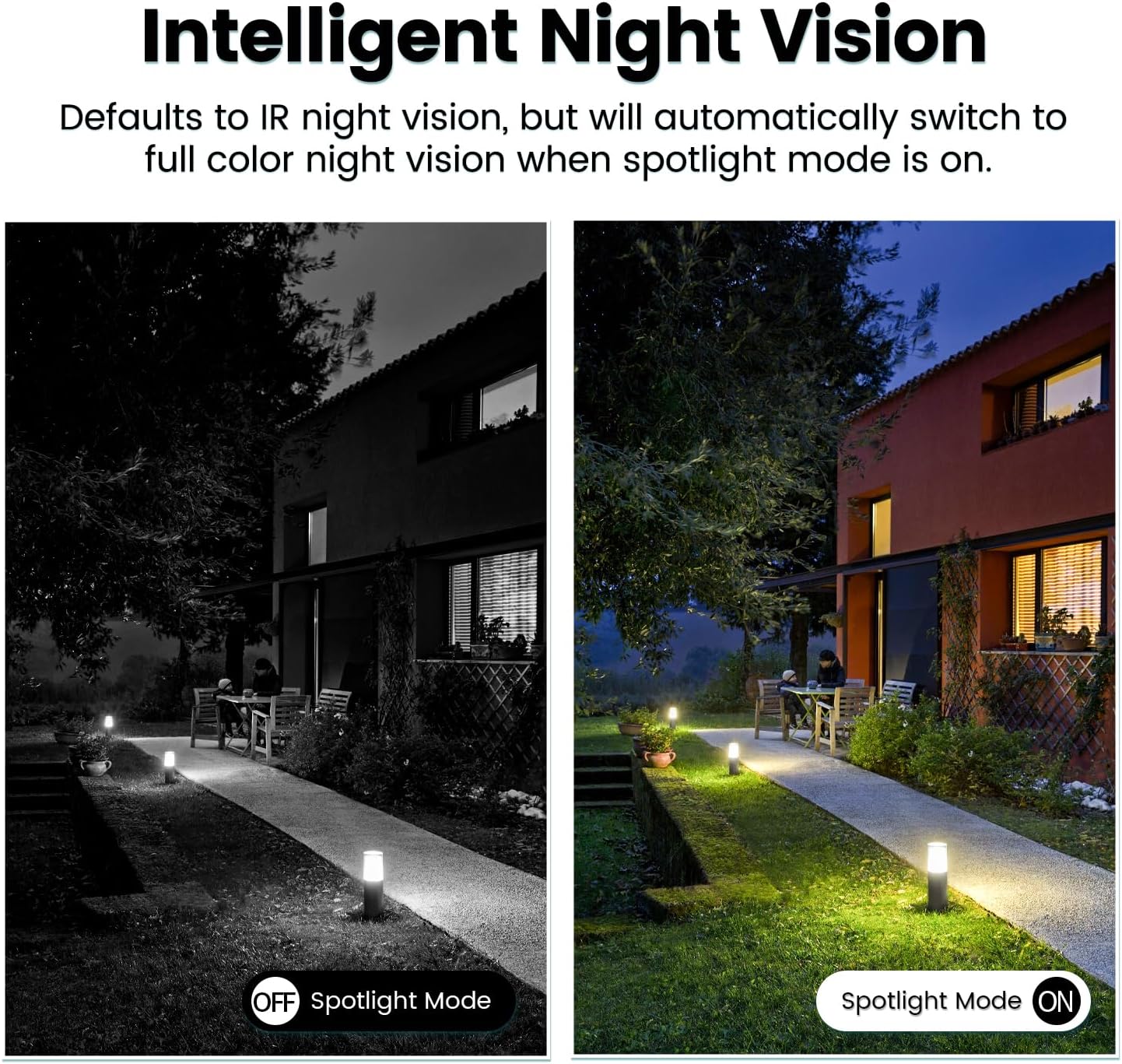
Image: Comparison of IR night vision (black and white, spotlight off) and color night vision (full color, spotlight on) from the VIMTAG kāmera.
6.4 AI Human/Motion/Sound Detection and Alarms
Configure detection settings in the VIMTAG app. The camera can detect human shapes, general motion, and sounds. Upon detection, you will receive notifications on your phone, and the camera can trigger a siren alarm or activate its spotlight to deter unwanted activity.

Image: An illustration of the VIMTAG camera detecting an intruder, triggering a spotlight and sending an alert to a smartphone.

Image: A smartphone displaying a "Motion Detection Alert" notification from the VIMTAG taupānga.
6.5 Hopu Ataata me te Rokiroki
E rua ngā kōwhiringa rokiroki e tautokona ana e te kāmera:
- Rokiroki Paetata: Insert a Micro SD card (up to 512GB, not included) into the camera's SD card slot for continuous 24/7 recording. Recorded footage can be accessed and managed through the VIMTAG taupānga.
- Rokiroki Kapua: An optional cloud storage service is available through the VIMTAG app for secure, encrypted video storage. Subscription details can be found within the app.
6.6 Alexa Whakauru
The VIMTAG camera is compatible with Amazon Alexa. To integrate:
- Enable the VIMTAG pūkenga i roto i te taupānga Alexa.
- Link your VIMTAG pūkete.
- Tirohia nga taputapu.
You can then use voice commands such as, "Alexa, show me the [camera name]" to view the live feed on compatible Alexa-enabled devices with screens (e.g., Echo Show).

Image: A person interacting with an Amazon Echo Show to view the VIMTAG camera feed using voice commands.
7. Tiaki
- Te horoi: Murua ata te arotahi kamera me te tinana ki te kakahu ngohengohe, maroke. Kaua e whakamahi i nga matū kino, i nga horoi horoi ranei.
- Whakahōu Firmware: Regularly check the VIMTAG app for available firmware updates. Keeping your camera's firmware updated ensures optimal performance, security, and access to new features.
- Whakaha Kaari SD: Ki te whakamahi koe i tētahi kāri SD, tirohia anō i ia wāview me te hoki ki runga foo nuitage. Format the SD card through the app if you experience recording issues or to clear old data.
8. Te Raru
| Raruraru | Take pea | Rongoā |
|---|---|---|
| Camera fails to power on. | No power to the light socket; camera not screwed in properly. | Check the light socket's power supply; ensure the camera is securely screwed in. |
| Kaore e taea te hono ki Wi-Fi. | Incorrect Wi-Fi password; camera too far from router; 5GHz Wi-Fi network used. | Verify Wi-Fi password; move camera closer to router; ensure you are connecting to a 2.4GHz Wi-Fi network. |
| Te kounga ataata kino. | Weak Wi-Fi signal; dirty lens. | Improve Wi-Fi signal strength; clean the camera lens. |
| Kaore e mahi ana te kitenga nekehanga. | Detection settings disabled or sensitivity too low; camera positioned incorrectly. | Check and adjust motion detection settings in the app; ensure camera has a clear view o te rohe. |
| Ko te kaari SD kaore i te tuhi. | SD card full or corrupted; incorrect recording settings. | Format the SD card via the app; check recording schedule and settings. Replace SD card if necessary. |
9. Whakatakotoranga
| Āhuahira | Taipitopito |
|---|---|
| Ingoa Tauira | 847 |
| Whakatau Ataata | 2.5K / 4MP (1440p) |
| Awhe Pan/Tilt | 355° Whakapae, 100° Poutū |
| Huringa Mamati | 8x |
| Matakitenga Po | IR Night Vision & Color Night Vision with LED Spotlight |
| Ororongo Waa-rua | Yes (Built-in Microphone & Speaker) |
| Te kimi | AI Human, Motion, Sound Detection |
| Hononga | 2.4GHz Wi-Fi (IEEE 802.11b/g/n) |
| Kōwhiringa Rokiroki | Micro SD Card (up to 512GB), Cloud Storage (optional subscription) |
| Puna Mana | Corded Electric (E27/E26 Light Bulb Socket) |
| Whakamahi o roto/waho | Yes (IP66 Weatherproof) |
| Pūrere Hototahi | iOS, Android, Mac, iPad, Windows, Amazon Alexa |
| Ahu (L x W x H) | 3.07 x 3.07 x 5.31 inihi |
| Taumaha Tūemi | 9.1 hekere |
| Auau anga | 25 papa mo ia hekona |
| Whakawaehere Ataata | H.264/H.265 |
10. Pūtāhui me te Tautoko
VIMTAG products come with a standard manufacturer's warranty. For specific warranty terms and conditions, please refer to the warranty card included with your product or visit the official VIMTAG website. For technical support, troubleshooting assistance, or any product-related inquiries, please contact VIMTAG customer service through the VIMTAG app or their official webpae.
Rauemi ipurangi:
- VIMTAG Whaimana Webpae: Visit the VIMTAG Toa i runga i Amazon
- In-App Support: Access support features directly within the VIMTAG tono pūkoro.
Ask a question about this manual
Ask about setup, troubleshooting, compatibility, parts, safety, or missing instructions. Manuals+ will review the question and use this page’s manual context to help answer it.