
1. Hua Neke Atuview
The ARPHA D280k is a versatile 5-in-1 keyless entry door lock designed for enhanced home security and convenience. It offers multiple unlocking methods including fingerprint, password, mobile application control, electronic key, and traditional mechanical key. This smart lock integrates advanced biometric technology with user-friendly features to provide a secure and accessible solution for your home or property.

Figure 1.1: ARPHA D280k Smart Door Lock with App Control Interface.
This image shows the ARPHA D280k smart door lock, a sleek black and gold unit with a keypad and fingerprint sensor, installed on a white door. To the left, a smartphone displays the lock's mobile application, indicating a successful unlock operation. This illustrates the seamless integration of the physical lock with its digital control features.
Āhuatanga matua:
- Tikanga Wewete 5-i-1: Fingerprint, Passcode, Mobile App, E-Key, and Mechanical Key.
- Te Mōhiotanga Tapumati Matatau: AI self-learning with 99.99% accuracy, unlocking in approximately 1 second.
- Full App Control: Generate and share unique, permanent, scheduled, or recurring codes remotely. Manage users and view rekoata uru.
- Mahi Maukati-Aunoa: Customizable auto-lock timer from 10 to 30 minutes.
- Maukati-Kotahi: Convenient single-button locking.
- Kupuhipa Anti-Peeping: Protect your passcode by entering random digits before or after your actual code.
- Whakauru Whare Ataata: Compatible with Alexa and Google Assistant via the ARPHA G1 Gateway (sold separately).
- Hanga Roa: Made from Zinc Alloy, designed for reliability.
2. Tatūnga me te Tāuta
The ARPHA D280k lock is designed for easy installation and programming, fitting most standard American left and right-handed doors without requiring additional drilling. Please follow these instructions carefully for a successful setup.
2.1 Door Compatibility and Dimensions
Me whakarite kia tutuki to tatau ki nga whakaritenga e whai ake nei:
- Matotoru o te tatau: 35 mm to 55 mm (1.38" to 2.17")
- He Tautuhi: 60 mm (2-3/8") or 70 mm (2-3/4")
- Te Taone o te Poka Kuaha: Only suitable for 54 mm (2-1/8") door holes.

Figure 2.1: Door Compatibility and Lock Dimensions.
This diagram illustrates the necessary door measurements for installing the ARPHA D280k smart lock. It shows the backset options (60mm or 70mm), door thickness range (35-55mm), and the required door hole diameter (54mm). It also provides dimensions for the lock's exterior and interior components, ensuring proper fitment for both left and right-handed doors.
2.2 Nga Waahi Whakataunga
- Whakapaia te tatau: Ensure the door is clean and the existing hardware is removed. Verify door dimensions match the requirements.
- Tāutahia te raka: Insert the latch into the door edge and secure it with screws. Ensure the latch bolt faces the correct direction for your door swing.
- Tāutahia te Runanga o waho: Route the cable through the door hole and align the exterior lock assembly with the latch.
- Tāutahia te Pereti Whakamau o Roto: Secure the interior mounting plate to the exterior assembly using screws, ensuring the cable passes through the plate.
- Connect the Cable and Install the Interior Assembly: Connect the cable from the exterior assembly to the interior assembly. Carefully tuck excess cable into the door. Attach the interior assembly to the mounting plate and secure it with screws.
- Whakauruhia nga Pataha: Insert 4 AA batteries (not included) into the battery compartment of the interior assembly.
- Whakamātauria te Maukati: Manually test the deadbolt and handle to ensure smooth operation.
A detailed video guide is available to walk you through the entire installation and setup process. Refer to the product's online resources for the video guide.
3. Nga Tohutohu Whakahaere
The ARPHA D280k offers multiple convenient ways to unlock your door. Familiarize yourself with each method for optimal use.

Figure 3.1: Multiple Unlocking Methods.
This image displays four distinct methods for unlocking the ARPHA D280k smart lock: fingerprint recognition, traditional mechanical keys, numerical password entry on the keypad, and a one-time code generated and used via a mobile application. This highlights the lock's versatility and convenience for various user preferences.
3.1 Fingerprint Unlocking
Your finger is your key. The lock features an advanced biometric sensor for quick and secure access.
- Enroll Fingerprints: Use the mobile application to enroll up to 50 unique fingerprints. Follow the in-app instructions for proper scanning.
- Wewete: Place your enrolled finger firmly on the fingerprint sensor. The lock will recognize your fingerprint in approximately 0.3 seconds and unlock the door within 1 second.
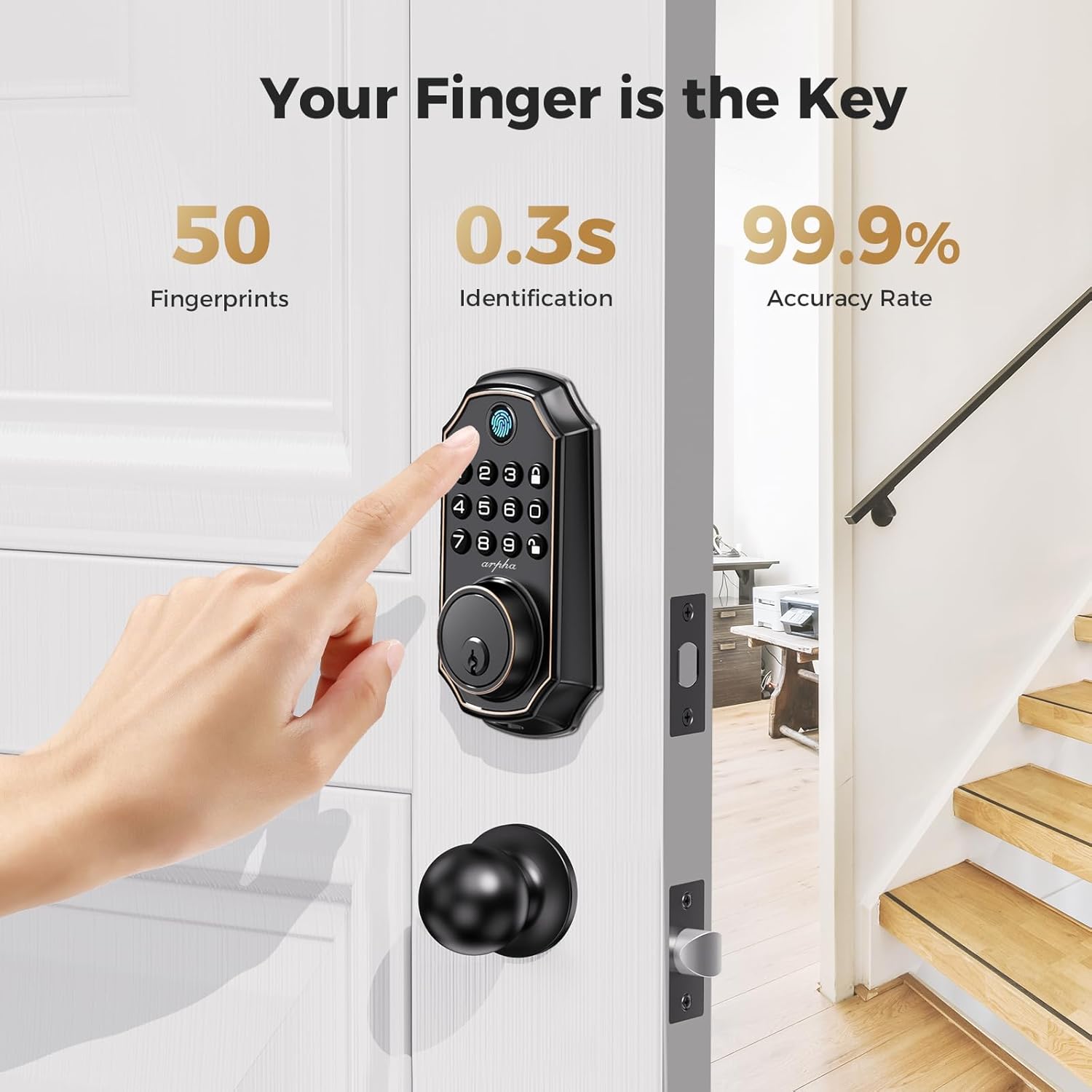
Figure 3.2: Fingerprint Unlocking in Action.
This image demonstrates the fingerprint unlocking feature of the ARPHA D280k smart lock. A hand is shown placing a finger on the lock's integrated fingerprint sensor. Accompanying text highlights key performance metrics: the ability to store up to 50 fingerprints, a rapid 0.3-second identification time, and a high 99.9% accuracy rate, emphasizing the convenience and reliability of biometric access.
3.2 Passcode Unlocking
The keypad allows for secure entry using numerical passcodes.
- Generate Passcodes: Use the mobile application to generate over 250 unique PIN codes. These can be permanent, one-time, scheduled, or recurring.
- Enter Passcode: On the lock's keypad, enter your valid passcode followed by the '#' key.
- Kupuhipa Anti-Peeping: To prevent others from guessing your code, you can enter random digits before or after your actual passcode. For example, if your code is 123456, you can enter 987123456098. The lock will only recognize the correct sequence within the longer string.

Figure 3.3: Anti-Peeking Password Feature.
This image visually explains the Anti-Peeking Password function of the ARPHA D280k smart lock. It shows a numerical keypad and a graphic demonstrating how random digits can be entered both before and after the actual PIN code. This feature enhances security by making it difficult for onlookers to discern the correct passcode, even if they observe the entry process.
3.3 Mobile Application Control
The ARPHA app provides comprehensive control over your lock from anywhere.
- Remote Unlocking/Locking: Lock or unlock your door remotely via the app (requires ARPHA G1 Gateway for remote access).
- Whakahaere Kaiwhakamahi: Add, delete, or modify user access (fingerprints, passcodes, e-keys).
- Ngā Rekoata Whakauru: View he hītori mō te hunga i uru mai me te wā i uru mai ai.
- Urunga rangitahi: Share temporary e-keys or one-time codes with guests or service providers.
3.4 Auto-Lock and One-Touch Locking
These features enhance convenience and ensure your door is always secure.
- Maukati Aunoa: Enable this feature via the app and set a timer (10 to 30 minutes). The lock will automatically engage the deadbolt after the set time if the door is closed.
- Maukati-Kotahi: Simply press and hold the '#' key on the keypad to instantly lock the door from the outside.

Figure 3.4: Auto-Lock and One-Touch Locking Features.
This image highlights the convenience of the ARPHA D280k's auto-lock and one-touch locking features. It shows a person returning home with groceries, emphasizing how these functions simplify daily life. Illustrations depict the adjustable auto-lock timer (10-30 minutes) and the dedicated one-touch lock button on the lock's interior side, ensuring the door is secured effortlessly.
3.5 Mechanical Key Unlocking
For emergency situations or as a backup, traditional mechanical keys are provided.
- Insert the mechanical key into the keyhole located at the bottom of the lock's exterior assembly.
- Turn the key to unlock the deadbolt.
4. Tiaki
Proper maintenance ensures the longevity and optimal performance of your ARPHA D280k smart lock.
4.1 Whakahaere Pūhiko
The lock operates on 4 AA batteries (not included) and offers an impressive battery life.
- Ora Pūhiko: Up to 180 days of battery life under normal usage.
- Tohu Pūhiko Iti: The lock will provide a visual or audible alert when batteries are low. Replace all four batteries promptly when this indicator appears to avoid being locked out.
- Momo Pūhiko: Use high-quality alkaline AA batteries for best performance. Do not mix old and new batteries or different battery types.
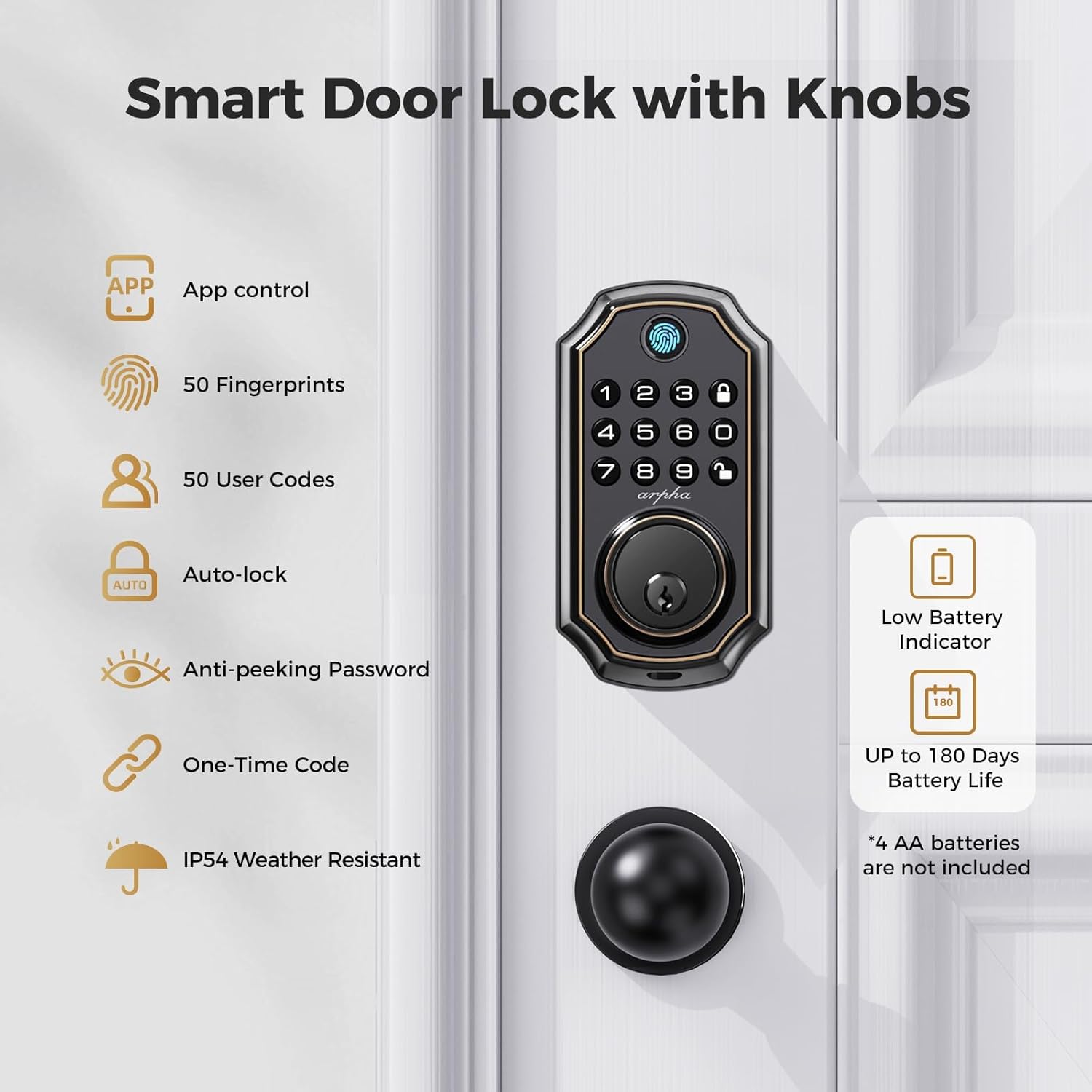
Figure 4.1: Smart Lock Features including Battery Information.
Ka whakaratohia e tēnei whakaahua he tirohanga whānuiview of the ARPHA D280k smart door lock's features. It visually lists capabilities such as app control, support for 50 fingerprints and 50 user codes, auto-lock, anti-peeking password, one-time code generation, and IP54 weather resistance. Crucially for maintenance, it highlights the low battery indicator and an impressive battery life of up to 180 days, noting that 4 AA batteries are required but not included.
4.2 Te Whakapai me te Tiaki
- Horoia ngā mata o waho o te raka ki te wai ngohengohe,amp kakahu. A ape i te whakamahi i nga kai horoi, nga whakarewa, nga matū kino ranei, ka taea e enei te pakaru te whakaoti.
- Do not spray cleaning solutions directly onto the lock.
- Keep the fingerprint sensor clean and free of dirt or debris for optimal performance.
5. Te Raru
If you encounter issues with your ARPHA D280k smart lock, refer to the following common problems and solutions.
5.1 Maukati Kaore i te Whakautu
- Tirohia nga Pikohiko: Ensure batteries are correctly installed and not depleted. Replace all four AA batteries if the low battery indicator is active or if the lock is unresponsive.
- Hurihanga Hiko: Remove the batteries, wait for 30 seconds, and then reinsert them.
5.2 Kare i te Mohiotia
- Pūoko Ma: Ensure the fingerprint sensor is clean and free of dirt, moisture, or oils.
- Turanga Tika: Ensure your finger covers the entire sensor surface. Try different angles or pressures.
- Re-enroll Fingerprint: If issues persist, delete the existing fingerprint and re-enroll it through the mobile application.
5.3 Passcode Not Working
- Verify Code: Double-check that you are entering the correct passcode.
- Anti-Peeping: If using the anti-peeping feature, ensure the correct passcode sequence is embedded within the random digits.
- Momo Waehere: Confirm if the code is permanent, one-time, or scheduled, and if it is still valid.
- Tautuhi Waehere: Generate a new passcode via the app if necessary.
5.4 Nga Take Hononga Taupānga
- Nihokikorangi: Ensure Bluetooth is enabled on your smartphone and you are within range of the lock.
- Whakahōu Taupānga: Ensure your ARPHA app is updated to the latest version.
- Restart App/Phone: Katia ka whakatuwherahia te taupānga, ka whakaara ano ranei i to waea atamai.
- Gateway (for remote access): If using remote access, ensure your ARPHA G1 Gateway is properly connected to Wi-Fi and powered on.
For further assistance, please contact ARPHA customer support.
6. Whakatakotoranga
Detailed technical specifications for the ARPHA D280k Keyless Entry Door Lock.
| Āhuahira | Whakatakotoranga |
|---|---|
| Tau tauira | D280k |
| Ahu (L x W x H) | 26.42 x 22.99 x 9.3 cm (10.4 x 9.05 x 3.66 inihi) |
| Taumaha | 1.51 kg (3.32 lbs) |
| Rauemi | Kohanga Konutea |
| Whakaoti | Matte or Polished |
| Tae | D280K (Black with Gold Accents) |
| Momo Maukati | Biometric, Keypad, Deadbolt, Combination Lock |
| Puna Mana | 4 x Pahiko AA (kaore i whakauruhia) |
| Nga waahanga motuhake | Bluetooth App Control, Passcode Unlock, Fingerprint Unlock, Anti-Peeping Password, One-Touch Locking |
| Hototahi Matotoru Kuaha | 35 mm ki te 55 mm |
| Whakahototahi Whakamuri | 60 mm, 70 mm ranei |
| Te Taone o te Kohao Kuaha | 54 mm (2-1/8") |
| Taumata ANSI | Kōeke 3 |
| Keypad Life Test | 100,000 huringa |
| Te Whakamatau Tote Rehu | 218 haora |
| Face Plate Impact Test | 2850N |
| Whakamātautau haumākū | 176 haora |
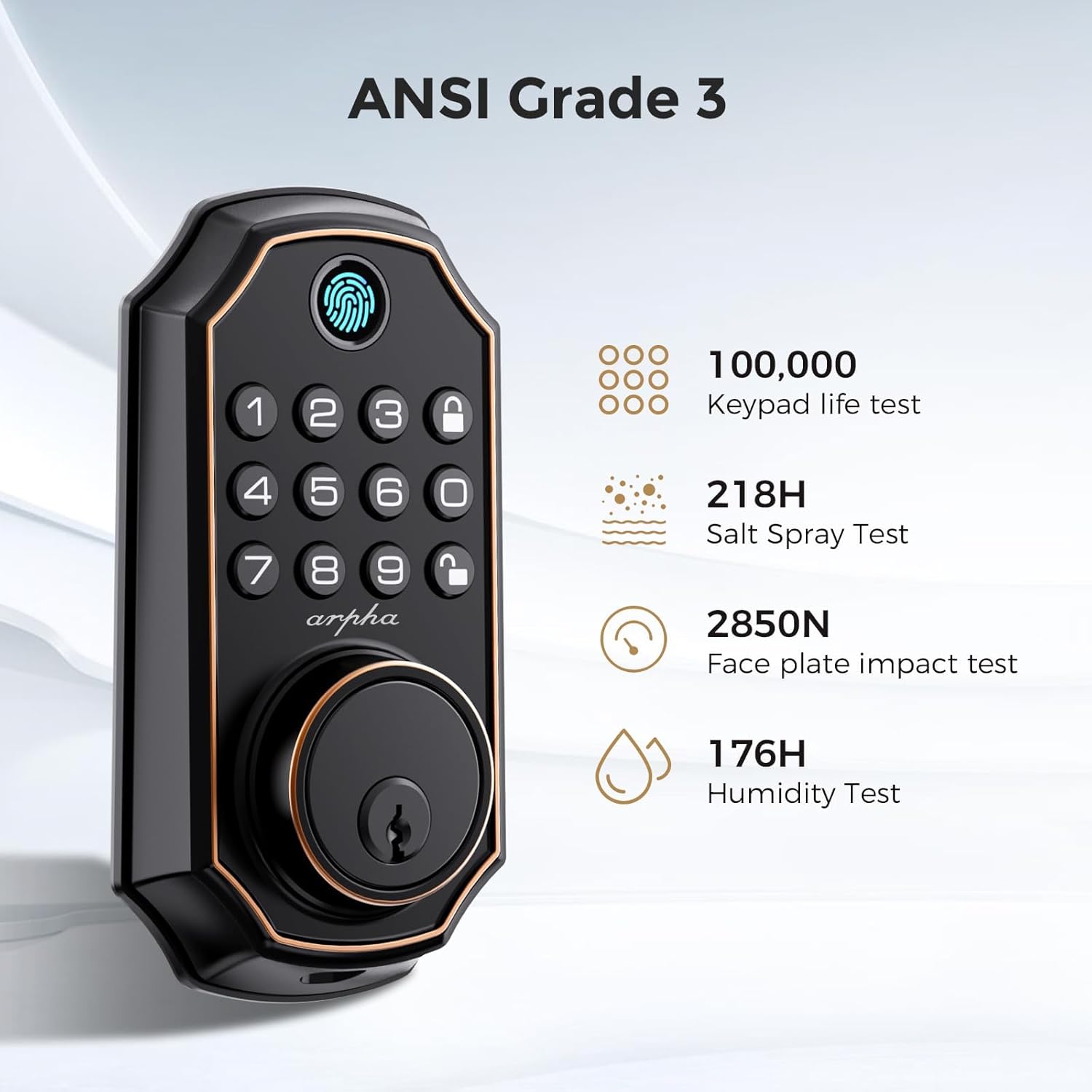
Figure 6.1: ANSI Grade 3 Certifications.
This image highlights the ARPHA D280k smart lock's compliance with ANSI Grade 3 standards, indicating its durability and reliability. It lists specific test results: 100,000 keypad life tests, 218 hours of salt spray testing, a 2850N face plate impact test, and 176 hours of humidity testing, assuring users of the product's robust construction and performance under various conditions.
7. Pūtāhui me te Tautoko
ARPHA is committed to providing excellent customer service and product reliability.
7.1 Nga Korero Whakaputanga
The ARPHA D280k smart lock comes with an 18-marama whakamana mai i te ra o te hokonga. Ka kapi tenei whakamana i nga hapa o te hangahanga me nga mahi kino i raro i te whakamahinga noa.
7.2 Tautoko Hangarau
A dedicated support team is available 24 haora ia ra, 7 ra ia wiki to assist you with any questions or issues you may encounter. For technical assistance, troubleshooting, or warranty claims, please do not hesitate to contact us.
Refer to your product packaging or the official ARPHA webpae mo nga korero whakapā o naianei.