
1. Kupu Whakataki
Thank you for choosing the PNI Voyager S2600 WiFi 4K Ultra HD Car DVR Camera. This device is designed to record high-quality video footage of your journeys, providing security and evidence in case of incidents. It features 4K Ultra HD recording, Wi-Fi connectivity for smartphone control, parking monitoring, and a G-sensor for automatic incident detection.

Image 1.1: PNI Voyager S2600 Dash Cam installed in a vehicle, showcasing its key features: 4K Ultra HD recording, Wi-Fi connectivity, and Parking Monitoring.
2. Nga korero haumaru
Please read and follow these safety guidelines to ensure proper operation and prevent damage to the device or injury.
- Do not expose the device to extreme temperatures, direct sunlight for prolonged periods, or high humidity.
- Me whakarite kia mau te taputapu kia kaua e arai i te taraiwa view ka pokanoa ranei ki nga whakahaere waka.
- Use only the provided power cable and accessories. Using unauthorized accessories may damage the device and void the warranty.
- Kaua e ngana ki te wetewete, ki te whakatika rānei i te taputapu māu ake. Whakapā atu ki ngā kaimahi ratonga whai mana mō te āwhina.
- Kia ma te arotahi kia mārama ai te hopu ataata.
- Always format the microSD card regularly to maintain optimal recording performance.
3. Ihirangi mokete
Manatokona kei roto katoa nga mea kei roto i te kete:
- PNI Voyager S2600 Car DVR Camera
- Power cord with cigarette lighter plug (12V/24V compatible)
- Maunga Matapihi
- Pukapuka Kaiwhakamahi

Image 3.1: The PNI Voyager S2600 dash cam, its magnetic mount, and the power cable with a cigarette lighter adapter.
4. Hua Neke Atuview
Familiarize yourself with the components of your PNI Voyager S2600 dash cam.
4.1. Tahora Pūrere
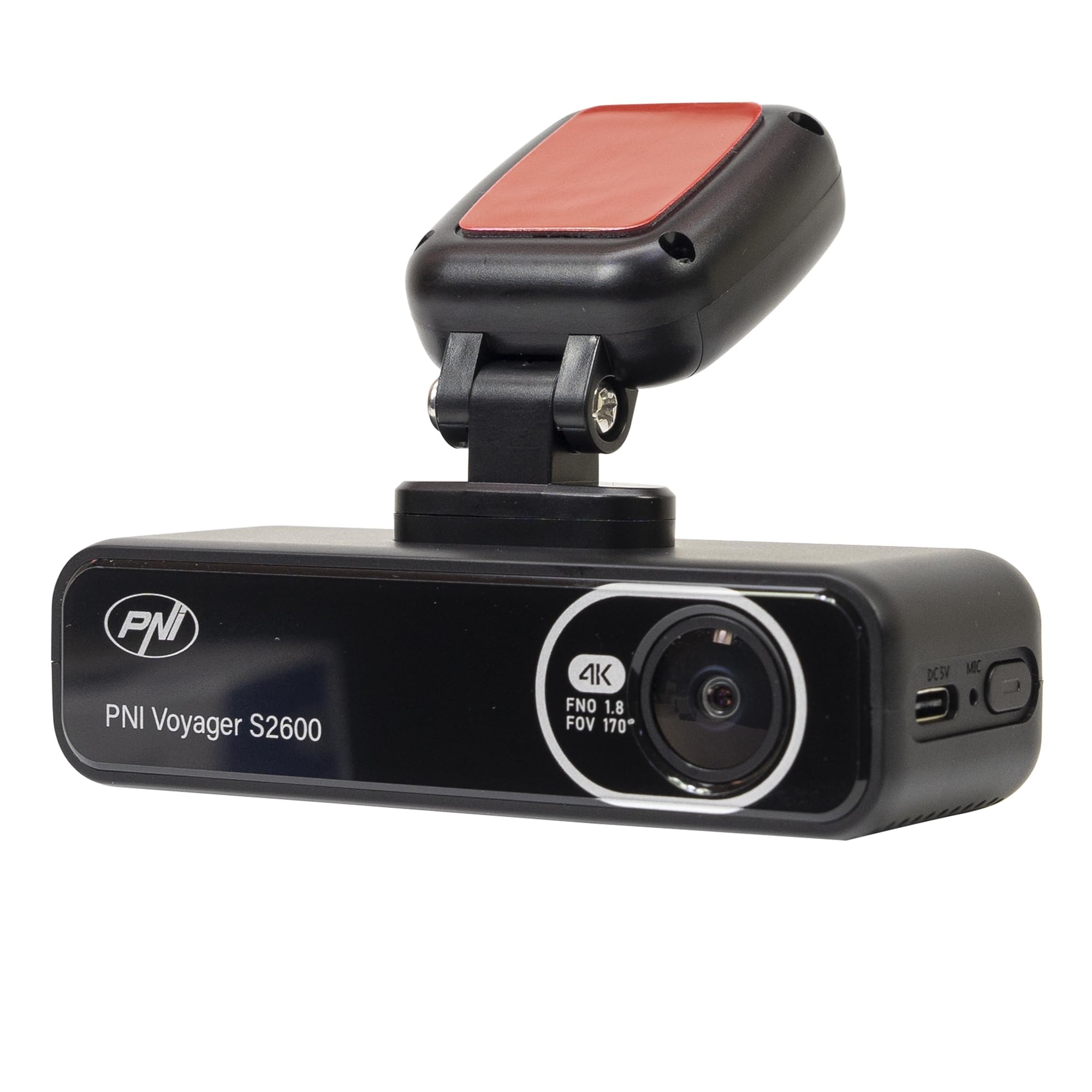
Whakaahua 4.1: Mua view of the PNI Voyager S2600, displaying the camera lens with 4K FNO 1.8 FOV 170° markings, the PNI brand logo, and the model name.

Whakaahua 4.2: Taipitopito view of the side of the dash cam, highlighting the USB-C power input (DC 5V) and the microphone opening.
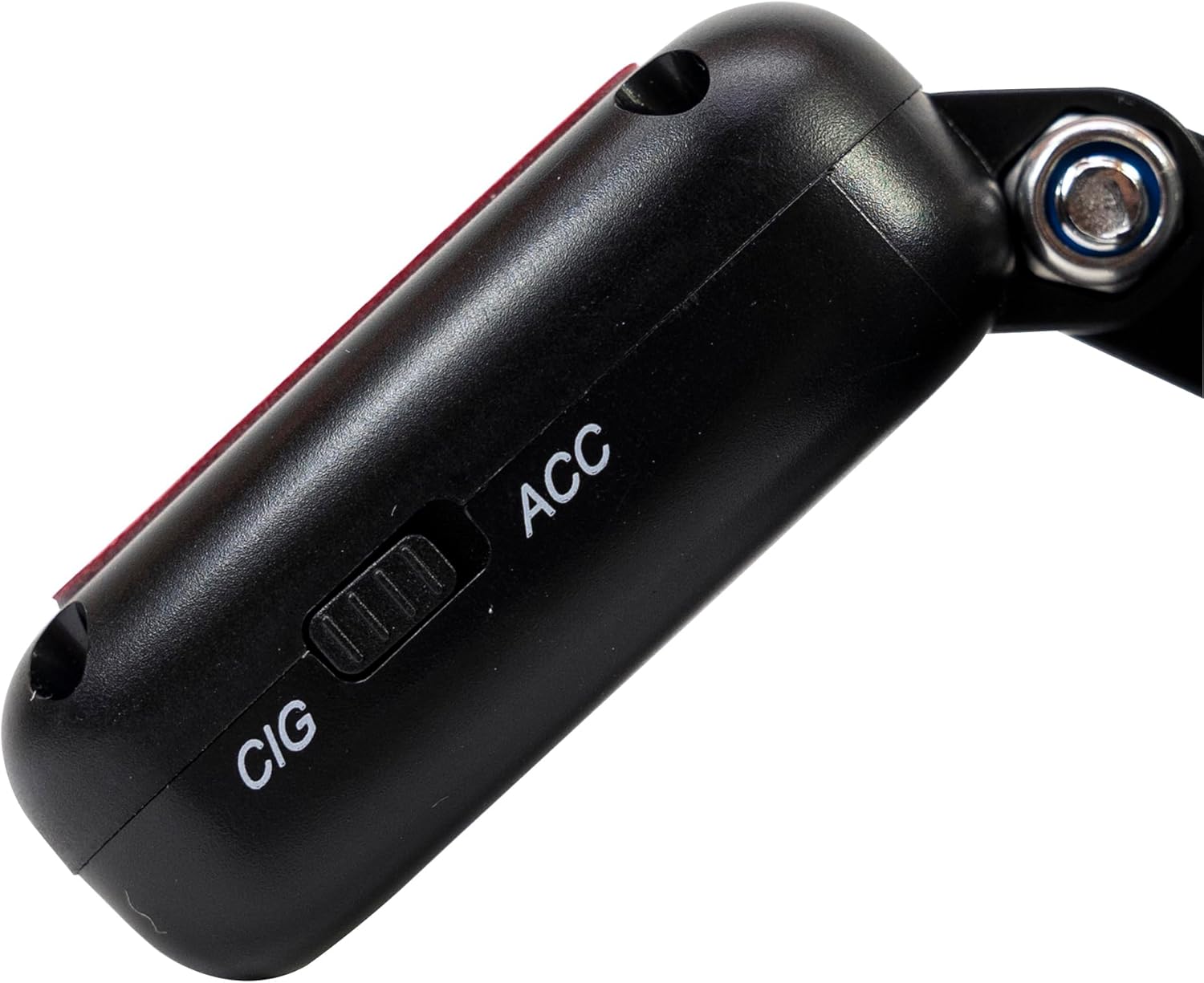
Whakaahua 4.3: Taha view of the magnetic mount, featuring a switch to select between 'CIG' (cigarette lighter power) and 'ACC' (accessory power) modes.
4.2. Nga waahanga matua
- 4K Ultra HD Video Recording: Captures video at 3840x2160 resolution at 30FPS, or 2560x1440 at 30FPS, and 1920x1080 at 60FPS/30FPS.
- Hononga Wi-Fi: Connects to your smartphone via the Viidure-Dashcam Viewer app for live view, video download, and settings adjustment.
- Aroturuki Waka: Activates the camera to record when vibration or movement is detected while the vehicle is parked.
- G-Sensor: Automatically locks the current video file in case of a collision to prevent overwriting.
- Arotahi Koki Whanui: 170-tohu viewing angle to capture a broad perspective of the road.
- Roopu Hopu: Overwrites the oldest footage when the memory card is full, ensuring continuous recording.
- GPS whakauru: Records speed and coordinates, which can be displayed on recorded videos.
5. Tatūnga
5.1. Whakaurunga Kāri MicroSD
- Me whakaweto te mana o te kāmera papaaho.
- Kimihia te mokamoka kāri microSD i runga i te taputapu.
- Insert a high-speed (Class 10 or higher) microSD card (up to 512GB) into the slot until it clicks into place.
- To remove, gently push the card in until it clicks, then release. The card will eject.
Hiranga: Format the microSD card within the app or on a computer before first use and periodically thereafter to ensure stable recording.
5.2. Installation and Power Connection
- Horoia te wāhi i runga i tō matapihi mua e hiahia ana koe ki te whakairi i te kāmera papa. Kia tino kore e ārai i tō view.
- Attach the windshield mount to the dash cam. The mount is magnetic for easy attachment.
- Peel off the protective film from the adhesive pad on the mount and firmly press it onto the chosen spot on your windshield for at least 30 seconds.
- Connect the power cable to the USB-C port on the mount.
- Route the power cable neatly along the windshield and dashboard to the vehicle's cigarette lighter socket.
- Plug the cigarette lighter adapter into the vehicle's 12V/24V power outlet.
- Select the appropriate power mode on the mount's switch: 'CIG' for continuous power from the cigarette lighter, or 'ACC' for power only when the vehicle's ignition is on.

Image 5.1: The PNI Voyager S2600 dash cam detached from its magnetic mount, illustrating the contact points for secure attachment.
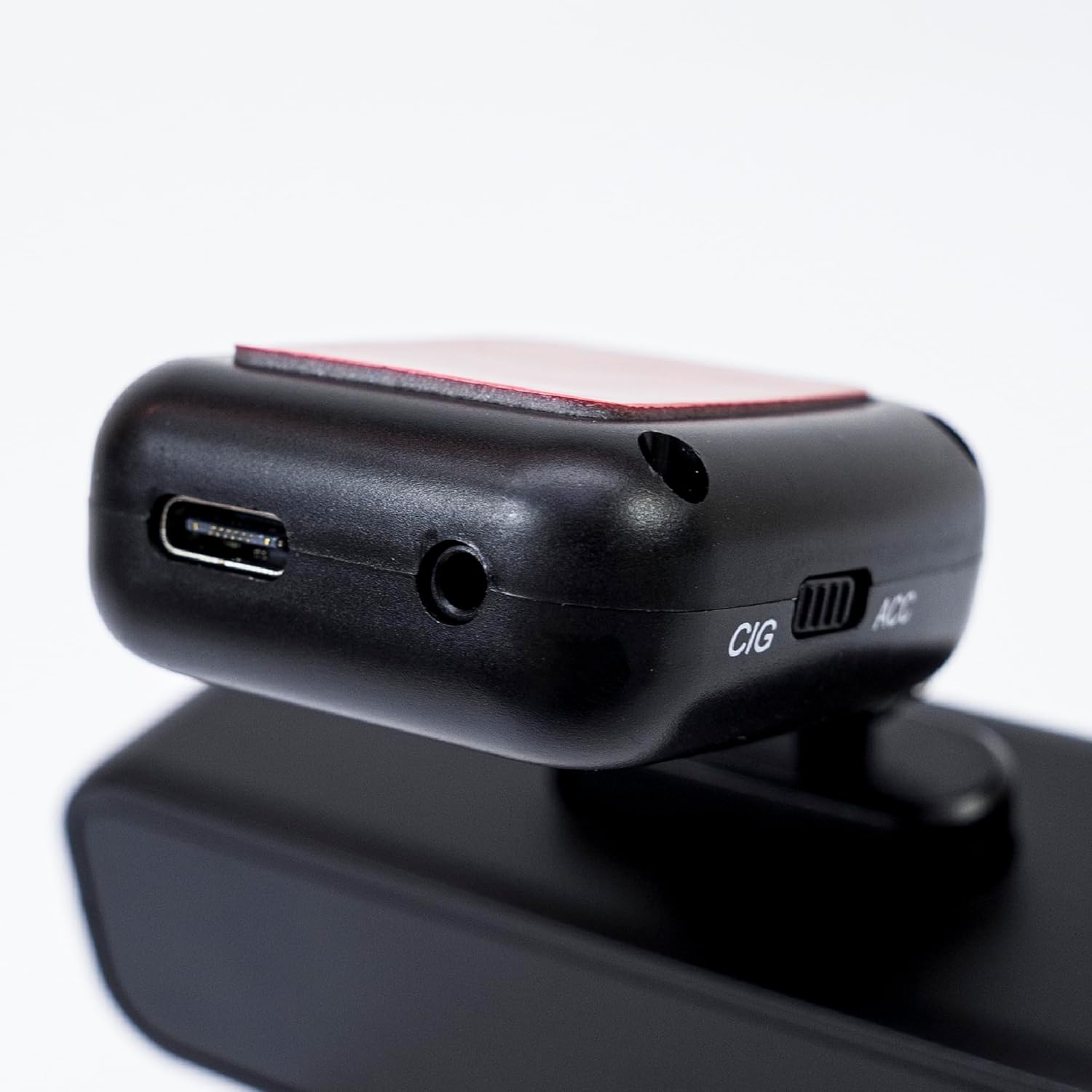
Image 5.2: The top of the dash cam mount, featuring the USB-C port for power input and the CIG/ACC switch for power mode selection.
5.3. Tāutanga Taupānga me te Hononga Wi-Fi
- Tikiake te Viidure-Dashcam Viewer taupānga mai i te Toa Taupānga (iOS) i te Toa Play Google rānei (Android).
- Whakakāhia te kāmera papaaho.
- On your smartphone, go to Wi-Fi settings and connect to the dash cam's Wi-Fi network. The network name (SSID) and password can usually be found in the dash cam's settings (if it has a screen) or in the manual.
- Open the Viidure-Dashcam Viewer app. The app should automatically detect and connect to the dash cam.
- Na roto i te taupānga, ka taea e koe view ora footage, adjust settings, download recorded videos, and format the microSD card.

Image 5.3: A smartphone showing the Viidure-Dashcam Viewer application, demonstrating the wireless connection and control over the PNI Voyager S2600 dash cam.
6. Nga Tohutohu Whakahaere
6.1. Te Tuhi Aunoa
Once powered on and with a valid microSD card inserted, the PNI Voyager S2600 will automatically begin loop recording. Video files are saved in segments (e.g., 1, 3, or 5 minutes) to the microSD card.
6.2. Pūoko-G (Tuhituhi Āwhina)
The built-in G-sensor detects sudden impacts or rapid acceleration/deceleration. When triggered, it automatically locks the current video segment, preventing it from being overwritten by loop recording. These emergency files are stored in a separate folder on the microSD card.
6.3. Te Aroturuki Waka
When the vehicle is parked and the dash cam is powered (either continuously via CIG mode or with a hardwire kit), the parking monitor function activates. If the G-sensor detects a collision or motion detection is enabled and detects movement, the dash cam will automatically power on and record a short video segment. This feature helps protect your vehicle when unattended.

Image 6.1: Visual representation of the Parking Monitor feature, showing the dash cam detecting an impact while the car is parked.
6.4. Te Whakamahinga o te Wi-Fi me te Taupānga
The Viidure-Dashcam Viewer app allows you to:
- Ora View: See what the camera is recording in real-time on your smartphone.
- Whakahoki Ataata: Review recorded videos directly from the microSD card.
- Download Videos: Transfer important video files from the dash cam to your smartphone.
- Whakaritenga Tautuhinga: Configure various dash cam settings, such as video resolution, G-sensor sensitivity, loop recording duration, and parking monitor options.
- Whakahōputuhia te Kaari SD: Erase all data on the microSD card.
6.5. Taumahinga GPS
The integrated GPS receiver records your vehicle's speed and location data. This information can be overlaid on the video footage during playback via the app or compatible desktop software, providing additional context for your recordings.
7. Tiaki
7.1. Te horoi i te Pūrere
Use a soft, dry cloth to clean the dash cam body. For the lens, use a specialized lens cleaning cloth to avoid scratches. Do not use chemical cleaners or abrasive materials.
7.2. MicroSD Card Formatting
It is recommended to format the microSD card every 2-4 weeks to prevent data corruption and ensure optimal recording performance. This can be done through the Viidure-Dashcam Viewer taupānga.
7.3. Whakahoutanga Firmware
Periodically check the PNI website or the Viidure-Dashcam Viewer app for available firmware updates. Firmware updates can improve performance, add new features, or fix bugs. Follow the instructions provided with the update carefully.
8. Te Raru
If you encounter issues with your PNI Voyager S2600, refer to the following common problems and solutions:
| Raruraru | Take pea | Rongoā |
|---|---|---|
| Karekau te kamera i te hiko. | No power supply; faulty cable; incorrect power mode. | Check power cable connection; ensure cigarette lighter socket is active; verify CIG/ACC switch setting. |
| Ka mutu te tuhi, ka whakatio ranei. | MicroSD card error; card full; low-speed card. | Format microSD card; replace with a high-speed (Class 10 U3) card; ensure sufficient storage. |
| Wi-Fi connection unstable or fails. | Interference; incorrect password; app issue. | Ensure dash cam Wi-Fi is enabled; re-enter password; restart app and dash cam; try connecting in a different location. |
| Te kounga ataata kino. | Dirty lens; incorrect resolution setting. | Clean the camera lens; check video resolution settings in the app. |
| Kāore te aroturuki waka e mahi ana. | Incorrect power mode; feature disabled. | Ensure dash cam is receiving continuous power (CIG mode or hardwire kit); enable parking monitor in app settings. |
If the problem persists, please contact PNI customer support.
9. Whakatakotoranga
Detailed technical specifications for the PNI Voyager S2600 Car DVR Camera:
| Āhuahira | Whakaahuatanga |
|---|---|
| Tau tauira | PNI-S2600 |
| Whakatau Ataata | 4K (3840x2160@30FPS), 2K (2560x1440@30FPS), FHD (1920x1080@60FPS/30FPS) |
| Pūoko Whakaahua | SONY335 (5MP, 2592x1944px) |
| Viewing Koki | 170 Waeine |
| Hōputu Ataata | MP4, H.264 |
| Hōputu Whakaahua | JPEG |
| Whakataunga Whakaahua Max | 8MP (3264x2448) |
| Rokiroki | MicroSD card slot, up to 512GB (Class 10 or higher recommended) |
| Hononga | Wi-Fi, GPS (integrated) |
| Nga waahanga motuhake | G-Sensor, Parking Monitoring, Motion Detection, Loop Recording |
| Tuku Hiko | 5V/2A (via 12V/24V car adapter) |
| Pūhiko | Super capacitor 1.5 UF |
| Te Waahi Mahi | -26°C ~ +80°C |
| Ahu (L x W x H) | 105mm x 35mm x 27mm |
| Taumaha | 88 Karamu |
| Momo USB | Momo C |
10. Raihana me te Tautoko
10.1. Nga Korero Whakaputanga
The PNI Voyager S2600 Car DVR Camera comes with a 24-marama whakamana from the date of purchase. This warranty covers manufacturing defects under normal use. It does not cover damage caused by misuse, accidents, unauthorized modifications, or improper installation. Please retain your proof of purchase for warranty claims.
10.2. Tautoko Kiritaki
For technical assistance, troubleshooting, or warranty inquiries, please contact PNI customer support. You can find more information and support resources on the official PNI webpae:
Kaihanga: ONLINESHOP SRL
Wāhi noho: Olteniei 26A, Piatra Neamt, Neamt, 610206, Romania