
Ka mutu te huaview
The Turtle Beach Pure Air Wireless RGB Gaming Mouse is designed for high-performance gaming, featuring an ultra-lightweight ergonomic design, advanced optical sensor, and versatile connectivity options. This manual provides essential information for setting up, operating, and maintaining your device.

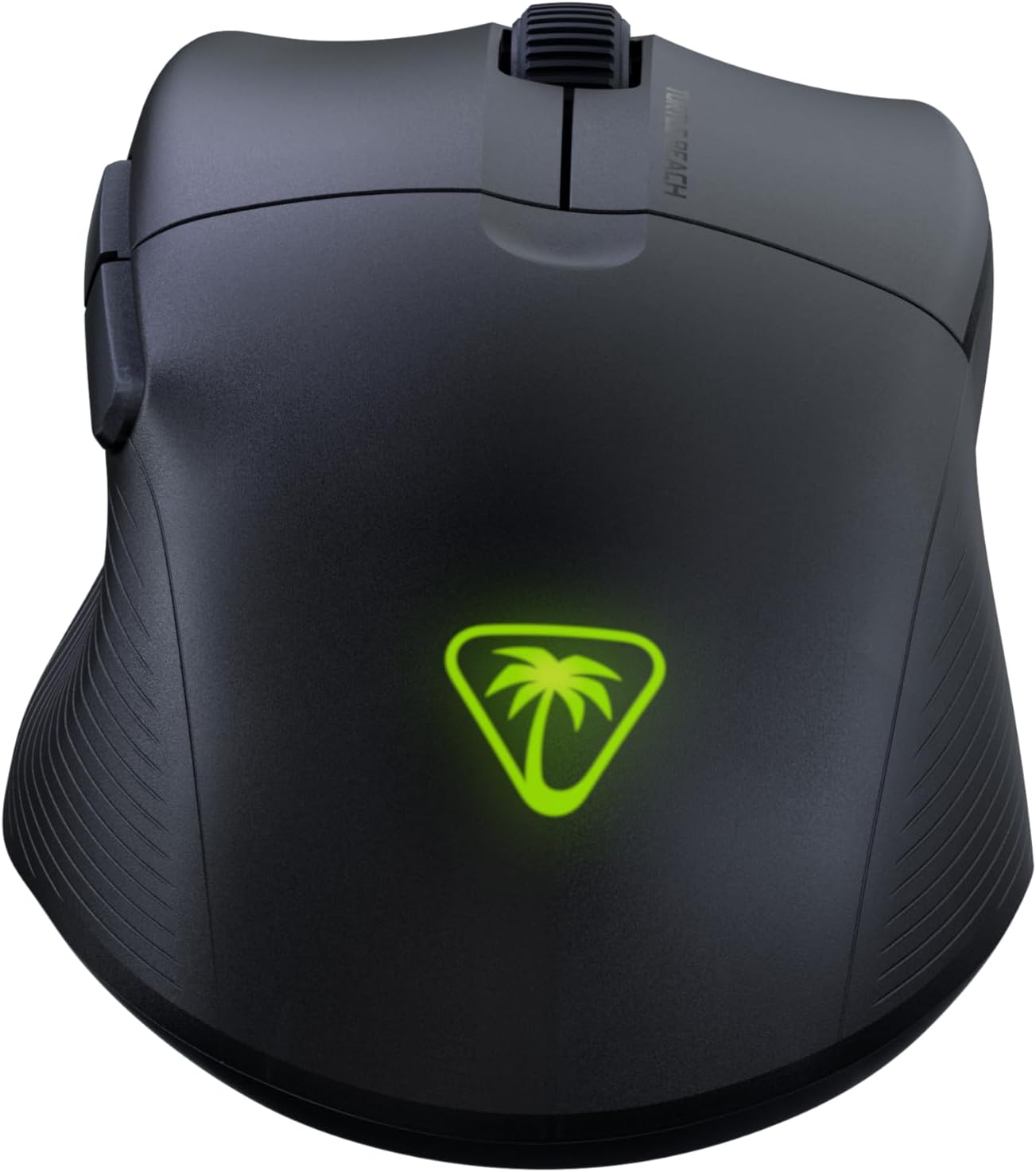
The Turtle Beach Pure Air Wireless RGB Gaming Mouse, showcasing its ergonomic shape and customizable RGB logo.
Aratohu Tatūnga
Ihirangi mokete
- Turtle Beach Pure Air Wireless RGB Gaming Mouse
- Adapter USB Ahokore
- PhantomFlex Charging Cable (USB-C to USB-A)

The essential components included with your Turtle Beach Pure Air mouse.
Whakataunga Tuatahi
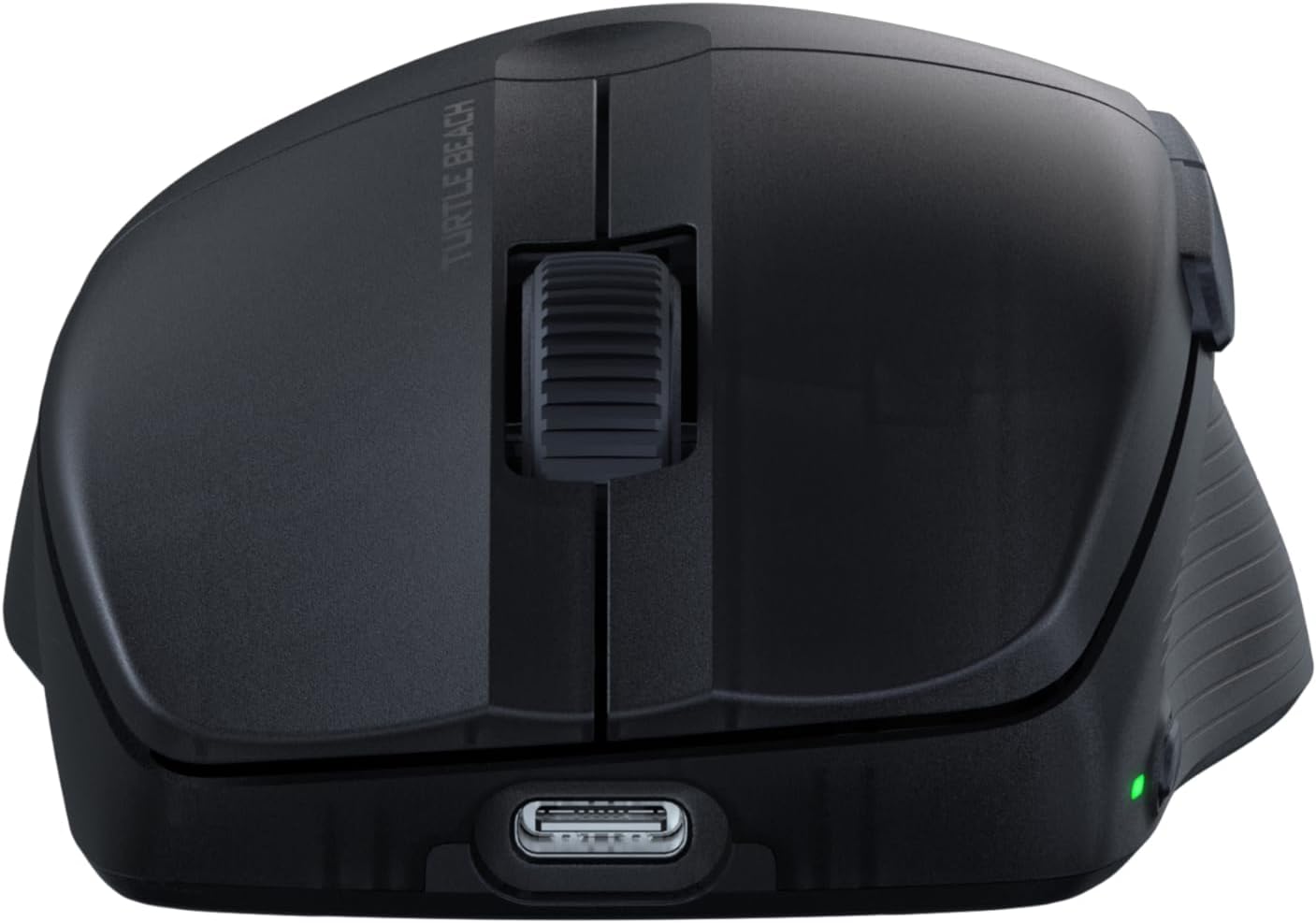
Before first use, it is recommended to fully charge the mouse. Connect the PhantomFlex Charging Cable to the USB-C port on the front of the mouse and to a powered USB-A port on your computer or a USB wall adapter.
The USB-C port located at the front of the mouse for charging and wired connection.
A full charge provides up to 125 hours of continuous use. Rapid charging allows for approximately 5 hours of game time with just 10 minutes of charging.
Kōwhiringa Hononga
The Pure Air mouse offers three connectivity modes: 2.4GHz Wireless, Bluetooth, and Wired.
- 2.4GHz Hononga Ahokore:
- Insert the Wireless USB Adapter into an available USB-A port on your PC.
- Locate the switch on the bottom of the mouse. Slide it to the 2.4GHz Waeakore position (indicated by a Wi-Fi icon).
- The mouse should automatically connect to the adapter.
- Hononga Nihokikorangi:
- Slide the switch on the bottom of the mouse to the Nihokikorangi position (indicated by a Bluetooth icon).
- On your PC, navigate to Bluetooth settings and search for new devices.
- Select "Turtle Beach Pure Air" from the list of available devices to pair.
- Hononga Waea:
- Connect the PhantomFlex Charging Cable directly from the mouse to a USB-A port on your PC.
- Ka mahi te kiore hei taputapu waea, ā, ka utu tahi i te wā kotahi.

The mouse can be connected via its wireless USB adapter or the flexible PhantomFlex charging cable.
Mahi
Nga Mahi Patene
- Pāwhiri Mauī/Matau: Equipped with TITAN Optical Switches for fast, precise actuation and a 100 million click life cycle.
- Panuku Wira: Provides tactile feedback for accurate scrolling.
- Patene taha: Two programmable buttons on the left side for custom commands.
- Patene DPI: Located on the top of the mouse, behind the scroll wheel. Press to cycle through preset DPI levels.
Whakatikatika DPI
The Pure Air mouse features a 26K Owl-Eye Optical Sensor. Use the dedicated DPI button to switch between sensitivity settings on the fly. Default DPI settings can be customized using the Swarm 2 software.
RGB Illumination (AIMO)
The Turtle Beach logo on the back of the mouse features customizable AIMO intelligent RGB illumination. Lighting effects and colors can be configured through the Swarm 2 software.
Swarm 2 Software
For advanced customization, download and install the Swarm 2 software from the official Turtle Beach webpae. Ma tenei rorohiko ka taea e koe te:
- Adjust DPI levels and create custom profiles.
- Program button assignments.
- Whakaritehia nga paanga rama RGB.
- Whakahōu i te pūmanawa kiore.
Te tiaki
Te horoi
To clean your Turtle Beach Pure Air mouse, use a soft, dry, lint-free cloth. Avoid using harsh chemicals, solvents, or abrasive materials, as these can damage the mouse's surface and internal components.
PTFE Glides
The mouse is equipped with Pure PTFE glides for smooth movement. Ensure these glides remain clean and free of debris to maintain optimal performance. Avoid scratching or damaging the glides.
Raparongoā
Nga Take Hononga
- 2.4GHz Ahokore: Ensure the Wireless USB Adapter is securely plugged into a working USB port. Verify the mouse switch is set to the 2.4GHz mode. Try a different USB port.
- Nihokikorangi: Confirm Bluetooth is enabled on your PC and the mouse switch is set to Bluetooth mode. Remove and re-pair the device in your PC's Bluetooth settings.
- Whānui: Ensure the mouse is charged. Try connecting the mouse in wired mode to confirm functionality.
Maharahara Te Ora o te Pūhiko
While rated for up to 125 hours, actual battery life can vary based on usage patterns, DPI settings, and RGB illumination intensity. If battery life seems significantly shorter, ensure the mouse is fully charged and consider reducing RGB brightness or disabling it via the Swarm 2 software.
Pūmanawa me te Firmware
If you experience unexpected behavior or wish to access the latest features, ensure your Swarm 2 software and mouse firmware are up to date. Connect the mouse via USB and use the Swarm 2 application to check for and apply updates.
Whakatakotoranga
| Waitohu | Takutai Honu |
| Tau tauira | TBM-1102-05 |
| Hononga | Bluetooth, 2.4GHz Radio Frequency Wireless, Wired (USB-C) |
| Pūoko | Pūoko Whatu 26K DPI Owl-Eye |
| Whakawhiti | TITAN Optical Switches (100 Million Click Life Cycle) |
| Taumaha | 54g (Maama-Utara) |
| Ora Pūhiko | Up to 125 Hours (Rechargeable Lithium Polymer) |
| Uera Whakatau | PhantomFlex USB-C |
| Takotoranga-ringa | Matau |
| OS hototahi | Windows 10, Windows 11 |
| Ahu (L x W) | 121mm (4.77") x 69mm (2.73") |
| Rauemi | Kirihou |
Physical dimensions of the Turtle Beach Pure Air mouse.
Nga korero Whakaputanga
The Turtle Beach Pure Air Wireless RGB Gaming Mouse comes with a 1 tau te whakamana a te kaiwhakanao. Please retain your proof of purchase for warranty claims. For detailed terms and conditions, refer to the official Turtle Beach warranty policy available on their webpae.
Tautoko
For further assistance, technical support, or to download the latest software and drivers, please visit the official Turtle Beach support webpae:
Ataata Hua Whaimana
Ko tenei ataata e whakarato ana i te mutungaview of the Turtle Beach Pure Air Wireless RGB Gaming Mouse, highlighting its key features and design.