
1. Kupu Whakataki me Nekeview
The Targa TID-AUT700 is a motorized in-dash Android media entertainment system designed for vehicle integration. This unit features a 7-inch touchscreen display that retracts and extends, offering a versatile interface for various media and connectivity options. It is equipped with Bluetooth for hands-free communication, multiple media inputs, and a powerful audio output.
Āhuatanga matua:
- Detachable Face for security
- Motorized 7-inch Touchscreen display
- 65W x 4 audio output
- AM/FM radio with RDS (Radio Data System)
- Bluetooth hands-free calling and audio streaming
- Auxiliary (Aux), USB, and SD Card Input for media playback
- Kei roto he mana mamao mo te mahi ngawari
- Supports CarPlay and Android Auto functionality
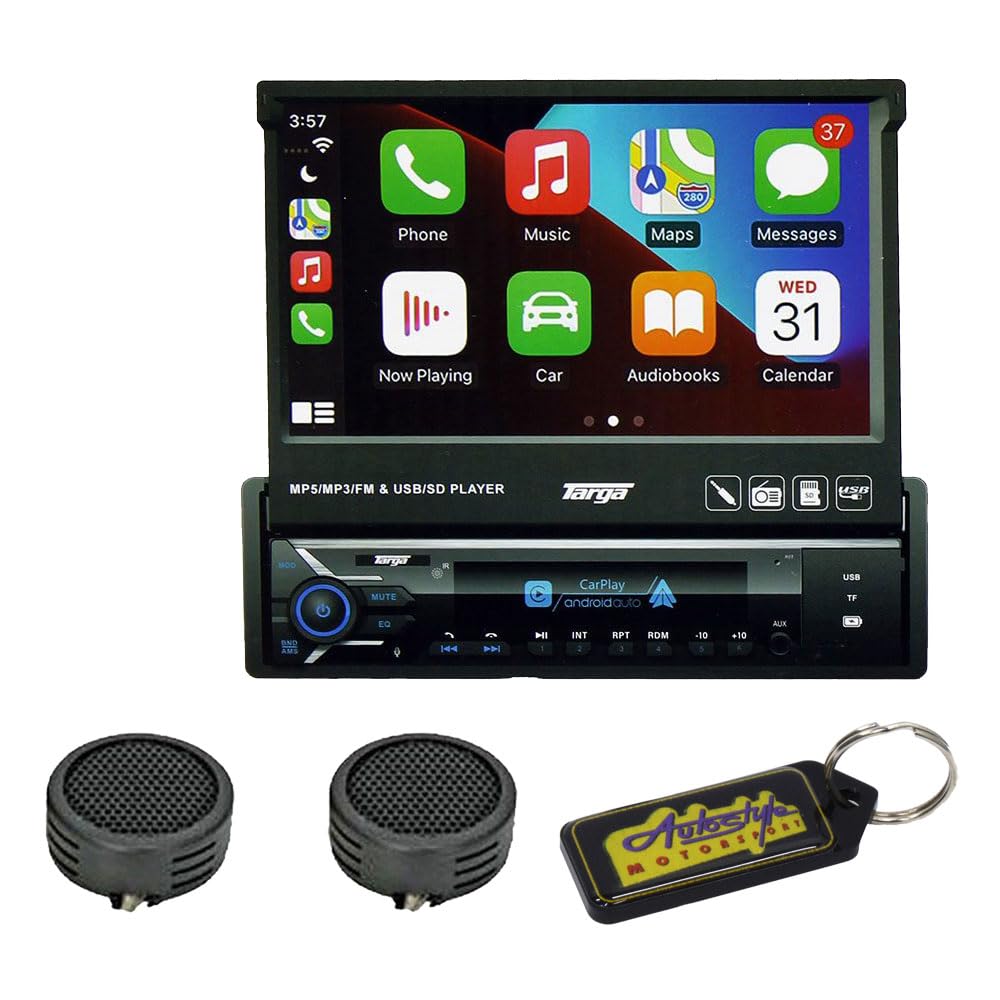
Whakaahua 1: Targa TID-AUT700 unit with its 7-inch motorized touchscreen extended. The screen displays a user interface with icons for Phone, Music, Maps, Messages, Now Playing, Car, Audiobooks, and Calendar. Below the screen, the main unit features control buttons, a volume knob, and ports for USB and SD cards.
2. Tatūnga me te Tāuta
Proper installation is crucial for optimal performance and safety. It is highly recommended that a qualified professional install this unit. Incorrect wiring can cause damage to the unit or your vehicle.
2.1 Hononga Waea
- Mana: Connect the yellow wire to a constant 12V power source, the red wire to an accessory 12V power source (switched with ignition), and the black wire to a chassis ground.
- Kaikōrero: Connect speaker wires to the corresponding vehicle speaker wires. Ensure correct polarity (+/-) for each speaker. The unit supports 4-channel output.
- Antenna: Honoa te pūihi reo irirangi o te waka ki te tāuru pūihi o te waeine.
- Remote Control Wire: If applicable, connect the blue/white wire to the ampte arataki whakahuri mamao mamao.
- Waea Parai Waka: For safety, connect the parking brake wire to the vehicle's parking brake circuit. Video playback may be restricted unless the parking brake is engaged.
2.2 Whakapiki i te Waehe
Install the unit into a standard single-DIN opening using the provided mounting sleeve and hardware. Secure the unit firmly to prevent movement during vehicle operation.
2.3 Detachable Face Installation
To attach the detachable face panel, align the panel with the main unit and gently push until it clicks into place. To remove, press the release button (if present) and pull the panel away from the unit. Store the detachable face in a protective case when not in use.
3. Nga Tohutohu Whakahaere
3.1 Hiko / Whakaweto
- Whakahiko: Pehia te PWR/MODE button or turn the ignition key to the ACC or ON position.
- Weto Whakakore: Patohia me te pupuri i te PWR/MODE button for a few seconds, or turn the ignition key to the OFF position.
3.2 Motorized Screen Operation
The 7-inch screen is motorized. Use the dedicated screen open/close buttons (often labeled with arrows or a screen icon) on the unit or remote control to extend or retract the display. Ensure no obstructions are in the screen's path.
3.3 Atanga Mata Paa
Navigate the unit's functions by touching the icons and menus on the 7-inch display. Swipe gestures may be used for scrolling through lists or pages. The interface is designed to be intuitive, similar to a smartphone or tablet.
3.4 Radio (AM/FM with RDS)
- Kōwhiria te Aratau Reo Irirangi: Pehia te MODE button until 'Radio' or 'FM/AM' is displayed.
- Karapa Aunoa: Pehia te KAUPAPA button to automatically search and store strong stations.
- Whakatika ā-ringa: Whakamahia te TUNE +/- nga patene hei whakatika a-ringa i te auau.
- Tatūkē: Touch and hold a preset number on the screen to save the current station.
3.5 Nihokikorangi Kore-ā-ringa
- Takirua: On your mobile device, search for Bluetooth devices and select 'TID-AUT700' (or similar name). Enter the default PIN (usually '0000') if prompted.
- Waeatanga: Use the touchscreen dial pad or access your phone's contacts via the unit.
- Whiwhi Waea: Pehia te WHAKAUTU button on the screen to accept an incoming call.
- Rere Ororongo: Once paired, you can stream audio from your device to the unit.
3.6 Media Playback (USB/SD/Aux)
- USB/SD: Insert a USB drive into the USB port or an SD card into the SD card slot. The unit should automatically switch to the corresponding mode or allow selection from the source menu.
- Whakauru Aux: Connect an external audio device (e.g., MP3 player) to the 3.5mm Aux-in jack using an audio cable. Select 'AUX' from the source menu.
- File Tautoko: The unit supports MP3, MP5, and other common audio/video formats.
3.7 Tautuhinga Oro
Access the audio settings menu on the touchscreen to adjust equalizer (EQ) presets, bass, treble, balance, and fader settings to customize your listening experience.
3.8 CarPlay / Android Auto
Connect your compatible iPhone or Android smartphone via USB to enable CarPlay or Android Auto. This allows you to access navigation, music, messages, and other apps directly from the unit's touchscreen, providing a safer and more integrated driving experience.
4. Tiaki
4.1 Te Whakapai i te Waeine
- Use a soft, dry cloth to wipe the unit's surface.
- For the touchscreen, use a soft, lint-free cloth slightly damphoroia ki te wai horoi mata. Āta karohia ngā matū kino, ngā rauemi whakakoi rānei.
- Me mohio kua whakawetohia te waeine i mua i te horoi.
4.2 Detachable Face Care
When the face panel is detached, store it in its protective case to prevent scratches or damage. Avoid exposing it to direct sunlight or extreme temperatures.
5. Te Raru
If you encounter issues with your Targa TID-AUT700, refer to the following common problems and solutions:
| Raruraru | Take pea | Rongoā |
|---|---|---|
| Kaore he mana ki te waeine. | Incorrect wiring; blown fuse; ignition off. | Check power connections (yellow, red, black wires). Inspect vehicle's fuse box and unit's fuse. Ensure ignition is on. |
| Karekau he oro mai i nga kaikorero. | Speaker wires disconnected; volume too low; mute function active. | Verify speaker wire connections. Increase volume. Check if the unit is muted. |
| Kāore i tutuki te hononga Nihokikorangi. | Device not in pairing mode; incorrect PIN; interference. | Ensure both devices are in pairing mode. Re-enter PIN '0000'. Move closer to the unit. Restart both devices. |
| Screen not extending/retracting. | Obstruction; motor malfunction; power issue. | Check for any physical obstructions. Ensure unit has stable power. If problem persists, contact support. |
| Karekau e aro te mata pa. | He hapa pūmanawa; he pakaru o te mata. | Perform a soft reset (refer to unit's reset button, usually a small pinhole). If damage is visible, contact support. |
Mena kāore ēnei otinga e whakatau i te raruraru, whakapā atu ki te tautoko kiritaki.
6. Whakatakotoranga
- Tauira: TID-AUT700
- Whakaatu: 7-inch Motorized Touchscreen
- Face Panel: Ka taea te wetewete
- Putanga Ororongo: 65W x 4
- Whakaata Irirangi: AM/FM with RDS
- Hononga: Bluetooth Hands-free, Aux Input, USB Input, SD Card Input
- Hototahi: CarPlay, Android Auto
- UPC: 745853662875
7. Nga Korero Whakaputanga
This Targa TID-AUT700 unit comes with a 6-marama whakamana from the date of purchase. This warranty covers manufacturing defects under normal use. It does not cover damage caused by improper installation, accident, misuse, abuse, neglect, unauthorized modification, or normal wear and tear. Please retain your proof of purchase for warranty claims.
8. Tautoko
For further assistance, technical support, or warranty inquiries, please contact your retailer or the manufacturer's customer service department. Have your model number (TID-AUT700) and proof of purchase ready when contacting support.