
Kupu Whakataki
This manual provides detailed instructions for setting up and operating your YNF Smart Plug. Please read this manual carefully before use to ensure proper functionality and safety. The YNF Smart Plug allows you to control your home appliances remotely, via voice commands, and through scheduled timers.

Image: The YNF Smart Plug, a compact white device designed for smart home integration.
Nga korero haumaru
- Kaua e wetewete, whakarereke ranei i te taputapu.
- Puritia kia matara atu i te wai me ngā taiao haumākū nui.
- Do not exceed the maximum load rating of the smart plug. Refer to specifications.
- Me tino whakaurua te mono ki te putanga o te pakitara.
- Mo roto anake.
Ihirangi mokete
- 1 x YNF Smart Plug
- 1 x Manual Kaiwhakamahi (tenei tuhinga)
Tatūnga
1. Tikiake te Smart Life App
Rapua "Smart Life" in the Apple App Store or Google Play Store and download the application. Alternatively, scan the QR code provided in the product packaging (if available) to download.
2. Register and Log In
Open the Smart Life App. If you are a new user, register for an account. If you already have an account, log in.
3. Tāpiri Pūrere
- Plug the YNF Smart Plug into a wall outlet.
- Open the Smart Life App and tap the "+" icon in the top right corner to add a device.
- Tīpakohia "Putanga Hiko" ranei "Smart Mono" mai i te rarangi taputapu.
- Confirm that the indicator light on the smart plug is blinking rapidly. If not, press and hold the power button on the plug for 5-10 seconds until it blinks rapidly.
- Enter your 2.4GHz Wi-Fi network password. The YNF Smart Plug supports 2.4GHz Wi-Fi and Bluetooth for stable connection.
- Wait for the app to connect to the device. Once connected, you can rename the smart plug.

Image: A comparison chart highlighting YNF Smart Plug's superior connectivity (Wi-Fi & Bluetooth), faster response time, higher stability, and broader compatibility (Alexa, Google, SmartThings) compared to other smart plugs.
Nga Tohutohu Whakahaere
Remote Control via Smart Life App
Once the smart plug is successfully added to the Smart Life App, you can control connected appliances from anywhere with an internet connection.
- Open the Smart Life App.
- Tap on the smart plug's name to access its control interface.
- Toggle the power button within the app to turn the connected appliance on or off.

Image: A user demonstrating remote control of a smart plug via the Smart Life app on a smartphone, showing a bedroom light being controlled.
Mana Reo (Alexa me Google Home)
The YNF Smart Plug is compatible with Amazon Alexa and Google Home for hands-free voice control.
- Link Smart Life to Voice Assistant:
- Whakatuwheratia tō taupānga Alexa, Google Home rānei.
- Haere ki "Ngā Pūkenga me ngā Kēmu" (Alexa) ki "Te Mahi me Google" rānei (Kāinga Google).
- Rapua "Te Oranga Atamai" me te whakahohe i te pūkenga/ratonga.
- Honoa tō pūkete Smart Life mā te whakamahi i ō taipitopito tuakiri.
- Tirohia nga taputapu.
- Tono Reo:
- "Alexa, whakakāhia a [ingoa pūrere]."
- "E Google, whakawetohia a [ingoa pūrere]."
- "Alexa, set [device name] to 50%." (If applicable for dimmable devices connected to the plug)
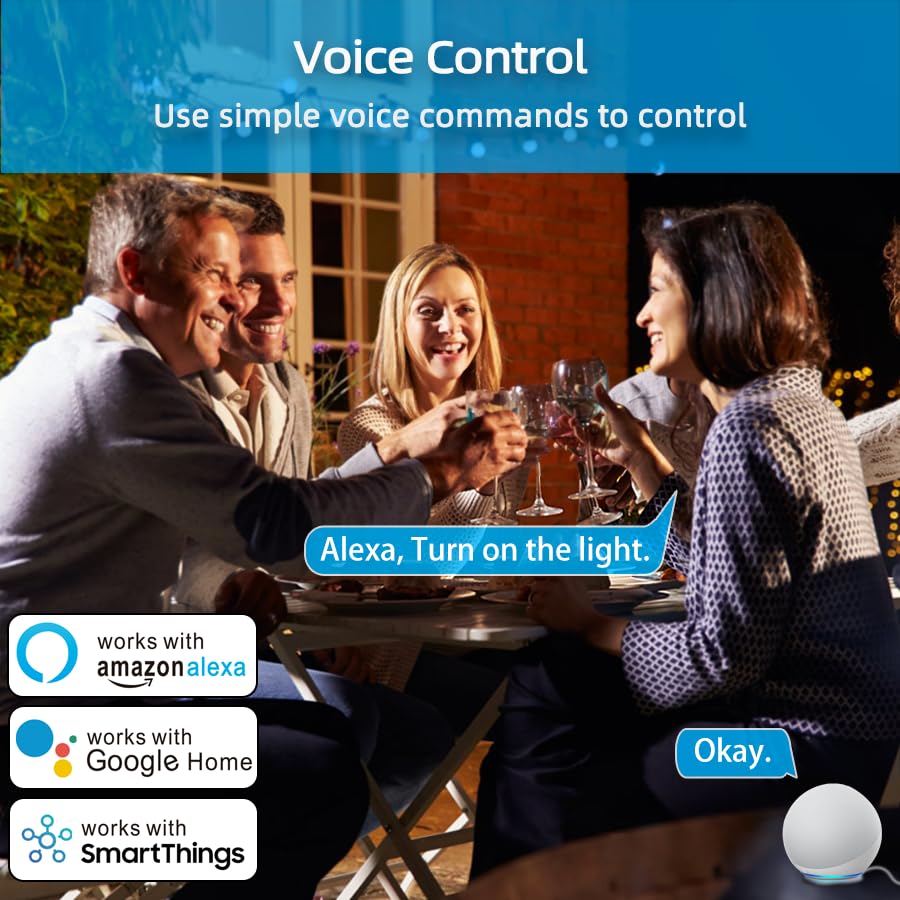
Image: An illustration of voice control in action, with people at a dinner table and a voice command "Alexa, Turn on the light." being processed, indicating compatibility with Amazon Alexa, Google Home, and SmartThings.
Timer Function and Schedules
Set schedules and timers to automate your appliances.
- In the Smart Life App, select your smart plug.
- Tap on "Timer" or "Schedule" to create new automation rules.
- You can set specific times for the plug to turn on or off daily, weekly, or on custom days.

Image: A visual representation of setting a schedule, with a sunrise icon at 7:00 AM and a sunset icon at 6:00 PM, demonstrating how to automate device operation based on time.
Aratau huarere
Utilize the Weather Mode feature to automate actions based on local weather conditions.
- In the Smart Life App, navigate to the smart plug's settings or automation section.
- Look for "Weather Mode" or "Scene" creation.
- Configure rules, for example, "If weather is Rainy, turn on the light."

Image: A diagram illustrating the "Weather Mode" feature, where actions like "Turn on the light" are scheduled based on daily weather forecasts (e.g., Cloudy, Rainy, Snowy, Hazy).
Group Control and Device Sharing
Manage multiple smart plugs simultaneously and share control with family members.
- Mana Rōpū: In the Smart Life App, select multiple smart plugs and create a group to control them all with a single command.
- Tiri Pūrere: Share access to your smart plugs with other Smart Life account users in your household.
Te tiaki
- Keep the smart plug clean and dry.
- Wipe with a soft, dry cloth. Do not use liquid cleaners.
- Ensure the firmware of the smart plug and the Smart Life App are updated to the latest versions for optimal performance and security.
Raparongoā
| Raruraru | Rongoa pea |
|---|---|
| Kāore te mono atamai e hono ki te Wi-Fi. |
|
| Ko te whakahaere reo kaore e mahi. |
|
| Plug is unresponsive. |
|
Whakatakotoranga
| Āhuahira | Taipitopito |
|---|---|
| Waitohu | YNF |
| Tauira | B0D6ZDR4KD |
| Tae | Mā |
| Rauemi | Acrylonitrile Butadiene Styrene (ABS) |
| Momo Tuhono | Mono Hiko |
| Te maha o nga Waea | 3 |
| Momo Mono | Momo B |
| Hononga Ahokore | Ipurangi Ahokore 2.4GHz, Nihokikorangi |
| Hototahi | Amazon Alexa, Google Home, SmartThings, Smart Life App |
| Tiwhikete | ETL, UL, cUL |
Pūtāhui me te Tautoko
For warranty information and technical support, please refer to the contact details provided on the product packaging or visit the official YNF webpae. Puritia to rihiti hoko mo nga kereme whakamana.
Mo etahi atu awhina, ka taea ano e koe te whakapiri atu ki te kaihoko ma te papaahi i hokona ai te hua.