
1. Kupu Whakataki
Thank you for choosing the BOTSLAB G980H 4K Dash Cam with Hardwire Kit. This manual provides detailed instructions for the installation, operation, and maintenance of your new dash camera system. Please read this manual thoroughly before using the product to ensure proper functionality and safety.
2. Hua Neke Atuview
The BOTSLAB G980H is a high-performance dash camera system designed to capture clear video footage of your journeys. The front camera records in true 4K resolution, while the rear camera records in 1080P (optimized to approximately 2K via BOTSLAB algorithm). Both cameras utilize the Sony IMX 415 sensor, providing clear video capture, including in low-light conditions. The system includes advanced features such as 24/7 parking mode, ADAS (Advanced Driver-Assistance Systems), and built-in GPS for reliable recording and enhanced driving safety.
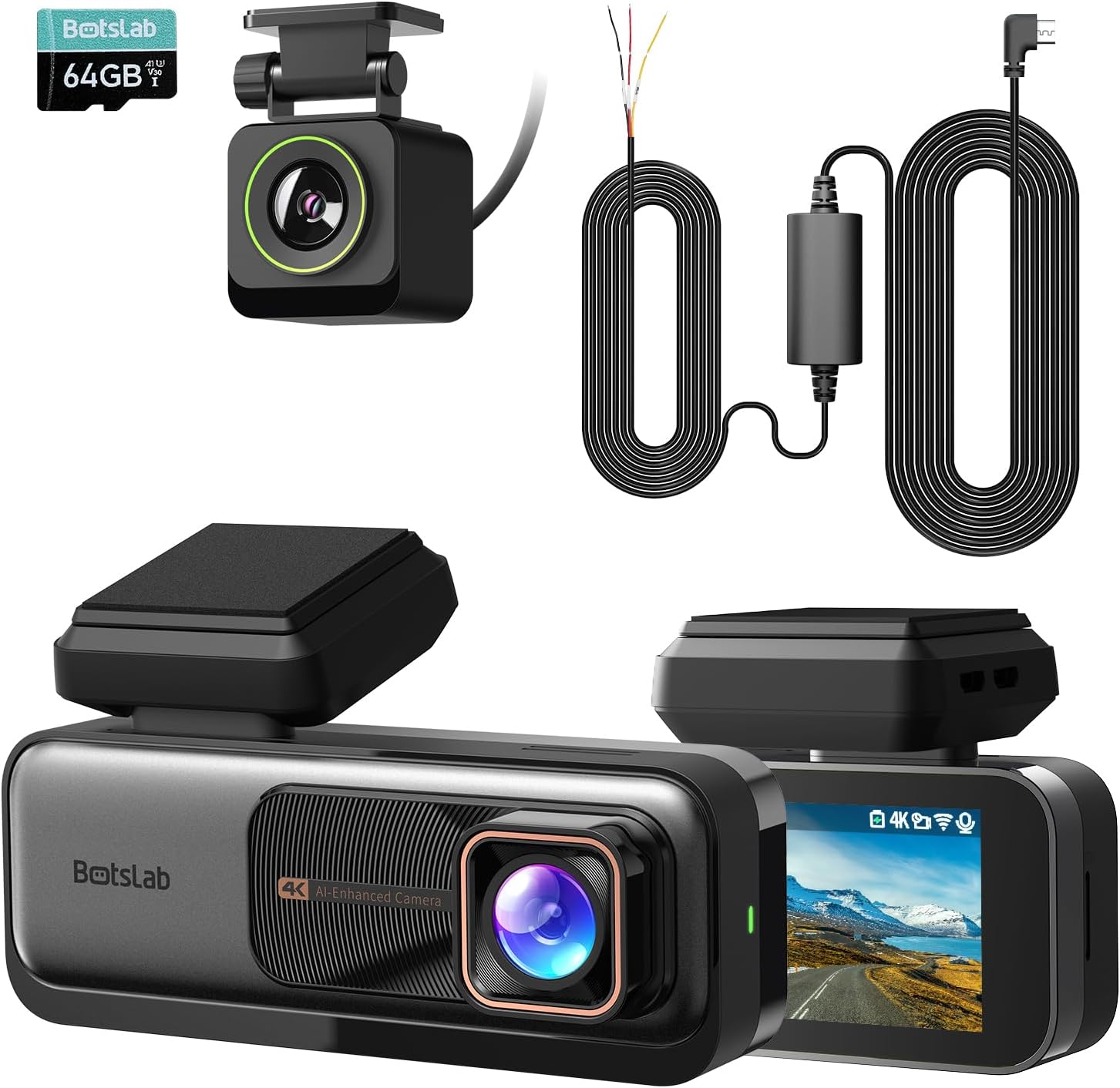
Image: The main components of the BOTSLAB G980H Dash Cam system, including the front camera, rear camera, and hardwire kit.
3. He aha kei roto i te Pouaka
I te wetewete pouaka, tirohia koa kei roto katoa nga mea e whai ake nei:
- BOTSLAB G980H Dash Cam (Front Unit)
- Kāmera Whakamuri
- Kete Hiko
- ADAS (Advanced Driver-Assistance Systems) functionality
- Micro USB cable (integrated with hardwire kit)
- Pukapuka Kaiwhakamahi
Image: A visual representation of the items included in the product packaging.
4. Tatūnga me te Tāuta
Proper installation is crucial for optimal performance. The G980H dash cam is designed for windshield mounting.
4.1 Hardwire Kit Installation
The included hardwire kit enables 24/7 parking mode functionality. It requires connection to your vehicle's fuse box.
- Step 1: Test Power Sources
Use a multimeter to check for a 12V constant power source and an ACC (Accessory) power source in your car's fuse box. - Step 2: Set Up the Wires
Connect the Yellow Wire (ACC) to the accessory power, the Red Wire (VCC+) to the constant power, and the Black Wire (GND-) to a grounding point on the vehicle chassis. - Step 3: Connect the Dash Cam
Attach the micro USB port of the hardwire kit to your BOTSLAB G980H dash cam. Ensure the cable is routed neatly and securely.

Image: A multimeter being used to test fuse box connections for constant and ACC power.

Whakaahua: Kati-ake view of the hardwire kit's yellow, red, and black wires connected to the car's fuse box and ground.
Image: The micro USB connector of the hardwire kit ready to be plugged into the dash cam.

Image: A diagram showing the micro USB port, power conversion box, and the three wires (ACC, VCC+, GND-) of the hardwire kit.

Image: The 9ft long hardwire cable, designed for compatibility with various car models.
4.2 Dash Cam Mounting
Whakamaua te kāmera o mua ki runga i tō matapihi mua, pai ake i muri i te tuaraview whakaata, kia kore ai e arai i a koe view. Position the rear camera on the rear window for optimal coverage.
4.3 Te Whakauru i te Kaari Maumahara
Insert a high-quality U3 or V30 rated microSD card (not included) into the designated slot on the dash cam. Ensure it is inserted correctly until it clicks into place. The dash cam requires a memory card for recording footage.
5. Nga Tohutohu Whakahaere
5.1 Mahi Taketake
- Hiko Whakaka/Weto: The dash cam will automatically power on and begin recording when your vehicle starts, and power off when the engine is turned off (if connected via ACC power).
- Roopu Hopu: The G980H features seamless loop recording, continuously overwriting the oldest footage ka ki tonu te kaari mahara.
- G-Sensor: In the event of a sudden impact or collision, the built-in G-Sensor will automatically lock the current video segment to prevent it from being overwritten.
- Kounga Ataata: The front camera records in 4K resolution, providing a wide 170-degree view o te huarahi kei mua.

Image: Illustration of the dash cam's 4K resolution and 170-degree wide-angle recording capability.
5.2 ADAS Features (Advanced Driver-Assistance Systems)
The G980H is equipped with a 1.5TOPS AI NPU chip and BOTSLAB's AI algorithm to provide real-time driving alerts:
- Pedestrian Collision Warning: Alerts you to potential collisions with pedestrians.
- Front Vehicle Starts Moving: Notifies you when the vehicle ahead begins to move, useful in traffic.
- Whakatupato Whakarerenga Rae: Alerts if you unintentionally drift out of your lane.
- Headway Monitoring Warning: Helps maintain a safe distance from the vehicle in front.
- Driver Fatigue Alerts: Provides alerts every 2 hours to encourage breaks and prevent fatigue.

Image: Visual representation of the various ADAS warnings provided by the dash cam, along with illustrations of the AI NPU chip and built-in GPS.
5.3 24/7 Parking Mode
With the hardwire kit installed, the G980H can monitor your vehicle even when it's turned off, providing protection against theft and vandalism.
- The dash cam will automatically switch to parking mode when the vehicle is parked.
- It will record emergencies and suspicious activities around your car.

Image: The dash cam display showing options for Time-Lapse Recording (Parking Mode) and Normal Recording (Driving Mode), illustrating its 24-hour monitoring capability.
5.4 GPS Integration
The built-in GPS module integrates with Google Maps, allowing you to track your driving path. The dash cam's display will show your real-time speed, and recorded videos will include speed records.

Image: The dash cam screen showing real-time speed and GPS data, with a map overlay indicating the driving path.
6. Tiaki
- Te horoi: Whakamahia he kakahu ngohengohe, maroke hei horoi i te karāhe kāmera me te mata. Kaua e whakamahi i ngā kaihoroi whakakoi, i ngā whakarewa rānei.
- Kāri Pūmahara: Regularly format the memory card (at least once a month) to ensure optimal performance and prevent data corruption. Use a high-quality U3 or V30 rated microSD card.
- Whakahōu Firmware: Check the BOTSLAB official website periodically for firmware updates to ensure your dash cam has the latest features and bug fixes.
7. Te Raru
| Raruraru | Te Take Taea / Rongoa |
|---|---|
| Karekau te kamera i te hiko. |
|
| He ngoikore, he pōuri rānei te kounga o te ataata. |
|
| Parking mode is not working. |
|
| He ngoikore te tohu GPS, kāore rānei i kitea. |
|
8. Whakatakotoranga
| Āhuahira | Taipitopito |
|---|---|
| Ingoa Tauira | G980H |
| Waitohu | BOTSLAB |
| Resolution Camera Mua | True 4K (Sony IMX 415 sensor) |
| Rear Camera Resolution | 1080P (optimized to near 2K) |
| Nga waahanga motuhake | Hardwire Kit, ADAS, 24/7 Parking Mode, Built-in GPS, Loop Recording, G-Sensor |
| Hangarau Hononga | USB, Ahokore (mō ngā āhuatanga whakaatu) |
| Momo Whakaeke | Maunga Wharerangi |
| Tae | Pango |
| AI Tipi | 1.5TOPS AI NPU chip |
9. Pūtāhui me te Tautoko
For warranty information and technical support, please refer to the official BOTSLAB webpaetukutuku, whakapā atu ranei ki ta raatau ratonga kaihoko. Puritia to riirii hoko hei tohu mo te hoko mo nga kereme whakamana.
Kaihanga: BOTSLAB
Te Ra Tuatahi Wātea: Oketopa 25, 2024