
BOTSLAB HK30
BOTSLAB HK30 Car Dash Cam User Manual
4K+1080P+1080P Car Dash Cam with Angle Front Camera and Color Night Vision
1. Kupu Whakataki
Thank you for choosing the BOTSLAB HK30 Car Dash Cam. This manual provides detailed instructions for the installation, operation, and maintenance of your new dash camera system. Please read this manual thoroughly before using the product to ensure proper function and safety. Keep this manual for future reference.
2. Nga korero haumaru
- Do not operate the dash cam or access its settings while driving. Always pull over safely before making any adjustments.
- Me whakarite kia mau te whakairinga o te kāmera papaaho, ā, kia kore ai e ārai i te ara o te taraiwa view ka pokanoa ranei ki te tuku pukoro.
- Use only the original power adapter and cables provided with the device. Using unauthorized accessories may damage the product and void the warranty.
- Avoid exposing the dash cam to extreme temperatures, direct sunlight for prolonged periods, or excessive moisture.
- Kaua e ngana ki te wetewete, ki te whakatika ranei i te taputapu. Whakapa atu ki te tautoko a nga kaihoko mo te awhina.
- Regularly format the memory card to ensure optimal recording performance.
3. Ihirangi mokete
Tena koa tirohia te kete mo nga mea e whai ake nei:
- BOTSLAB HK30 Dash Cam Unit
- Utauta Waka (Taura Hiko)
- Mounting Bracket (with adhesive pad)
- Pukapuka Kaiwhakamahi
- Optional: Rear Camera (if purchased as a bundle)
- Optional: GPS Module
4. Hua Neke Atuview
The BOTSLAB HK30 is a multi-channel dash cam designed to provide comprehensive coverage of your driving environment. It features a main front camera with 4K resolution, and supports additional cameras for rear and interior views (sold separately or as part of a bundle).

Image: The main BOTSLAB HK30 dash cam unit, showing the front lens and the Botslab branding.
Ko nga ahuatanga matua ko:
- 4K Front Camera: Captures high-resolution video of the road ahead.
- 140° Whānui Viewing Koki: Provides extensive coverage, minimizing blind spots.
- Tirohanga Po Tae: Enhances visibility and clarity in low-light conditions.
- GPS-i roto: Records speed and location data for your journeys.
- G-Sensor: Ka raka aunoa i te ataata filei te pānga hei ārai i te tuhirua.
- Roopu Hopu: Continuously records by overwriting the oldest files ka ki tonu te kaari mahara.
- Aroturuki Waka: Offers 24-hour surveillance with time-lapse recording and collision-triggered normal recording (requires buck line kit, sold separately).
- Mana Taupānga: Connects to your smartphone for easy settings adjustment, live view, and video download.

Image: An illustration demonstrating the 140-degree wide viewing angle of the dash cam, showing its ability to capture a broad perspective of the road.
5. Tatūnga me te Tāuta
5.1 Kōkuhu Kāri Pūmahara
Before first use, insert a high-speed (Class 10 or higher) microSD card (up to 256GB recommended) into the dash cam's memory card slot. Ensure the card is inserted correctly until it clicks into place. Format the card via the dash cam's settings menu or the mobile app before initial recording.
5.2 Te Whakamau i te Kāmera Papaaho
- Horoia te matapihi o mua e hiahia ana koe ki te whakairi i te kāmera papaaho. Kia tino mārama kei roto he puehu, he hinu rānei.
- Attach the adhesive pad to the mounting bracket, then firmly press the bracket onto the chosen spot on your windshield, ideally behind the rearview whakaata mo te tino pai view and minimal obstruction.
- Slide the dash cam unit onto the mounted bracket until it locks securely.
- Adjust the camera lens angle to ensure it captures the road ahead clearly, with approximately 60% road and 40% sky visible.
5.3 Hononga Hiko
- Connect the provided car charger cable to the dash cam's power input port.
- Monohia tetahi pito o te rihi hiko waka ki te putanga hiko 12V o tō waka (te putanga rama hikareti).
- Route the power cable neatly along the edge of the windshield and dashboard to conceal it and prevent interference with driving.
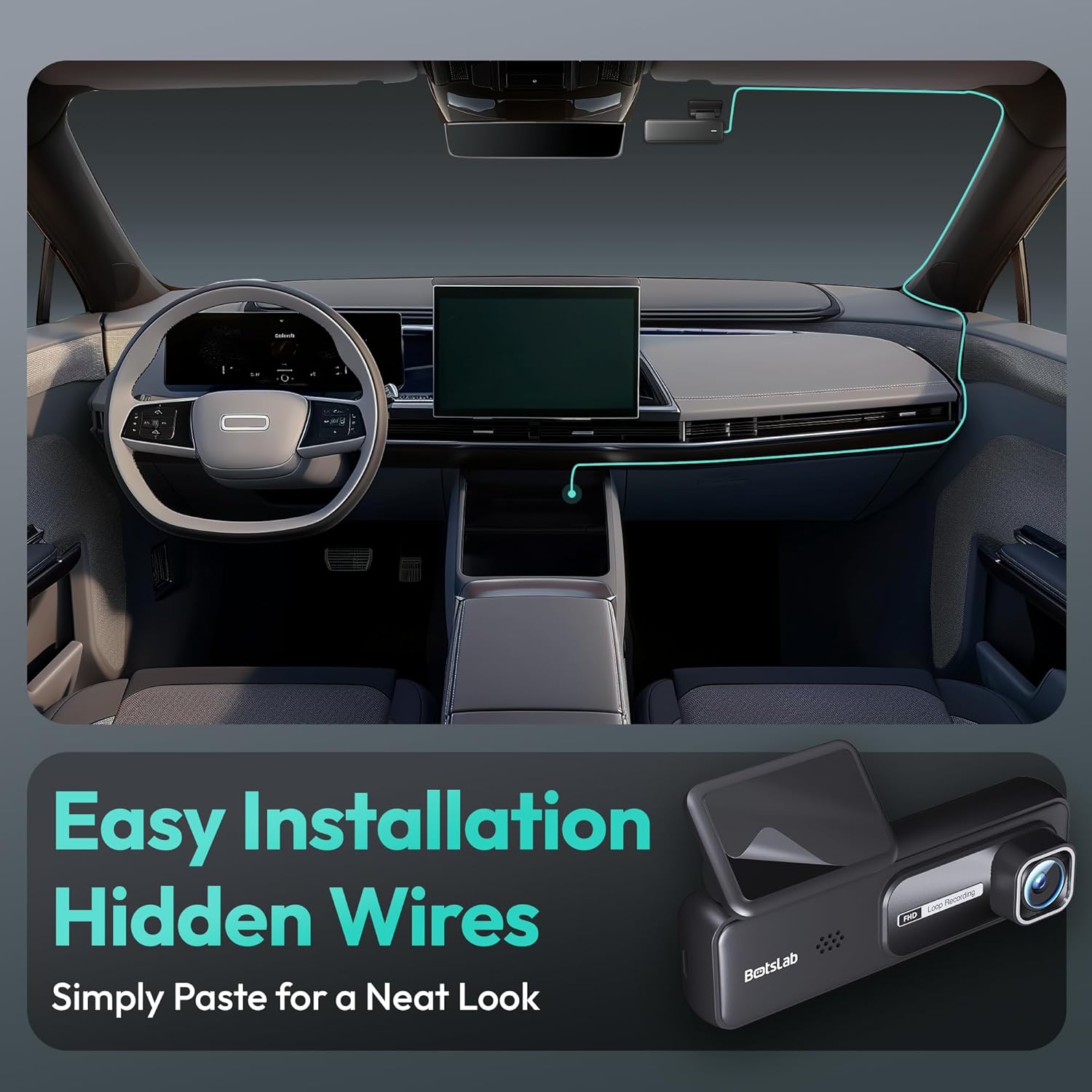
Image: A visual guide illustrating the process of easy dash cam installation with hidden wires, showing how to route the cable neatly along the car's interior for a clean look.
5.4 GPS Module Connection (if applicable)
If your package includes a separate GPS module, connect it to the designated port on the dash cam. Ensure the GPS module is placed in an area with a clear view o te rangi mo te whiwhi tohu tino pai.
6. Nga Tohutohu Whakahaere
6.1 Hopu Aunoa
Once powered on and connected to your vehicle's ignition, the dash cam will automatically start recording when the engine is started. It will stop recording and power off shortly after the engine is turned off.
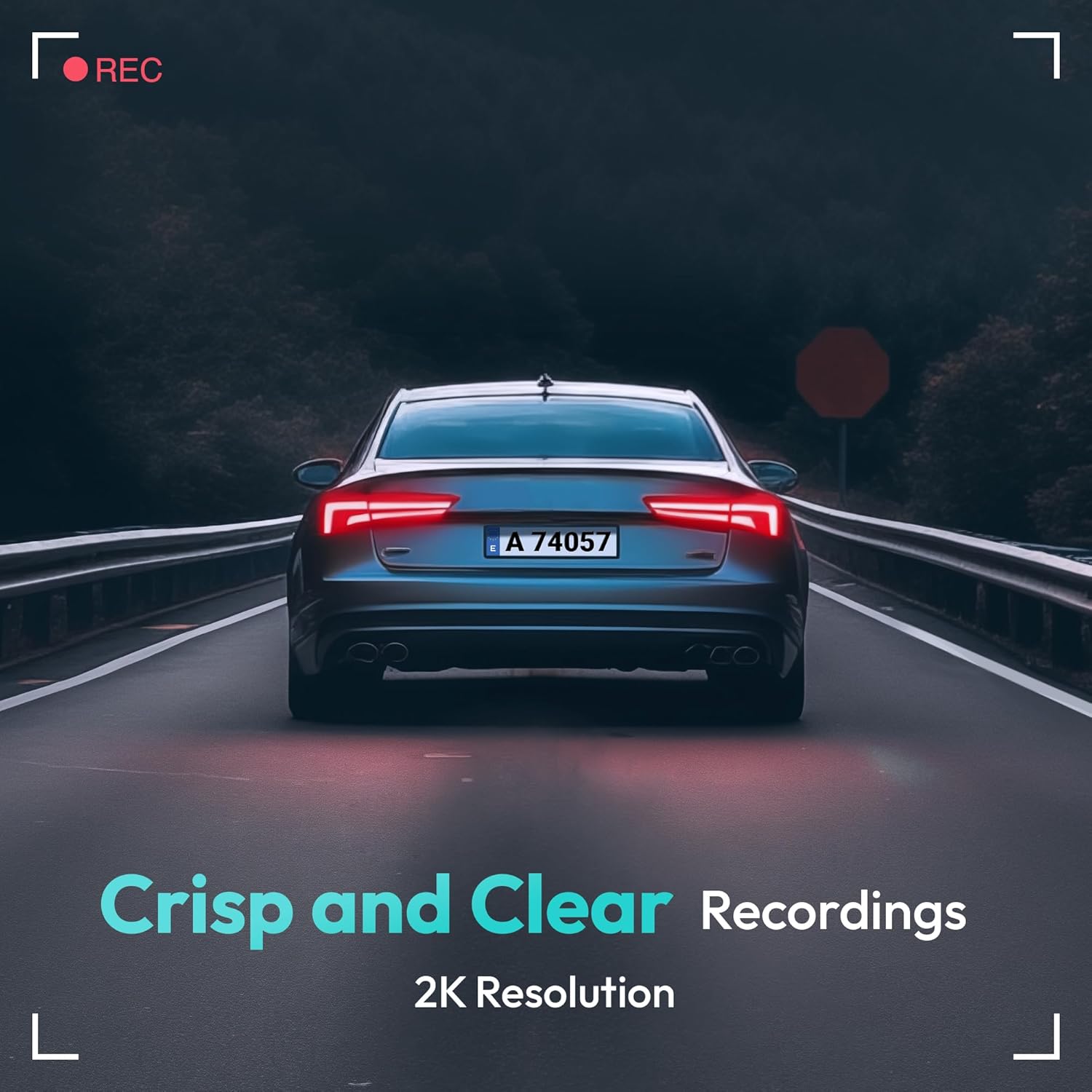
Image: A visual representation highlighting the crisp and clear recording capabilities of the dash cam, indicating 2K resolution for detailed footage.
6.2 Roopu Hopu
Ka hopu ataata te kāmera papaaho i roto i ngā takahuri tonu (hei tauira, he wāhanga 1, 3, 5 meneti rānei). Ina kī te kāri mahara, ka wetekina te kāri tawhito. fileKa tuhirua aunoatia ngā s e ngā rekoata hou. Mā tēnei ka taea tonu te hopu ataata me te kore e hiahiatia he wawaotanga ā-ringa.
6.3 Pūoko-G (Tuhituhi Āwhina)
The built-in G-Sensor detects sudden impacts or collisions. When an impact is detected, the current video segment will be automatically locked and saved to a protected folder on the memory card, preventing it from being overwritten by loop recording. These files are crucial for accident evidence.
6.4 Te Aroturuki Waka
For 24-hour parking surveillance, a hardwire kit (buck line) is required (sold separately). Once installed, the dash cam can utilize:
- Papaanga Whaatea-roa: Records continuously at a low frame rate to save storage space while providing a full overview of parking events.
- Collision-Triggered Recording: If an impact is detected while parked, the dash cam will wake up and record a short video segment, which will be locked.

Image: An illustration depicting the 24/7 parking monitoring feature, highlighting time-lapse recording and collision-triggered normal recording capabilities, with a shield icon indicating protection.
6.5 App Control and Connectivity
Download the official BOTSLAB app from your smartphone's app store. Connect your phone to the dash cam's Wi-Fi network (SSID and password usually found on the device or in the manual). Through the app, you can:
- View whāngai ataata ora.
- Adjust dash cam settings (resolution, G-sensor sensitivity, loop recording duration, etc.).
- Te purei i nga riipene ataata.
- Tikiake ataata files tika ki to waea.
- Whakahōu mārō.
6.6 GPS Tracking and Playback
With the GPS module connected, the dash cam records your vehicle's speed and location data. This information can be viewed during video playback using the dedicated PC viewer software (available for download from the BOTSLAB website) or within the mobile app, often overlaid on a map (e.g., Google Maps).
7. Tiaki
7.1 Te horoi i te taputapu
Use a soft, dry cloth to clean the dash cam's lens and body. Do not use liquid cleaners or abrasive materials, as they may damage the device.
7.2 Memory Card Management
It is recommended to format the microSD card once a month to maintain optimal performance and prevent data corruption. Back up any important files i mua i te whakahōputu.
7.3 Whakahoutanga Firmware
Periodically check the BOTSLAB official website or the mobile app for available firmware updates. Firmware updates can improve performance, add new features, or fix bugs. Follow the instructions provided with the firmware update carefully.
8. Te Raru
| Raruraru | Take pea | Rongoā |
|---|---|---|
| Karekau te kamera i te hiko. | No power supply; faulty cable; vehicle's power outlet issue. | Check power cable connection; try another power outlet; ensure vehicle ignition is on. |
| Ka mutu te tuhi, ka whakatio ranei. | Memory card full or corrupted; slow memory card; firmware issue. | Format memory card; use a high-speed (Class 10+) card; update firmware. |
| He kino te kounga ataata. | He karāhe paru; kei runga tonu i te karāhe he kiriata tiaki; he tautuhinga taumira hē. | Clean the lens; remove protective film; set recording resolution to highest available. |
| Kaore i kitea te tohu GPS. | GPS module not connected; poor satellite reception. | Ensure GPS module is connected; move vehicle to an open area with clear sky view. |
| Kaore e taea te hono atu ki te Wi-Fi/App. | Incorrect Wi-Fi password; phone too far from device; app not updated. | Verify Wi-Fi password; ensure phone is close to dash cam; update app. |
9. Whakatakotoranga
| Āhuahira | Taipitopito |
|---|---|
| Ingoa Tauira | HK30 |
| Whakataunga Hopu Ataata | Front: 4K (1944p), Rear/Interior: 1080P (if applicable) |
| Viewing Koki | 140° (Front) |
| Hangarau Hononga | USB, Wireless (Wi-Fi) |
| Nga waahanga motuhake | App Control, G-Sensor, Loop Recording, Parking Monitor, Color Night Vision |
| Rokiroki | MicroSD Card (up to 256GB, Class 10 or higher) |
| Momo Whakaeke | Maunga Wharerangi |
| Puna Mana | Pūrere Whakakī Waka (12V) |
| Hunga Hua | 2 x 5.5 x 5.5 inihi |
| Taumaha Tūemi | 9.6 hekere |
10. Pūtāhui me te Tautoko
BOTSLAB products come with a limited warranty. Please refer to the warranty card included in your package or visit the official BOTSLAB website for detailed warranty terms and conditions. For technical support, troubleshooting assistance, or any inquiries, please contact BOTSLAB customer service through the contact information provided on their official website or within the mobile application.
Webpae: www.botslab.com (Exoampte hononga, tirohia te tuhinga hua tūturu mō te tika URL)
Ask a question about this manual
Ask about setup, troubleshooting, compatibility, parts, safety, or missing instructions. Manuals+ will review the question and use this page’s manual context to help answer it.