
Kupu Whakataki
Thank you for choosing the ESX Vision VMX700DAB Universal 2 DIN Multimedia Receiver. This device is designed to provide a comprehensive in-car entertainment and communication experience, featuring a 7-inch touchscreen, digital radio, smartphone integration, and versatile media playback options. This manual provides essential information for the proper installation, operation, and maintenance of your new multimedia receiver.
Nga waahanga matua
- 7-inch (17.8 cm) Touchscreen Display
- Hototahi Ahokore ki te Apple CarPlay me te Android Auto
- DAB+ Digital Radio with included DAB antenna
- FM/AM Radio with RDS function
- Bluetooth Hands-free Function with audio streaming
- Front USB-C port for media and charging (1.5A)
- Rear USB-A port for Apple CarPlay/Android Auto and charging (1.5A)
- 4 x 80 W max. music power output
- 4V RCA pre-amplified outputs (FL/FR/RL/RR/SUB1/SUB2)
- RCA AUX tāuru (L/R/ATAATA)
- RCA Camera inputs (Front/Rear)
- Internal and external microphone support
- Compatible with analog steering wheel remote control (learnable)
- Kaiwhiwhi GPS whakauru
- Multimedia player for audio, video, and photos (AVI, FLV, MOV, MKV, WMV, WMA, MP3, FLAC, JPEG, PNG, BMP)
Tatūnga
1. Ihirangi mokete
Before beginning installation, ensure all components are present. The package typically includes:
- ESX VMX700DAB Multimedia Receiver
- Power and Speaker Wiring Harnesses
- Puorooro o waho
- DAB+ Antenna
- Kaiwhiwhi GPS
- Mounting Hardware and Trim Frame
- RCA Cables for AUX and Camera Inputs
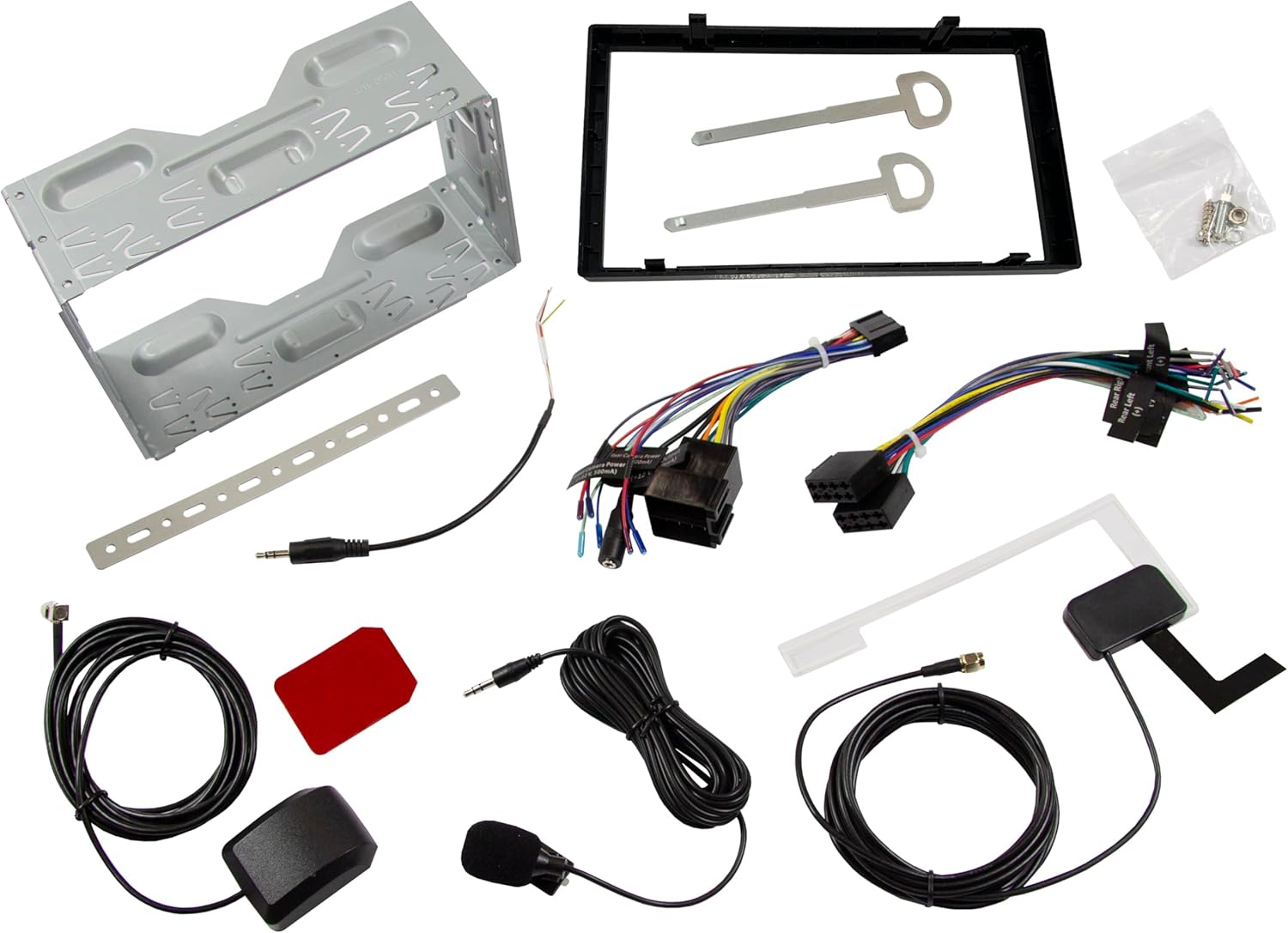
Whakaahua: Ka mutuview of all included accessories and cables for the ESX VMX700DAB multimedia receiver, including wiring harnesses, antennas, and mounting brackets.
2. Tāutanga
Installation of the ESX VMX700DAB should ideally be performed by a qualified professional to ensure proper wiring and functionality. Incorrect installation can lead to damage to the unit or vehicle electrical system.
- Whakapiki: Secure the 2 DIN unit into your vehicle's dashboard opening using the provided mounting brackets and screws. Ensure it is firmly seated.
- Waea waea: Connect the main power harness, speaker wires, and other auxiliary connections (RCA pre-outs, AUX-in, camera inputs) as per your vehicle's wiring diagram and the receiver's connection ports.
- Antennas: Connect the DAB+ antenna and GPS receiver to their respective ports on the rear of the unit. Position the antennas for optimal signal reception.
- Waeaoro Waho: Connect the external microphone to the designated input for improved hands-free call quality.
- Mana urungi: If your vehicle supports analog steering wheel controls, connect the appropriate wires and configure the learning function in the unit's settings.
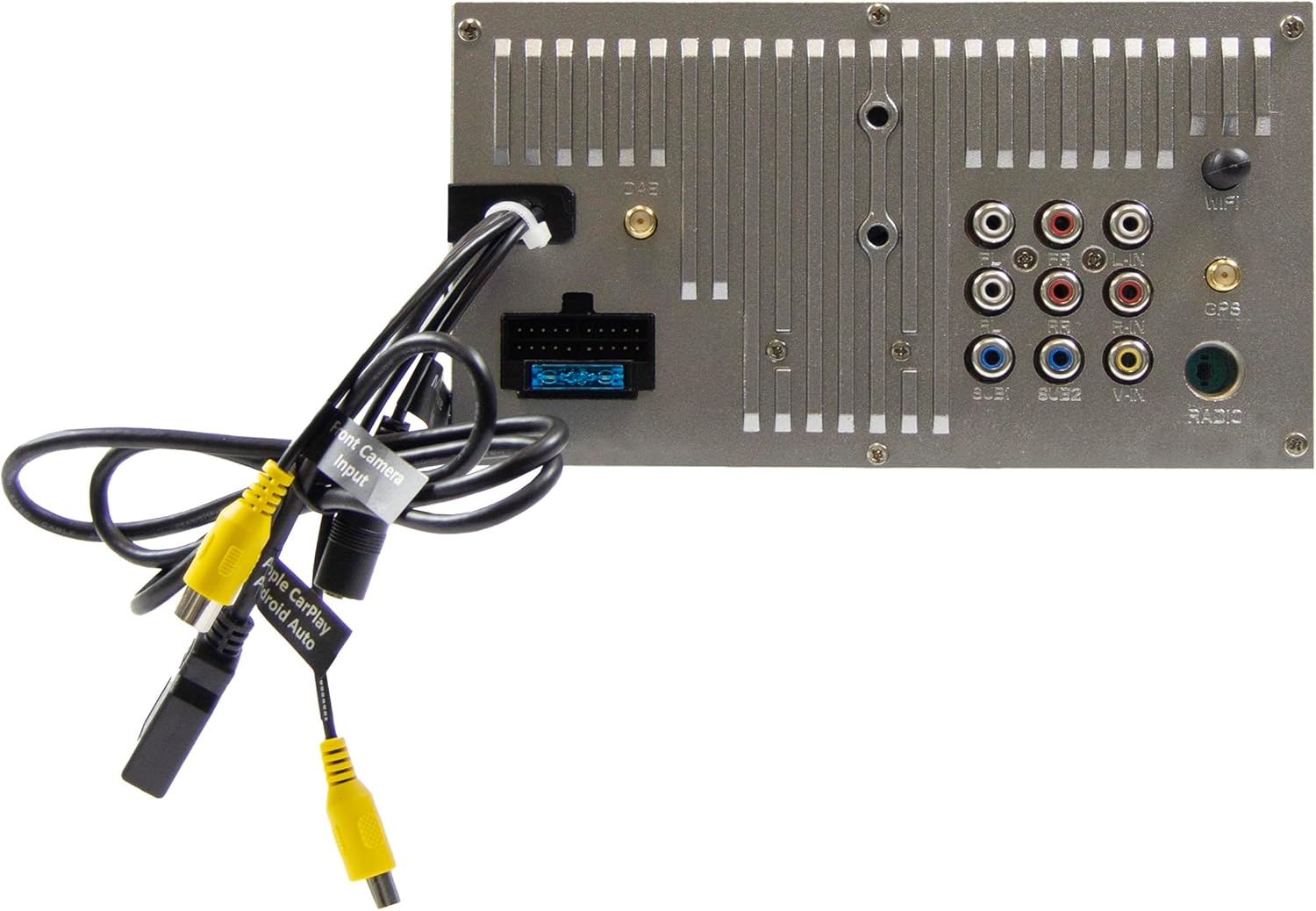
Image: Rear panel of the ESX VMX700DAB multimedia receiver, displaying the array of input and output ports including RCA, USB, and antenna connections for comprehensive system integration.

Whakaahua: Taha view of the ESX VMX700DAB unit, highlighting its compact 2 DIN chassis design and the front panel layout with physical controls and USB-C port.

Whakaahua: Mua view of the ESX VMX700DAB multimedia receiver, showcasing its 7-inch touchscreen display and the physical rotary knob and buttons on the left side for easy access to essential functions.
3. Hia Tuatahi
After installation, turn on your vehicle's ignition. The unit should power on automatically. Follow any on-screen prompts for initial setup, such as language selection or time zone settings.
Nga Tohutohu Whakahaere
1. Ngā Mana Whakahaere Taketake me te Atanga
The VMX700DAB features a large rotary knob for volume control and three function keys on the left side of the control panel for quick access. The primary interface is the 7-inch touchscreen.

Image: The main home screen of the ESX VMX700DAB multimedia receiver, displaying various application icons for functions such as Apple CarPlay, Android Auto, Radio, Phone, Camera, Bluetooth Audio, USB, DAB, Equalizer, AUX, and Settings.
- Puku Hurihuri: Turn to adjust volume. Press to mute/unmute or access specific menus depending on context.
- Pātuhi Taumahi: These keys provide shortcuts to common functions. Refer to the on-screen labels for their specific actions.
- Mata pa: Navigate through menus, select options, and control playback by touching the corresponding icons or areas on the display.
2. Radio Functions (FM/AM & DAB+)
Select the "Radio" or "DAB" icon from the home screen to access radio functions.
- Reo Irirangi FM/AM: Use the on-screen controls to scan for stations, save presets, and utilize RDS features for station information.
- Reo Irirangi DAB+: The integrated DAB+ tuner provides access to digital radio broadcasts. Ensure the DAB antenna is properly connected for optimal reception. Scan for available DAB stations and save your favorites.
3. Hononga Nihokikorangi
The built-in Bluetooth module supports hands-free calling and high-quality wireless music streaming.
- Takirua: Go to the Bluetooth settings on the receiver and enable pairing mode. On your smartphone, search for available Bluetooth devices and select "ESX VMX700DAB" to connect.
- Waea-ringa-kore: Once paired, you can make and receive calls directly through the receiver. The 7-inch display shows your phonebook, allowing direct contact selection. The external microphone ensures clear voice quality.
- Rere Ororongo: Stream music wirelessly from your smartphone to the receiver. Control playback (play/pause, skip tracks) from the receiver's touchscreen.
4. Apple CarPlay & Android Auto (Wireless & USB)
The ESX VMX700DAB supports both wireless and wired connections for Apple CarPlay and Android Auto, mirroring your smartphone's compatible apps directly onto the receiver's screen.

Image: The Apple CarPlay interface displayed on the ESX VMX700DAB screen, showing common iOS applications like Phone, Music, Maps, Messages, and Now Playing, providing seamless smartphone integration.

Image: The ESX VMX700DAB multimedia receiver installed in a car dashboard, displaying music playback information on its screen while a smartphone is held nearby, illustrating the integrated media experience.
- Hononga Ahokore: Ensure your smartphone's Wi-Fi and Bluetooth are enabled. Select the Apple CarPlay or Android Auto icon on the receiver's home screen and follow the on-screen instructions to establish a wireless connection.
- Hononga USB: Connect your smartphone to the dedicated USB-A port (usually at the rear, or via the front USB-C if supported for data) using a certified USB cable. The system will automatically launch CarPlay or Android Auto.
- Taumahinga: Access navigation (e.g., Google Maps with live traffic), music streaming services (e.g., Spotify), messaging, and other compatible apps directly from the receiver's touchscreen.
5. Whakahoki Media
The VMX700DAB supports various audio, video, and photo formats via its USB ports.
- USB Media: Insert a USB drive into the front USB-C port or rear USB-A port. Select the "USB" icon to browse and play media files.
- Ngā Hōputu Tautoko: AVI, FLV, MOV, MKV, WMV, WMA, MP3, FLAC, JPEG, PNG, BMP.
- Tāuru AUX: Connect external audio/video devices to the RCA AUX inputs (L/R/VIDEO) at the rear of the unit. Select "AUX" from the source menu to play content.
6. Ngā Whakaurunga Kāmera
The unit features two RCA camera inputs (Front/Rear) for connecting external cameras.
- Kāmera Whakamuri: When connected, the display will automatically switch to the rear camera view ina whakahokia te waka ki te taputapu whakamuri.
- Kāmera Mua: Ko te kamera o mua view can typically be activated manually from the "Camera" icon on the home screen or through specific settings.
Te tiaki
- Te horoi i te Mata: Whakamahia he kakahu ngohengohe, kore karekau hei muru ata i te mata pa. Mo nga kohukohu pakeke, paku dampen te kakahu ki te wai, ki te horoi mata-haumaru ranei. A ape i nga mea abrasive me nga matū kino.
- Whakapai Whānui: Puritia te waeine i te puehu me te para. Whakamahia he paraihe ngawari, he hau kōpeke ranei hei horoi i nga patene me nga tauranga.
- Whakahōu Pūmanawa: Periodically check the ESX website for any available firmware updates for your VMX700DAB model. Updates can improve performance, add features, or fix bugs. Follow the instructions provided with the update file āta.
Raparongoā
If you encounter issues with your ESX VMX700DAB, refer to the following common problems and solutions:
| Raruraru | Take pea | Rongoā |
|---|---|---|
| Karekau he kaha | Blown fuse, incorrect wiring, vehicle ignition off. | Check vehicle fuses and the unit's fuse. Verify power wiring connections. Ensure vehicle ignition is on. |
| Karekau he tangi | He iti rawa te oro, kua wahangu, kua he te waea orooro, amptake riipene. | Increase volume. Check if mute is active. Verify speaker connections. If using external ampte pūhiko, tirohia tōna hiko me ngā hononga. |
| He pai te tango reo irirangi (DAB/FM) | Antenna not connected, poor antenna placement, weak signal area. | Ensure antenna is securely connected. Reposition antenna for better signal. Try in an area with stronger signal. |
| Nihokikorangi kore hono | Kāore te pūrere i te aratau takirua, he tukanga takirua hē, he pokanoa. | Me whakarite kei te aratau takirua nga taputapu e rua. Mukua nga takirua o mua ka ngana ano. Whakatata atu ki te waeine. |
| Apple CarPlay/Android Auto kaore i te whakarewa | Incorrect USB cable, phone settings, app issues, wireless connection problems. | Use a certified USB cable. Check phone settings for CarPlay/Android Auto. Restart phone and unit. For wireless, ensure Wi-Fi and Bluetooth are on and paired. |
| Karekau he aro o te mata pa | Whakatio te punaha, he paru kei te mata. | Perform a soft reset (refer to manual for specific reset button/procedure, often a small pinhole). Clean the screen. |
If the problem persists after trying these solutions, please contact ESX customer support or a qualified service technician.
Whakatakotoranga
| Āhuahira | Taipitopito |
|---|---|
| Tau tauira | VMX700DAB |
| Whakaatu | 7-inch (17.8 cm) Touchscreen |
| Hangarau Hononga | Bluetooth, USB (Type A, Type C), Auxiliary (RCA) |
| Nga waahanga motuhake | Wireless Apple CarPlay, Wireless Android Auto, DAB+ Digital Radio, Hands-free Calling |
| Pūrere Hototahi | Waea atamai |
| Max Music Power Output | 4 x 80 W |
| mua-ampNga Putanga kua whakaritea | 4V RCA (FL/FR/RL/RR/SUB1/SUB2) |
| Aratau Whakauru Ororongo | Tirooro |
| Whirihoranga Hongere oro a tawhio noa | 4.2 |
| Video Encoding Formats | AVI, FLV, MOV, MKV, WMV |
| Audio Encoding Formats | WMA, MP3, FLAC |
| Whakahōputu Atahanga | JPEG, PNG, BMP |
| Taumaha Tūemi | 1.61 Kirokaramu |
Pūtāhui me te Tautoko
For warranty information, please refer to the warranty card included with your product or visit the official ESX webpae. Puritia to tohu hoko mo etahi kereme whakamana.
For technical support, troubleshooting beyond this manual, or service inquiries, please contact ESX customer support through their official channels. Contact information can typically be found on the ESX webte waahi kei roto ranei i te kohinga hua.