
1. Kupu Whakataki
The Optex ORT8915-UHD is a state-of-the-art 4K DVB-T2 terrestrial digital television receiver. This device allows you to receive terrestrial digital television programs in stunning 4K quality, providing a high-quality visual and audio experience. It supports HEVC encoding for efficient broadcasting and offers various features to enhance your viewte wheako.
2. Ihirangi mokete
I mua i te whakaurunga, tirohia koa kei roto nga taonga katoa kei roto i te kete:
- Optex ORT8915-UHD 4K DVB-T2 Receiver x1
- Pūurutau Hiko x1
- 1.5V Batteries x2
- Pukapuka Kaiwhakamahi x1
- Mana Mamao x1
- HDMI Taura x1

Image 2.1: The Optex ORT8915-UHD receiver along with its included accessories: power adapter, batteries, user manual, remote control, and HDMI cable.
3. Hua Neke Atuview
3.1 Paewhiri Mua
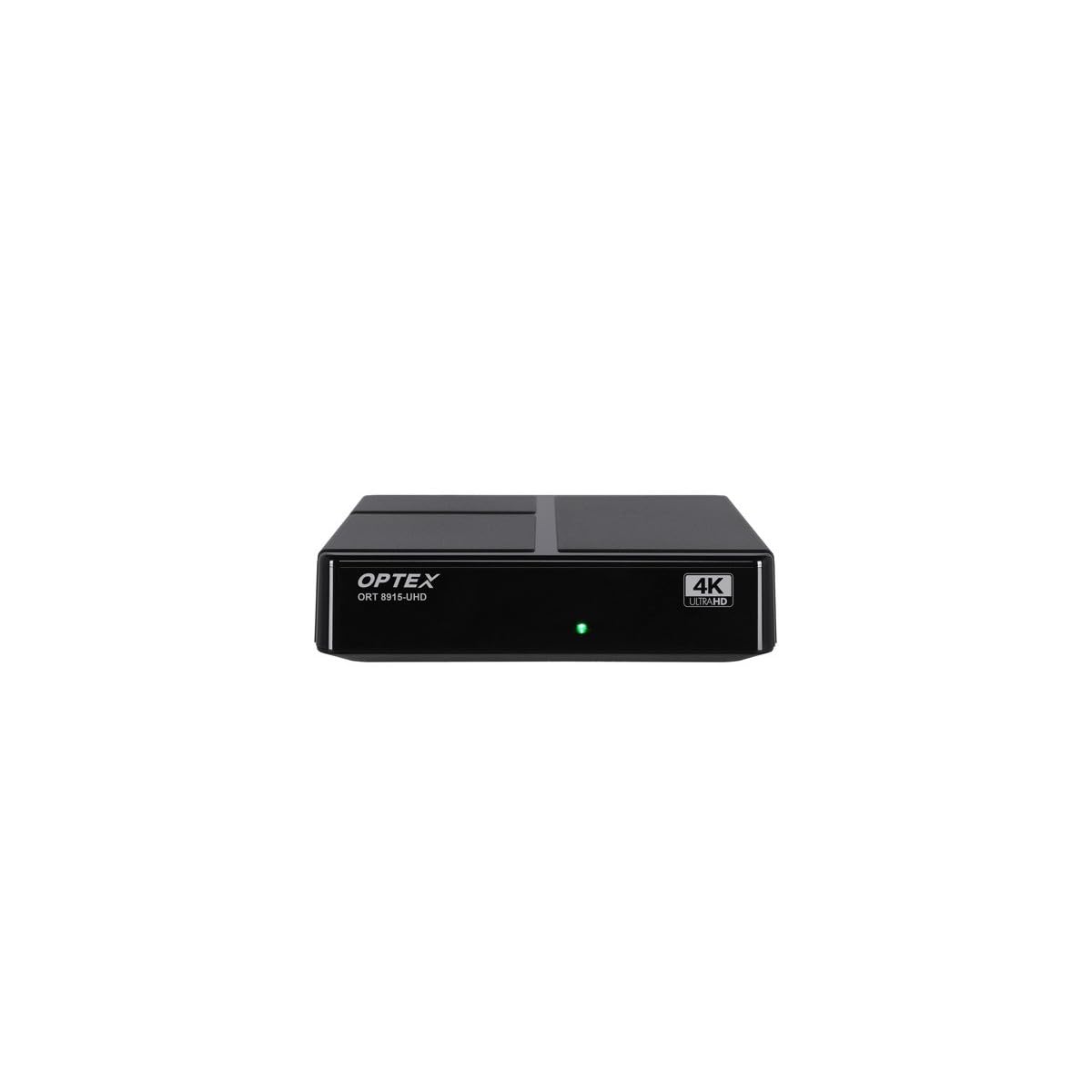
Whakaahua 3.1: Mua view of the Optex ORT8915-UHD receiver, showing the USB port and control buttons.
The front panel features a USB port for connecting external storage devices, along with basic control buttons for power, menu navigation, channel selection (CH+/CH-), and volume adjustment (V+/V-).
3.2 Paewhiri Whakamuri

Whakaahua 3.2: Whakamuri view of the Optex ORT8915-UHD receiver, displaying various input/output ports.
Kei te papa o muri nga hononga e whai ake nei:
- ANT IN: For connecting your terrestrial antenna.
- OPTIC: Putanga ororongo mamati whatu.
- O: Analog video/audio output.
- HDMI: High-Definition Multimedia Interface output for connecting to a TV.
- DC IN: Power input for the adapter.
3.3 Mana Mamao

Image 3.3: The remote control for the Optex ORT8915-UHD receiver, featuring various function buttons.
The remote control provides full functionality for navigating menus, changing channels, adjusting volume, accessing program guides, and utilizing special features like Timeshift and USB recording.
4. Tatūnga
- Honoa te Antenna: Connect your terrestrial antenna cable to the "ANT IN" port on the rear panel of the receiver.
- Hono ki te pouaka whakaata:
- For High-Definition (HD) connection: Use the provided HDMI cable to connect the "HDMI" port on the receiver to an HDMI input on your television.
- For Standard-Definition (SD) connection: Use an AV cable (not included) to connect the "AV" ports on the receiver to the corresponding AV inputs on your television.
- Hono Hono: Plug the power adapter into the "DC IN" port on the receiver, then plug the adapter into a power outlet.
- Kōkuhu Pūhiko ki Mamao: Open the battery compartment on the back of the remote control and insert the two 1.5V batteries, ensuring correct polarity.
- Whakahiko: Press the power button on the receiver or the remote control to turn on the device.
- Tīpako Tāuru TV: On your television, select the correct HDMI or AV input source that corresponds to the connection you made in step 2.
5. Nga Tohutohu Whakahaere
5.1 Initial Channel Scan
Upon first use or after a factory reset, the receiver will guide you through an initial setup process, including a channel scan. Follow the on-screen prompts to automatically search for available DVB-T2 channels in your region. Ensure your antenna is properly connected for optimal results.
5.2 Nga Mahi Taketake
- Whakaterenga Hongere: Whakamahia te CH+ a CH- buttons on the remote or front panel to change channels.
- Mana Rōrahi: Whakamahia te V+ a V- pātene hei whakatika i te rōrahi.
- Tahua Uru: Pehia te MENU pātene hei uru atu ki te tahua matua mō ngā tautuhinga me ngā āhuatanga.
- Aratohu Papatono (EPG): Pehia te EPG pātene ki view the Electronic Program Guide, which displays broadcast schedules.
- Kuputuhi Waea: Access teletext services by pressing the TTX pātene.
5.3 Āhuatanga Arā Atu Anō
- Timeshift (Live Control): Connect a USB storage device to the receiver. Press the Huringa taima button (often a pause/play icon) to pause live TV, allowing you to resume viewi muri mai.
- USB Recording (PVR): With a USB storage device connected, you can record live TV programs. Use the REC pātene i runga i te mamao ki te tīmata te tuhi.
- Whakahoki Rongorau: The USB port also supports playback of various multimedia files (audio, video, images) from a connected USB storage device. Navigate to the multimedia section in the main menu to access this feature.
- Mana Mātua: Set up parental control features through the menu to restrict access to certain channels or programs based on age ratings.
- Ngā Rārangi Tino Pai: Create customized lists of your favorite channels for quick access.
6. Tiaki
- Te horoi: Whakamahia he kakahu ngohengohe, maroke hei horoi i te taha waho o te kaiwhiwhi. Kaua e whakamahi i ngā wai horoi, i ngā rauemi whakakoi rānei.
- Whakahau: Ensure the receiver is placed in a well-ventilated area to prevent overheating. Do not block the ventilation holes.
- Whakahōu Pūmanawa: Periodically check for software updates via USB to ensure optimal performance and access to new features. Refer to the main menu settings for update options.
7. Te Raru
| Raruraru | Take pea | Rongoā |
|---|---|---|
| Kaore he pikitia, he tangi ranei | Incorrect TV input selected, loose cable connections, power issue. |
|
| Karekau he hongere i kitea | Antenna not connected or positioned correctly, no channel scan performed. |
|
| Ko te mana mamao kaore e mahi | Dead batteries, obstructed signal, remote not paired (if applicable). |
|
| Te kounga o te pikitia koretake | Weak antenna signal, incorrect resolution settings. |
|
8. Whakatakotoranga
| Āhuahira | Taipitopito |
|---|---|
| Tauira | ORT8915-UHD |
| Waitohu | Optex |
| Momo Hua | 4K DVB-T2 Terrestrial Receiver |
| Whakawaehere Ataata | HEVC |
| Pūrere Hototahi | Television, Game Console, Tablet, Personal Computer, Amplifier, Speaker, Smartphone |
| Hangarau Hononga | USB |
| Aratau Putanga Ororongo | Tirooro |
| Momo Putanga Ororongo | HDMI, Optical |
| Whirihoranga Hongere oro a tawhio noa | 5.1, 7.1, 9.2 |
| Āhuahira Motuhake | Mate Mariko |
| Tauranga HDMI Tapeke | 1 |
| Te Whakamahi Hiko (Tiati) | <0.5 W |
| Ngā Ahu (Roa x Whānui) | 126.0 mm x 125.0 mm |
| Taumaha Hua | 470 g |
9. Pūtāhui me te Tautoko
For warranty information and technical support, please refer to the official Optex website or contact your local retailer. Keep your purchase receipt as proof of purchase for any warranty claims.
Software updates are guaranteed until an unknown date, as per product information. For the latest information, please visit the manufacturer's support page.