
Rraycom BW6
Rraycom BW6B Wireless Battery-Powered Security Camera
Pukapuka Tohutohu Kaiwhakamahi
1. Kupu Whakataki
Thank you for choosing the Rraycom BW6B Wireless Battery-Powered Security Camera. This manual provides detailed instructions for the installation, operation, and maintenance of your new security camera. Please read this manual thoroughly before use to ensure proper functionality and to maximize the benefits of your device. This camera is designed for outdoor use, offering 2K QHD resolution, color night vision, AI motion detection, and two-way audio communication, powered by a built-in battery and solar panel for continuous operation.
2. Hua Neke Atuview
2.1. Ihirangi mokete
Tena koa tirohia kei roto katoa nga waahanga kei roto i to kete:
- Rechargeable Battery Security Camera
- Paewhiri Solar
- Maunga whakarewa
- Screws Set & 1*User Manual
- Tauira USB
2.2. Nga waahanga matua
- Solar Powered with 5200mAh Battery: Ensures 365 days of uninterrupted protection with a 3W solar panel and robust built-in battery.
- 2K QHD Resolution & 130° Wide View: Provides clear, detailed video and a broad field of view mo te aroturuki matawhānui.
- Tirohanga Po Tae Katoa: Captures vivid images even in low-light conditions up to 33ft.
- Advanced AI Motion Detection: Intelligently analyzes and recognizes human motion, sending real-time alerts to your device.
- Two-Way Talk & Siren Alarm: Allows for remote communication and includes a customizable siren and spotlight for deterrence.
- Kōwhiringa Rokiroki Hangarau: Supports both cloud storage and local Micro SD card storage (up to 256GB) without subscription fees.
- IP65 parewai: I hoahoatia kia tu ki nga ahuatanga huarere o waho.
2.3. Hoahoa Hua me nga Waahanga

Whakaahua 2.3.1: Mua view of the Rraycom BW6B security camera with its accompanying solar panel.

Figure 2.3.2: Illustration of the camera and solar panel providing continuous power, highlighting 365 days of non-stop operation.
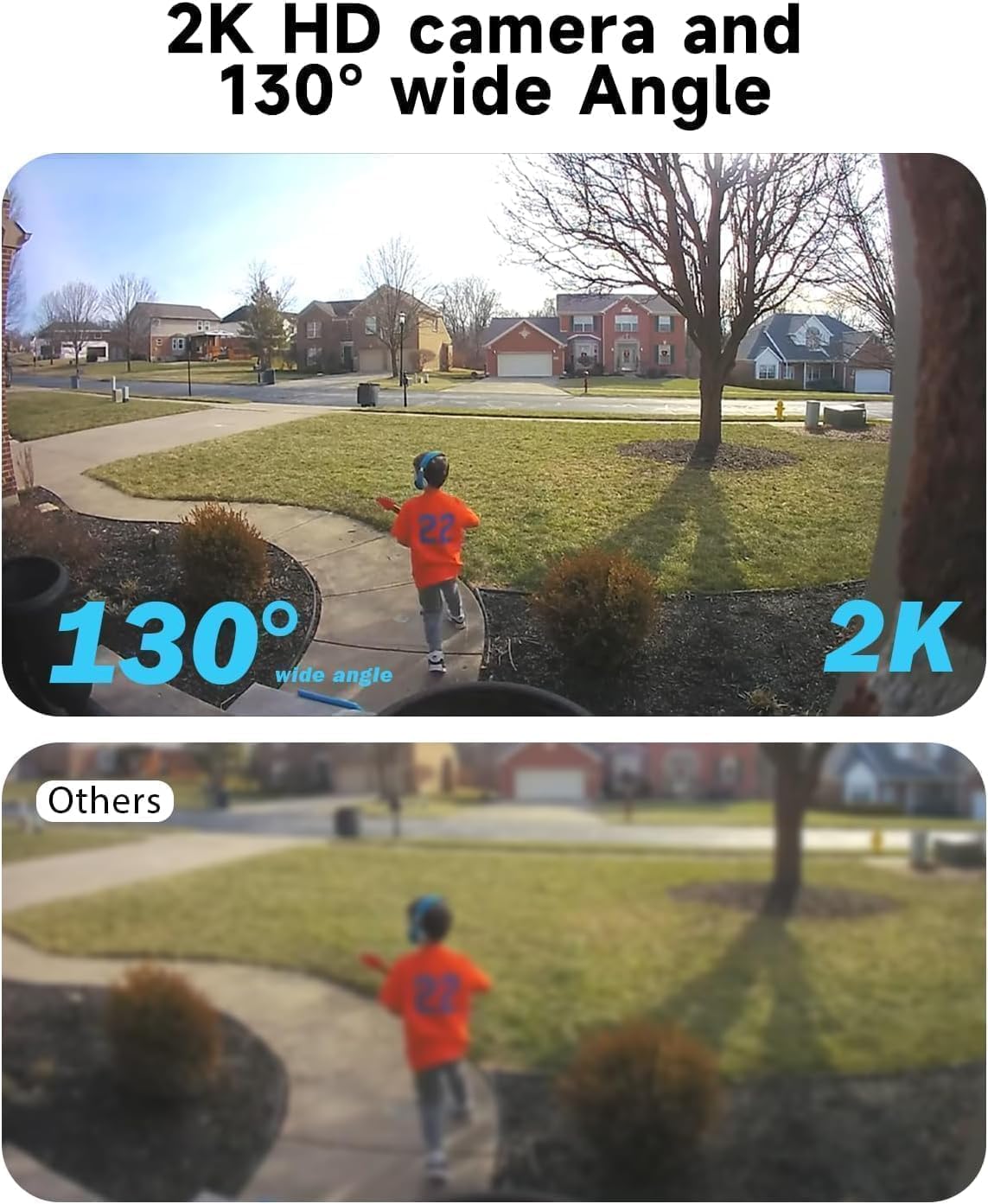
Figure 2.3.3: Comparison demonstrating the 2K HD resolution and 130-degree wide-angle view of the camera versus a standard view.

Figure 2.3.4: Depiction of the AI motion detection feature, showing a detected person and the camera's response with siren and spotlight.

Pikitia 2.3.5: Whakaahua o te mahi oro-rua, e āhei ai te whakawhitiwhiti kōrero mā te kāmera.

Whakaahua 2.3.6: Example of the 2K HD color night vision, showing clear imagery in low-light conditions up to 33 feet.

Figure 2.3.7: Diagram showing the camera's support for both cloud storage and local SD card storage (up to 256GB).

Figure 2.3.8: Demonstration of the camera's compatibility with Amazon Alexa for voice control and viewing.
3. Aratohu Tatūnga
3.1. Whakataki Tuatahi
Before initial use, fully charge the camera's built-in 5200mAh battery using the provided USB cable. Connect the USB cable to the camera's charging port and a standard 5V USB power adapter (not included). The charging indicator light will show the charging status.
3.2. Tikiake Taupānga me te Rēhitatanga Pūkete
- Scan the QR code in the included user manual or search for the "Rraycom" app in your mobile device's app store (iOS or Android).
- Tikiake me te tāuta i te taupānga.
- Open the app and register a new account using your email address. Follow the on-screen prompts to complete registration and log in.
3.3. Whakahoahoa kamera
- Ensure your mobile device is connected to a 2.4GHz Wi-Fi network. The camera does not support 5GHz Wi-Fi.
- In the Rraycom app, tap the "+" icon to add a new device.
- Select "Wireless Camera" or the appropriate camera model.
- Power on the camera. If the camera is not in pairing mode (indicated by a flashing blue light), press and hold the reset button for 5 seconds until you hear a prompt.
- Follow the app's instructions to enter your Wi-Fi password. The app will generate a QR code.
- Hold your phone with the QR code approximately 6-8 inches (15-20 cm) in front of the camera lens until you hear a confirmation sound.
- Once connected, the camera's indicator light will turn solid blue. You can then name your camera and complete the setup.
3.4. Te Whakanoho me te Whakanoho
The Rraycom BW6B camera is 100% wire-free, offering flexible installation. Choose a location with good Wi-Fi signal and where the solar panel can receive direct sunlight for several hours daily.
- Tauwāhi Whakapuru: Identify a suitable outdoor location that provides the desired viewkoki whakatō (130° te whānui view) and is within Wi-Fi range. Consider areas prone to activity for optimal motion detection.
- Te Whakataunga Paewhiri Solar: Mount the solar panel in an unshaded area that receives maximum direct sunlight throughout the day. Connect the solar panel cable to the camera's charging port.
- Whakaeke Haumaru: Use the provided metal mount and screws to securely attach the camera and solar panel to a wall or other stable surface. Adjust the camera angle to cover your desired surveillance area.
4. Nga Tohutohu Whakahaere
4.1. Ora View me te purei hoki
- Open the Rraycom app and select your camera from the device list to access the live view.
- Mai i te koiora view interface, you can take screenshots, record video manually, and access two-way audio.
- Ki view tuhia footage, tap on the "Playback" or "History" option within the camera interface. You can browse recordings by date and time.
4.2. Tautuhinga Whakakitenga Motini
- Whakatere ki ngā tautuhinga kāmera i roto i te taupānga.
- Locate "Motion Detection" or "PIR Settings".
- Adjust sensitivity levels (Low, Medium, High) to optimize detection and minimize false alarms.
- Enable or disable push notifications for motion events.
- Configure detection zones if available to focus on specific areas.
4.3. Ororongo Rua-Ara me te Hirene
- I roto i te ora view, tap the microphone icon to activate two-way audio. Speak into your phone to communicate through the camera's speaker.
- To activate the siren alarm or spotlight, look for the respective icons in the live view or camera settings. You can also customize siren messages.
4.4. Aratau Matakite Po
The camera supports full-color night vision. This mode automatically activates in low-light conditions to provide clear, colored images up to 33 feet.
4.5. Whakahaere Rokiroki
- Kaari SD Micro: Insert a Micro SD card (up to 256GB, not included) into the designated slot on the camera. The camera will automatically begin recording motion-triggered events to the card.
- Rokiroki Kapua: The Rraycom camera offers cloud storage options. Refer to the app for details on free trial periods and available plans.
- You can access and manage both local and cloud recordings through the app's playback section.
4.6. Whakaurunga Amazon Alexa
The Rraycom BW6B camera is compatible with Amazon Alexa. To integrate:
- Ensure your camera is properly set up in the Rraycom app.
- Whakatuwherahia te taupānga Amazon Alexa.
- Go to "Skills & Games" and search for the "Rraycom" skill.
- Enable the skill and link your Rraycom account.
- Discover devices. You can now use voice commands like "Alexa, show me the [camera name]" on compatible Alexa devices with screens.
5. Tiaki
5.1. Cleaning the Camera and Solar Panel
Regular cleaning ensures optimal performance:
- Wipe the camera lens and solar panel surface with a soft, damp he kakahu hei tango i te puehu, te paru, te para ranei.
- Avoid using harsh chemicals or abrasive materials that could scratch the lens or panel.
- Ensure the solar panel is free from obstructions (e.g., leaves, snow) that could block sunlight.
5.2. Tiaki Pūhiko
While the solar panel provides continuous charging, occasional checks are recommended:
- Monitor the battery level via the Rraycom app.
- If the camera is installed in an area with limited sunlight, you may need to manually charge the camera using the USB cable periodically.
- Avoid exposing the camera to extreme temperatures for prolonged periods, as this can affect battery life.
5.3. Whakahoutanga Firmware
Rraycom may release firmware updates to improve performance or add new features. Check the app regularly for update notifications and follow the instructions to install them. Ensure the camera has sufficient battery life before starting an update.
6. Te Raru
| Raruraru | Take pea | Rongoā |
|---|---|---|
| Karekau te kamera e hono ana ki te Wi-Fi. | Incorrect Wi-Fi password, 5GHz network, weak signal, camera too far from router. | Ensure 2.4GHz Wi-Fi. Verify password. Move camera closer to router or use a Wi-Fi extender. Reset camera and try pairing again. |
| Blurry image or poor video quality. | Protective film on lens, dirty lens, poor lighting, network bandwidth issues. | Remove any protective film. Clean the camera lens with a soft cloth. Ensure adequate lighting. Check your internet speed. |
| Kaore e mahi ana te kitenga nekehanga, he tairongo rawa ranei. | Incorrect sensitivity settings, obstructions, environmental factors (e.g., swaying branches). | Adjust motion detection sensitivity in the app. Ensure camera is positioned correctly to cover the desired area. Minimize environmental factors that could trigger false alarms. |
| Battery not charging or draining quickly. | Insufficient sunlight on solar panel, faulty solar panel connection, extreme temperatures. | Ensure solar panel is in direct sunlight and free from obstructions. Check solar panel cable connection. Manually charge the camera via USB if needed. |
| Two-way audio issues (e.g., distorted sound). | Microphone/speaker obstruction, network latency, software glitch. | Ensure nothing is blocking the camera's microphone or speaker. Check network stability. Restart the app or camera. |
7. Whakatakotoranga
| Āhuahira | Taipitopito |
|---|---|
| Ingoa Tauira | BW6 |
| Mahinga o roto/waho | Waho |
| Whakataunga Hopu Ataata | 2K QHD |
| Viewing Koki | 130 Waeine |
| Awhe Tirohanga Po | 33 Feet (Full-Color) |
| Puna Mana | Solar Powered, Battery (5200 mAh) |
| Hangarau Hononga | Ahokore (Wi-Fi, 2.4GHz) |
| Pūrere Hototahi | Android & iOS Smartphones, Amazon Alexa |
| Te Motini | Advanced AI Motion Detection (PIR Sensor) |
| Ororongo | 2-Way Ororongo |
| Kōwhiringa Rokiroki | Rokiroki Kapua, Kāri Micro SD (tae atu ki te 256GB) |
| Taumata Atete Wai | IP65 parewai |
| Rauemi | ABS Kirihou |
| Auau anga | 15 papa mo ia hekona |
| Voltage | 5 Volts (DC) |
| Wattage | 17 Watt-haora |
8. Pūtāhui me te Tautoko Kiritaki
Rraycom provides a 1-year warranty for the BW6B Wireless Battery-Powered Security Camera, covering manufacturing defects and malfunctions under normal use. Please retain your proof of purchase for warranty claims.
For technical assistance, troubleshooting, or warranty inquiries, please contact Rraycom customer support:
- Īmēra: aftersale@rraycom.com
- Tautoko Aipurangi: Visit the official Rraycom webpae mo nga FAQ me etahi atu rauemi.

Figure 8.1: Rraycom Customer Service contact details.
Ask a question about this manual
Ask about setup, troubleshooting, compatibility, parts, safety, or missing instructions. Manuals+ will review the question and use this page’s manual context to help answer it.