
Kupu Whakataki
This manual provides essential information for the proper setup, operation, and maintenance of your ONN 24-inch FHD Gaming Monitor, model 100027813. Please read this manual thoroughly before using the product to ensure optimal performance and safety. This monitor is designed to deliver a high-quality gaming experience with its 1080p resolution, 165Hz refresh rate, 1ms response time, and FreeSync technology.
Nga korero haumaru
Always observe the following safety precautions to prevent damage to the monitor and ensure user safety:
- Kaua e whakaaturia te matawai ki te ua, ki te makuku rānei, hei karo i ngā tūponotanga o te ahi, o te ru rānei.
- Kaua e whakatuwheratia te aroturuki casing. Kaore he waahanga e taea ana e te kaiwhakamahi ki roto. Tukuna nga ratonga katoa ki nga kaimahi ratonga whai tohu.
- Whakanohoia te kaitutei ki runga i te mata papatahi kia kore ai e taka.
- Kia tika te hauhautanga huri noa i te mata tirotiro. Kaua e ārai i ngā pūaha hauhautanga.
- Whakamahia te urutau hiko anake me te kaupane.
- Wewetehia te kaitirotiro mai i te putanga hiko i te wa e uira ana te tupuhi, i te kore e whakamahia mo te wa roa.
Ihirangi mokete
Manatokona kei roto katoa nga mea kei roto i te kete:
- ONN 24-inch FHD Gaming Monitor
- Tu Aroturuki (Turanga me te kaki)
- Pūurutau Hiko
- DisplayPort Cable (6 ft)
- Taura HDMI (6 putu)
- Pukapuka Kaiwhakamahi (tenei tuhinga)

Image: Retail box of the ONN 24-inch Gaming Monitor, highlighting key features like 165Hz, 1ms response time, DisplayPort, HDMI, and Adaptive-Sync.
Tatūnga
1. Huihui i te Tu
- Kia ata tangohia te kaitirotiro me te tu i nga waahanga mai i te kete.
- Attach the stand neck to the stand base. Secure it with the provided screw, if applicable.
- Align the assembled stand with the mounting slot on the back of the monitor. Gently push until it clicks into place or secure with screws as per the design.
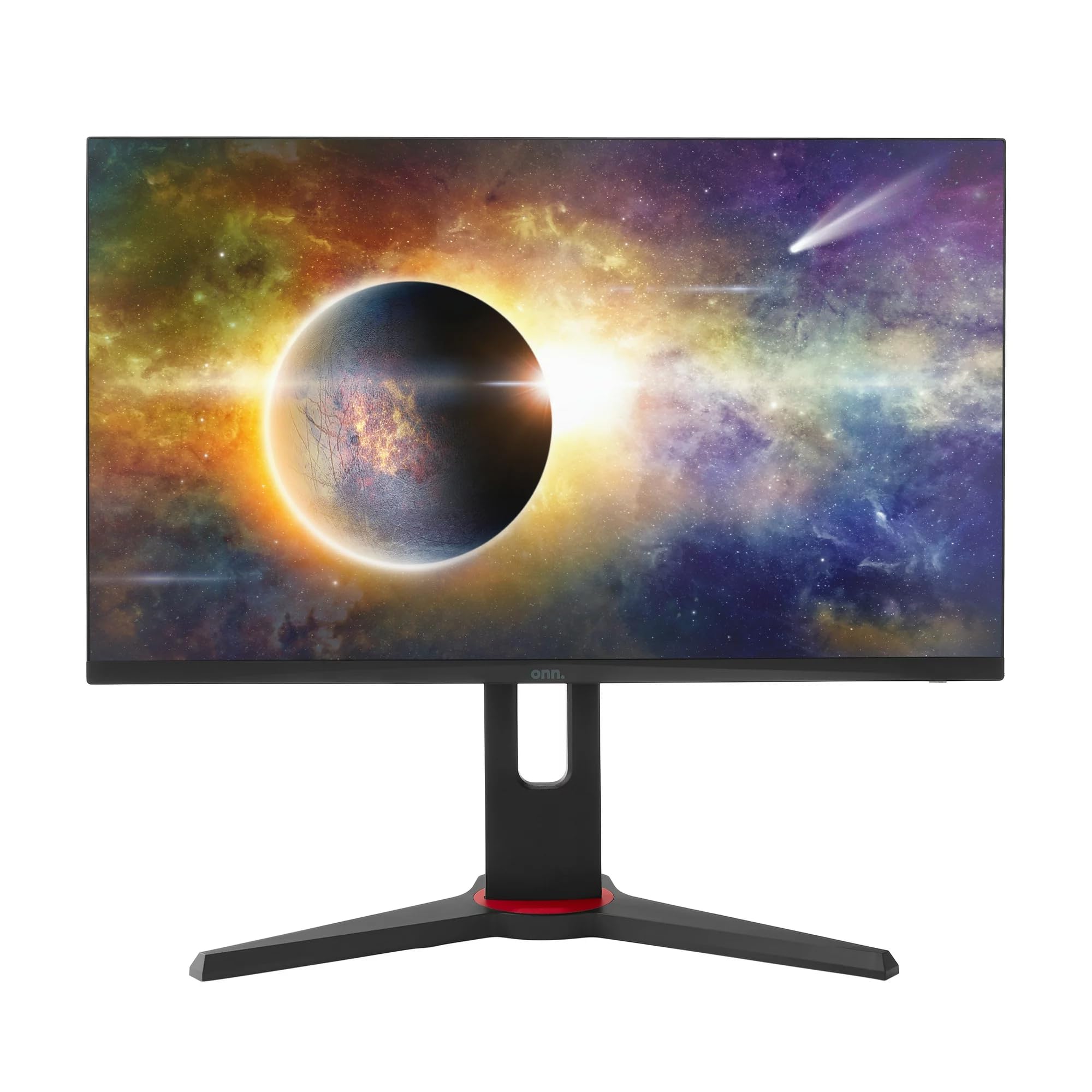
Whakaahua: Mua view of the ONN 24-inch Gaming Monitor, fully assembled with its stand.

Whakaahua: Rear view of the ONN 24-inch Gaming Monitor, illustrating the stand attachment and cable management area.
2. Hononga taura
Locate the input ports on the back of your monitor:
- Mana: Tūhonohia te pūurutau hiko ki te tāuru hiko o te kaitirotiro, kātahi ki te putanga hiko.
- Waitohu Ataata: Connect one end of the provided DisplayPort or HDMI cable to the corresponding port on your computer's graphics card and the other end to the monitor. The monitor supports 2 HDMI inputs and 1 DisplayPort input.
- Putanga Ororongo (Whiringa): If your monitor has a 3.5mm audio jack, you can connect external speakers or headphones.

Whakaahua: Kati-ake view of the monitor's rear ports, including HDMI 1, HDMI 2, DisplayPort (DP), and power input.
3. Te Hia-Ai Tuatahi
- Me whakarite kia honoa nga taura katoa.
- Press the power button on the monitor (usually located on the back or bottom right).
- The monitor should display the ONN logo and then search for an input signal.
- If no image appears, ensure your computer is powered on and the correct input source is selected on the monitor (see Operating section).
Te whakahaere
1. Te Hiko / Whakaweto
Press the power button to turn the monitor on or off. The power indicator light will show the monitor's status (e.g., blue for on, amber for standby).
2. Whakaatu I-Mata (OSD) Whakaterenga Tahua
Your monitor features an OSD menu for adjusting various settings. Typically, buttons on the back or bottom of the monitor control the OSD:
- Patene Tahua: Ka whakatuwhera i te tahua OSD.
- Patene Whakaterenga (Runga/Raro/Maui/Matau): Whakamahia hei whakatere i ngā kōwhiringa tahua.
- Tīpako/Tauru Pātene: Ka whakaū i tētahi tīpakonga, ka uru rānei ki tētahi tahua-iti.
- Puta Puta: Ka puta i te tahua o naianei, OSD ranei.
3. Whakaritea Tautuhinga
Ko ngā tautuhinga matua ka taea e koe te whakarite mā te tahua OSD ko:
- Tirohanga/Prata: Whakatikatikahia te kanapa whānui me te rerekētanga i waenga i ngā wāhi mārama me ngā wāhi pōuri.
- Tautuhinga Tae: Whakarerekehia te pāmahana tae, te gamma, me nga taumata RGB takitahi.
- Pūtake Tāuru: Tīpako ā-ringa i waenga i te HDMI 1, HDMI 2, Whakaaturanga Whakaaturanga ranei.
- Rere tāmata: Ensure your graphics card and monitor are set to 165Hz for the smoothest experience. This is usually configured in your operating system's display settings.
- Wā Whakautu: Adjust the monitor's response time setting (e.g., 1ms) for reduced motion blur in fast-paced games.
- Hangarau FreeSync: Enable FreeSync in the OSD menu and in your AMD graphics card settings to synchronize the monitor's refresh rate with your GPU's frame rate, eliminating screen tearing and stuttering.
- Aratau Pikitia: Select from preset modes optimized for different content (e.g., Standard, Game, Movie, Text).

Image: The ONN 24-inch Gaming Monitor displayed in a typical desk setup, connected to a laptop with gaming peripherals.
Te tiaki
Te horoi i te Aroturuki
- Wewetehia te kaitirotiro i nga wa katoa i mua i te horoi.
- Kia ngawari te whakamahi i te kakahu ngohengohe, karekau he ngongo dampkua whakakikoruatia ki te wai, ki te kai horoi mata ngawari ranei.
- Kaua e rehu tika te kai horoi ki te mata. Hoatu ki te kakahu i te tuatahi.
- A ape i te whakamahi i nga matū kino, i nga papa abrasive, i nga whakarewa ranei.
Rokiroki
Mēnā he roa te roa o te penapena i te kaitirotiro, momotuhia nga taura katoa, whakakiia ki roto i tana putunga taketake (mehemea e waatea ana), ka penapena ki te waahi matao, maroke atu i te ra tika me te wera nui.
Raparongoā
Mena ka raru koe ki to kaitutei, tirohia nga raru me nga otinga e whai ake nei:
| Raruraru | Rongoa pea |
|---|---|
| Kaore he ahua o te mata |
|
| Image is flickering or distorted |
|
| No sound (if using monitor speakers/audio out) |
|
| Monitor not reaching 165Hz |
|
Whakatakotoranga
Detailed technical specifications for the ONN 24-inch FHD Gaming Monitor (Model 100027813):
| Āhuahira | Whakatakotoranga |
|---|---|
| Tau tauira | 100027813 |
| Rahi Mata | 24 Inihi |
| Whakatau | FHD 1080p (1920x1080) |
| Rere tāmata | 165 Hz |
| Wā Whakautu | 1 Milihekona |
| Hangarau Whakaatu | IPS |
| Tukutahi Urutau | FreeSync |
| Aspect Ratio | 16:9 |
| Tauwehenga Purata | 2000:1 |
| Mata Mata | Matte, Anti-glare with low blue light setting |
| Hononga | 2 x HDMI, 1 x Tauranga Whakaatu |
| Rahi Hua (D x W x H) | 61.3 x 11.3 x 37.3 cm |
| Taumaha Tūemi | 6.1 kg |
| Tae | Pango |
| Momo Whakaeke | Maunga Papa |
| Whakamahinga Tauwhāiti | Entertainment, Gaming |
Pūtāhui
This ONN 24-inch FHD Gaming Monitor is a renewed product. Warranty terms and conditions for renewed products may vary. Please refer to the specific warranty information provided by the seller or retailer at the time of purchase. It is recommended to retain your proof of purchase for any warranty claims.
Tautoko
For technical assistance, troubleshooting beyond this manual, or warranty inquiries, please contact the retailer or the Amazon Renewed support channel where the product was purchased. Have your model number (100027813) and proof of purchase ready when contacting support.