
1. Kupu Whakataki
The KKB G200 4G LTE Cellular Security Camera is designed for robust outdoor surveillance in locations without traditional Wi-Fi access. This solar-powered, wire-free camera offers 2K HD resolution, color night vision, two-way audio, and remote monitoring via a dedicated mobile application. Its integrated 4G LTE connectivity ensures continuous operation and real-time alerts, making it ideal for farms, construction sites, remote cabins, and other off-grid environments.
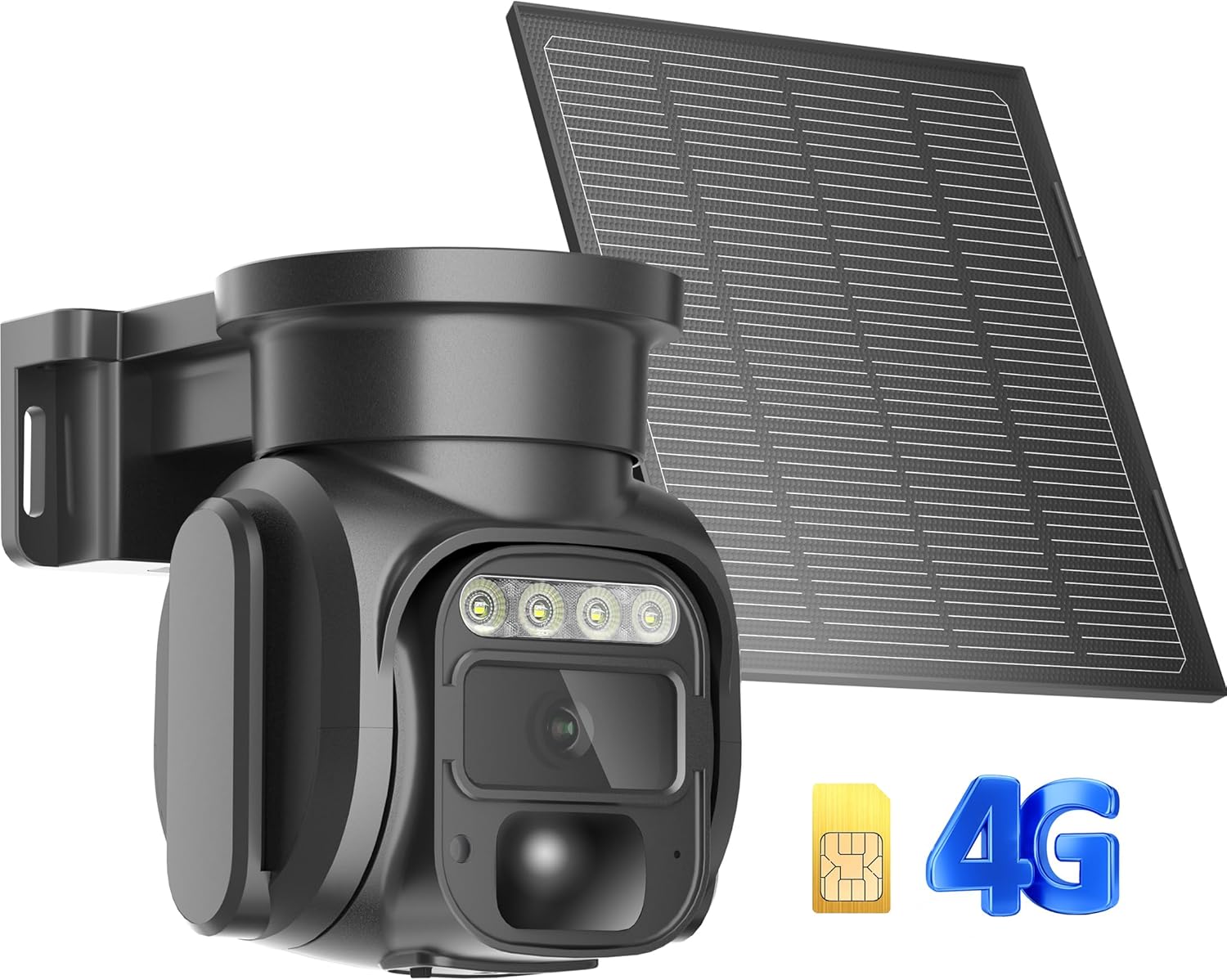
Figure 1: KKB G200 4G LTE Cellular Security Camera and Solar Panel.
2. Ihirangi mokete
Manatokona kei roto katoa nga mea kei roto i to kete:
- 1 x KKB 4G LTE Security Camera
- 1 x 5W Paewhiri Solar
- 1 x Built-in SIM Card (non-replaceable)
- 1 x Pukapuka Kaiwhakamahi
- Installation Accessories (screws, wall anchors, mounting bracket)
3. Nga waahanga matua
- Hononga 4G LTE: Operates independently without Wi-Fi, connecting via a built-in SIM card to Verizon, T-Mobile, or AT&T networks.
- Whakahikohia te Ra: Equipped with a 5W solar panel for continuous charging, ensuring wire-free and sustainable operation.
- 2K HD Taumira: Ka hopu i te ataata marama me te kiko o te footage.
- Tirohanga Po Tae: Provides full-color night vision or infrared night vision for enhanced visibility in low-light conditions.
- Pan-Tītaha-Whakanui (PTZ): Offers a 355° horizontal and 90° vertical rotation for comprehensive area coverage and 4x digital zoom.
- Rapu Motini Ataata: Features a sensitive PIR motion sensor that sends instant alerts to your smartphone upon detecting human or animal movement.
- Ororongo Ara-rua: Built-in microphone and speaker allow for real-time communication with visitors or to deter intruders.
- Uru Mamao: Monitor your property from anywhere using the iCam365 mobile application.
- Rokiroki Hangawari: Supports local storage via an SD card (up to 128GB, not included) and optional cloud storage.
- Hoahoa parerangi: IP66 rated for outdoor use, capable of withstanding various weather conditions from -10°C to 55°C (14°F to 131°F).
4. Aratohu Tatūnga
4.1 Whakataki Tuatahi
Before initial use, fully charge the camera for 12 hours using a standard 5V/1A or 5V/2A charger. Avoid using fast chargers, as this may damage the device or prevent proper functionality.
4.2 Kaari SIM me te Whakataunga Kaari SD
The camera comes with a built-in, non-replaceable SIM card that automatically connects to the local 4G network. It does not support third-party SIM cards. If you wish to use local storage, insert a Micro SD card (up to 128GB, not included) into the designated slot.

Figure 2: SIM Card and optional Micro SD Card slot.
4.3 Taupānga Tikiake me te Hononga
- Tikiake te iCam365 app from your smartphone's app store (Android or iOS).
- Waihangahia he kaute ka takiuru.
- Ensure the camera is powered on (check the power switch at the bottom of the camera).
- Follow the in-app instructions to add your device. The app will guide you through connecting the camera via Bluetooth.
- Once connected, you can name your device and configure initial settings.
4.4 Te Whakaeke i te Kaamera me te Paewhiri Solar
Use the provided installation accessories to securely mount the camera and solar panel. Choose a location that offers optimal sunlight exposure for the solar panel and a clear view for the camera. The solar panel can be angled to maximize sun absorption.

Whakaahua 3: Example of camera and solar panel installation.
5. Nga Tohutohu Whakahaere
5.1 Remote Monitoring and Live View
Access the iCam365 app on your smartphone to view ora footage from your camera anytime, anywhere, using 4G data. The app provides controls for pan, tilt, and digital zoom functions.
5.2 Te Motini me nga Matohi
The integrated PIR motion sensor detects movement and sends immediate alert notifications to your phone. You can adjust the sensitivity settings within the iCam365 app to minimize false alarms.

Figure 4: Motion detection alert on smartphone.
5.3 Matakite Po
The camera automatically switches to night vision mode in low-light conditions. You can choose between full-color night vision or infrared night vision for optimal clarity.

Figure 5: Night vision capabilities of the camera.
5.4 Ororongo Waa-rua
Utilize the two-way audio feature through the app to speak and listen remotely. This allows for direct communication with individuals near the camera.
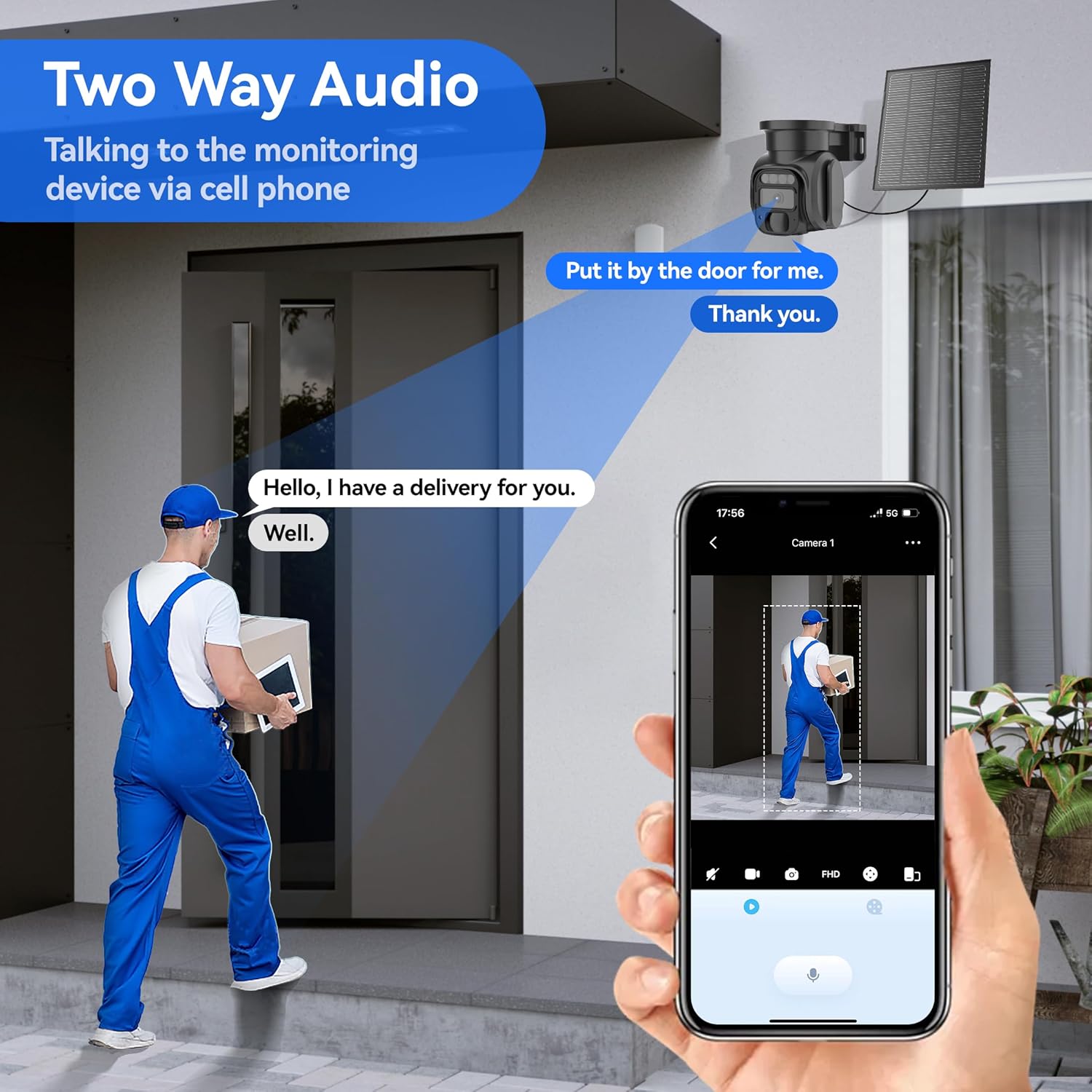
Pikitia 6: Ngā mahi ororongo rua-ara.
5.5 Rokiroki Ataata
Kua tuhia te footage can be saved to a Micro SD card (not included) or uploaded to the optional cloud storage service. Review and manage recordings directly from the iCam365 app.
6. Data Plan Information
The KKB G200 camera operates exclusively with its pre-installed SIM card. It includes 300MB of free trial data for initial use. To continue service, you must subscribe to a data plan directly through the iCam365 app. Available plans include:
- $14.9/marama
- $79.9/6 months
- $149.9/tau
These plans offer unlimited data usage during the subscription period. The camera does not support third-party SIM cards.

Figure 7: KKB Cellular Data Plan options.
7. Tiaki
7.1 Charging Tips
Always use a standard 5V/1A or 5V/2A charger for charging the camera. Using fast chargers may cause damage to the device.
7.2 Atete Huarere
The camera is IP66 waterproof, designed to operate effectively in various outdoor conditions. Its operating temperature range is from -10°C to 55°C (14°F to 131°F).
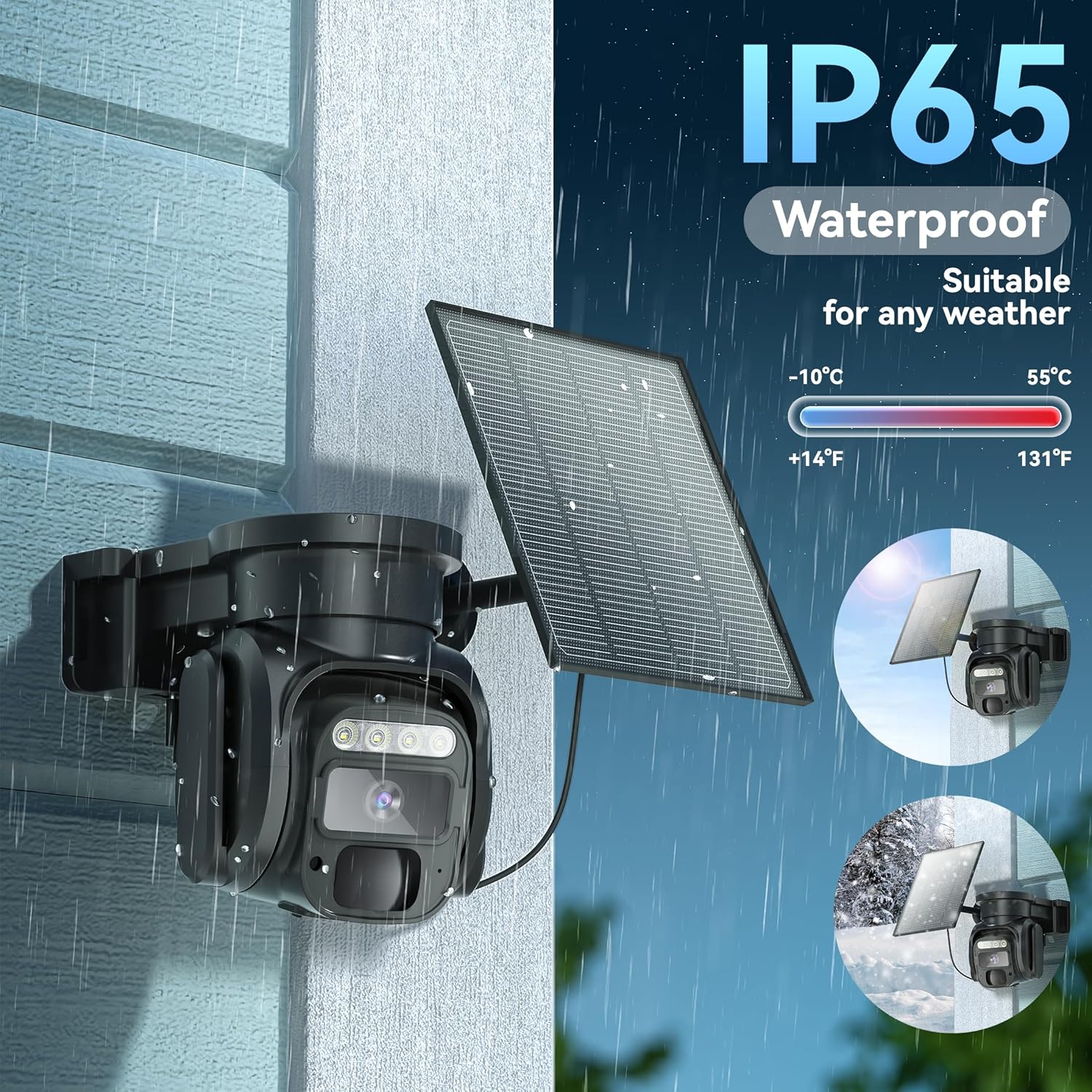
Figure 8: IP66 Waterproof rating for all-weather use.
7.3 Te horoi
Me horoi i ia wa te arotahi kamera me te panui solar ki te ngohengohe, damp cloth to ensure optimal performance and clear image capture. Avoid abrasive cleaners.
8. Te Raru
- Camera not turning on/dying at night: Ensure the solar panel is positioned to receive maximum direct sunlight throughout the day. Verify the initial 12-hour charge was completed. Check battery status in the app.
- Karekau he hononga whatunga: Confirm the camera is powered on. Check the data plan status in the iCam365 app. Ensure the camera is in an area with adequate 4G LTE signal coverage.
- Kāore i tae mai ngā whakatūpato: Check notification settings within the iCam365 app and your smartphone's system settings. Ensure the camera has an active data plan.
- Te kounga ataata kino: Ensure the camera lens is clean. Check the network signal strength. Adjust video resolution settings in the app if necessary.
- Ngā raruraru oro-rua: Check volume settings on your smartphone and within the app. Ensure there are no obstructions blocking the microphone or speaker on the camera.
9. Whakatakotoranga Hangarau
| Āhuahira | Whakatakotoranga |
|---|---|
| Tau tauira | G200 |
| Hangarau Hononga | Wireless (Cellular 4G LTE) |
| Puna Mana | Pūngao Rā (Pane Rā 5W) |
| Whakataunga Hopu Ataata | 2K |
| Matakitenga Po | Tirohanga Pō Tae, Tirohanga Pō Pūwhero |
| Awhe Pan/Tilt | 355° Whakapae, 90° Poutū |
| Huringa Mamati | 4x |
| Te Motini | PIRITANGA NUI |
| Ororongo | Ororongo 2-Wai (Haorooro me te Tukuoro) |
| Kōwhiringa Rokiroki | Kaari Micro SD (tae atu ki te 128GB, kaore i whakauruhia), Kapua Pupuri |
| Hototahi App | iCam365 (Android, iOS) |
| Taumata Atete Wai | IP66 |
| Te Waahi Mahi | -10°C ki te 55°C (14°F ki te 131°F) |
| Pūhiko | 4 pākahiko Lithium Ion (kei roto) |
| Ahu | 3.7 x 5.9 x 5.6 inihi |
| Taumaha Tūemi | 2.35 pauna |
10. Pūtāhui me te Tautoko
For any issues or questions, KKB offers multi-channel service including in-app online contact and email support. 7x24 hours professional technical support is available to assist you.

Figure 9: KKB Customer Support.