
1. Kupu Whakataki
Ngā mihi nui ki a koe mō te whiriwhiri i te CZEview ZY-Q6 2K Outdoor Battery Surveillance Camera. This manual provides essential information for the proper installation, operation, and maintenance of your device. This robust security camera is designed for outdoor use, featuring a waterproof construction suitable for various weather conditions. It offers versatile installation options, including magnetic mounting, and provides clear surveillance with 2K resolution, 300° horizontal PTZ, motion detection, and night vision capabilities.
For optimal performance and safety, please read this manual thoroughly before using the camera and retain it for future reference.
2. Waenga Hua
Kei roto i te kete nga mea e whai ake nei:
- CZEview ZY-Q6 2K Outdoor Battery Surveillance Camera
- Uera Whakatau
- Maunga Paetahi
- Pukapuka Tohutohu
Unboxing Videos
Whakaahuatanga Ataata: This video demonstrates the unboxing process for a JSX Electronics camera, showing the contents typically found in the package, including the camera, mounting accessories, and cables.
Whakaahuatanga Ataata: This unboxing video for the ieGeek S2 camera (a similar model) showcases the camera and its accessories, providing a visual guide to what to expect in your package.
3. Tatūnga me te Tāuta
3.1 Tāutanga Tinana
Ko te CZEview ZY-Q6 camera offers versatile installation options, including magnetic mounting for easy placement on metallic surfaces or screw mounting for more permanent fixtures.
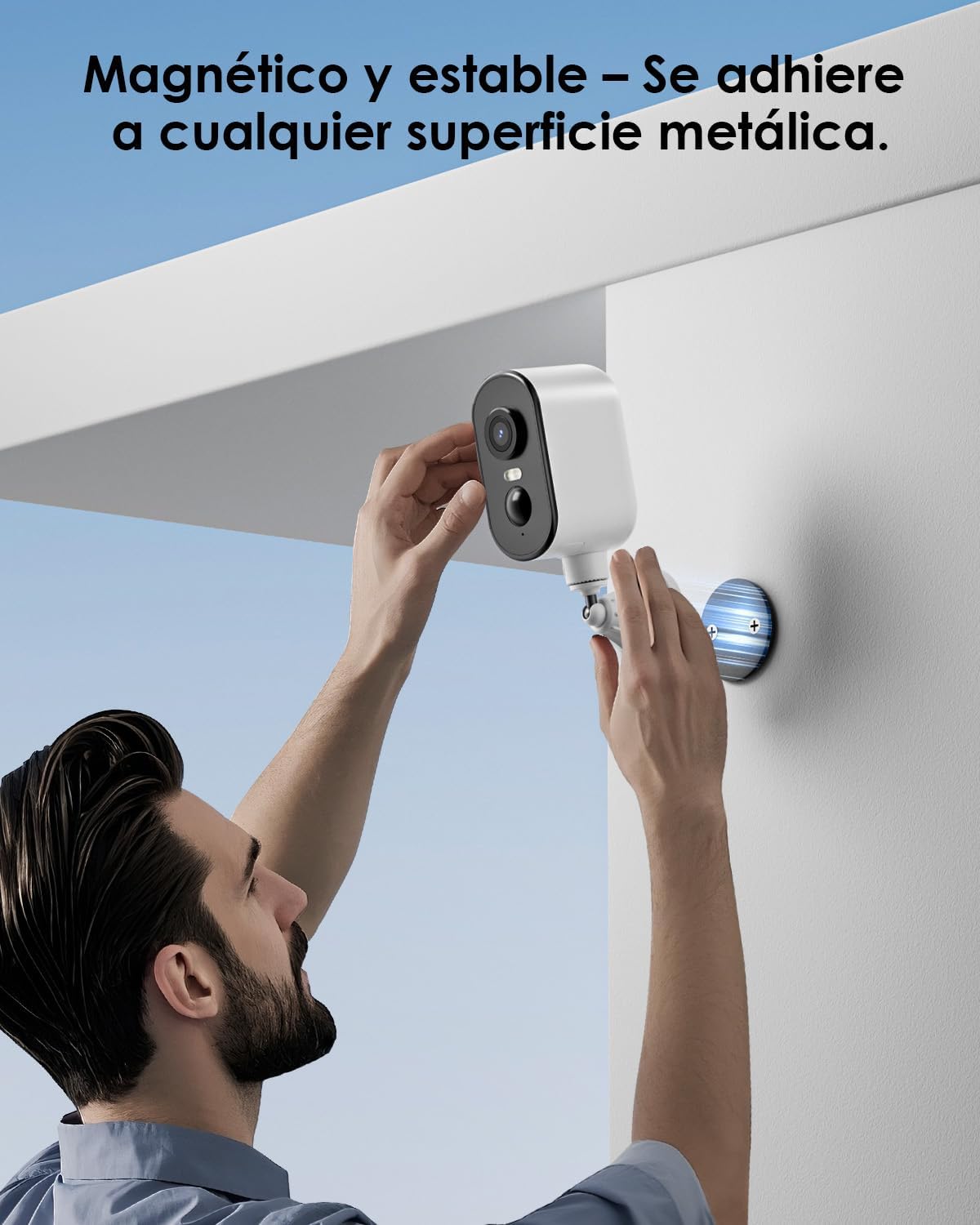
Whakaahuatanga Whakaahua: A man is shown easily attaching the CZEview ZY-Q6 camera to a metallic surface on a wall using its magnetic base, highlighting its stable and convenient mounting.
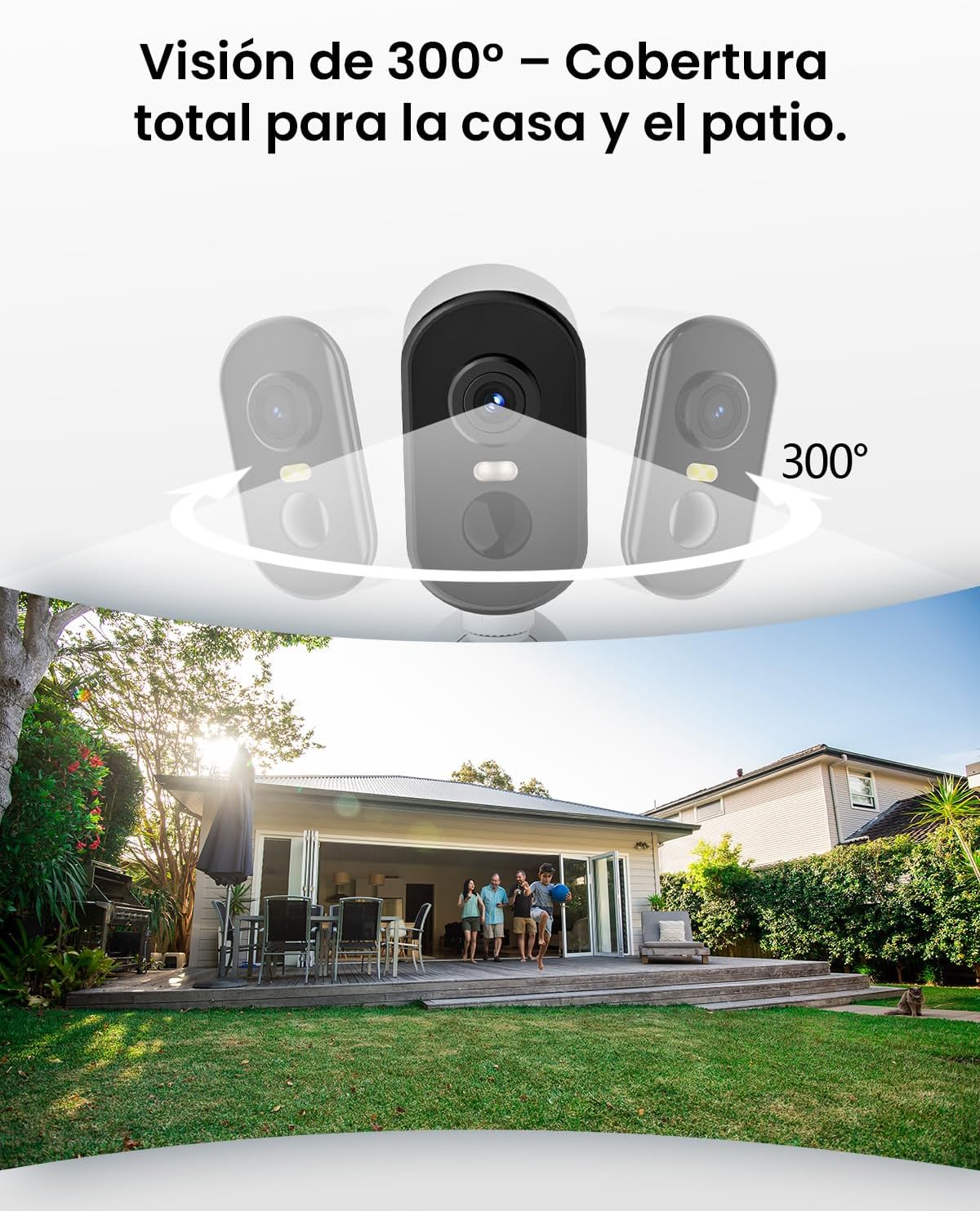
Whakaahuatanga Whakaahua: This image illustrates the camera's 300-degree horizontal PTZ (Pan-Tilt-Zoom) capability, showing how multiple cameras can provide total coverage for a house and patio area.
3.2 Hononga Taupānga
To connect your camera to your smartphone, follow the instructions in the app. Ensure your phone is connected to a 2.4G WiFi network.
Whakaahuatanga Ataata: This video provides a step-by-step guide on how to connect your outdoor WiFi battery surveillance camera to your smartphone application, covering initial setup and pairing.
Whakaahuatanga Ataata: This video demonstrates the setup process for an outdoor WiFi battery camera, including app configuration and initial connection steps for remote monitoring.
Whakaahuatanga Ataata: This video illustrates the installation process for a portable 4G camera. While this model is 2.4G WiFi, the physical mounting steps may offer general guidance.
4. Nga Tohutohu Whakahaere
4.1 Te Motini me nga Matohi
The camera features automatic activation upon detecting motion, recording important events. It can differentiate between people, animals, vehicles, and packages to reduce false alarms.

Whakaahuatanga Whakaahua: This image shows the camera's automatic activation feature, detecting and recording important events triggered by people, animals, vehicles, and packages.
4.2 Night Vision and Security Features
In night mode, upon detecting motion, the camera illuminates and emits an audible alarm, enhancing security during low-light conditions. The infrared illumination system provides clear and sharp surveillance even in total darkness.
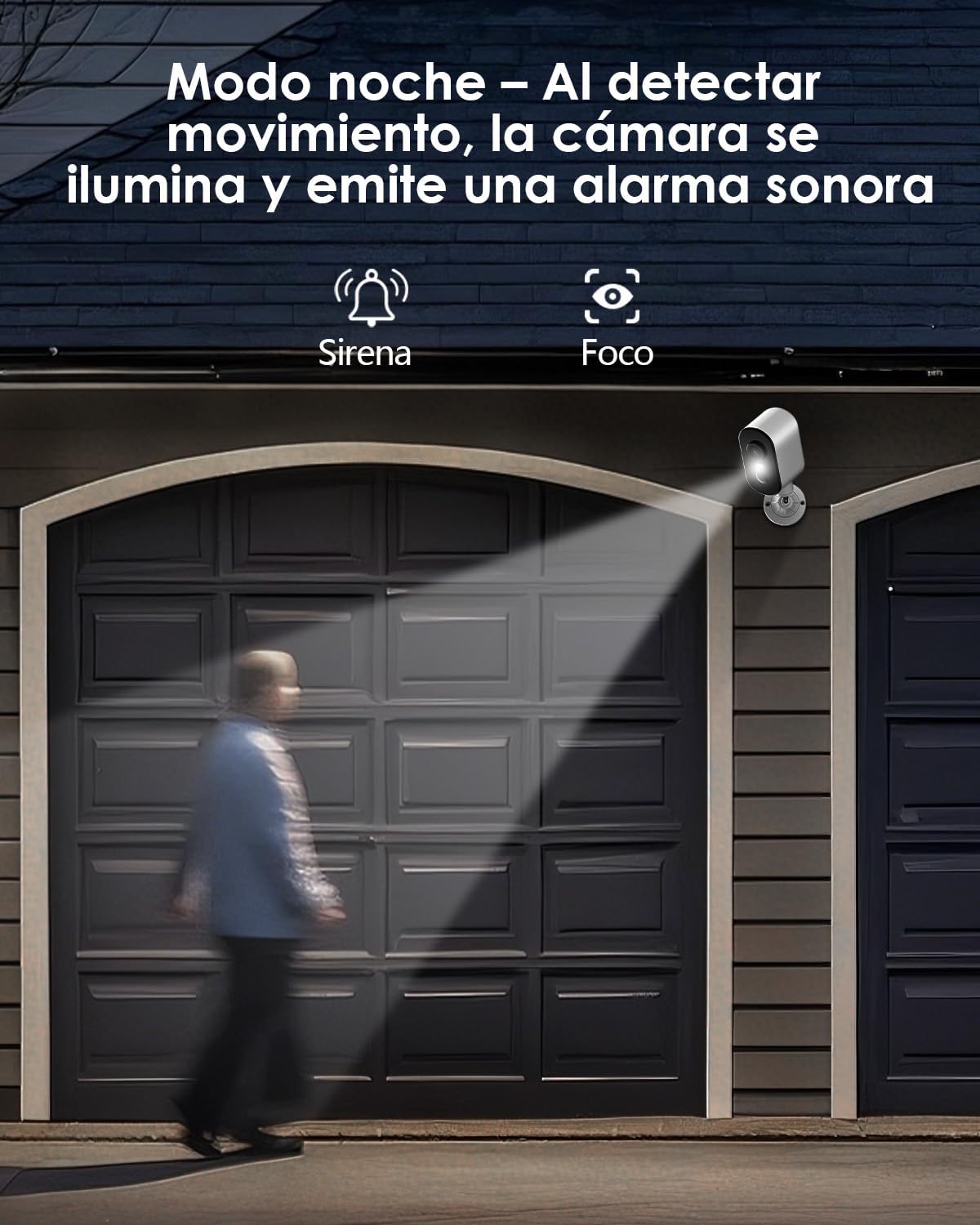
Whakaahuatanga Whakaahua: The camera is depicted in night mode, with its spotlight and siren activating upon motion detection to deter intruders and provide clear visibility.
4.3 Remote Monitoring and Multi-User Access
The camera supports remote monitoring, allowing real-time video streaming access from your smartphone. Multiple users can simultaneously access the camera feed.
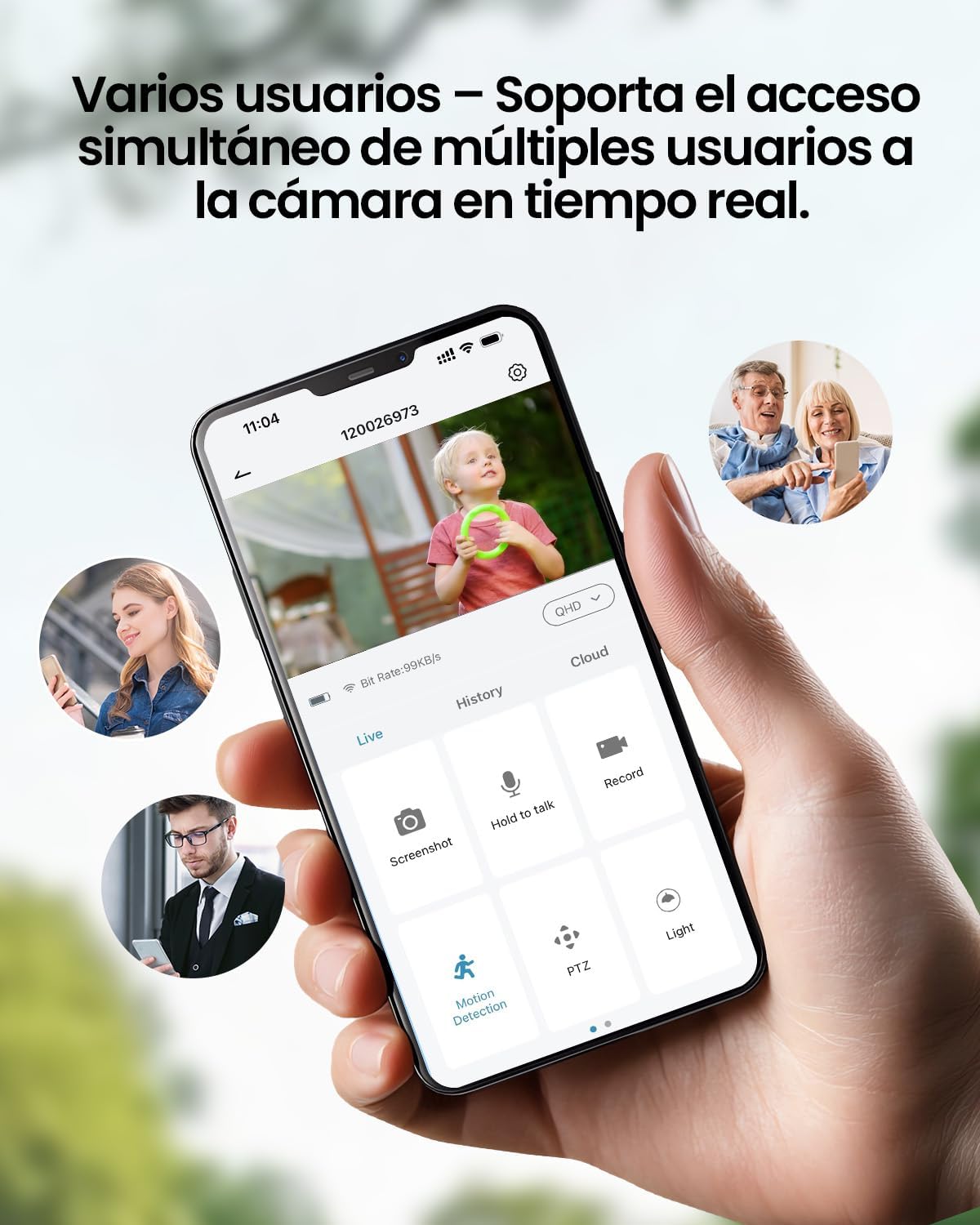
Whakaahuatanga Whakaahua: A smartphone displays the live feed from the camera, with icons indicating support for simultaneous access by multiple users, enabling shared monitoring.
5. Atete Huarere
Ko te CZEview ZY-Q6 camera is designed to withstand various outdoor conditions. Its fully dustproof and waterproof construction ensures continuous surveillance in any climate, from heavy rain to direct sun exposure.

Whakaahuatanga Whakaahua: Ko te CZEview ZY-Q6 camera is shown mounted outdoors during rainfall, demonstrating its fully dustproof and waterproof design, ideal for continuous outdoor use.
6. Whakatakotoranga
| Āhuahira | Taipitopito |
|---|---|
| Kaihanga | CZEview |
| Hunga Hua | 6 x 6.5 x 12cm; 530g |
| Pūhiko | 1 9V battery required, included |
| Tau tauira | ZY-Q6 |
| Tae | Mā |
| Rauemi | ABS Kirihou |
| Puna Mana | Pūhiko |
| Voltage | 12 Volts |
| Hiko Hiko | 5 watts |
| Tikanga Tāuta | Maunga Taiepa |
| Momo Pupura | LED Infrared |
| Momo Whakaeke | Maunga Ripanga |
| Nga waahanga motuhake | Te Kite Nekehanga, Te Tirohanga Pō |
| Nga Whakamahinga Manakohia | Property Monitoring, Home Security, Outdoor Surveillance |
| Taumaha Hua | 530 g |
| Awhe Morahi | 20 Mita |
| Pūrere Hototahi | Waea atamai |
7. Tiaki
- Te horoi: Me horoi i nga wa katoa te arotahi kamera me te tinana ki te ngohengohe, damp he kakahu hei tango i te puehu me te paru. A ape i te whakamahi i nga matū kino e kino ai te mata.
- Whakahaere Pūhiko: Monitor the battery level through the app. Recharge the camera promptly when the battery is low to ensure continuous operation.
- Whakahōu Firmware: Check for and install any available firmware updates through the companion app to ensure optimal performance and security.
- Tirohanga Whakapiki: Periodically inspect the mounting bracket and ensure the camera is securely attached, especially after severe weather conditions.
8. Te Raru
- Kāore te Kāmera e Hono Ana ki te WiFi:
- Ensure your router is broadcasting a 2.4GHz WiFi signal. The camera does not support 5GHz networks.
- Verify that the WiFi password entered in the app is correct.
- Place the camera closer to the WiFi router during the initial setup process.
- Reset the camera by pressing the reset button for 5 seconds and attempt to reconnect.
- Kounga Ataata Kino:
- Check your WiFi signal strength. A weak signal can affect video quality.
- Clean the camera lens to ensure it is free from dirt or smudges.
- Me whakarite karekau he arai e aukati ana i te kamera view.
- Kaore i te Mahi te Motini:
- Verify that motion detection is enabled in the camera's app settings.
- Whakatikatika i nga tautuhinga whakamohiotanga mooni.
- Me whakarite te mara o te kamera view covers the desired monitoring area.
- Ka Paheke te Pūhiko:
- Ngā huihuinga kitenga nekehanga auau, ngā huihuinga ora rānei viewing can consume more battery power. Adjust sensitivity or reduce live viewte wa.
- Ensure the camera is installed in an area with optimal WiFi signal to avoid excessive power consumption from searching for a connection.
- Ka pa te wera nui ki te mahi o te pākahiko.
9. Nga korero haumaru
- Kaua e ngana ki te wetewete, ki te whakarerekē rānei i te kāmera. Tērā pea ka whakakorea te pūtāhui, ka pakaru pea.
- Use only the provided charging cable or a compatible certified cable for charging.
- Keep the camera away from extreme heat sources, open flames, or corrosive substances.
- Ensure the camera is securely mounted to prevent it from falling and causing injury or damage.
- Makahia ngā pākahiko kia rite ki ngā ture ā-rohe. Kaua e maka ngā pākahiko ki te ahi.
10. Pūtāhui me te Tautoko
For warranty information, technical support, or any inquiries regarding your CZEview ZY-Q6 camera, please refer to the contact details provided in the product packaging or visit the official CZEview webpae.
Tena koa pupuri i to riirii hoko hei tohu mo te hoko mo nga kereme whakamana.