
1. Kupu Whakataki me Nekeview
This manual provides comprehensive instructions for the ASHATA 4G Portable Router, Model ASHATA3ethc05m91. This device is a versatile mobile hotspot designed to provide reliable internet access for multiple users. It supports various 4G networks and offers high-speed connectivity, making it ideal for travel, outdoor activities, or as a portable internet solution. The router features a built-in 3000mAh battery and is powered via a Type-C port, ensuring convenience and portability.

Image 1.1: The ASHATA Portable Pocket WiFi Router, highlighting its compact design, Type-C interface, and 3000mAh battery capacity.
2. Ihirangi mokete
Tirohia koa ko nga mea katoa kei raro nei kei roto i to kete:
- 1 x ASHATA Portable Router
- 1 x USB Type-C Supply Cord
- 1 x Pukapuka Tohutohu (Tenei tuhinga)
3. Nga Hua o te Hua
The ASHATA 4G Portable Router offers a range of features designed for optimal mobile connectivity:
- Share Up to 10 Users: Supports multiple 4G networks, enabling internet sharing for up to 10 connected devices simultaneously.
- Kōwhiringa Hiko Hangarau: Powered conveniently by devices with Type-C ports, such as cell phone chargers, car chargers, or mobile power banks.
- Mahi Mono me te Purei: Simple setup allows immediate 4G network access. Just insert a SIM card and connect to a power source.
- Hononga Tere-Teitei: Achieves 4G LTE speeds of up to 300Mbps, providing fast and stable internet access.
- Multi-Terminal Support: Connects up to 8 devices, including cell phones, tablets, laptops, computers, and smart TVs.
- Whakamuna Haumaru: Features WPA/WPA2 encryption for enhanced network security, protecting against unauthorized access.

Image 3.1: Visual representation of the router's key advantages, including its 3000mAh battery, WiFi support, 4G connectivity, portability, Type-C charging, and sleek design.
4. Aratohu Tatūnga
Follow these steps to set up your ASHATA 4G Portable Router:
- Kōkuhu Kāri Sim: Locate the SIM card slot on the router. Carefully insert a standard SIM card (not included) into the designated slot until it clicks into place. Ensure the SIM card is correctly oriented.
- Hono Hono: Connect the provided USB Type-C supply cord to the router's Type-C port and plug the other end into a compatible power source (e.g., a USB wall adapter, car charger, or power bank).
- Whakahiko: Press and hold the power button (refer to Image 4.1 for location) for a few seconds until the device powers on and the display illuminates.
- Whakaara Tuatahi: The router will perform an initial boot-up sequence. The display will show network status, signal strength, and battery level. Wait for the network indicator to show a stable 4G connection.

Whakaahua 4.1: He taipitopito view of the router's side, indicating the Type-C charging port, WPS button, power button, and the location of the SIM card slot for insertion.
5. Nga Tohutohu Whakahaere
Once the router is set up and powered on, you can begin using its mobile hotspot functionality:
- Connect Devices via Wi-Fi:
- On your Wi-Fi enabled device (phone, tablet, laptop), search for available Wi-Fi networks.
- Select the network name (SSID) displayed on the router's screen.
- Enter the Wi-Fi password (Key) also displayed on the router's screen when prompted.
- Your device should now be connected to the internet through the router.
- Tūnga Aroturuki: The router's display provides real-time information including signal strength, battery level, number of connected users, and data usage.
- Charging the Router: When the battery is low, connect the router to a power source using the Type-C cable. The battery indicator on the display will show charging status.
- Āhuatanga Haumarutanga: The router uses WPA/WPA2 encryption to secure your wireless network. It is recommended to keep the default password or change it to a strong, unique password for optimal security.
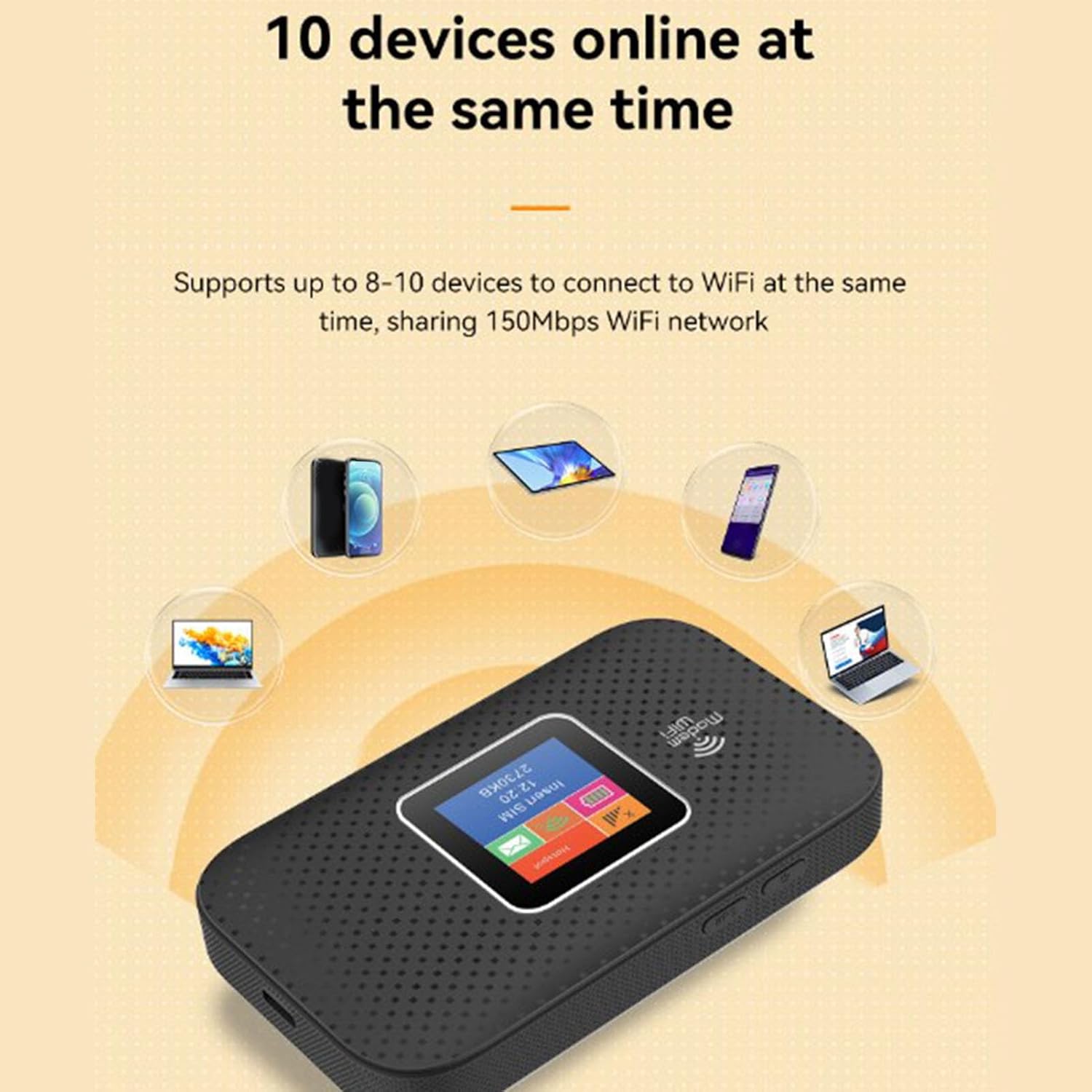
Image 5.1: The router demonstrating its capability to connect up to 10 devices simultaneously, including smartphones, tablets, and laptops.

Image 5.2: An illustration emphasizing the router's security features, specifically WPA/WPA2 encryption, for a more secure network environment.
6. Tiaki
To ensure the longevity and optimal performance of your ASHATA 4G Portable Router, follow these maintenance guidelines:
- Kia maroke: Avoid exposing the device to water, moisture, or high humidity.
- Mana Pawera: Do not expose the router to extreme temperatures (hot or cold). Operate and store it within recommended environmental conditions.
- Te horoi: Whakamahia he kakahu ngohengohe, maroke hei horoi i waho o te taputapu. Kaua e whakamahia nga kai horoi wai, aerosol ranei.
- Tiaki Pūhiko: For optimal battery life, avoid fully discharging the battery frequently. If storing for extended periods, charge the battery to about 50% and store in a cool, dry place.
- Aukati i te Paanga Tinana: Protect the device from drops, bumps, and strong vibrations.
7. Te Raru
If you encounter issues with your ASHATA 4G Portable Router, refer to the following troubleshooting tips:
- Kaore he Hononga Ipurangi:
- Me whakarite kua tika te whakauru i te kāri SIM, ā, kua whakahohehia hoki ki tētahi mahere raraunga.
- Check the signal strength indicator on the router's display. If signal is weak or absent, move to an area with better network coverage.
- Tīmataria anō te pouara mā te whakaweto ka whakakā anō.
- Verify that your connected device's Wi-Fi is enabled and connected to the correct SSID.
- Tere Ipurangi Pōturi:
- Whakaitihia te maha o nga taputapu hono.
- Move closer to the router to improve Wi-Fi signal strength.
- Check for network congestion in your area or contact your SIM card provider.
- Kāore e taea te Tūhono ki Wi-Fi:
- Ensure you are entering the correct Wi-Fi password (Key).
- Tīmata anō i te pouara me tō pūrere hono.
- Check if the router's display shows any error messages.
- Router Not Powering On:
- Ensure the battery is charged. Connect the router to a power source using the Type-C cable.
- Verify that the power cable and adapter are functioning correctly.
8. Whakatakotoranga
Detailed technical specifications for the ASHATA 4G Portable Router:
| Āhuahira | Whakatakotoranga |
|---|---|
| Waitohu | AWHATA |
| Ingoa Tauira | ASHATA3ethc05m91 |
| Hangarau Hononga | LTE, Ipurangi Ahokore |
| Paerewa Whakawhitinga Korerokore | 802.11a |
| Rere Whakawhiti Raraunga | 300 Megabits ia Hekona |
| Maximum Upstream Data Transfer Rate | 300 Megabits ia Hekona |
| Karaehe Band Auautanga | Takitoru |
| Support Network Band (4G) | B1 B3 B7 B20 B28 (2600 2100 1800 800 700MHZ) |
| Support Network Band (TDD) | B38 B40 B41 (2600 2300 2600MHZ) |
| Applicable Region | Europe, Africa, Southeast Asia, Northeast Asia, Middle East |
| Momo Pūhiko | 3000mAh Li Polymer Battery (Built-In) |
| Tauranga Whakatau | Momo-C |
| Kawa Haumaru | WPA, WPA2 |
| Pūnaha Mahi | Linux-e hāngai ana |
| Pūrere Hototahi | Laptop, Mobile Phones, Tablets, Smart TVs |
| Nga Whakamahinga Manakohia | Roto/Wawaho |
9. Pūtāhui me te Tautoko
ASHATA products are manufactured to high-quality standards. This product is covered by a limited warranty against defects in materials and workmanship from the date of purchase. Please retain your proof of purchase for warranty claims.
For technical support, warranty inquiries, or further assistance, please refer to the contact information provided with your purchase documentation or visit the official ASHATA webpae. Kaua e ngana ki te whakatika i te taputapu māu ake, nā te mea ka whakakorea pea te pūtāhui.