
Jectse Jectsega4vnm10yk-12
Jectse 80mm Thermal Receipt Printer User Manual
Model: Jectsega4vnm10yk-12
Kupu Whakataki
This manual provides comprehensive instructions for the setup, operation, and maintenance of your Jectse 80mm Thermal Receipt Printer. Please read this manual carefully before using the device to ensure proper functionality and longevity.
Ihirangi mokete
Manatokona kei roto katoa nga mea kei roto i te kete:
- Jectse 80mm Thermal Receipt Printer
- Tauira USB
- Thermal Paper Roll (may be pre-installed or separate)
- Pukapuka Kaiwhakamahi (tenei tuhinga)

Image: The Jectse 80mm Thermal Receipt Printer (Orange White) shown alongside its included USB charging cable.
Tatūnga
1. Te uta i te pepa wera
- Open the printer cover by gently lifting the orange transparent lid.
- Insert the thermal paper roll with the printing surface facing upwards. Ensure the roll is seated correctly in the paper compartment.
- Pull a small amount of paper out past the toothed blade.
- Katia te taupoki o te pūreretā kia mau rā anō tōna pāwhiri ki tōna tūranga.

Whakaahua: Runga view of the Jectse 80mm Thermal Receipt Printer with the orange transparent lid closed, indicating paper is loaded.
2. Te Whakahaa Atu Me Te Whakahaa
- Connect the USB cable to the printer's charging port and the other end to a suitable USB power adapter or computer.
- Press and hold the power button (marked with a circle and vertical line) to turn the printer on. The power indicator light will illuminate.
- The battery indicator lights will show the current charge level. Charge the printer fully before first use.
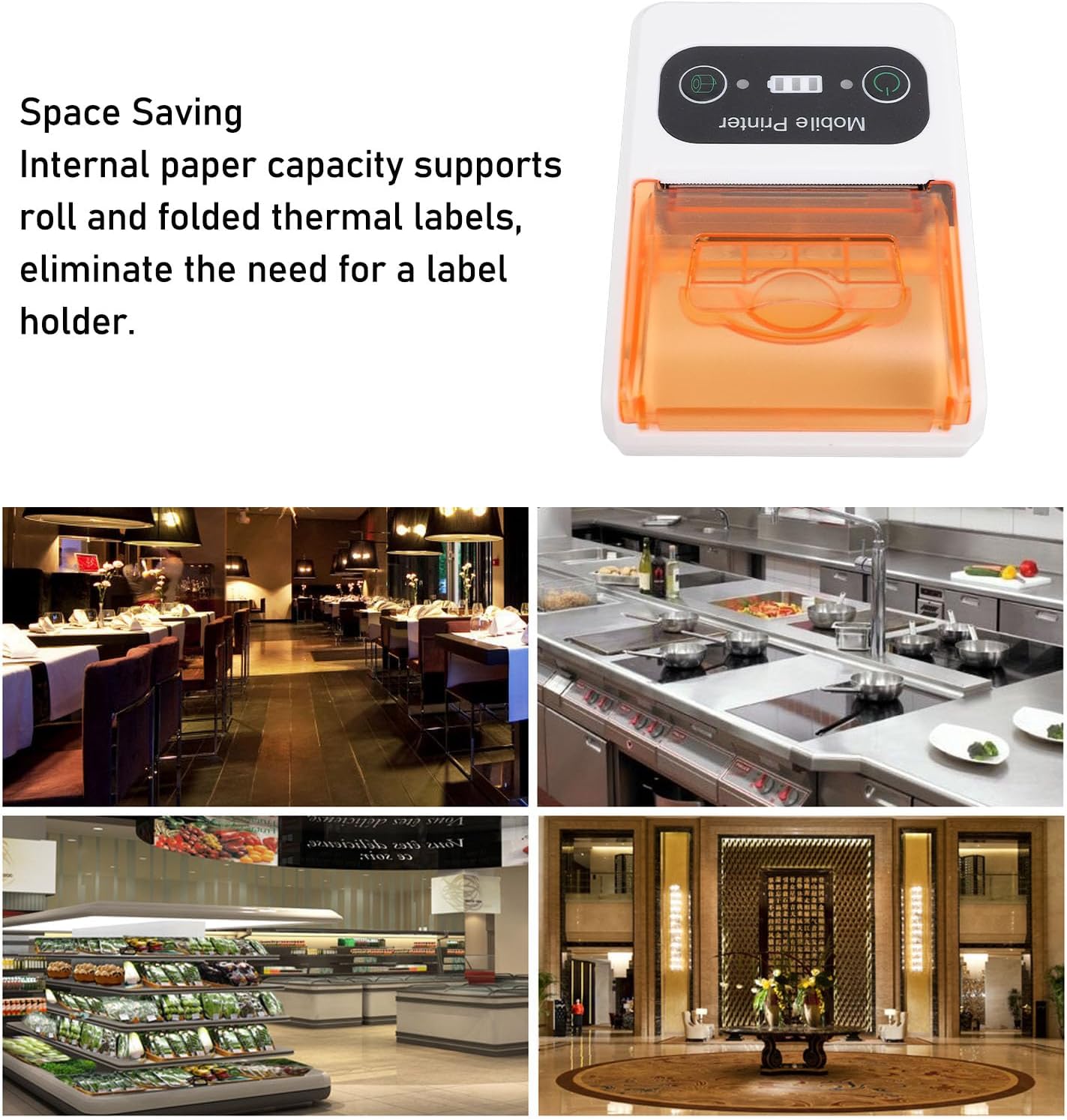
Image: A close-up of the printer's control panel, showing the power button, battery indicator, and paper feed button.
3. Hononga
The printer supports Ethernet connectivity. For mobile use, it is designed to connect wirelessly to devices such as smartphones.
- Hononga Itarangi: Connect an Ethernet cable to the printer's Ethernet port and to your network router or switch.
- Wireless Connection (e.g., Bluetooth): Refer to your device's operating system or application instructions for pairing with a mobile printer. Typically, this involves enabling Bluetooth on your mobile device, searching for the printer, and pairing.
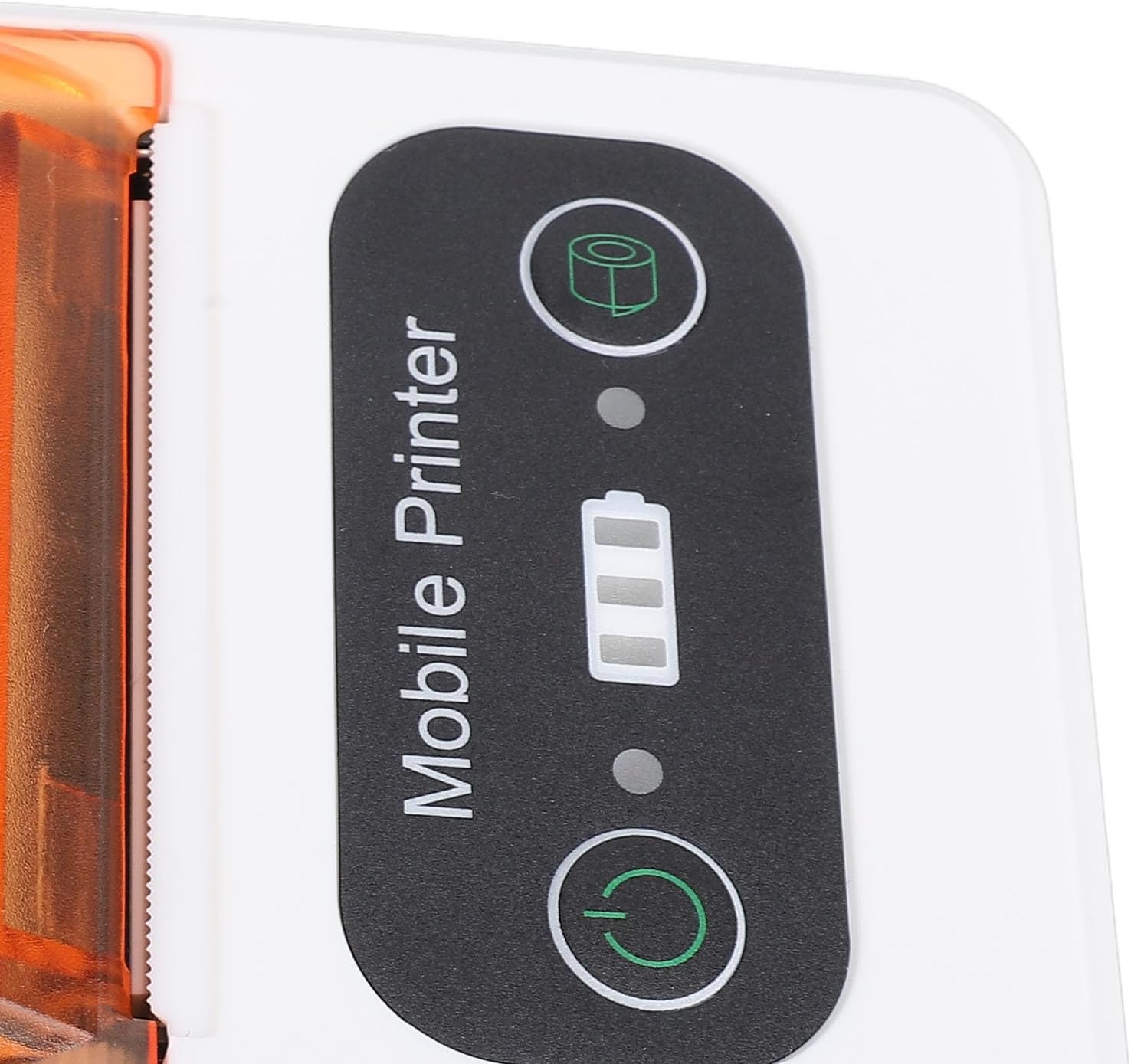
Image: The Jectse 80mm Thermal Receipt Printer shown next to a smartphone with a wireless signal icon, illustrating mobile connectivity.
Nga Tohutohu Whakahaere
Printing a Receipt/Label
- Ensure the printer is powered on and connected to your device (via Ethernet or wirelessly).
- Open the application or software from which you wish to print.
- Select the print option within your application. Choose the Jectse 80mm Thermal Receipt Printer from the list of available printers.
- Confirm print settings (e.g., paper size, orientation) if prompted.
- Initiate the print job. The printer will begin printing.
- Once printing is complete, use the integrated toothed blade to cleanly tear off the receipt or label.

Whakaahua: He koki view of the printer, highlighting its compact design and the paper output slot with the toothed blade.
Te tiaki
Te horoi i te Pūreretā
- Ensure the printer is powered off and disconnected from power before cleaning.
- Kia ngawari te whakamahi i te kakahu ngohengohe, karekau he ngongo dampened with isopropyl alcohol to clean the print head and the paper path.
- Do not use abrasive cleaners or spray liquids directly into the printer.
- Allow all components to dry completely before powering on the printer.
Replacing Thermal Paper
Follow the steps outlined in the "Loading Thermal Paper" section under Setup when the paper roll is depleted.
Raparongoā
| Raruraru | Take pea | Rongoā |
|---|---|---|
| Kāore te pūreretā e whakakā. | Low battery or power connection issue. | Charge the printer using the provided USB cable. Ensure the power adapter is working. |
| Kāore he putanga tā. | Paper loaded incorrectly, out of paper, or connectivity issue. | Check paper loading and ensure paper is not depleted. Verify network/wireless connection. Restart printer and device. |
| He kino te kounga o te tuhi. | Dirty print head or low battery. | Clean the print head as described in the Maintenance section. Ensure the printer is fully charged. |
| Kaore e taea te hono ahokore. | Bluetooth/network not enabled or printer not discoverable. | Ensure Bluetooth is enabled on your mobile device. Check printer's network settings. Try restarting both devices. |
Whakatakotoranga
- Tauira: Jectsega4vnm10yk-12
- Rahi Hua: 5.91 x 3.94 x 2.36 inihi (15.01 x 10.01 x 5.99 cm)
- Taumaha Tūemi: 9.1 hekere (257.98 karamu)
- Hangarau Hononga: Ethernet (and implied wireless for mobile use)
- Hangarau Tā: Waariki Tika
- Putanga Pūreretā: Monochrome
- Moochrome Tere Tere: 80mm ia hēkona
- Āhuahira Motuhake: Adjustable (likely referring to paper width or settings)
- Tae: Karaka Ma
- Kaihanga: Jectse
- Te Ra Tuatahi Wātea: Hui-tanguru 18, 2025
Pūtāhui me te Tautoko
For warranty information and technical support, please refer to the official Jectse webpaetukutuku, whakapā atu ranei ki ta raatau ratonga kaihoko. Puritia to rihiti hoko mo nga kereme whakamana.
Jectse Store Link: Visit the Jectse Store on Amazon
Ask a question about this manual
Ask about setup, troubleshooting, compatibility, parts, safety, or missing instructions. Manuals+ will review the question and use this page’s manual context to help answer it.