
Kupu Whakataki
Welcome to the GOBOULT Mirage Smart Watch user manual. This guide provides detailed instructions on how to set up, operate, and maintain your new smartwatch. Please read this manual thoroughly to ensure optimal performance and longevity of your device.
Ka mutu te huaview
The GOBOULT Mirage Smart Watch is a feature-rich device designed to enhance your daily life with advanced health monitoring, communication, and fitness tracking capabilities. It features a vibrant 1.39-inch HD display, Bluetooth calling, and a durable zinc alloy frame.
Āhuatanga matua:
- Whakaaturanga HD 1.39-inihi: Bright and clear screen with 500 nits brightness and 360x360 pixel resolution.
- Waea Nihokikorangi: Make and receive calls directly from your wrist with a built-in speaker and microphone.
- Te Aroturuki Hauora Matatoa: Includes SpO2, heart rate, blood pressure, sleep tracking, breath training, and menstrual cycle tracking.
- 120+ Ngā Aratau Hākinakina: Track a wide range of physical activities with detailed metrics.
- Kaiawhina reo AI: Hands-free control and access to features.
- IP67 Ātete Wai: Designed to withstand splashes and dust.
- Nga Kanohi Maataki Whakaritea: Over 300 cloud-based watch faces to personalize your device.
- Panui Maama: Whiwhi matohi mo nga waea, karere, me nga whakamohiotanga taupānga.
- Roa te Ora o te Pūhiko: Tae atu ki te 7 nga ra o te whakamahi angamaheni.
He aha kei roto i te Pouaka:
- GOBOULT Mirage Smart Watch (Coal Black)
- Uera Whakatau
- Pukapuka Kaiwhakamahi
- Kaari Raati

Whakaahua: Ka mutuview of the GOBOULT Mirage Smart Watch highlighting its main features.
Aratohu Tatūnga
1. Ka utu i te Mataara Ataata
- Connect the magnetic charging cable to the charging pins on the back of your smartwatch.
- Monohia te pito USB o te taura ki te urutau hiko USB (5V/1A e taunakitia ana) ki te tauranga USB rorohiko ranei.
- The watch display will show a charging indicator. A full charge takes approximately 120 minutes.
- Ensure the charging pins are clean and dry before charging to prevent corrosion.
2. Te Whakakaha/Weto
- Whakahiko: Press and hold the side button (digital crown) for a few seconds until the GOBOULT logo appears.
- Weto Whakakore: From the watch face, swipe down to access quick settings, or navigate to the settings menu. Select "Power Off" and confirm. Alternatively, press and hold the side button until the power off option appears.
3. Whakahoahoa ki to Waea atamai
- Download the official GOBOULT companion app from your smartphone's app store (available for iOS and Android).
- Me mohio kei te whakahohea te Nihokikorangi i runga i to waea atamai.
- Whakatuwheratia te taupānga GOBOULT ka whai i ngā tohutohu kei te mata hei waihanga i tētahi pūkete, hei takiuru rānei.
- In the app, select "Add Device" or a similar option to search for your smartwatch.
- Select "GOBOULT Mirage" from the list of available devices.
- Whakaūhia te tono takirua i runga i to waea atamai me te maataki atamai.
- Kia honoa, ka tukutahi te mataaratanga i ngā raraunga me tō waea, ā, ka taea e koe te whakarite i ngā tautuhinga mā te taupānga.
Nga Tohutohu Whakahaere
Whakaterenga Taketake:
- Mata pa: Swipe mauī/matau, ake/iho hei whakatere i ngā tahua me ngā whakamōhiotanga. Patohia hei tīpako i ngā tūemi.
- Digital Crown (Side Button):
- Pēhi kotahi: Return to the watch face from any screen, or wake the screen.
- Pēhi me te pupuri: Power on/off, or access the AI Voice Assistant (configurable).
- Tītaka: Scroll through menus, lists, or adjust settings.
- Patene Pokatata: The second physical button on the side can be customized for quick access to specific functions, such as launching sports modes.

Image: Digital crown and button functionalities for navigation and quick access.
Te Aroturuki Hauora
The GOBOULT Mirage Smart Watch offers a comprehensive suite of health tracking features. For accurate readings, ensure the watch is worn snugly on your wrist, about one finger's width from your wrist bone.
- Te Arotake i te Ngakau: Ka whai tonu te mataaratanga i to reanga ngakau. View nga raraunga tuuturu i runga i te mataaratanga, i nga ahuatanga taipitopito ranei i roto i te taupānga.
- SpO2 (Blood Oxygen) Aroturuki: Measure your blood oxygen levels on demand. Navigate to the SpO2 function on your watch and remain still for accurate results.
- Te Aroturuki Toto Toto: Access the blood pressure feature on your watch for readings.
- Aroturuki Moe: Wear your watch to bed to track your sleep patterns, including deep sleep, light sleep, and awake times. Data is available in the app.
- Breath Training Mode: Follow guided breathing exercises to help reduce stress and improve relaxation.
- Aroturuki Mahi: Ka aroturuki i ngā hikoinga, te tawhiti, me ngā kaora i tahuna puta noa i te rā.
- Whakamaumahara wai inu: Set reminders in the app to ensure you stay hydrated.
- Whakamaumahara Nohonoho: Whiwhi matohi ina roa rawa koe e hohekore ana, e akiaki ana koe ki te neke.
- Te Aroturuki o te Paheketanga: For female users, track and predict menstrual cycles through the companion app.

Image: The watch's health sensors and a summary of its health monitoring capabilities.
Aratau hakinakina
The GOBOULT Mirage Smart Watch supports over 120 sports modes to accurately track your workouts. From running to yoga, you can monitor your performance and progress.
Using Sports Modes:
- Access the sports mode menu from the watch's main interface or by using the dedicated shortcut button.
- Scroll through the list and select your desired activity (e.g., Running, Cycling, Yoga, Cricket, Badminton, Basketball).
- Tap to start the activity. The watch will begin recording data such as duration, heart rate, calories burned, and distance (where applicable).
- To pause or end an activity, swipe right or press the side button and follow the on-screen prompts.
- Review your workout summaries on the watch or in detail within the companion app.

Image: The watch interface showing various sports modes and quick access options.
Bluetooth Calling & Smart Notifications
With Bluetooth 5.3 connectivity, your GOBOULT Mirage Smart Watch allows you to manage calls and receive notifications directly on your wrist.
Waea Nihokikorangi:
- Me whakarite kei te hono tō mātaaratanga ki tō waea mā te Nihokikorangi.
- Waeatanga: Uru ki te papa waea, ki te rarangi whakapā ranei i runga i to mataaratanga ki te timata waea.
- Whiwhi Waea: When a call comes in, the watch will display the caller ID. You can answer or reject the call directly from your wrist using the built-in speaker and microphone.
- Tukutahi Hoapā: Synchronize your phone contacts with the watch through the companion app for easy access.
Panui Maama:
- Enable app notifications in the GOBOULT companion app on your smartphone.
- Your watch will display incoming messages, social media alerts, and other app notifications.
- Swipe up or down on the watch face to view tou hītori whakamōhiotanga.

Image: Bluetooth calling features and interface on the smartwatch.

Image: Smart notifications and other quick access features like calculator and voice assistant.
Whakaritenga
Mata Mata:
Personalize your GOBOULT Mirage Smart Watch with over 300 cloud-based watch faces. You can change the watch face directly from the device or through the companion app.
- I runga i te Matakitaki: Mai i te mata mataara, pehia me te pupuri i te mata. Swipe ki maui, matau ranei ki te tirotiro i nga kanohi mataaratanga e waatea ana ka paato ki te kowhiri.
- Mā te Taupānga: Open the GOBOULT app, navigate to the watch face section, and explore a wider selection of designs. Download and apply your preferred watch face.

Whakaahua: Examples of customizable watch faces available for the smartwatch.
Nga waahanga taapiri
Kaiawhina reo AI:
Activate the AI Voice Assistant (compatible with Hey Siri and Ok Google) by long-pressing the digital crown or through a dedicated menu option. Use voice commands to perform various tasks hands-free.
Kimihia taku Waea:
If your paired smartphone is misplaced, use the "Find My Phone" feature on your watch to make it ring or vibrate, helping you locate it quickly.
- Go to the watch menu.
- Select the "Find Phone" option.
- The connected phone will ring or vibrate.
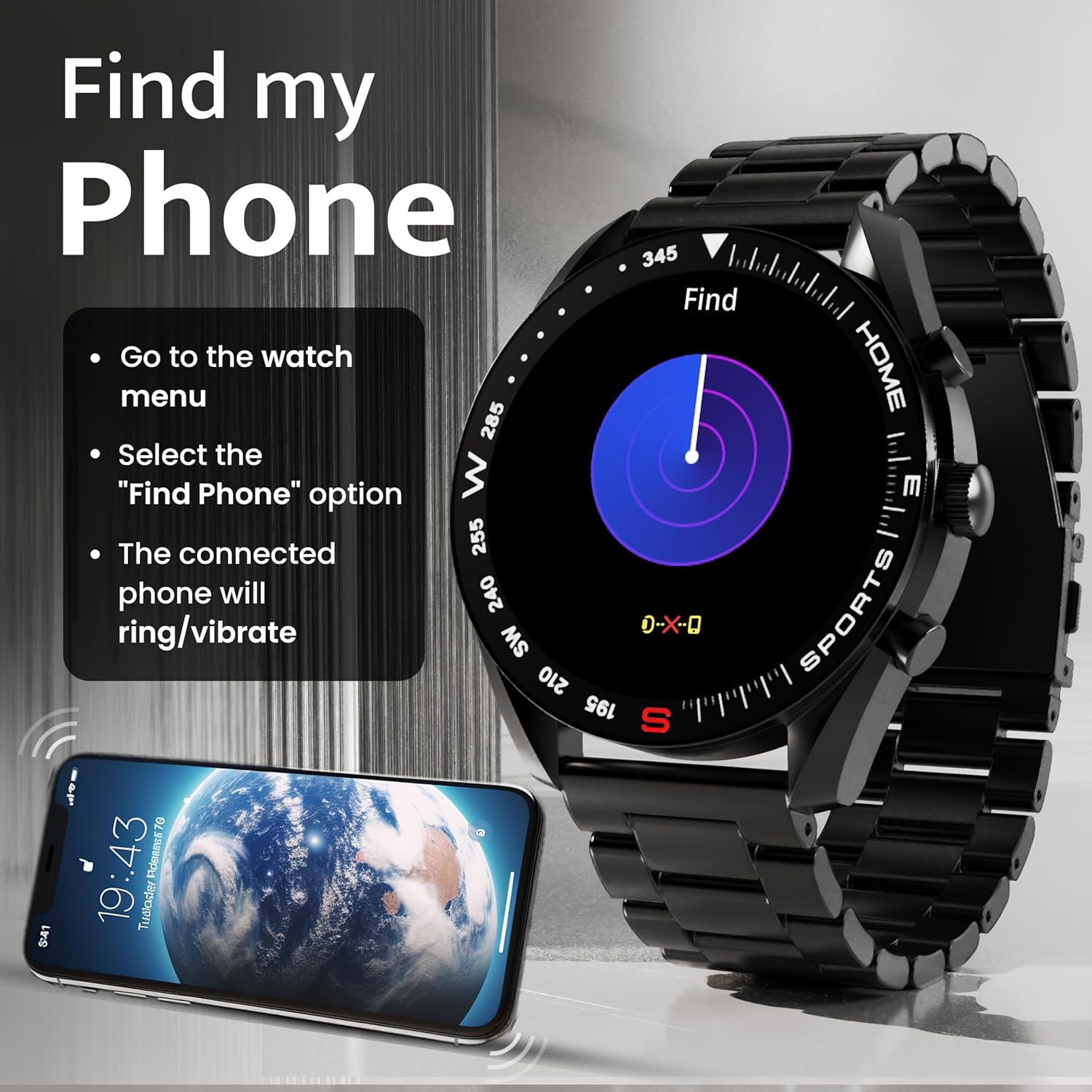
Image: How to use the 'Find My Phone' feature on the smartwatch.
Kēmu paku:
The watch includes several mini-games for entertainment, such as 2048, Battleship, Hamster, and Young Bird.

Whakaahua: Examples of mini-games available on the smartwatch.
Te tiaki
Cleaning Your Smart Watch:
- Ūkuia te mata mataara me te tinana ki te kakahu ngohengohe, kore-puru.
- Mo te paru maro, paku dampen te kakahu ki te wai. A ape i te whakamahi i nga matū kino, i nga taonga abrasive ranei.
- Clean the charging pins regularly with a dry cloth or cotton swab to ensure proper charging.
Ātete Wai (IP67):
The GOBOULT Mirage Smart Watch is IP67 water-resistant, meaning it is protected against dust ingress and can withstand immersion in water up to 1 meter for up to 30 minutes. However, it is not suitable for swimming, showering with hot water, or diving. Avoid exposure to high-pressure water or corrosive liquids.

Image: Information regarding the IP67 water and dust resistance of the smartwatch.
Whakatikatika here:
The watch comes with a metallic strap adjustment tool. Refer to the included instructions or a professional for adjusting the strap length to ensure a comfortable and secure fit.

Image: The watch's zinc alloy frame and the metallic strap adjustment tool.
Raparongoā
- Kia mataara kia kaua e huri: Ensure the watch is fully charged. Connect it to the charging cable and allow it to charge for at least 30 minutes before attempting to power it on again.
- Kaore e taea te hono ki te waea:
- Me whakarite kei te whakahohea te Nihokikorangi i runga i tō waea me te mātaaratanga.
- Ensure the watch is within the Bluetooth range (up to 10 meters).
- Me whakaara ano to waea me te maataki atamai.
- Clear the Bluetooth cache on your phone or forget the device and try pairing again.
- Ensure the GOBOULT companion app is updated to the latest version.
- Raraunga hauora hē: Kia mau te mātaaratanga ki tō ringaringa, kaua e tino piri rawa, kaua hoki e tino wetekina. Horoia ngā pūoko kei muri o te mātaaratanga. Āta karohia te nekeneke nui rawa i te wā e ine ana.
- Ko nga whakamohiotanga kaore e puta:
- Check if notifications are enabled for the specific apps in the GOBOULT companion app.
- Ensure your phone's notification settings allow the GOBOULT app to display alerts.
- Verify that the watch is properly connected to your phone via Bluetooth.
- Ora pūhiko poto: Reduce screen brightness, disable unnecessary features like continuous heart rate monitoring if not needed, and limit the number of active notifications. Ensure the watch is fully charged.
- Karekau e aro te mata pa: Tīmataria anō te mataaratanga. Mena ka mau tonu te take, whakarite kia ma, kia maroke te mata.
Whakatakotoranga
| Āhuahira | Taipitopito |
|---|---|
| Ingoa Tauira | Mirage |
| Rahi Whakaatu | 1.39 inihi HD |
| Whakaatu Whakatau | 360 x 360 pika |
| Tirohanga | 500 Nits Teitei o te Kanapa |
| Hononga | Nihokikorangi 5.3 |
| Ātete wai | IP67 |
| Rauemi Tāpare | Kohanga Konutea |
| Momo Pūhiko | Hikahiko Polymer |
| Toharite Pūhiko Ora | Tae atu ki te 7 Ra |
| Wā Utu | Tata ki te 120 meneti |
| Hototahitanga Pūnaha Whakahaere | iOS, Android |
| Taumaha Tūemi | 106 g |
| Nga Waahanga kei roto | Mataaratanga Atamai, Taura Utu, Pukapuka Kaiwhakamahi, Kāri Pūtāhui |
Pūtāhui me te Tautoko
Mōhiohio Pūtāhui:
Your GOBOULT Mirage Smart Watch comes with a manufacturer's warranty. Please refer to the included Warranty Card for specific terms, conditions, and duration of the warranty. Keep your purchase receipt as proof of purchase.
Tautoko Kiritaki:
If you encounter any issues or have questions not covered in this manual, please contact GOBOULT customer support. Contact details can typically be found on the Warranty Card or the official GOBOULT webpae.