
GrandStream GCC6010
Pukapuka Kaiwhakamahi a Grandstream GCC6010
Integrated IP PBX, Firewall, VPN Router, and Network Switch
1. Kupu Whakataki
The Grandstream GCC6010 series offers a comprehensive, multifunctional solution designed to streamline communication and networking for small and medium businesses. This device integrates the functionalities of a VPN router, a next-generation firewall, an IP PBX, and a network switch into a single platform. It enables users to establish and manage wired and wireless networks, implement VPNs, ensure enterprise-level network security, and utilize a leading unified communication and collaboration platform.
The GCC6010 facilitates quick configuration of complete unified communication (UC), network, and security solutions. Management can be performed via the Grandstream Device Management System (GDMS) cloud platform, a mobile application, the local web interface, or through SSH console management. This integrated approach simplifies data security, business communication, and collaboration.
2. Ihirangi mokete
Me manatoko kei roto i tō kete ngā taonga katoa. Mēnā kua ngaro, kua pakaru rānei tētahi taonga, whakapā atu ki tō kaihoko tonu.
- Wāhanga Grandstream GCC6010
- Whāurutau Hiko Ao
- Aratohu Tāuta Tere
3. Tino Tinoview
The Grandstream GCC6010 features a compact design with various ports and indicators for network connectivity and system status.
3.1. Device Front View
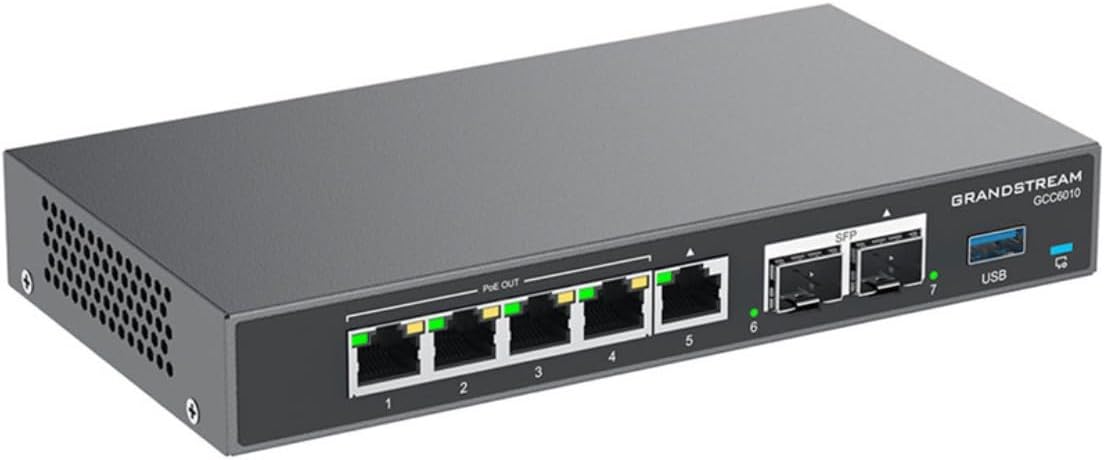
Whakaahua 1: Koki mua view of the Grandstream GCC6010, displaying the network ports, SFP slots, and USB port.
He koki tenei ahua view of the GCC6010, highlighting its front panel. Visible features include multiple Ethernet ports (labeled 1-5), two SFP ports (labeled 6-7), and a USB port. LED indicators above each port show connection status and activity. The device casing is dark gray with the Grandstream logo and model number clearly visible.
3.2. Tahora Paepae Mua

Whakaahua 2: Taipitopito view of the Grandstream GCC6010 front panel, showing port numbering and LED indicators.
The front panel of the GCC6010 features five Gigabit Ethernet ports (1-5), with ports 1-4 supporting PoE Out. Each Ethernet port has corresponding LED indicators for link/activity status. Two SFP ports (6-7) are provided for fiber optic connections, also with individual LED indicators. A USB 3.0 port is located on the far right, alongside a system status LED.
3.3. Tahora o te Paewhiri Whakamuri

Whakaahua 3: Taipitopito view of the Grandstream GCC6010 rear panel, showing power input, reset button, and Micro SD slot.
The rear panel includes the 48V DC power input jack, a recessed reset button, and a Micro SD card slot for storage. Additionally, there is a Kensington lock slot for security and a grounding screw terminal.
4. Tatūnga
4.1. Tāutanga Pūmārō
- Hononga Hiko: Connect the universal power adapter to the 48V DC power input on the rear panel of the GCC6010 and then plug it into a power outlet.
- Hononga Whatunga: Connect your internet service provider's modem or router to one of the WAN ports (typically port 5, consult the Quick Installation Guide for specifics) on the GCC6010. Connect your local network devices (computers, switches, IP phones) to the LAN ports (1-4).
- Optional SFP Connection: If using fiber optic connections, insert compatible SFP modules into the SFP ports (6-7) and connect the fiber cables.
- Optional USB Storage: For additional storage or specific applications, connect a USB drive to the USB port.
- Optional Micro SD Storage: Insert a Micro SD card into the Micro SD slot on the rear panel for additional storage.
4.2. Urunga Whirihoranga Tuatahi
After connecting the hardware, you can access the device for initial configuration using one of the following methods:
- Web Atanga: Connect a computer to a LAN port of the GCC6010. Open a web browser and enter the default IP address (refer to the Quick Installation Guide or device label for the default IP). Follow the on-screen prompts to complete the initial setup wizard.
- Pūnaha Whakahaere Pūrere Grandstream (GDMS): For cloud-based management, register your GCC6010 device on the GDMS platform. This allows for centralized management and configuration.
- Taupānga Pūkoro: Utilize the Grandstream mobile application for basic monitoring and configuration.
- SSH Console: For advanced users, access the device via SSH for command-line configuration.
It is highly recommended to change default passwords immediately after initial access for security purposes.
5. Nga Tohutohu Whakahaere
The GCC6010 combines multiple functionalities. This section provides an overview of its primary operational aspects.
5.1. Network Configuration (Router & Switch)
- WAN Setup: Configure your internet connection settings (DHCP, Static IP, PPPoE) through the web atanga.
- LAN Management: Manage IP addresses, DHCP server settings, and VLANs for your local network.
- Whakawhiti: The integrated switch ports (1-5) provide basic layer 2 switching capabilities. Ports 1-4 support Power over Ethernet (PoE) output for compatible devices.
- Whatunga Ahokore: If external Grandstream Wi-Fi Access Points are connected and managed by the GCC6010, configure SSIDs, security protocols, and guest networks.
5.2. IP PBX Features
The GCC6010 functions as an IP PBX, supporting up to 10 users and 4 simultaneous calls.
- Whakahaere Kaiwhakamahi: Create and manage extensions for IP phones and softphones.
- Call Routing: Configure inbound and outbound call routes, IVRs (Interactive Voice Response), and ring groups.
- Mīhiko: Set up voicemail boxes and access methods.
- Huihuinga: Utilize built-in conferencing features for multi-party calls.
5.3. Firewall and VPN
- Ture Pātūahi: Configure security policies, access control lists (ACLs), and port forwarding to protect your network.
- VPN Tatūnga: Establish Virtual Private Network (VPN) connections for secure remote access or site-to-site connectivity. Supported VPN protocols may include OpenVPN, IPsec, etc.
- Intrusion Detection/Prevention: Utilize advanced security features to detect and prevent network threats.
5.4. Whakahaere Pūnaha
- Web Atanga: The primary method for detailed configuration and monitoring.
- GDMS: For managing multiple Grandstream devices from a centralized cloud platform.
- Logs and Reports: Monitor system logs, call detail records (CDRs), and network traffic reports for diagnostics and performance analysis.
6. Tiaki
6.1. Whakahoutanga Firmware
Tirohia tonutia ngā whakahoutanga pūmanawa mārō, ā, whakamahia kia pai ai te mahi, te haumarutanga, me te urunga atu ki ngā āhuatanga hou. Ka taea te whakahou i te pūmanawa mā te web atanga, GDMS rānei.
- Tikiake i te pūmanawa hou mai i te Grandstream mana webpae.
- Uru ki te taputapu web atanga ka whakatere ki te wāhanga whakahōu pūmanawa.
- Follow the instructions to upload and install the new firmware. Do not power off the device during the upgrade process.
6.2. Configuration Backup and Restore
It is recommended to regularly back up your device's configuration settings. This allows for quick restoration in case of system issues or when migrating settings to a new device.
- Uru ki te web interface and locate the backup/restore section.
- Tiakina te whirihoranga file ki te waahi haumaru.
- To restore, upload the saved configuration file through the same interface.
6.3. Tautuhi Pūnaha
If the device becomes unresponsive or you need to revert to factory settings, a system reset can be performed. Use the recessed reset button on the rear panel. Press and hold the button for approximately 10 seconds until the device reboots to factory defaults. Whakatupato: A factory reset will erase all configurations and data.
7. Te Raru
Kei roto i tēnei wāhanga ngā mahi rapurongoā taketake mō ngā raruraru noa.
- Kore Mana: Ensure the power adapter is securely connected to the device and a working power outlet. Check the power LED indicator.
- Kore Hononga Whatunga:
- Verify Ethernet cables are properly connected to the correct ports (WAN/LAN).
- Check port LED indicators for link and activity.
- Confirm IP address settings on connected devices.
- Restart the GCC6010 and connected network devices.
- Kaore e taea te uru Web Atanga:
- Ensure your computer is on the same network segment as the GCC6010 (e.g., connected to a LAN port).
- Manatokohia he tika te wahitau IP i whakauruhia ki te tirotiro.
- Ūkuia te keteroki pūtirotiro, whakamātauria rānei tētahi atu pūtirotiro.
- Monokia te pūmanawa pareārai i tō rorohiko mō tētahi wā.
- IP PBX Call Issues:
- Check SIP registration status for extensions.
- Verify inbound/outbound routes and firewall rules.
- Ensure sufficient bandwidth for voice traffic.
For more advanced troubleshooting, consult the comprehensive online documentation or contact Grandstream technical support.
8. Whakatakotoranga
| Āhuahira | Taipitopito |
|---|---|
| Waitohu | Awa Matua |
| Tau tauira | GCC6010 |
| Tauranga Whatunga | 5 x Gigabit Ethernet (RJ45), 2 x 2.5 Gigabit (SFP) |
| PoE Atu | Yes, on ports 1-4 |
| Nga Waahanga kei roto | GCC6010 unit, Universal Power Adapter, Quick Installation Guide |
| Tae | Pango |
| Pūrere Hototahi | Desktop computers, Laptops, Printers, Servers |
| Atanga | RJ45, SFP, USB, Micro SD |
| Momo Whakawhiti | Unmanaged (Layer 2 functionality) |
| Hototahitanga papa | Nga punaha whakahaere katoa |
| Casing Rauemi | Kirihou |
| Taumaha Tūemi | 1.85 Pauna (tata ki te 0.84 kg) |
| Kaihanga | Rangahau Rongonui |
| Whenua Taketake | Potukara |
| IP PBX Capacity | 10 users, 4 simultaneous calls |
9. Pūtāhui me te Tautoko
Mō ngā taipitopito taipitopito mō te pūtāhui, tirohia te kāri pūtāhui kei roto i tō hua, tirohia rānei te paetukutuku mana o Grandstream. website. Technical support is available through Grandstream's support portal, knowledge base, and community forums. Contact information for support can be found on the Grandstream webpae.
Tuhinga e pa ana - GCC6010
 |
Aratohu Kaiwhakamahi o te Grandstream GDMS Unified Communications Explore the Grandstream GDMS Unified Communications User Guide for managing VoIP devices, IPPBXs, and cloud communication solutions. Learn about deployment, configuration, monitoring, and account management with this comprehensive cloud-based platform. |
 |
Aratohu Kaiwhakamahi Tere o CloudUCM - Grandstream He aratohu kaiwhakamahi tere mō te CloudUCM a Grandstream, he otinga whakawhitiwhiti kōrero me te mahi tahi e ahu mai ana i te kapua. Akohia me pēhea te waihanga, te whakahohe, te whirihora, me te whakahaere i ngā taputapu CloudUCM mā te tūāpapa GDMS. |
 |
Grandstream UCM RemoteConnect User Guide: Setup and Management Comprehensive user guide for the Grandstream UCM6300 series IP PBX, detailing the UCM RemoteConnect service for remote access, communication, and management via GDMS. Learn about features, setup, and configuration. |
 |
GDMS Unified Communications User Guide Comprehensive user guide for the Grandstream Device Management System (GDMS) Unified Communications platform, covering device provisioning, SIP account management, diagnostics, and cloud-based administration. |
 |
Aratohu Tāutanga Tere o Grandstream GCC6010/GCC6011 This guide provides essential information for installing and setting up the Grandstream GCC6010/GCC6011 SMB UC/Networking Convergence Wired Gateway. It covers package contents, port descriptions, connection procedures, mounting options, safety precautions, and important disclaimers regarding emergency calls and software licensing. |
 |
Grandstream GDMS Mobile Application User Guide User guide for the Grandstream GDMS Mobile Application, detailing how to manage Grandstream devices like GXV, GRP, DP, and WP series with centralized, secure, and zero-operation methods. |
Ask a question about this manual
Ask about setup, troubleshooting, compatibility, parts, safety, or missing instructions. Manuals+ will review the question and use this page’s manual context to help answer it.