
Kupu Whakataki
This manual provides detailed instructions for the installation, operation, and maintenance of your MIUCDA Smart Wi-Fi Thermostat. This device is designed to control heating and cooling systems, offering smart features for enhanced comfort and energy efficiency.
Pānuihia tēnei pukapuka ā-ringa i mua i te tāutanga me te whakamahinga kia tika ai te mahi me te haumaru.
Nga korero haumaru
- Always disconnect power to the heating/cooling system before installing or servicing the thermostat.
- Me mahi te tāutanga e te tohunga hiko whai tohu mēnā kāore koe i te tino mōhio ki ngā tikanga waea.
- Ensure the thermostat is compatible with your specific heating/cooling system (dry contact gas boilers only).
- Kaua e tukuna te taputapu ki te makuku nui, ki te wera nui ranei.
- Use only specified power sources (AAA batteries or Type-C wired connection).
Ihirangi mokete
Manatokona kei roto katoa nga mea kei roto i to kete:
- MIUCDA Smart Wi-Fi Thermostat
- Maunga Paetahi
- Tiu me nga punga pakitara
- Pukapuka Kaiwhakamahi (tenei tuhinga)
- (AAA batteries and Type-C cable are not included)
Tatūnga me te Tāuta
1. Powering the Thermostat
The thermostat can be powered by three AAA batteries (not included) or via a Type-C wired connection. Choose the method that best suits your installation.

Image: The thermostat's rear view, illustrating the AAA battery compartment and the Type-C power input for flexible power options.
- Tāuta Pūhiko: Open the battery compartment on the back of the thermostat and insert three AAA batteries, ensuring correct polarity.
- Wired Power: Connect a Type-C cable (not included) to the Type-C port on the thermostat.
2. Te Whakaeke i te Thermostat
The thermostat is designed for surface mounting, eliminating the need to embed it into the wall.

Image: A diagram showing the thermostat's backplate being mounted to a wall, with wiring connections visible.
- Secure the mounting bracket to the wall using the provided screws and wall anchors.
- Connect the thermostat's wiring to your heating/cooling system's dry contact gas boiler. Refer to your boiler's manual for specific wiring diagrams.
- Attach the thermostat unit to the mounted bracket.

Image: An illustration indicating compatibility with dry contact gas boilers and incompatibility with electric heating systems or actuators/valves.
Tuhipoka Hototahi: This thermostat is compatible only with dry contact gas boilers. It is not compatible with electric heating systems or actuators/valves.
3. Hononga Wi-Fi
The thermostat requires a 2.4 GHz Wi-Fi network for smart control features.
- Tikiake te Tuya Smart or Te Ora Maamaa taupānga mai i te toa taupānga o to waea atamai.
- Rēhita whakauru atu ranei ki to nama.
- Follow the in-app instructions to add your MIUCDA Smart Wi-Fi Thermostat. This typically involves putting the thermostat into pairing mode (refer to the thermostat's display for pairing indicators) and connecting it to your 2.4 GHz Wi-Fi network.
Nga Tohutohu Whakahaere
1. Manual Temperature Control
Adjust the temperature directly on the thermostat using the rotary knob. The current temperature and set temperature will be displayed on the screen.

Image: The thermostat's digital display, highlighting temperature hysteresis, minimum adjustment, and upper/lower temperature limits.
- Awhe Pawera: Ka taea te whakarerekē i te pāmahana mai i te 5°C ki te 35°C.
- Pūmāmā: ±1°C.
- Hysteresis: Configurable from 0.5°C to 10°C.
- Awhe Whakatau: -9.9°C ki te 9.9°C.
2. App Control (Tuya Smart / Smart Life)
Control your thermostat remotely using the Tuya Smart or Smart Life application on your smartphone.
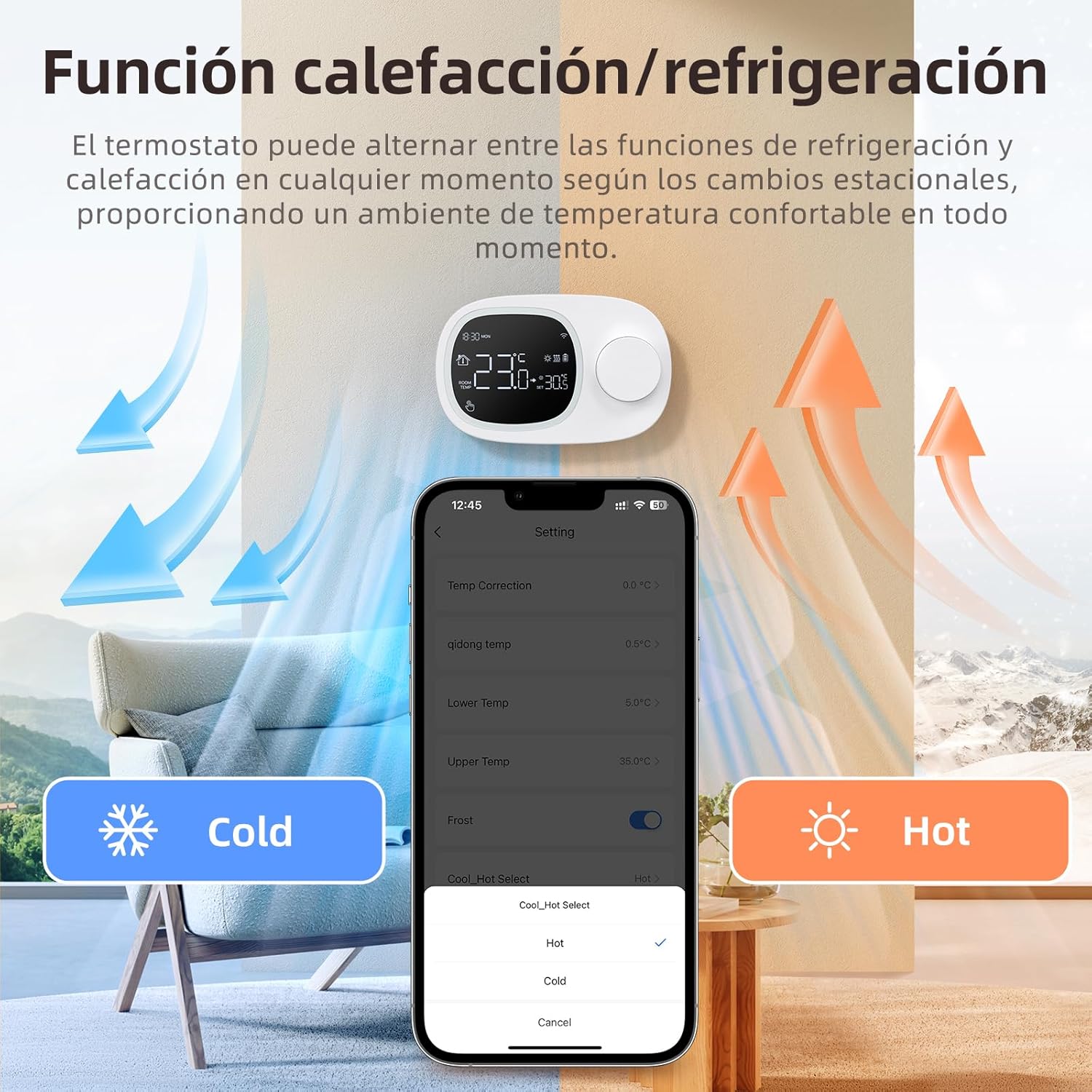
Image: A smartphone screen displaying the Tuya/Smart Life app interface for thermostat control, alongside icons for Alexa and Google Home integration.
- Adjust temperature, change modes, and set schedules from anywhere.
- Aroturuki i te pāmahana rūma o nāianei.
3. Voice Control (Alexa / Google Home)
Integrate your thermostat with Amazon Alexa or Google Home for convenient voice commands.
- Enable the Tuya Smart or Smart Life skill/action in your Alexa or Google Home app.
- Link your account.
- Use commands such as "Alexa, set thermostat to 22 degrees" or "Hey Google, what's the temperature in the living room?"
4. Papatonotanga ia wiki
Set up a weekly schedule with up to 6 different time windows per day to optimize comfort and energy savings.

Image: A smartphone screen displaying the weekly programming feature within the app, showing different temperature settings for various times of the day across the week.
- Access the programming feature within the Tuya Smart or Smart Life app.
- Define desired temperatures for specific times on each day of the week.
5. Heating and Cooling Modes
The thermostat supports both heating and cooling modes, allowing adaptation to seasonal needs.
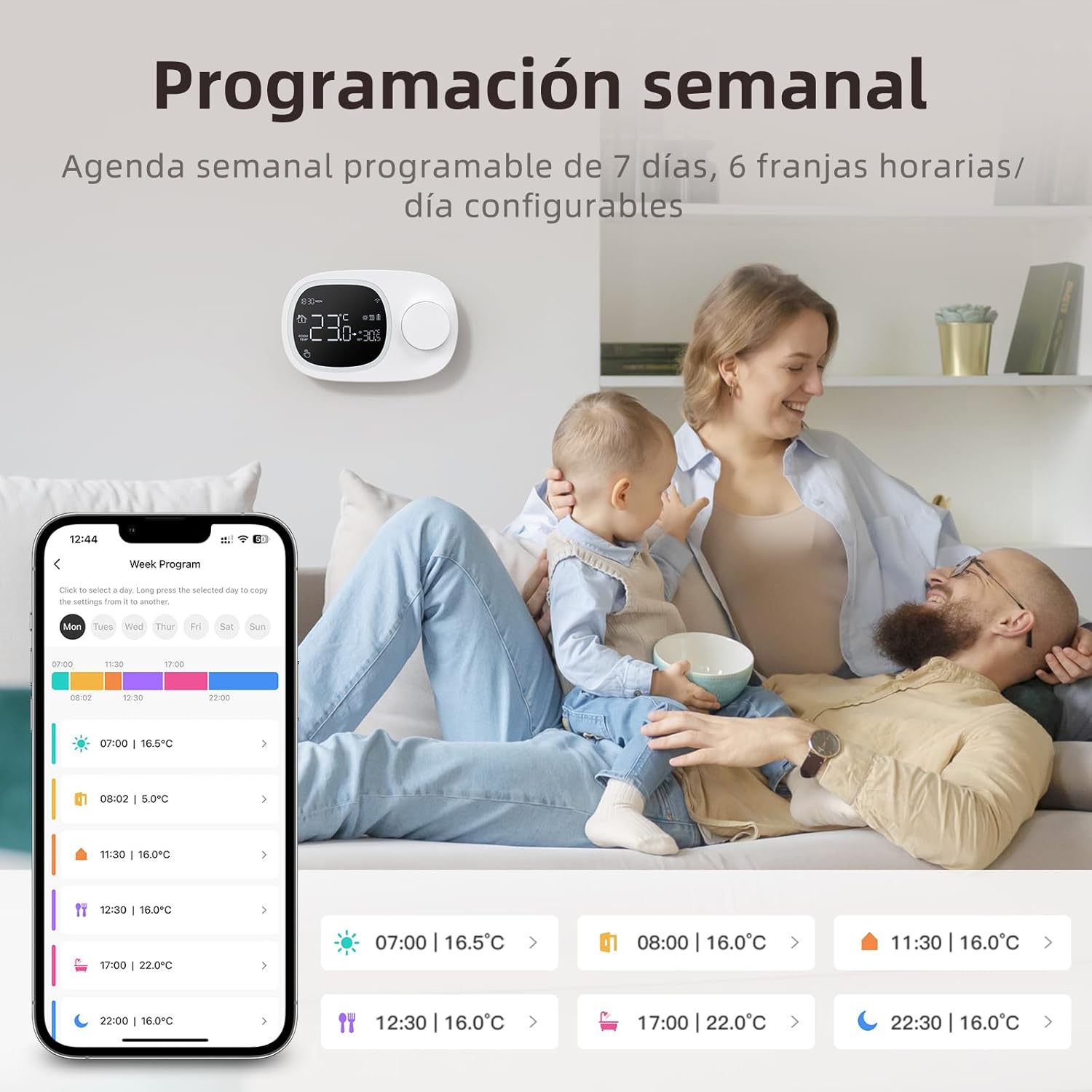
Image: An illustration showing the thermostat's ability to switch between heating (hot) and cooling (cold) modes, adapting to seasonal temperature changes.
- Switch between heating and cooling modes via the app or the thermostat's interface.
- Ensure your connected system supports both modes for full functionality.
Te tiaki
- Te horoi: Horoia te mata o te thermostat ki te kakahu ngohengohe, maroke. Kaua e whakamahi i ngā kaihoroi whakakoi, i ngā whakarewa rānei.
- Whakakapinga Pūhiko: If using battery power, replace AAA batteries when the low battery indicator appears on the display.
- Whakahōu Firmware: Periodically check the Tuya Smart or Smart Life app for available firmware updates to ensure optimal performance and new features.
Raparongoā
| Raruraru | Take pea | Rongoā |
|---|---|---|
| Kāore te whakamahana wera e whakakā ana. | Dead batteries or no wired power. | Replace AAA batteries or ensure Type-C power cable is connected and receiving power. |
| Kaore e taea te hono ki Wi-Fi. | Incorrect Wi-Fi password, 5GHz network, or thermostat not in pairing mode. | Ensure correct 2.4 GHz Wi-Fi network and password. Put thermostat into pairing mode (refer to app instructions). Move closer to router. |
| Kāore te thermostat e whakahaere i te whakamahana/whakamatao. | Incorrect wiring, incompatible system, or system power off. | Check wiring connections. Confirm compatibility with dry contact gas boiler. Ensure heating/cooling system has power. |
| Te panui pāmahana hē. | Thermostat location, calibration needed. | Ensure thermostat is not near heat sources or drafts. Use the app to calibrate the temperature if necessary. |
Whakatakotoranga
- Waitohu: MIUCDA
- Tau tauira: 52171983031
- Tae: Mā
- Taumaha: 160 karamu
- Dimensions (Thermostat Unit): 13.3 cm x 8.6 cm x 2.5 cm (L x W x D)
- Pūmāmā: ±1°C
- Awhe Pawera Ka taea te whakarite: 5°C ki te 35°C
- Temperature Hysteresis: 0.5°C ki te 10°C
- Temperature Calibration Range: -9.9°C ki te 9.9°C
- Hononga: Wi-Fi (2.4 GHz only), Wired
- Puna Hiko: 3x AAA Batteries (not included) or Type-C Cable (not included)
- Momo Kaitatau: Mechanical knob, Intelligent Wi-Fi
- Āhuahira Motuhake: Smart Control and Wi-Fi
- Pūnaha Hototahi: Dry contact gas boilers
- Tikanga Mana: Manual, App (Tuya Smart/Smart Life), Voice (Alexa/Google Home)

Image: A diagram illustrating the physical dimensions of the MIUCDA Smart Wi-Fi Thermostat.
Nga korero Whakaputanga
The MIUCDA Smart Wi-Fi Thermostat comes with a e rua tau te whakamana mai i te ra o te hokonga. Ka kapi tenei raihana i nga hapa o nga rawa me nga mahi i raro i te whakamahinga noa.
The warranty does not cover damage caused by misuse, unauthorized modifications, accidents, or improper installation.
Tena koa pupurihia to tohu mo te hoko mo nga kereme whakamana.
Tautoko Kiritaki
For technical assistance, troubleshooting, or warranty inquiries, please contact MIUCDA customer support. We offer 24-haora tautoko hangarau.
Mōhiohio Whakapā:
- Refer to the contact details provided on the product packaging or the official MIUCDA webpae.
- If purchased through Amazon, you may contact the seller "MiucDa" directly through your order history for assistance.