
FoMaKo K20UHx3+KC608 Pro
FoMaKo 4K 20X PTZ Camera System (K20UHx3+KC608 Pro) User Manual
Model: K20UHx3+KC608 Pro
1. Kupu Whakataki
This manual provides comprehensive instructions for the installation, operation, and maintenance of your FoMaKo 4K 20X PTZ Camera system. This system includes three K20UH 4K PTZ Cameras and one KC608 Pro NDI PTZ Controller. Please read this manual thoroughly before using the product to ensure proper functionality and to prevent damage.
2. Hua Neke Atuview
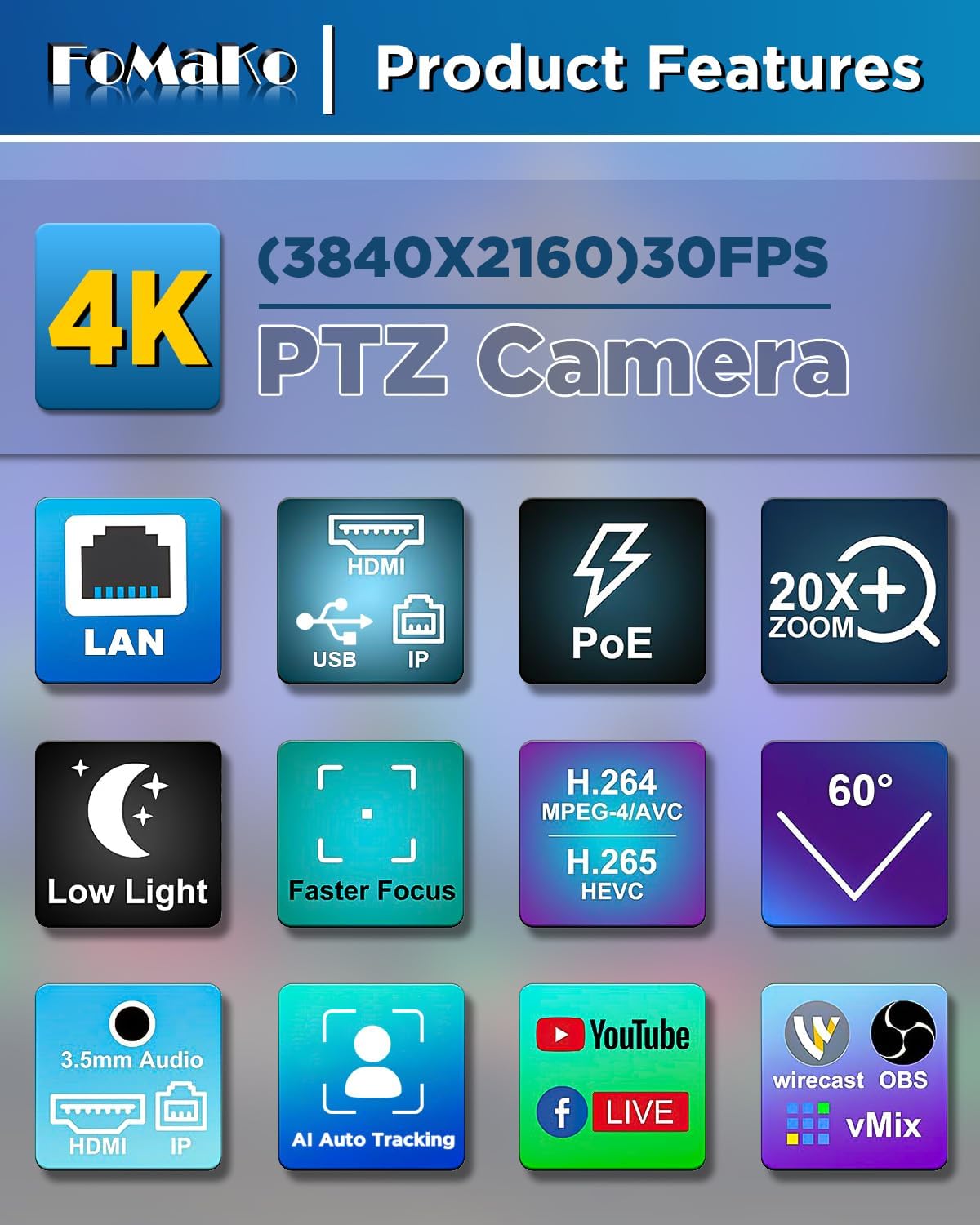
The FoMaKo 4K 20X PTZ Camera system is an all-in-one professional video solution designed for various applications including churches, classrooms, live events, and conferences. It features 4K UHD resolution, 20x optical zoom, AI auto-tracking, and NDI 6 & NDI HX3 certification for seamless multi-camera workflows.
2.1 Nga waahanga matua
- 4K UHD Clarity (3840x2160): Capture crisp, true-to-life 4K video with a high-end 1/2.8" CMOS sensor (8.42MP) and 20x optical zoom.
- AI Auto-Tracking (3rd Generation): Customizable tracking modes, sensitivity, figure size, character position, and lost target action. Supports real-time and regional tracking.
- NDI 6 & NDI HX3 Certified: Seamless integration with NewTek’s NDI ecosystem for ultra-low-latency, high-quality video over standard networks. NDI HX3 ensures stable streaming with limited bandwidth.
- Tautoko PoE: Power over Ethernet simplifies setup with a single cable for both power and data.
- Atanga Maha: Supports HDMI 2.0, USB 3.0, LAN, RS232, RS422, RS485.
- KC608 Pro NDI PTZ Controller: PoE PTZ IP Controller Keyboard with 4D Joystick, compatible with VISCA, PELCO-P & D protocols.
2.2 Ihirangi mokete
Kei roto i te kete nga mea e whai ake nei:
- 3 x FoMaKo K20UH 4K PTZ Camera
- 1 x FoMaKo KC608 Pro NDI PTZ Controller
- Nga taura hiko
- USB 3.0 Ura
- RS232/RS485 Cable
- Taiapa Maunga Taiepa
- Panui Maunga Tae
- Whakaekea taputapu
- IR Wireless Remote Control
- Pukapuka Kaiwhakamahi
Ataata 1: Te wetewete i te pouaka me te mutungaview of the FoMaKo 4K PTZ Camera and included accessories. This video demonstrates the contents of the package, including the camera, cables, mounting options, and remote control.
3. Tatūnga
3.1 Te Whakanoho me te Whakamaunga o te Kāmera
The camera can be placed on a flat surface, mounted on a wall, or suspended from the ceiling. Ensure the camera is positioned to capture the desired area without obstruction.
- Whakapiki taiepa: Use the provided metal wall bracket and hardware. Secure the bracket firmly to a sturdy wall surface before attaching the camera.
- Whakanuia te tuanui: Use the provided metal ceiling mount and hardware. Ensure the ceiling can support the camera's weight.

Whakaahua 1: FoMaKo K20UH 4K NDI PTZ Camera mounted on a wall, demonstrating its pan and tilt range in a church environment.
3.2 Hononga
Connect the camera using the appropriate cables for your setup:
- Mana: Connect the power adapter to the DC12V port and plug it into a power outlet. If using PoE, connect an Ethernet cable from a PoE-enabled switch to the LAN port.
- Putanga Ataata:
- HDMI: Connect an HDMI cable from the camera's HDMI port to a display or video switcher.
- USB 3.0: Connect the USB 3.0 cable from the camera to a computer for video capture and control.
- LAN (NDI/IP Streaming): Connect an Ethernet cable to the LAN port for NDI streaming and IP control.
- Tāuru Ororongo: Connect an audio source to the LINE IN port.
- Mana:
- RS232/RS485: Use the provided cable to connect to a PTZ controller or control system.
- LAN (IP Control): Control the camera via its IP address using the KC608 Pro controller or web atanga.

Whakaahua 2: Rear panel of the FoMaKo K20UH camera, highlighting the various input and output ports for connectivity.

Whakaahua 3: Example connection diagram for a multi-camera setup using FoMaKo PTZ cameras, illustrating how to integrate with a video mixer, PoE switch, and computer for live streaming.
4. Nga Tohutohu Whakahaere
4.1 Kei te Hiko / Weto
After connecting the power supply, toggle the ON/OFF switch on the rear of the camera to power it on. The camera will perform a self-test and initialize.
4.2 Using the KC608 Pro NDI PTZ Controller
The KC608 Pro controller provides comprehensive control over your PTZ cameras. Connect the controller to your network via Ethernet. Ensure the cameras are also connected to the same network.
- Kōwhiringa Kāmera: Use the camera selection buttons (CAM 1-7) to choose which camera to control.
- 4D Joystick: Use the joystick for precise pan, tilt, and zoom control.
- PTZ Speed Adjustment: Adjust the pan/tilt/zoom speed using the dedicated knobs or buttons on the controller.
- Whakahaere Tatūkē: Store and recall camera positions using the preset buttons.
- Mana Arotahi: Adjust focus manually or use the auto-focus function.
- Mana Whakakitenga: Adjust exposure settings as needed.
Ataata 2: FoMaKo KC608 Pro web control panel operation workflow. This video demonstrates how to configure and manage camera settings through the controller's web atanga.

Whakaahua 4: The FoMaKo KC608 Pro PTZ controller in use, displaying its 4D joystick and LCD screen with a camera feed.
4.3 AI Auto-Tracking
The 3rd generation AI Auto-Tracking feature allows the camera to automatically follow a presenter or subject. This feature can be activated and configured via the remote control or the web atanga.
- Activate Tracking: Press F2 on the remote control to turn on automatic tracking.
- Switch Tracking Target: Press F4 on the remote control to switch between tracking targets.
- Whakaritenga: Uru ki te web interface to adjust tracking modes (Presenter/Zone), tracking sensitivity, figure size (Close, Half, Full), character position, and action upon lost target.

Whakaahua 5: The FoMaKo 4K PTZ Camera demonstrating its AI auto-tracking feature, with a speaker highlighted by a green tracking box.

Whakaahua 6: Web interface settings for AI tracking, illustrating options for adjusting target size (Full, Half, Close) and other advanced tracking parameters.
4.4 Nga Mahi Mana Mamao
The IR wireless remote control provides quick access to essential camera functions:
- Mana: Whakakāhia, whakawetohia rānei te kāmera.
- Tīpako Kāmera: Switch between multiple cameras (Cam 1-4).
- Pan/Tia/Topa: Adjust camera direction and zoom level.
- Arotahi: Manual and auto-focus controls.
- Tatūkē: Set and recall preset positions.
- F1/F2/F3/F4: Customizable function keys, pre-assigned for AI tracking on/off.
Whakaahua 7: The IR wireless remote control for the FoMaKo PTZ camera, showing its layout and key functions.
5. Tiaki
- Te horoi: Whakamahia he kakahu ngohengohe, maroke hei horoi i te tinana o te kāmera. Mō te arotahi, whakamahia he kakahu horoi arotahi motuhake me te otinga. Āta karohia ngā matū kino.
- Whakahōu Firmware: Tirotiro auau te kaihanga website for firmware updates to ensure optimal performance and access to new features. Firmware can be updated via the web atanga.
- Rokiroki: Ki te kore e whakamahia mō te wā roa, rongoatia te kāmera ki te wāhi maroke, kore puehu.
6. Te Raru
| Raruraru | Take pea | Rongoā |
|---|---|---|
| Kaore he putanga ataata. | Incorrect cable connection, camera not powered on, incorrect input selected on display. | Check all cable connections (HDMI, USB, LAN). Ensure camera is powered on. Select the correct input source on your display/switcher. |
| Camera not responding to controller. | Incorrect network settings, wrong camera selected, remote control batteries low. | Verify IP addresses and network settings for both camera and controller. Ensure the correct camera is selected on the controller. Replace remote control batteries. |
| Ko te aroturuki AI kaore e mahi. | Tracking feature disabled, subject out of range, incorrect tracking settings. | Activate AI tracking using F2 on the remote or via the web interface. Ensure the subject is within the camera's field of view. Adjust tracking sensitivity and mode in the web atanga. |
| Te kounga ataata kino. | Insufficient lighting, dirty lens, incorrect resolution settings. | Ensure adequate lighting. Clean the camera lens. Check video output resolution settings on the camera and receiving device. |
7. Whakatakotoranga
| Āhuahira | Taipitopito |
|---|---|
| Waitohu | FoMaKo |
| Tau tauira | K20UHx3+KC608 Pro |
| Hangarau Pūoko Whakaahua | CMOS (1/2.8 inch, 8.42MP Effective Pixels) |
| Whakataunga Hopu Ataata | 4K (3840x2160) @ 30fps, 1080P @ 60fps |
| Topa Optical | 20x |
| Nga waahanga motuhake | 4K Resolution, AI Auto-Tracking (3rd Gen), PoE Capability, NDI 6 & NDI HX3 Certified |
| Hangarau Hononga | Ethernet, HDMI 2.0, USB 3.0, RS232, RS422, RS485 |
| Hōputu Ororongo Tautokohia | PCM, AAC, MP3 |
| Screen Size (Controller) | 3 Inihi |
8. Pūtāhui me te Tautoko
FoMaKo provides the following warranty and support for this product:
- 3-Tau Rarangi Rarangi: Ka hipoki i nga hapa o te hangahanga me nga mahi kino i raro i te whakamahinga noa.
- 30-Ra Whakahoki Moni Moni: Risk-free purchase.
- Free Online Training: Resources available to help you get started.
- 24/7 Expert Assistance: Responses within 24 hours. Please include your Order ID for faster service.
- Lifetime Customer Technical Support: Ongoing support for the product's lifespan. Remote assistance can be provided if necessary.

Whakaahua 8: FoMaKo customer support information, detailing warranty, money-back guarantee, and technical assistance.
Ask a question about this manual
Ask about setup, troubleshooting, compatibility, parts, safety, or missing instructions. Manuals+ will review the question and use this page’s manual context to help answer it.