
Kupu Whakataki
This manual provides essential information for the proper setup, operation, maintenance, and troubleshooting of your KTC H27T27 27-inch WQHD IPS Flat Monitor. Please read this manual thoroughly before using the product to ensure optimal performance and safety.
The KTC H27T27 monitor features a 27-inch WQHD (2560x1440) IPS panel with a 100Hz refresh rate, designed to deliver clear and detailed images with smooth motion. It includes FreeSync technology for enhanced visual fluidity during dynamic content. The IPS panel ensures vivid colors and wide viewnga koki.

Figure 1: KTC H27T27 27-inch WQHD IPS Flat Monitor Front View
Tatūnga
1. Te wetewete
Tangohia marietia ngā wāhanga katoa mai i te takai. Kia tino kitea ngā taonga katoa kua whakarārangihia i te rārangi takai, ā, kia kore e pakaru. Puritia te takai taketake mō ngā hiahia kawe, ratonga rānei a meake nei.
2. Huihuinga Tu
- Whakanohia te mata o te aroturuki ki runga i te mata ngawari, ma kia kore e pakaru.
- Whakapirihia te turanga tu ki te kaki tu ma te whakamahi i nga hiu kua whakaratohia.
- Tiarohia te tuunga kua huihuia ki te mokamoka whakapuru kei muri o te kaupane, kia mau.
3. Whakapuru VESA (Whiringa)
The monitor supports VESA 100x100mm mounting. If using a VESA mount, remove the stand and attach the VESA compatible bracket to the monitor's rear panel using appropriate screws.
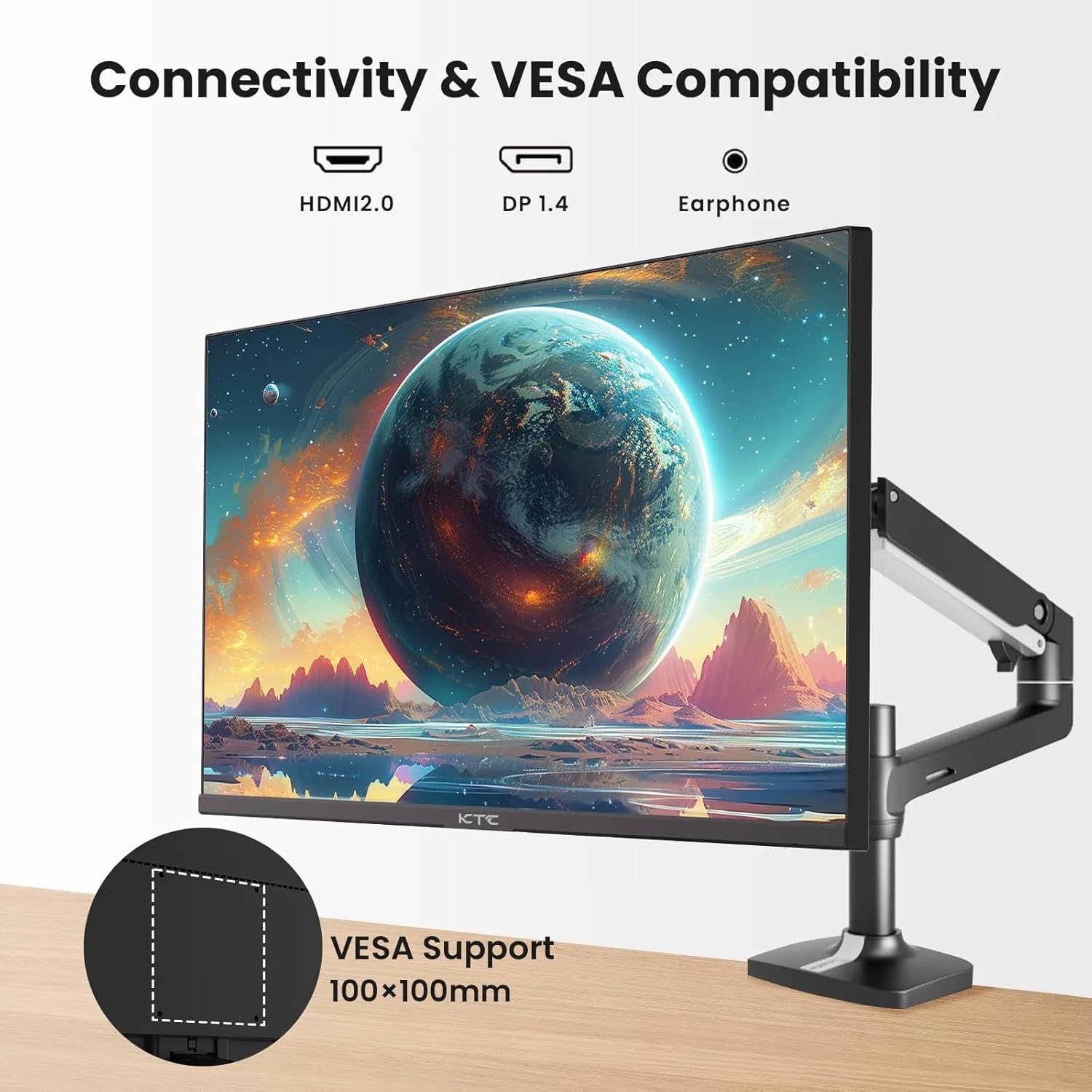
Figure 2: VESA Compatibility and Connectivity Ports
4. Hononga taura
Connect the necessary cables to the monitor and your computer or other devices. Ensure all connections are secure.
- Taputapu Tahana: Connect the power adapter to the monitor's DC input port, then plug the power cable into a power outlet.
- Tauira Ataata: Connect either an HDMI cable (HDMI 2.0) or a DisplayPort cable (DP 1.4) from your computer's graphics card to the corresponding input port on the monitor.
- Putanga Ororongo: If desired, connect headphones or external speakers to the 3.5mm audio output jack.

Figure 3: Monitor Input Ports
5. Te Hia-Ai Tuatahi
Press the power button on the monitor. The power indicator light will illuminate. If no image appears, ensure your computer is powered on and the correct input source is selected on the monitor.
Te whakahaere
1. Te Hiko / Whakaweto
Press the power button located on the monitor to turn it on or off. The power indicator will show the monitor's status.
2. Tahua Whakaatu-a-Mata (OSD).
Ko te tahua OSD ka taea e koe te whakatika i nga momo tautuhinga aroturuki. Whakamahia nga patene mana (kei te tuara, kei raro ranei o te aroturuki) hei whakatere i te tahua.
- Pēhia te pātene hei whakahohe i te tahua OSD.
- Whakamahia ngā pātene whakatere hei neke mā roto i ngā kōwhiringa tahua.
- Pēhia te pātene kōwhiringa hei tomo ki tētahi tahua-iti, hei whakaū rānei i tētahi tautuhinga.
- Pēhia te pātene putanga hei kati i te tahua OSD.
3. Whakaritea Tautuhinga
Common adjustable settings include:
- Tirohanga/Prata: Whakatikatikahia te kanapa whānui me te rerekētanga i waenga i ngā wāhi mārama me ngā wāhi pōuri.
- Tautuhinga Tae: Whakarerekehia te pāmahana tae, te gamma, me nga uara RGB takitahi.
- Pūtake Tāuru: Tīpako ā-ringa i waenga i te HDMI 1, HDMI 2, Whakaaturanga Whakaaturanga ranei.
- Aratau Pikitia: Select predefined display modes (e.g., Standard, Game, Movie).
4. Rere Refresh
The KTC H27T27 supports a 100Hz refresh rate, providing smoother motion compared to standard 60Hz displays. Ensure your graphics card and operating system are configured to output at 100Hz for the best experience.

Figure 4: 100Hz Refresh Rate Benefit
5. FreeSync Technology
This monitor is compatible with AMD FreeSync technology, which synchronizes the monitor's refresh rate with your graphics card's frame rate. This helps eliminate screen tearing and stuttering for a smoother gaming and video experience. Ensure FreeSync is enabled in both the monitor's OSD menu and your graphics card's control panel.
Figure 5: FreeSync Technology in Action
Te tiaki
1. Te horoi i te Mata
- Whakawetohia te kaitirotiro me te wetewete i te taura hiko.
- Me ata horoia te mata ki te kakahu ngohengohe, kore-puru.
- Mo nga tohu pakeke, kia ngawari dampen te kakahu ki te wai, ki te horoi mata motuhake ranei (kaua e rehu tika ki te mata).
- A ape i te whakamahi i nga kai horoi, te waipiro, me nga otinga haukinia, na te mea ka kino te mata o te mata.
2. Tiaki Whānui
- Keep the monitor away from direct sunlight, excessive heat, and humidity.
- Me whakarite kia pai te hau huri noa i te kaitirotiro kia kore ai e wera rawa.
- A ape i te whakatakoto i nga mea taumaha ki runga i te kaupane, i ona taura ranei.
Raparongoā
Mena ka raru koe ki to kaitutei, tirohia nga raru me nga otinga e whai ake nei:
- Kore Mana:
- Me whakarite kia mau te hononga o te taura hiko ki te mata me te putanga hiko.
- Manatokona kei te mahi te putanga hiko. - Kore he Tohu:
- Check that the video cable (HDMI or DisplayPort) is securely connected to both the monitor and your computer.
- Ensure your computer is powered on and not in sleep mode.
- Select the correct input source via the monitor's OSD menu. - Whakaahua e pīataata ana, e hē ana rānei:
- Tirohia te taura ataata mēnā he pakaru, he koretake rānei ngā hononga.
- Adjust the refresh rate settings on your computer.
- Disable or enable FreeSync in the OSD menu and graphics card settings to test. - Ngā Tae Hē:
- Reset color settings to factory defaults in the OSD menu.
- Adjust color temperature or individual RGB values.
Mena kei te haere tonu te raru i muri i te whakamatau i enei otinga, tena koa whakapā atu ki te tautoko a te kaihoko.
Whakatakotoranga
| Āhuahira | Whakatakotoranga |
|---|---|
| Waitohu | CTC |
| Tau tauira | H27T27 |
| Rahi Mata | 27 inihi |
| Whakatau | 2560 x 1440 (WQHD) |
| Rere tāmata | 100 Hz |
| Momo Whakaatu | IPS |
| Wā Whakautu | 7 Milihekona |
| Tukutahi Urutau | FreeSync |
| Hononga | 2x HDMI 2.0, 1x DisplayPort 1.4, 1x 3.5mm Audio Out |
| Aspect Ratio | 1.78:1 |
| Mata Mata | Mate |
| Rahi Tūemi (D x W x H) | 1.85"D x 24.25"W x 14.33"H |
| Taumaha Tūemi | 4 Kirokaramu |
Pūtāhui me te Tautoko
Nga korero Whakaputanga
This KTC monitor is covered by a manufacturer's warranty. Please refer to the warranty card included in your product packaging for specific terms, conditions, and duration of coverage. Keep your purchase receipt as proof of purchase for warranty claims.
Tautoko Kiritaki
For technical assistance, warranty service, or any product-related inquiries, please contact KTC customer support. Contact details can typically be found on the official KTC webpae, i runga ranei i te kaari whakamana.
When contacting support, please have your monitor's model number (H27T27) and serial number ready.