
Kupu Whakataki
This manual provides detailed instructions for the setup, operation, and maintenance of your FUVISION D9-4G LTE Cellular Security Camera. This device is designed for indoor surveillance, offering a wire-free solution that operates via 4G LTE cellular data, eliminating the need for Wi-Fi connectivity. It features a dual-lens system, 2K resolution, 6x hybrid zoom, and PIR motion detection for reliable monitoring.

Image: The FUVISION D9-4G LTE camera is suitable for various indoor environments, providing off-grid monitoring capabilities.
He aha kei roto i te Pouaka
- Dual-lens security camera with pre-paid SIM card
- Magnetic bracket with screws
- USB-C taura utu
- pukapuka kaiwhakamahi
- Adhesive metal plates
Tatūnga
1. Kōkuhu Kāri Sim
Your camera includes a 4G SIM card with a 7-day free data trial. Locate the SIM card slot on the camera. Carefully insert the SIM card into the designated slot until it clicks into place. Ensure the camera is powered off before inserting or removing the SIM card.

Image: The camera comes with a SIM card and a 7-day data trial for immediate use.
2. Whakataki Tuatahi
Before first use, fully charge the camera using the provided USB-C charging cable and a compatible 5V power adapter (not included). The charging indicator light will provide status. A full charge ensures optimal battery performance.

Image: The camera can operate while charging, ensuring continuous monitoring.
3. Taupānga Taupānga me te Whakahoahoa Pūrere
- Download the official FUVISION app from your smartphone's app store (available for Android and iOS).
- Rēhita mo tetahi kaute ka takiuru.
- Whāia ngā tohutohu i roto i te taupānga hei tāpiri i tō kāmera hou. Ko te tikanga, me matawai koe i tētahi waehere QR i runga i te kāmera, me whakauru ā-ringa rānei i tōna ID pūrere.
- Me whakarite he hononga ipurangi kaha to waea atamai i te wa o te mahi takirua.
4. Tāutanga Aukume
The camera features a built-in magnetic bracket for easy installation on any metal surface. For non-metal surfaces, use the included adhesive metal plates. No drilling is required for most installations.

Image: The magnetic bracket allows for quick and easy installation without tools or drilling.
Nga Tohutohu Whakahaere
1. Te Hiko / Whakaweto
Press and hold the power button for a few seconds to turn the camera on or off. Refer to the camera's indicator lights for power status.
2. Ora View me te Aroturuki
Open the FUVISION app on your smartphone. Select your camera from the device list to access the live video feed. You can monitor the area in real-time from anywhere with cellular coverage.

Image: The camera's live feed is accessible via the smartphone app, showcasing its dual-lens view and 4G connectivity.
3. Te Motini me nga Matohi
Configure custom motion detection zones within the app to focus on specific areas and reduce false alarms. When motion is detected, the camera will send instant alerts to your smartphone.

Image: Set custom motion zones and receive smart alerts directly on your smartphone.
4. Te Hopu me te Rokiroki Ataata
The camera supports local storage via a Micro SD card (up to 128GB, not included) and cloud storage options. Recorded videos can be accessed and reviewed through the app. Older recordings are automatically overwritten when storage is full.
5. Dual Lens, Zoom, and Night Vision
The camera features a dual-lens system providing 2K HD resolution and a 140° wide-angle view. Utilize the 6x hybrid zoom (telephoto + digital) for detailed observation. Invisible IR LEDs enable clear night vision up to 33 feet for discreet monitoring in low-light conditions.
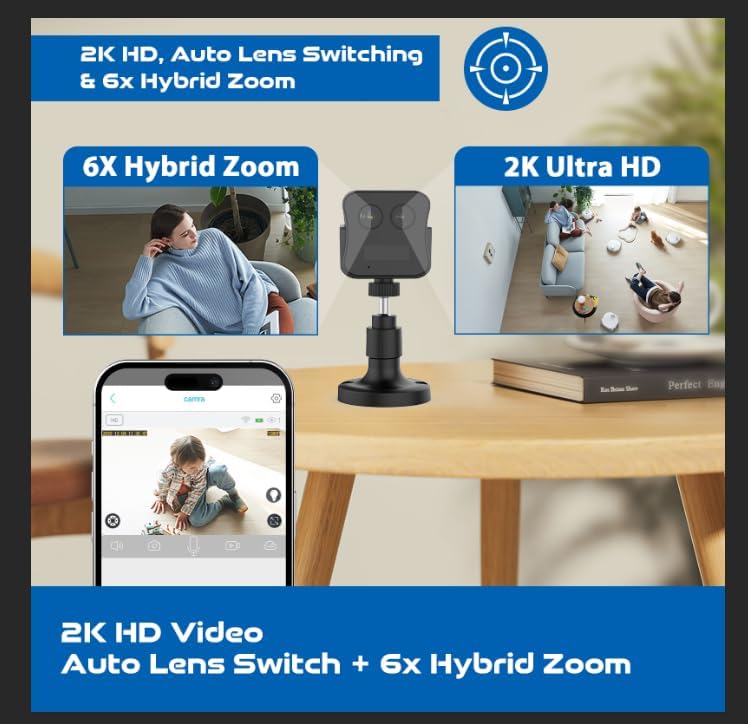
Image: Experience 2K HD video with auto lens switching and 6x hybrid zoom for detailed surveillance.
Te tiaki
1. Whakahaere Pūhiko
The camera is equipped with a 3000mAh rechargeable battery, offering up to 20 days of standby time. Recharge the battery using the provided USB-C cable when the battery level is low. The camera can operate while charging.
2. Te horoi
Gently wipe the camera lens and body with a soft, dry cloth to remove dust and smudges. Avoid using harsh chemicals or abrasive materials that could damage the device.
3. Whakahoutanga Firmware
Periodically check the FUVISION app for available firmware updates. Keeping your camera's firmware updated ensures optimal performance, security, and access to new features.
Raparongoā
- Kāore he Tohu 4G LTE: Ensure the SIM card is correctly inserted and activated. Check your location for adequate 4G LTE network coverage. Move the camera to an area with better signal strength if necessary.
- Kāre te Kāmera e Hia ana: Verify the battery is charged. Connect the camera to a power source using the USB-C cable and attempt to power it on again.
- Kaore i te Mahi te Motini: Check the motion detection settings in the app. Ensure custom motion zones are correctly configured and sensitivity levels are appropriate.
- Kounga Ataata Kino: Ensure the camera lens is clean. Check the app settings for video resolution and adjust if needed. Strong 4G LTE signal is crucial for optimal streaming.
- Nga Take Hononga Taupānga: Ensure your smartphone has a stable internet connection. Restart the app and the camera. If issues persist, try reinstalling the app.
Whakatakotoranga
| Ingoa Tauira | D9-4G LTE |
| Hangarau Hononga | Wireless (4G LTE Cellular) |
| Whakataunga Hopu Ataata | 2K (1296p) |
| Whakataunga Tonu Whaihua | 4 MP |
| Viewing Koki | 150 Waeine |
| Whakataurite Tuarua | 6x Hybrid Zoom |
| Awhe Tirohanga Po | 10 mita (33 putu) |
| Te Mana Puhiko | 3000 mAh Lithium Polymer |
| Te Ora o te Pūhiko Tūmau | Tae atu ki te 20 ra |
| Flash Memory Supported | Micro SD up to 128 GB (not included) |
| Tikanga Mana | Taupānga (Android, iOS) |
| Momo Whakaeke | Magnetic / Wall Mount |
| Hunga Hua | 2 x 2 x 2.5 inihi |
| Taumaha Tūemi | 9.6 hekere |
Pūtāhui me te Tautoko
For warranty information, please refer to the documentation included with your product packaging or visit the official FUVISION website. For technical support, frequently asked questions, or to contact customer service, please use the support features within the FUVISION mobile application or visit the manufacturer's webpae.