
1. Kupu Whakataki me Nekeview
The Akko 5098B Santorini Wireless Mechanical Gaming Keyboard is designed with an 1800 compact layout, featuring a number pad and a unique Santorini theme. It incorporates a 1.47-inch TFT LCD screen, hot-swappable switches, RGB lighting, and a gasket-mounted structure for a comfortable typing experience. This manual provides instructions for setting up, operating, and maintaining your keyboard.
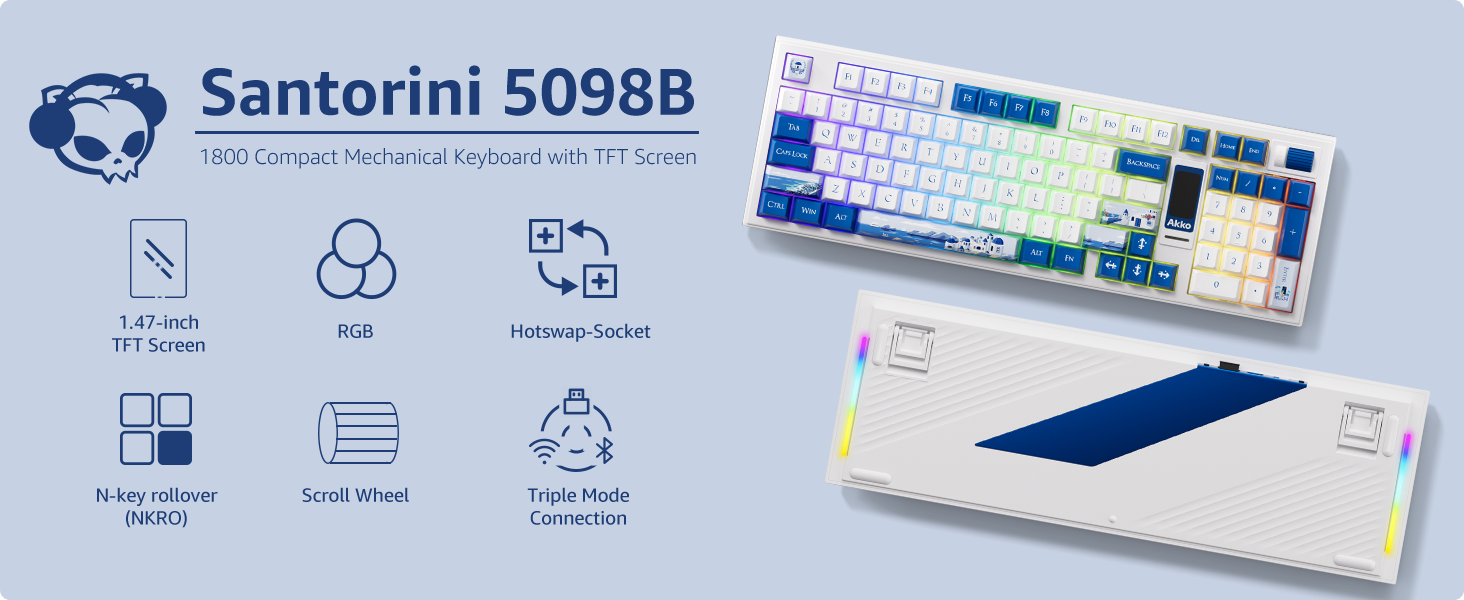
Whakaahua: Ka mutuview of the Akko 5098B Santorini keyboard highlighting its 1800 compact layout, 1.47-inch TFT screen, RGB, hot-swappable sockets, N-key rollover, scroll wheel, and triple mode connection.
2. Tatūnga
2.1. Ihirangi mokete
Ina wetewetehia te pouaka, me whakarite kei roto i te kete ngā mea katoa e whai ake nei:
- Akko 5098B Santorini Mechanical Gaming Keyboard
- USB-C Uira Whakatau
- Keycap Remover
- Additional Replaceable Switches (Piano Black Series)
- Pukapuka Kaiwhakamahi

Image: The Akko 5098B keyboard along with its included USB-C cable, keycap remover, and extra switches.
2.2. Kōwhiringa Hononga
The Akko 5098B keyboard supports three connection modes:
- Ahokore (2.4GHz): Use the included USB adapter for a stable wireless connection.
- Waea (USB Momo-C): Connect the keyboard directly to your device using the USB-C cable.
- Nihokikorangi 5.0: Pair the keyboard wirelessly with compatible Bluetooth devices.

Image: The Akko 5098B keyboard demonstrating its triple mode connectivity: USB Type-C, 2.4GHz wireless, and Bluetooth.
2.3. Te utu
The keyboard is equipped with an 8000mAh battery and supports 2A fast charging, which is up to 4 times faster than standard keyboards. Connect the USB-C cable to charge the device.
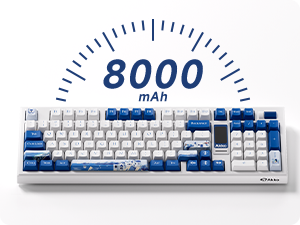
Image: An illustration highlighting the 8000mAh battery capacity of the keyboard.
3. Nga Tohutohu Whakahaere
3.1. TFT LCD Screen
The 1.47-inch TFT LCD screen allows control over various settings and displays useful information:
- Whakamuri: Adjust lighting effects, color, brightness, and speed.
- Aratau Hononga: Switch between 2.4GHz, Bluetooth, and wired modes.
- Tautuhinga Reo: Configure the display language.
- Custom Images: Upload your favorite emojis or images via the Akko Cloud Driver.
- Whakaaturanga korero: Shows battery level, current mode, time, and date.
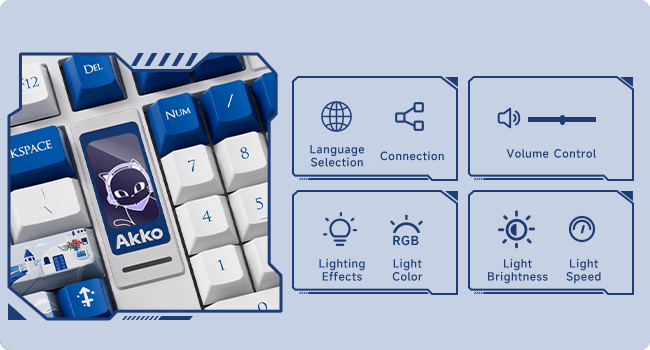
Image: A close-up of the TFT LCD screen on the Akko 5098B keyboard, illustrating its capabilities for language selection, connection status, volume control, RGB lighting effects, color, brightness, and speed adjustments.
3.2. Hurorangi Panuku
The scroll wheel provides quick access to several functions:
- Mana Rōrahi: Whakaritehia te reo ororongo.
- Purei Huringa Pāpāho: Pause/play media.
- LCD Screen Navigation: Use in conjunction with the Fn key to navigate and change settings on the LCD screen.
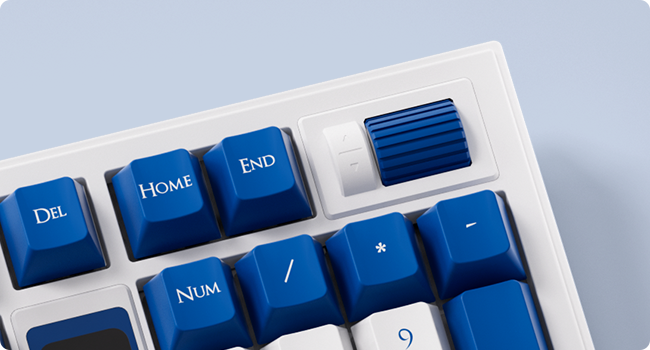
Whakaahua: He taipitopito view of the encoder scroll wheel on the Akko 5098B keyboard, used for various controls.
3.3. Rarama RGB
The keyboard features south-facing RGB lighting, offering vibrant and customizable illumination. The RGB effects can be controlled via the LCD screen or the Akko Cloud Driver software. An RGB bar is also present below the LCD screen for additional visual flair.

Image: The Akko 5098B keyboard showcasintōna whakamārama RGB ka taea te whakarite.
3.4. Key Switches
The Akko 5098B comes with Piano Pre-Lubed switches, known for their quiet operation. The keyboard's hot-swappable PCB allows users to easily replace switches with other 5-pin compatible mechanical switches without soldering.

Whakaahua: He tata view of the Piano Pre-Lubed mechanical switch.
3.5. Keyboard Risers
The keyboard features adjustable risers on the bottom, offering two different height settings (big and small) to provide a comfortable and ergonomic typing angle.

Image: The underside of the Akko 5098B keyboard, showing the adjustable risers for ergonomic positioning.
4. Whakaritenga
The Akko 5098B keyboard is highly customizable:
- PCB Whakawhiti-wera: Easily change out the mechanical switches to suit your preference without soldering.
- Keycap Compatibility: The south-facing keycap style allows for compatibility with a wide range of aftermarket keycaps, enabling personalized aesthetics.
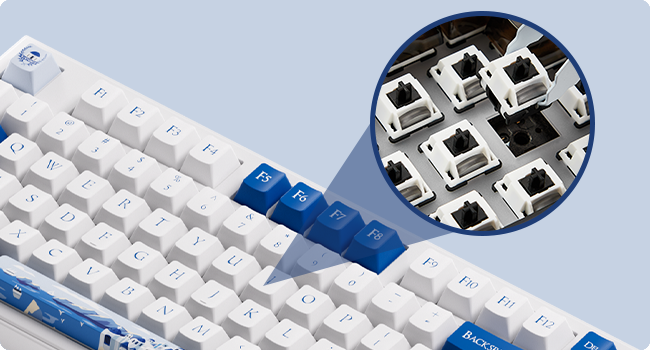
Whakaahua: He tata view of the hot-swappable sockets on the keyboard's PCB.
5. Whakatakotoranga
| Āhuahira | Taipitopito |
|---|---|
| Waitohu | Akko |
| Tauira | 5098B |
| Pūrere Hototahi | PC, Pona |
| Hangarau Hononga | USB Type-C, Bluetooth 5.0, 2.4GHz |
| Whakaahuatanga Papapātuhi | Ergonomic |
| Tae | Santorini |
| Puna Mana | Pūhiko (8000mAh) |
| Momo Whakawhiti | Mechanical (Piano Pre Lubed Switch) |
| Tahora Papapātuhi | 1800 Compact (Maltron) |
| Takotoranga-ringa | Ambidextrous |
| Te maha o nga Kī | 104 |
6. Tiaki
To ensure the longevity and optimal performance of your Akko 5098B keyboard, regular maintenance is recommended:
- Te horoi i nga taapu matua: Use the provided keycap remover to carefully detach keycaps for deep cleaning. Wipe keycaps with a soft, damp kakahu.
- Whakawhiti Whakapai: With keycaps removed, use compressed air to clear dust and debris from around the switches.
- Whakapai Whānui: Wipe the keyboard surface with a soft, dry cloth. Avoid harsh chemicals or abrasive materials.
7. Te Raru
If you encounter issues with your keyboard, consider the following:
- Akko Cloud Driver Issues: Ensure you download the correct version of the Akko Cloud Driver for your operating system (e.g., "Akko Cloud Driver (Win) 370.1.54" for Windows, not "Akko Cloud Driver v4 (WIN) 370.2.16"). If the software doesn't launch, try reinstalling or checking for system compatibility.
- LCD Screen Time Format: The LCD screen may display time in 24-hour format only. To sync the time with your computer, open the Akko Cloud Driver, navigate to Screen > Customize > Other Settings > "Sync Time on Screen".
- Scroll Wheel Responsiveness: If the scroll wheel is unresponsive, ensure you are holding the correct Fn key combination when attempting to change settings. Check for any physical obstructions or debris around the wheel.
- Dongle Fit: If the USB dongle feels too tight, exercise caution when inserting or removing it to prevent damage. Consider using the wired or Bluetooth connection if preferred.
8. Pūtāhui me te Tautoko
For warranty information, technical support, or service inquiries, please refer to the official Akko webpaetukutuku, whakapā atu ranei ki ta raatau ratonga kaihoko. Puritia to tohu hoko mo nga kereme whakamana.