
Kupu Whakataki
This manual provides essential information for the setup, operation, maintenance, and troubleshooting of your Onn 22 inch 1080P 100 Hz FHD LED Monitor. Please read this guide thoroughly before using the product to ensure optimal performance and safety.
The Onn 22 inch FHD LED Monitor is designed for a variety of applications, offering a vivid 1920x1080 resolution, a 100Hz refresh rate, and a 6.5ms response time for efficient performance. Its slim profile and T-shaped base are ideal for saving desk space.
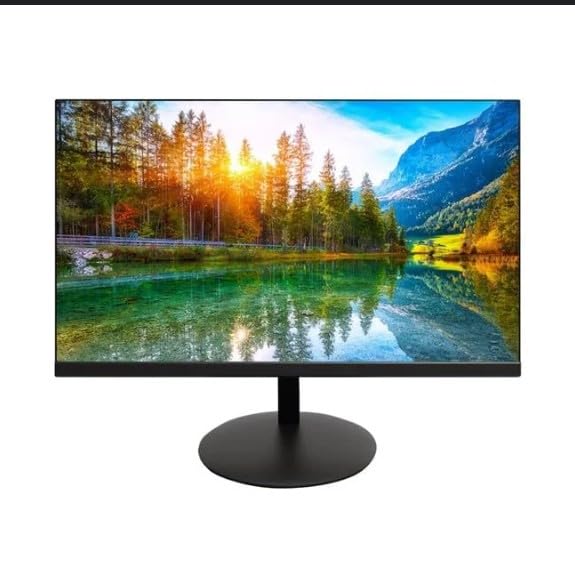
The image shows the Onn 22 inch FHD LED Monitor, highlighting its 100Hz refresh rate and 1080p resolution. The monitor features a slim design and a T-shaped base.
Tohutohu Tatūnga
- Wewete ana: Carefully remove the monitor and all accessories from the packaging. Ensure all components are present: monitor, T-shaped base, HDMI cable, and power adapter.
- Huihui i te Tu: Attach the T-shaped base to the monitor. The design is screw-less for easy assembly. Ensure it is securely fastened.
- Tūhono ana ki tētahi Pūrere:
The monitor supports both HDMI and VGA inputs. Connect the provided HDMI cable from your computer's HDMI output to the HDMI IN port on the monitor. Alternatively, use a VGA cable for VGA input.

This image displays the rear panel of the Onn monitor, illustrating the available input ports: HDMI IN, VGA IN, and the DC 12V power input. These ports are essential for connecting the monitor to a computer or other devices.
- Hononga Hiko: Connect the power adapter to the DC 12V input port on the monitor, then plug the adapter into a power outlet.
- Te whakatikatika i te Aroturuki: The monitor is capable of swivel, tilt, rotation, and height adjustment. Adjust the screen to your preferred viewte koki mo te whakamarie ergonomic.
- Tatūnga Aroturuki Takirua: This monitor is suitable for a fully functioning dual monitor setup. Connect a second monitor using the appropriate cables and configure your operating system's display settings.
Nga Tohutohu Whakahaere
- Hiko Whakaka/Weto: Press the power button, usually located on the bottom or back of the monitor, to turn it on or off.
- Kōwhiringa Tāuru: If the monitor does not automatically detect the input source, use the On-Screen Display (OSD) menu buttons to manually select between HDMI and VGA inputs.
- Whakaterenga Tahua OSD: Use the physical buttons on the monitor (typically on the back or bottom edge) to navigate the OSD menu. This allows you to adjust settings such as brightness, contrast, color temperature, and input source.
- Reiti Whakatau me te Tāmata: The monitor supports a native resolution of 1920x1080 at a 100Hz refresh rate. Ensure your computer's display settings are configured to these specifications for the best visual experience.
- Tukutahi Urutau: The monitor features Adaptive Sync for gaming, which helps to reduce screen tearing and stuttering. Ensure this feature is enabled in your graphics card settings if supported.
Te tiaki
- Te horoi i te Mata: Me ata horoia te mata ki te kakahu ngohengohe, kore-puru. Mo nga tohu pakeke, kia ngawari dampen the cloth with water or a non-abrasive, monitor-specific cleaning solution. Avoid spraying liquids directly onto the screen.
- Te horoi i te Casing: Whakamahia he kakahu ngohengohe, maroke hei horoi i te aroturuki casing. Do not use strong detergents or solvents, as they may damage the finish.
- Whakahau: Me whakarite karekau e araia nga kohao hau o te kaitirotiro kia kore e wera rawa.
- Rokiroki: Ki te kore e whakamahia mo te wa roa, penapenahia te kaitirotiro ki te waahi makariri, maroke, kia matara atu i te ra tika me te wera nui.
Raparongoā
- Kore Mana:
- Tirohia mehemea kei te hono pai te taura hiko ki te aroturuki me te putanga hiko.
- Manatokohia kei te mahi tika te putanga hiko.
- Kore he Tohu:
- Me whakarite kia hono pūmau te taura ataata (HDMI, VGA rānei) ki te mata me te rorohiko.
- Tīpakohia te puna tāuru tika ma te whakamahi i te tahua OSD o te aroturuki.
- Tirohia mehemea kei te hikohia to rorohiko, kaore i te aratau moe.
- Flickering Screen or Poor Image Quality:
- Tirohia te taura ataata mo te kino, mo nga hononga wetewete ranei.
- Adjust the resolution and refresh rate settings on your computer to match the monitor's specifications (1920x1080, 100Hz).
- Tautuhi anō i ngā tautuhinga o te aroturuki ki ngā tautuhinga wheketere mā te tahua OSD.
- Patene Kaore i te Whakautu:
- Unplug the monitor from the power outlet, wait for 30 seconds, and then plug it back in.
If problems persist, please refer to the support information provided in the "Support and Warranty" section.
Whakatakotoranga
| Waitohu | Onn |
| Tau tauira | 100140681 |
| Ingoa Tauira | OTTO |
| Rahi Mata | 21.5 Inihi |
| Momo Whakaatu | LED, LCD |
| Whakatau | 1920 x 1080 (FHD 1080p) |
| Rere tāmata | 100 Hz |
| Wā Whakautu | 6.5 Milihekona |
| Atanga Pūmārō | Atanga, VGA |
| Nga waahanga motuhake | Whakatikatika Teitei |
| Viewing Koki | 160 Waeine |
| Aspect Ratio | 16:9 |
| Hunga Hua | 49.2 x 20 x 37.2 cm; 3.24 kg |
Tautoko me te Rarangi
For technical support, product inquiries, or warranty information, please visit the official Onn support webpaetukutuku, whakapā atu ranei ki ta raatau ratonga kaihoko.
- Tautoko Mana Webpae: onnsupport.ca
- Pūtāhui: Specific warranty details may vary by region and purchase date. Please refer to the documentation included with your product or visit the support webte waahi mo nga korero whakamana o naianei.