
Kupu Whakataki
The Grandstream GRP2613W is a powerful 6-line carrier-grade IP phone designed for efficient deployment and easy management. It integrates advanced features such as a 2.8-inch color display, built-in Wi-Fi 6, dual Gigabit Ethernet ports with Power-over-Ethernet (PoE), and enterprise-level security. This manual provides essential information for setting up, operating, maintaining, and troubleshooting your GRP2613W IP Phone.
Tatūnga
1. Ihirangi mokete
I mua i to tiimata, whakarite kei roto katoa nga taonga i to kete:
- GRP2613W IP Phone Unit
- Waea Pūkoro me te Taura Waea Pūkoro
- Tu Waea
- 5V Turuturutanga Hauora
- Taura Whatunga (Ipurangi)
- Aratohu Tāuta Tere
2. Hononga Tinana
Follow these steps to connect your IP phone:
- Tāpirihia te Tūnga Waea: Securely attach the phone stand to the back of the GRP2613W unit. The stand allows for adjustable viewnga koki.
- Honoa te Pukoro: Plug one end of the coiled handset cord into the handset and the other end into the handset port on the phone unit.
- Hono atu ki te Whatunga me te Hiko:
- Ma te PoE (Power over Ethernet): Connect one end of the Ethernet cable to the LAN port on the GRP2613W and the other end to a PoE-enabled switch or injector. The phone will power on automatically.
- Whakamahi Pūurutau Hiko: If PoE is not available, connect the 5V power adapter to the power port on the GRP2613W and then plug the adapter into a power outlet. Connect one end of the Ethernet cable to the LAN port on the GRP2613W and the other end to your network router/switch.

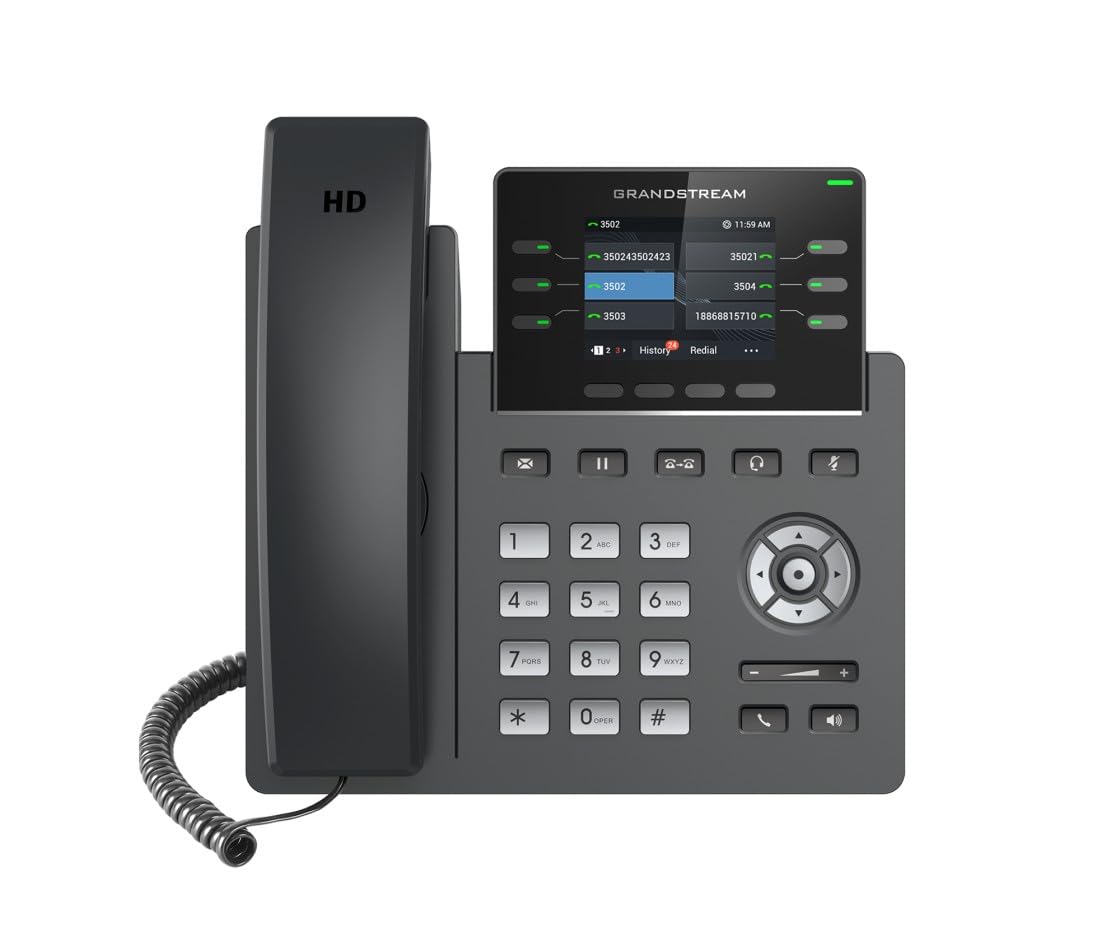
Image: Grandstream GRP2613W IP Phone, showing the main unit with the handset attached and the phone stand.
3. Whakaara Tuatahi
Upon successful connection, the phone will boot up. The LCD screen will display Grandstream's logo, followed by network information and the main idle screen. The phone will attempt to obtain an IP address via DHCP by default. If successful, the IP address will be displayed on the screen.
Nga waahanga matua
The GRP2613W IP Phone offers a robust set of features for enhanced communication:
- Pūkete SIP: Supports up to 6 SIP accounts and 6 versatile line keys.
- Hononga Whatunga: Dual 10/100/1000 Mbps Gigabit Ethernet ports with auto-sensing and integrated PoE.
- Whakaatu: 2.8-inch (320x240) color LCD display.
- Whakaritenga: Replaceable faceplate for easy logo customization.
- Kounga Ororongo: HD audio compatible with major codecs (G.722, Opus broadband) and noise cancellation technology.
- Kī Whakahōtaka: Up to 24 digital BLF (Busy Lamp Field) keys.
- Hononga Ahokore: Built-in dual-band Wi-Fi (2.4GHz and 5GHz, 802.11a/b/g/n/ac/ax) and Bluetooth.
- Haumarutanga: Te tiakitanga taumata-hinonga tae atu ki te whakaara haumaru, ngā whakaahua pūmanawa takirua, me te rokiroki raraunga whakamuna.
Nga Tohutohu Whakahaere
1. Te Waea
You can make a call using the handset, speakerphone, or a connected headset:
- Pick up the handset, press the Speakerphone button
 , or press the Headset button .
 - Waeahia te tau e hiahiatia ana ma te papapātuhi.
- Press the Send button or a Line key to initiate the call.
2. Te Whakautu Waea
Ka tangi te waea:
- Tangohia te ringaringa.
- Pēhia te pātene Waeaorooro .
- Pēhia te pātene Headset .
- Pēhia te kī Raina kanapa.
3. Whakahaere Waea
- Puritia: During an active call, press the Hold button . Press it again to resume the call.
- Whakawhiti: During an active call, press the Transfer button , dial the new number, and press the Transfer button again.
- Huihuinga: During an active call, press the Conference button , dial the third party's number, and then press the Conference button again to join all parties.
- Wahangu: Pēhia te pātene Wahangu to mute your microphone during a call. Press it again to unmute.
4. Whakaritenga Rōrahi
Use the Volume Up (+) and Volume Down (-) buttons on the phone to adjust the ringtone volume when idle, or the call volume during an active call.
5. Wi-Fi me te Nihokikorangi
The GRP2613W supports built-in dual-band Wi-Fi and Bluetooth. These features can be configured via the phone's menu or web interface for wireless network connectivity and pairing with Bluetooth headsets.
Te tiaki
1. Te horoi
To clean your GRP2613W IP Phone, use a soft, dry cloth. Avoid using liquid cleaners or aerosol sprays directly on the device. Ensure the phone is powered off before cleaning.
2. Whakahoutanga Firmware
Firmware updates are crucial for maintaining optimal performance and security. The GRP2613W supports updates over the air (OTA) and can be managed centrally via Grandstream's Device Management System (GDMS). Consult your network administrator or Grandstream's official documentation for the latest firmware and update procedures.
Raparongoā
If you encounter issues with your GRP2613W, try the following common troubleshooting steps:
- Kore Mana: Ensure the power adapter is securely connected to both the phone and a working power outlet, or that the Ethernet cable is connected to a PoE-enabled port.
- Kore oro Waea: Check network cable connections. Verify that the phone has obtained a valid IP address (check the LCD screen). Contact your VoIP service provider to confirm SIP account registration.
- Kounga Ororongo Kino: Check network connection stability. Ensure the handset cord is securely connected. Adjust the call volume.
- Nga Take Hononga Wi-Fi: Verify Wi-Fi settings in the phone's menu. Ensure the phone is within range of your Wi-Fi network.
- Kāore te Waea e Rēhita: Confirm SIP account details (username, password, server address) are correctly configured. Check network firewall settings.
For more complex issues, refer to the comprehensive online documentation or contact Grandstream support.
Whakatakotoranga
| Āhuahira | Taipitopito |
|---|---|
| Nga Kaute SIP | 6 |
| Raina Kī | 6 versatile line keys |
| Whakaatu | 2.8 inch (320x240) color LCD |
| Tauranga Itarangi | Dual 10/100/1000 Mbps Gigabit Ethernet with PoE |
| Wi-Fi | Built-in dual-band Wi-Fi (802.11a/b/g/n/ac/ax) |
| Nihokikorangi | Nihokikorangi Hanga-i roto |
| Ororongo | HD audio, noise cancellation, G.722, Opus codecs |
| BLF Keys | Up to 24 digital BLF keys |
| Ahu | 1.1 x 9.7 x 6.5 inihi |
| Taumaha | 2.1 pauna |
Nga korero Whakaputanga
Grandstream products typically come with a limited manufacturer's warranty. Please refer to the warranty card included in your product packaging or visit the official Grandstream website for detailed warranty terms and conditions specific to the GRP2613W model.
Tautoko
For technical assistance, product documentation, or further inquiries, please visit the Grandstream support portal on their official website. You can find FAQs, firmware downloads, and contact information for customer service.