
1. Kupu Whakataki
1.1 Hua Neke atuview
The Rraycom 5MP Wireless Security Camera is a battery-powered, outdoor-ready surveillance device designed for home security. It features 5MP ultra-HD video, a 130° wide field of view, and dual light source night vision for both full-color and infrared options. Equipped with AI motion detection, two-way audio, a siren alarm, and spotlight, it provides comprehensive monitoring and deterrence. The camera supports both cloud and local SD card storage and is compatible with Amazon Alexa.
1.2 Nga waahanga matua
- 2.5K (5MP) Ultra-HD Video: Provides clear and detailed surveillance footage.
- 130° Whanui Marae o View: Minimizes blind spots for broader coverage.
- Full-Color & Infrared Night Vision: Offers versatile night monitoring options.
- Pūhiko Rechargeable: Ensures wire-free operation and flexible placement.
- IP65 parewai: I hangaia kia ātete ki ngā āhuatanga huarere rerekē mō te whakamahinga o waho.
- PIR Motion Detection with AI Analysis: Accurately detects human movement and sends real-time notifications.
- Ororongo Ara-rua: Allows for remote communication with visitors or intruders.
- Siren Alarm & Spotlight: Deters unwanted visitors with audible and visual alerts.
- Cloud/SD Card Storage: Offers flexible options for video recording storage.
- Whakauru Alexa: Enables voice control for live view uru.

Whakaahua: Ka mutuview of the Rraycom 5MP Wireless Security Camera and its main features.
1.3 He aha kei roto i te Pouaka?
Tena tirohia nga ihirangi o to kete. Mena kei te ngaro, kua pakaru ranei etahi mea, whakapaa atu ki te tautoko a nga kaihoko.
- Rraycom 5MP Wireless Security Camera (x1)
- Taiapa Whakapiki (x1)
- Mounting Screws and Wall Anchors (x1 set)
- Taura Whakamaata USB (x1)
- Pukapuka Kaiwhakamahi (x1)
2. Te Timata: Tatūnga
2.1 Te Whakataki i te Kaamera
Before initial use, fully charge the camera battery. Connect the provided USB charging cable to the camera's charging port and to a standard 5V USB power adapter (not included). The indicator light will show charging status and turn solid when fully charged.
2.2 Whakauru Whakauru
Download the companion app, VistaFlow, from your mobile device's app store.
- Mo nga taputapu iOS: Rapua "VistaFlow" in the Apple App Store.
- Mo nga taputapu Android: Rapua "VistaFlow" in the Google Play Store.
Whāia ngā tohutohu kei te mata hei waihanga i tētahi pūkete me te takiuru.
2.3 Device Pairing (Wi-Fi Connection)
- Me whakarite kei te hono tō pūrere pūkoro ki tētahi 2.4GHz whatunga Wi-Fi. The camera does not support 5GHz Wi-Fi.
- Open the VistaFlow app and tap the "Add Device" or "+" icon.
- Tīpakohia tō tauira kāmera mai i te rārangi.
- Follow the in-app instructions to power on the camera and put it into pairing mode (usually indicated by a flashing LED).
- Matawaihia te waehere QR e whakaatuhia ana i te mata o tō waea pūkoro me te arotahi o te kāmera, whai rānei i ētahi atu tikanga takirua mēnā ka akiakihia.
- Kia honoa, whakaingoatia tō kāmera, kātahi ka whakaoti i te tukanga tatūnga.
2.4 Whakauru i te Kamera
Choose a suitable location for your camera, considering Wi-Fi signal strength, desired viewing angle, and power access for occasional recharging. The camera is IP65 waterproof, making it suitable for outdoor installation.
- Tohua nga rua wiri ma te whakamahi i te taiapa whakapuru hei tauira.
- Drill holes and insert wall anchors if mounting on masonry or drywall.
- Whakamaua te taiapa whakapuru ki te pakitara, ki te tuanui ranei ki te wiri.
- Whakauruhia te kamera ki te awhi whakapuru ka whakatika i te koki kia pai ai te kapinga.
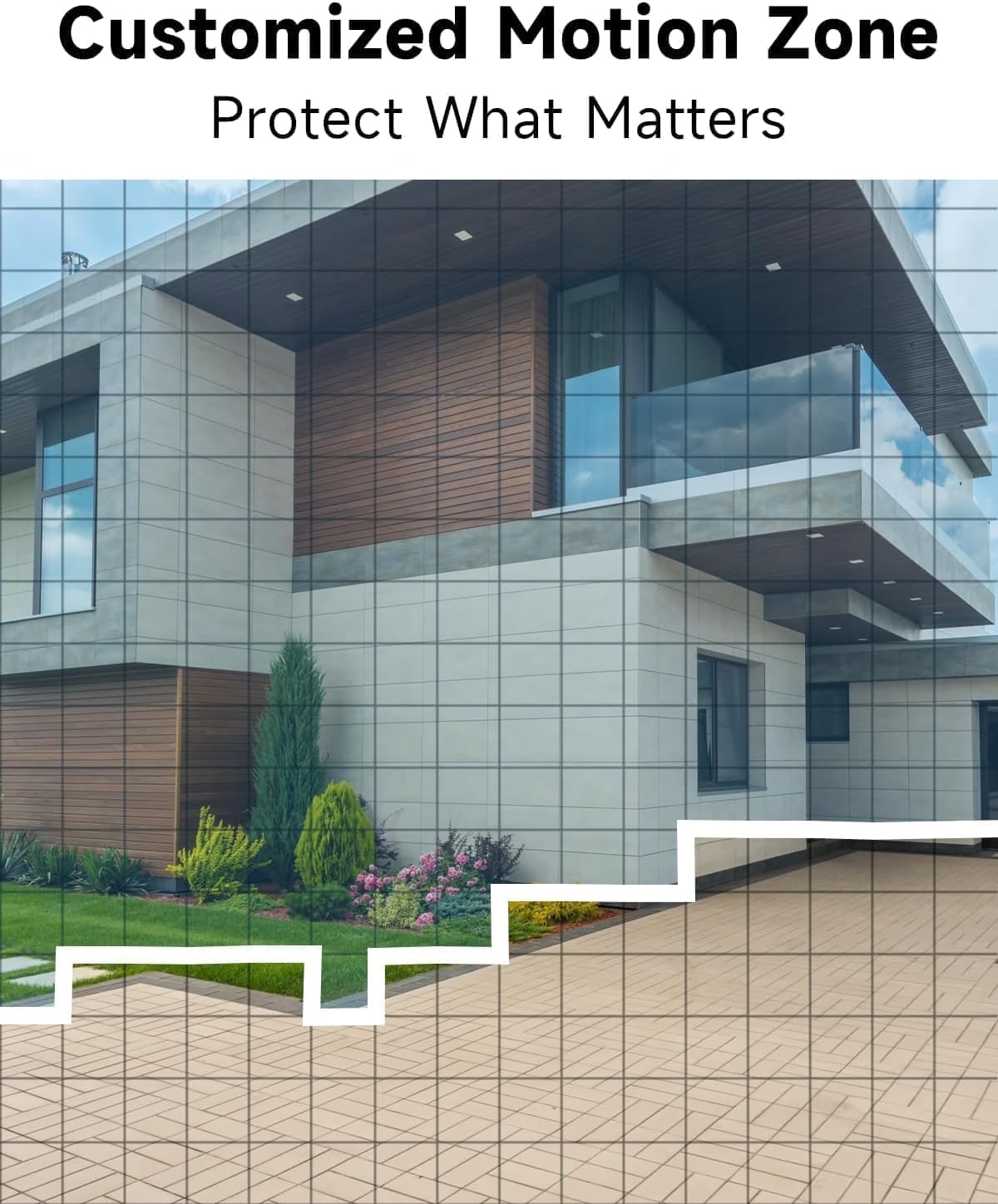
Whakaahua: Example of camera placement and customized motion zone setup.
3. Nga Tohutohu Whakahaere
3.1 Ora View
Access the VistaFlow app and select your camera to view the live feed. You can pinch to zoom and pan across the 130° wide-angle view. The 5MP resolution provides clear details.

Image: Visual comparison of 5MP versus 1080P video resolution.
3.2 Motion Detection & AI Analysis
The camera uses a PIR sensor and AI analysis to detect motion, specifically identifying persons to reduce false alarms. When motion is detected, you will receive a notification on your phone.
- Ngā Rohe Mahi Whakarite: In the app settings, you can define specific areas within the camera's view te wāhi e tika ana kia hohe te kite nekehanga, me te kore e aro ki ētahi atu wāhi.
- Whakatikatika Tairongo: Adjust the motion detection sensitivity to suit your environment and reduce unwanted alerts.

Image: AI Motion Detection in action, highlighting alert options.
3.3 Ororongo Waa-rua
The built-in microphone and speaker allow for real-time two-way communication. Tap the microphone icon in the live view ki te kōrero mā te kāmera, me te whakarongo ki te oro mai i te tauwāhi o te kāmera.

Pikitia: Te whakaatu i te whakawhitiwhiti kōrero oro-rua.
3.4 Matakite Po
E rua ngā momo tirohanga pō e tukuna ana e te kāmera:
- Tirohanga Po Tae Katoa: Utilizes the built-in spotlight to provide color images in low-light conditions.
- Tirohanga Po Infrared: Uses infrared LEDs for black and white images in complete darkness.
You can switch between these modes or set them to automatic in the app settings.

Image: Comparison of color and infrared night vision modes.
3.5 Siren Alarm & Spotlight
In response to motion detection, or manually activated via the app, the camera can trigger a siren alarm and turn on its spotlight to deter intruders. You can customize the siren sound with pre-recorded messages.
3.6 Kōwhiringa Rokiroki
The camera supports two storage methods for recorded video:
- Rokiroki Kapua: A free rolling 3-day cycled cloud storage service is provided. Optional subscription plans may be available for extended cloud storage.
- Kaari SD Micro: Insert a micro SD card (up to 256GB, not included) into the camera's SD card slot for local storage.
3.7 Alexa Whakauru
The Rraycom camera is compatible with Amazon Alexa. To enable this feature:
- Whakatuwheratia te taupānga Alexa i runga i tō pūrere pūkoro.
- Go to "Skills & Games" and search for "VistaFlow".
- Enable the skill and link your VistaFlow account.
- Tirohia nga taputapu.
You can then use voice commands such as: "Alexa, show me the [camera name]" to view te whāngai ora i runga i ngā taputapu Alexa hototahi (hei tauira, Echo Show).
4. Tiaki
4.1 Whakahaere Pūhiko
The camera is powered by a rechargeable battery. Battery life varies based on usage, motion detection frequency, and environmental factors.
- Kei te utu: When the battery level is low, you will receive a notification via the app. Disconnect the camera from its mount and charge it using the provided USB cable.
- Te Arotau i te Ora o te Pūhiko: Reduce motion detection sensitivity, shorten recording duration, and minimize live view access to extend battery life.
4.2 Te horoi
Periodically clean the camera lens and body to ensure optimal performance.
- Use a soft, dry, lint-free cloth to wipe the lens. For stubborn smudges, a slightly damp Ka taea te whakamahi i te kakahu, ka whai i te kakahu maroke.
- Mukua te tinana kamera me te panuiamp kakahu. A ape i te whakamahi i nga matū kino, i nga horoi horoi ranei.
5. Te Raru
5.1 Nga take me nga otinga noa
| Putanga | Rongoa pea |
|---|---|
| Karekau te kamera e hono ana ki te Wi-Fi | Ensure your Wi-Fi is 2.4GHz. Check Wi-Fi signal strength at the camera's location. Restart your router and the camera. Re-attempt pairing in the app. |
| Kāore e mahi ana te kite nekehanga, he maha rawa rānei ngā whakaoho teka | Check motion detection settings in the app. Adjust sensitivity. Define activity zones to exclude irrelevant areas. Ensure camera lens is clean. |
| Te kounga whakaahua kounga | Ensure the camera lens is clean. Check Wi-Fi signal strength. Ensure the camera is set to 5MP resolution in app settings if available. |
| Karekau te pākahiko e utu ana | Ensure the USB cable is securely connected. Try a different USB power adapter. Check if the charging port is clean and free of debris. |
| Cannot hear or speak through two-way audio | Check volume settings on your phone and in the app. Ensure microphone and speaker permissions are granted to the app. |
6. Whakatakotoranga Hangarau
| Āhuahira | Whakatakotoranga |
|---|---|
| Whakatau | 5MP (2.5K QHD) |
| Marae o View | 130° |
| Hononga | Wi-Fi (2.4GHz anake) |
| Puna Mana | Pūhiko Powered |
| Ātete Huarere | IP65 parewai |
| Matakitenga Po | Full-Color, Infrared |
| Ororongo | 2-Way Ororongo |
| Te Motini | PIR with AI Analysis (Person Detection) |
| Kōwhiringa Rokiroki | Cloud (3-day free rolling), Micro SD Card (up to 256GB) |
| Te Whakakotahitanga Whare Ataata | Amazon Alexa |
| Pūrere Hototahi | iOS, Android |
| Mahinga o roto/waho | Waho |
7. Pūtāhui me te Tautoko Kiritaki
7.1 Nga Korero Whakaputanga
Rraycom products come with a limited warranty. Please refer to the warranty card included in your package or visit the official Rraycom webpae mo nga tikanga me nga tikanga whakamana.
7.2 Tautoko Kiritaki
If you encounter any issues or have questions regarding your Rraycom 5MP Wireless Security Camera, please contact our customer support team. Contact information can be found on the Rraycom webte waahi kei roto ranei i te kohinga hua.