
1. Kupu Whakataki
The MARVO KG955W Shogo 63 is a compact 60% mechanical gaming keyboard designed for versatility and performance. It features tri-mode connectivity (wired, 2.4GHz wireless, and Bluetooth), yellow linear pre-lubed switches, customizable RGB backlighting, and full-key anti-ghosting. This manual provides instructions for setting up, operating, and maintaining your keyboard.
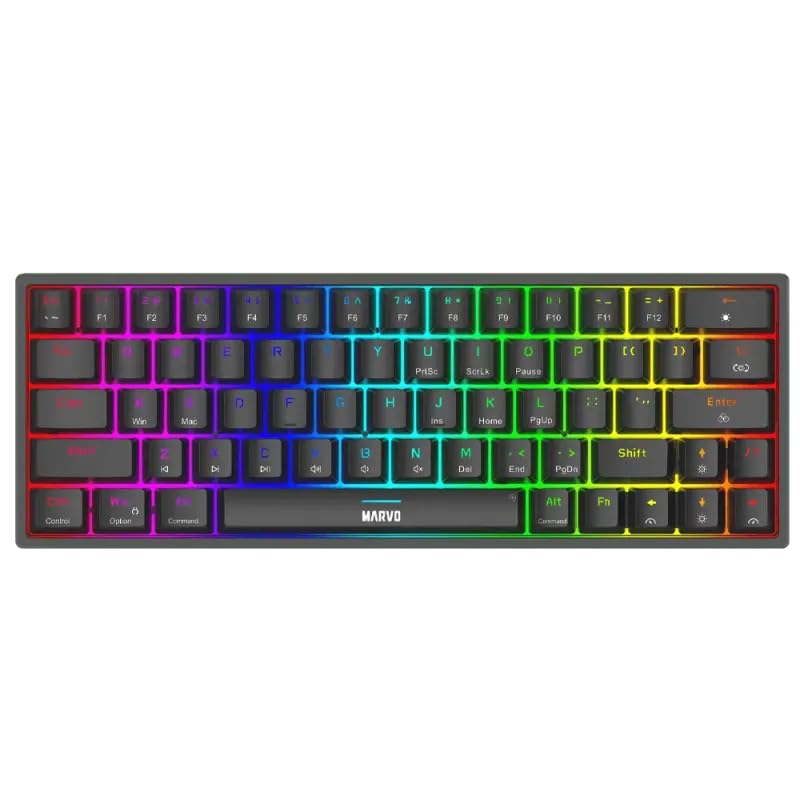
Whakaahua 1.1: Runga-raro view of the MARVO KG955W keyboard showcasintōna tahora kiato 60% me te rama whakamārama RGB kanapa.
2. Ihirangi mokete
Tena koa tirohia te kete mo nga mea e whai ake nei:
- MARVO KG955W Shogo 63 Wireless Mechanical Gaming Keyboard
- Detachable 1.6m braided Type-C USB Cable
- 2.4GHz Wireless Receiver (USB dongle)
- Pukapuka Kaiwhakamahi (tenei tuhinga)
3. Tatūnga me te Hononga
The KG955W keyboard offers three connectivity modes: Wired, 2.4GHz Wireless, and Bluetooth.
3.1. Hononga Waea
- Connect the detachable Type-C USB cable to the keyboard's USB-C port.
- Honoa te pito o te taura USB ki tetahi tauranga USB e waatea ana i runga i to rorohiko.
- The keyboard will automatically be detected and ready for use. The keyboard will also charge in wired mode.
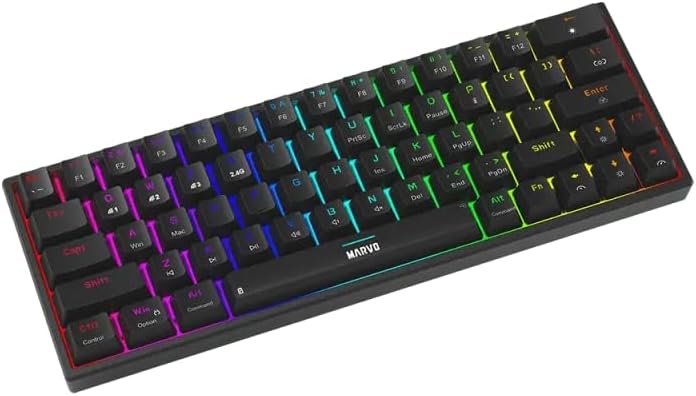
Whakaahua 3.1: Taha view of the keyboard showing the USB-C port for wired connection and charging.
3.2. 2.4GHz Hononga Ahokore
- Locate the 2.4GHz USB receiver (dongle) in the package.
- Monohia te kaiwhiwhi USB 2.4GHz ki tetahi tauranga USB e waatea ana i runga i to rorohiko.
- On the keyboard, switch the mode selector (usually on the back or side) to the 2.4G wireless mode.
- Me hono aunoa te papapātuhi. Ki te kore, pēhia Fn + R ki te timata takirua.
3.3. Hononga Nihokikorangi
- On the keyboard, switch the mode selector to Bluetooth mode.
- Pēhi me te pupuri Fn + Q, Fn + W, ranei Fn + E for 3-5 seconds to enter pairing mode for Bluetooth device 1, 2, or 3 respectively. The indicator light will flash rapidly.
- I tō rorohiko, i tō pūrere rānei, whakahohea te Nihokikorangi, ka rapu i ngā pūrere hou.
- Select "MARVO KG955W" (or similar name) from the list of available devices to pair.
- Once paired, the indicator light on the keyboard will stop flashing and remain solid.
The keyboard can store up to three Bluetooth profiles, allowing quick switching between devices using Fn + Q/W/E.
4. Nga Tohutohu Whakahaere
The KG955W is a 60% compact keyboard, meaning some functions are accessed via the Fn key combinations.
4.1. Function Key Combinations (Fn Key)
Purihia te Fn key and press the corresponding key for secondary functions:
- Fn + 1-0, -, =: F1-F12 functions (check keycaps for specific mappings).
- Fn+P: Mata Taa
- Fn + [ {: Kainga
- Fn + ] }: Whakamutunga
- Fn + ; :: Whārangi Whakarunga
- Fn + '": Whārangi Raro
- Fn + Ngā Pātene Pere: Media controls (e.g., volume up/down, play/pause, next/previous track). Refer to keycap legends.
- Fn+Wiki: Lock/Unlock Windows key.
4.2. Mana Whakamuri RGB
The keyboard features customizable RGB backlighting. Use the following combinations to control the lighting effects:
- Fn + \ |: Change lighting mode.
- Fn + ↑: Whakanuia te kanapa.
- Fn + ↓Whakaitihia te kanapa.
- Fn + ←Whakaitihia te tere o te rama.
- Fn + →Whakanuia te tere o te rama.
- Fn + Pae Mokowā: Change backlight color (for static modes).
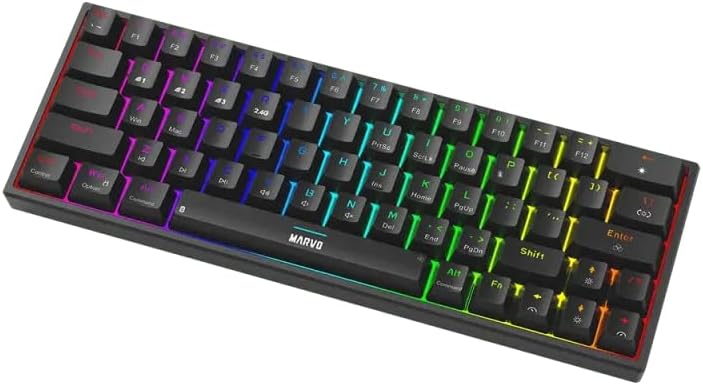
Image 4.1: The keyboard displaying its customizable RGB backlighting in a dynamic pattern.
4.3. Tūnga Pūhiko
The keyboard has an integrated battery for wireless operation. An indicator light will typically show low battery status or charging status. Refer to the specific LED indicators on your keyboard for details.
5. Tiaki
Mā te tiaki tika ka roa te ora me te mahi a tō papapātuhi.
- Te horoi: Use a soft, dry cloth to wipe the keyboard surface. For deeper cleaning, use compressed air to remove dust and debris from between the keycaps. Avoid using harsh chemicals or abrasive materials.
- Rokiroki: Whakaorangia te papapātuhi ki te waahi hauhautanga, maroke atu i te ra tika me te wera nui.
- Tiaki taura: Handle the detachable USB-C cable carefully. Avoid bending or twisting it excessively.

Image 5.1: Illustration of a hot-swappable switch, demonstrating the ease of maintenance and customization for individual key switches.
6. Te Raru
If you encounter issues with your MARVO KG955W keyboard, refer to the following common solutions:
| Raruraru | Rongoā |
|---|---|
| Karekau te papapātuhi whakautu (Waea) |
|
| Keyboard not responding (2.4GHz Wireless) |
|
| Karekau te papapātuhi whakautu (Nihokikorangi) |
|
| Ko te rama RGB kaore i te mahi, i te he ranei |
|
| Kāore ngā kī e rēhita ana, e pato rua ana rānei |
|
7. Whakatakotoranga
| Āhuahira | Taipitopito |
|---|---|
| Ingoa Tauira | MARVO KG955W Shogo 63 |
| Momo Papapātuhi | Mechanical, 60% TKL (Tenkeyless) |
| Whakawhiti | Yellow Linear, Pre-lubed, Hot-swappable |
| Hononga | Wired (USB-C), 2.4GHz Wireless, Bluetooth (Tri-mode) |
| Anti-Ghosting | Full-key Anti-Ghosting |
| Whakamuri | Customizable RGB |
| Tauera | Detachable 1.6m braided Type-C USB |
| Rauemi | Kirihou |
| Taumaha | 460 karamu |
| OS hototahi | Windows (also compatible with other systems via Bluetooth/2.4G) |
| Te maha o nga Kī | 63 |
8. Nga Korero Whakaputanga
The MARVO KG955W Shogo 63 Wireless Mechanical Gaming Keyboard comes with a 6 marama pūtāhui mai i te rā i hokona ai. Ka hipokina e tēnei pūtāhui ngā hapa hanga me ngā hapa i raro i te whakamahinga noa. Kāore e hipokina ngā kino i puta mai i te whakamahi hē, ngā aituā, ngā whakarerekētanga kāore i whakamanahia, te kakahu me te haehae noa rānei. Puritia tō taunakitanga hoko mō ngā kereme pūtāhui.
9. Tautoko
For technical support, troubleshooting assistance beyond this manual, or warranty inquiries, please contact MARVO customer service through their official website or the retailer where the product was purchased. Please have your product model number (KG955W) and proof of purchase ready when contacting support.