
Kupu Whakataki
Thank you for choosing the TELE System TS9019HEVC Satellite Decoder. This device is designed to provide stable and seamless reception of Tivùsat digital satellite channels, including over 70 free HD channels. This manual will guide you through the setup, operation, and maintenance of your new decoder to ensure an optimal viewte wheako.
Ihirangi mokete
Tirohia koa ko nga mea katoa kei raro nei kei roto i to kete:
- TELE System TS9019HEVC Satellite Decoder
- Tivùsat HD Smartcard (Merlin)
- Tuku Hiko o waho
- Mana Mamao
- 2x AAA Pūhiko
- Tauera HDMI

Image: The TELE System TS9019HEVC decoder, its remote control, and the included Tivùsat Smartcard.
Tatūnga
1. Te Hononga i te Pūwhakamātautau
- Hononga Pūihi Amiorangi: Connect your satellite dish cable to the "RF IN" port on the back of the decoder.
- Hononga HDMI: Connect one end of the supplied HDMI cable to the "HDMI" port on the decoder and the other end to an available HDMI input on your television.
- Hononga Hiko: Connect the external power supply to the "12V DC" port on the decoder, then plug the power adapter into a wall outlet.
- Optional AV Connection: If your TV does not have an HDMI input, you can use an AV cable (not included) to connect to the "AV" port.
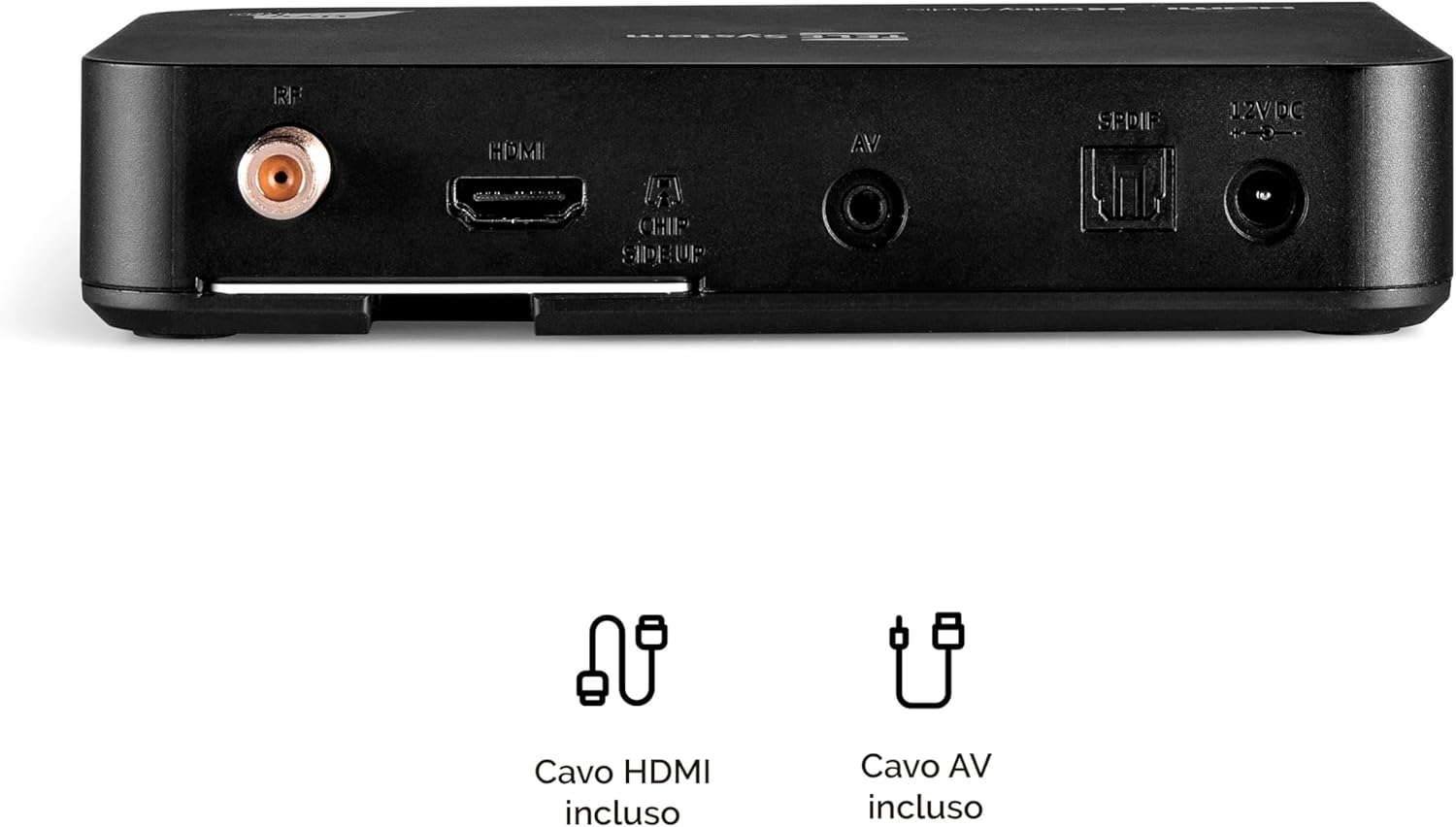
Image: Rear panel connections of the decoder, including RF IN, HDMI, AV, SPDIF, and 12V DC power input.
2. Inserting the Tivùsat Smartcard
The Tivùsat Smartcard is essential for accessing encrypted channels. Ensure it is inserted correctly:
- Locate the smartcard slot on the side of the decoder.
- Insert the Tivùsat Smartcard with the chip facing upwards and the arrow pointing into the slot. Push it gently until it clicks into place.
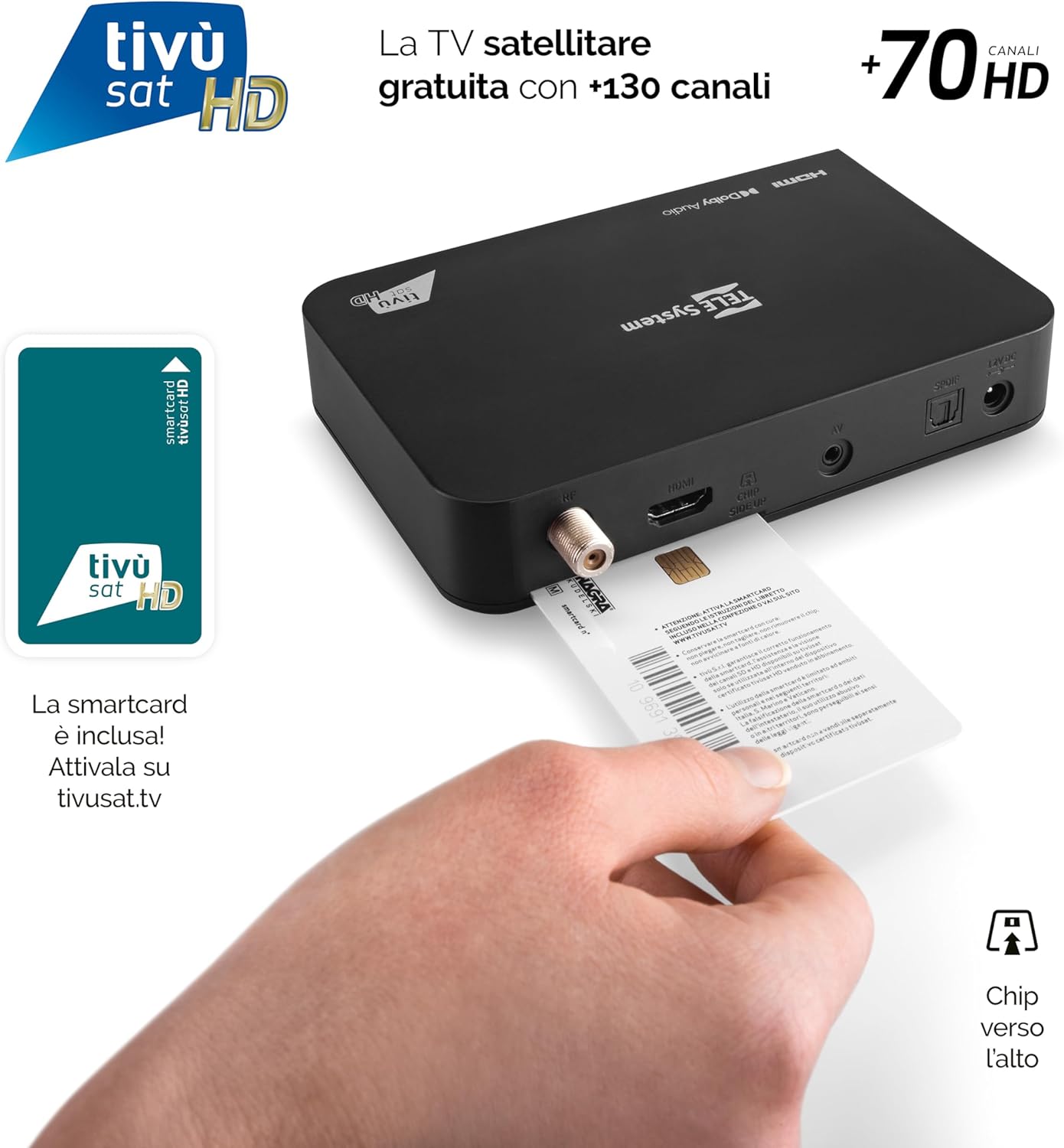
Image: Proper insertion of the Tivùsat Smartcard into the decoder's side slot.
3. Ruānuku Tatūnga Tuatahi
After connecting all cables and inserting the smartcard, turn on your TV and select the correct HDMI input. Power on the decoder. The initial setup wizard will guide you through:
- Te whiriwhiri reo
- Satellite dish configuration
- Automatic channel scan (EASY HD)
4. Activating the Tivùsat Smartcard
To access all Tivùsat channels, your smartcard must be activated. You can activate it easily on the official Tivùsat webpae (www.tivusat.tv). Follow the instructions provided on the website for activation. Note that older Tivùsat Tiger smartcards may be obsolete and require replacement with a Merlin card.
Nga Tohutohu Whakahaere
Nga Mahi Taketake
- Hiko Whakaka/Weto: Whakamahia te MANA button on the remote control or the front panel of the decoder.
- Tīpakonga Hongere: Whakamahia te P+ / P- ngā pātene hei whakawhiti hongere i ia raupapa, hei whakauru tika rānei i te tau hongere mā te whakamahi i te papapātuhi tau.
- Mana Rōrahi: Whakamahia te VOL + / VOL- pātene hei whakatika i te rōrahi.
- Tahua: Pehia te MENU pātene hei uru atu ki te tahua matua mō ngā tautuhinga me ngā āhuatanga.
- Pene OK: Confirms selections in menus or displays the channel list during live TV.
- Putaatu/Hoki: Ka hoki ki te mata o mua, ka puta ranei i te tahua.

Image: The remote control for the TELE System TS9019HEVC decoder, highlighting key function buttons.
Āhuatanga Arā Atu Anō
- Aratohu Papatono Hiko (EPG): Pehia te EPG button on the remote to view the program schedule for upcoming broadcasts.
- Ngā Rārangi Tino Pai: Create and manage personalized lists of your preferred channels for quick access. Refer to the on-screen menu for instructions.
- TV Pause (Timeshift): Connect a USB storage device (not included) to the USB port on the decoder. This feature allows you to pause live TV and resume viewi muri mai.
- Automatic Channel Update: The decoder automatically updates Tivùsat channels, ensuring you always have access to the latest channel lineup.
- Taumahi Matawā: Set timers to automatically switch to a specific channel at a scheduled time.

Whakaahua: Example of the channel list interface, displaying various Tivùsat channels.
Te tiaki
Whakahōu Pūmanawa
To ensure your decoder always has the latest features, improvements, and security updates, regularly check for software updates. Updates can be performed via:
- I runga i te rangi (OTA): The decoder may receive updates automatically via satellite. You will be prompted on-screen if an update is available.
- USB: Download the latest firmware from the TELE System official website to a USB stick and follow the instructions provided with the firmware file for a manual update.
Always ensure the decoder remains powered on during a software update to prevent damage.
Tiaki Whānui
- Keep the decoder in a well-ventilated area to prevent overheating.
- Horoia te waho ki te kakahu ngohengohe, maroke. Kaua e whakamahi i nga kai horoi wai, i nga taonga abrasive ranei.
- Avoid exposing the decoder to direct sunlight, high temperatures, or humidity.
Raparongoā
| Raruraru | Take pea | Rongoā |
|---|---|---|
| Kāore he Tohu / Mata Pango | Incorrect HDMI input selected on TV; Satellite cable disconnected; Dish misalignment. |
|
| "Smartcard Error" Message | Smartcard incorrectly inserted; Smartcard not activated; Obsolete smartcard. |
|
| Kore Oro | TV or decoder volume muted; Incorrect audio settings. |
|
| Mana Mamao Kaore i te Mahi | Dead batteries; Obstruction between remote and decoder; Remote not paired (if applicable). |
|
Whakatakotoranga
| Āhuahira | Taipitopito |
|---|---|
| Waitohu | Pūnaha TELE |
| Tau tauira | 58010100 |
| Tae | Pango |
| Hangarau Hononga | USB |
| Aratau Putanga Ororongo | Tirooro |
| Tauranga HDMI Tapeke | 1 |
| Pūrere Hototahi | Pouaka Whakaata |
| Ngā Hōputu Ororongo Tautokohia | Dolby Digital, DTS, AAC, MP3, PCM |
| Satellite Service Description | Tivùsat HD Classic and DAZN |
| Total Video Output Ports | 1 |
| Whakatau Putanga Ataata | 1080p |
| Paerewa Tautoko | DVB-S, H.264, MP2, MP3, AAC, HD |
| Hōputu Mata | 16:9 |
| Whenua Taketake | Haina |
Nga korero Whakaputanga
The TELE System TS9019HEVC Satellite Decoder comes with a 2 tau te whakamana hua from the date of purchase. This warranty covers manufacturing defects and malfunctions under normal use. Please retain your proof of purchase for warranty claims. For detailed terms and conditions, please refer to the warranty card included in your package or visit the official TELE System webpae.
Tautoko
For further assistance, technical support, or frequently asked questions, please visit:
- TELE System Official Webpae: www.telesystem.it
- Tivùsat Support: For smartcard activation and Tivùsat specific inquiries, visit www.tivusat.tv
Before contacting support, please ensure you have reviewed the troubleshooting section of this manual.