
JUNJIEUNVO YYK-Q16 PRO
JUNJIEUNVO Q30 Bluetooth Earphones User Manual
Model: YYK-Q16 PRO
1. Kupu Whakataki
Thank you for choosing the JUNJIEUNVO Q30 Bluetooth Earphones. These earphones are designed to provide a superior audio experience with advanced features such as an intelligent color touch screen, Active Noise Cancellation (ANC), and Environmental Noise Cancellation (ENC). This manual will guide you through the setup, operation, and maintenance of your new earphones.
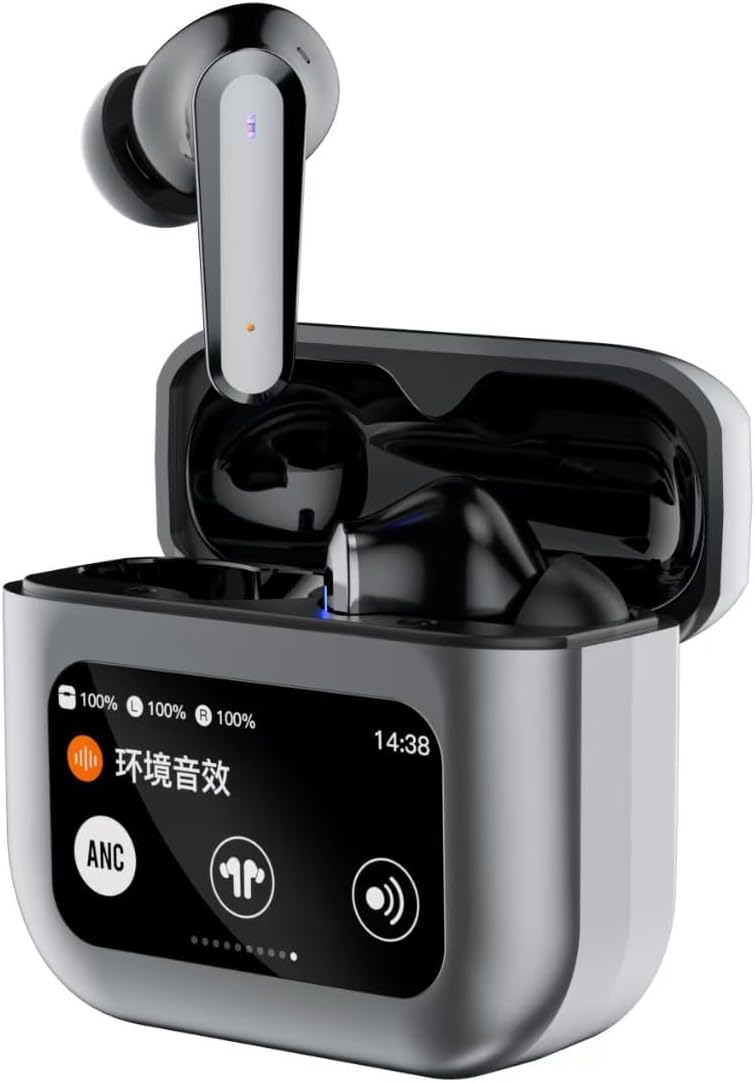
Image 1.1: JUNJIEUNVO Q30 Bluetooth Earphones in their charging case, showcasing the intelligent color touch screen.
2. Ihirangi mokete
Tena koa tirohia te kete mo nga mea e whai ake nei:
- JUNJIEUNVO Q30 Bluetooth Earphones (Left and Right)
- Charging Case with Intelligent Color Touch Screen
- Tauira Whakatau USB
- Pukapuka Kaiwhakamahi
- He maha ngā Rahi o ngā Tipi Taringa (S, M, L)
3. Nga Korero Haumaru Nui
- Do not disassemble or modify the earphones or charging case.
- Keep the device away from extreme temperatures, humidity, and liquids.
- A ape i te rongonga roa ki nga taumata oro teitei kia kore ai e pakaru te rongo.
- Whakamahia anake te taura utu kua whakaratohia, he taurite whaimana ranei.
- Horoihia te taputapu me tana pākahiko kia rite ki nga ture o te rohe.
4. Tatūnga
4.1. Te Whakataki i nga Waea taringa me te Puhi
I mua i te whakamahi tuatahi, whakakiia katoatia nga taringa me te putea utu.
- Honoa te taura utu USB ki te tauranga utu i runga i te pouaka me te pūtake hiko.
- The touch screen on the case will display the charging status.
- Place the earphones into the charging case. They will begin charging automatically.
- He 1.5 haora pea te utu katoa.
4.2. Takirua Nihokikorangi
Hei hono i ō taringaoro ki tētahi pūrere:
- Me whakarite kua utua ngā taringa, ā, kei roto i te pouaka utu.
- Whakatuwheratia te taupoki o te kete utu. Ka uru aunoa nga taringa ki te aratau takirua.
- I runga i to taputapu (waea atamai, papa, aha atu), whakaahei i a Nihokikorangi.
- Rapua available Bluetooth devices and select "Q30" from the list.
- Once connected, the earphones will indicate successful pairing, and the touch screen on the case may show connection status.
4.3. E mau ana i nga Waea taringa
For optimal sound quality and comfort, choose the ear tips that best fit your ears. Insert the earphones gently into your ear canal and rotate them slightly until they feel secure and comfortable.
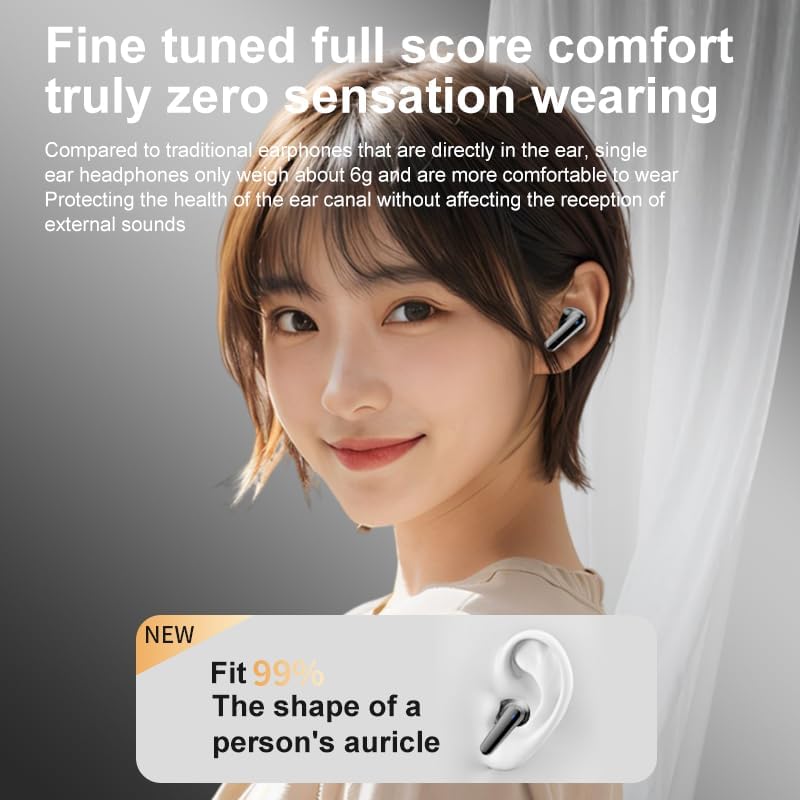
Image 4.1: Illustration of proper earphone fit for comfort and sound.
5. Nga Tohutohu Whakahaere
5.1. Te Hiko / Whakaweto
- Whakahiko: Open the charging case lid, or take the earphones out of the case. They will power on automatically.
- Weto Whakakore: Whakahokia ngā taringa ki roto i te pouaka utu, ka kati i te taupoki. Ka mate aunoa.
5.2. Touch Controls (Earbuds)
Kei roto i nga taringa nga waahi pa-tairongo mo nga momo mahi:
- Purei/Tatari: Pao kotahi ki runga i tetahi purongo.
- Riu Panuku: Pao rua ki te purongo matau.
- Riu o mua: Pao rua ki te purongo maui.
- Whakautu/Whakamutu Waea: Pao kotahi ki runga i tetahi purongo.
- Whakakore Waea: Patohia me te pupuri i tetahi purongo mo te 2 hēkona.
- Whakahohe i te Kaiawhina Reo: Takitoru te pao ki runga i tetahi purongo.
- Switch ANC/ENC Modes: Press and hold the left earbud for 2 seconds to cycle through ANC On, Transparency Mode, and ANC Off.
5.3. Intelligent Color Touch Screen Functions (Charging Case)
The charging case features a full-color touch screen for advanced control and settings. Swipe left or right to navigate through the menus.

Whakaahua 5.1: Ka mutuview of the intelligent color touch screen functions on the charging case.
- Mana Waiata: Purei, whakamutua, pekehia ngā ara tika mai i te mata.
- Whakaritenga Rōrahi: Control the playback volume.
- Kai-rite: Select from preset equalizer modes or customize your sound profile.
- Pattern Selection (Mode Select): Choose different audio modes, such as gaming or movie mode.
- Lock Wallpaper: Whakaritea te papamuri o te mata.
- Tautuhinga Wā: Adjust the device's time.
- Tirohanga Mata: Whakaritehia te wherikotanga whakaatu.
- Taumahi Rama: Activate a small flashlight feature.
- Reo: Hurihia te reo whakaatu.
- Find Earphone: Locate misplaced earbuds by emitting a sound.
- Mahi a te Kamera: Whakaoho mamao te marumaru kamera o to waea.
- Karanga Reo: Initiate or manage voice calls.
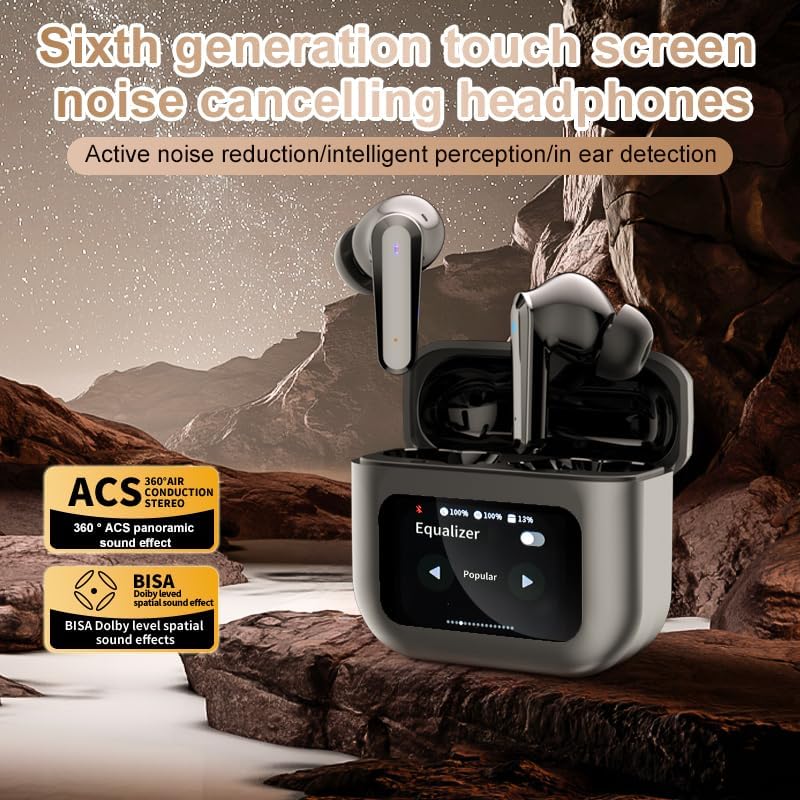
Image 5.2: The touch screen displaying equalizer settings for audio customization.
5.4. Active Noise Cancellation (ANC) and Environmental Noise Cancellation (ENC)
The Q30 earphones feature both ANC for reducing ambient noise and ENC for clear call quality.
- ANC: Reduces external low-frequency noise, ideal for travel or noisy environments. Activate via earbud touch control or the charging case screen.
- Aratau Puataata: Allows you to hear your surroundings without removing the earphones. Cycle through modes using the earbud touch control.
- ENC: Enhances voice clarity during calls by filtering out background noise from your microphone. This feature is automatically active during calls.

Image 5.3: The touch screen interface for selecting various modes, including noise cancellation options.
6. Tiaki
6.1. Te horoi
- Āta murua ngā taringa me te pouaka utu ki te kakahu ngohengohe, maroke, kore-miro.
- Kaua e whakamahia nga kai horoi, te waipiro, te whakarewa matū ranei.
- Horoia nga tohutohu taringa ki te panuiamp kakahu, ā, tukua kia maroke rawa i mua i te tāpiritanga anō.
- Ensure charging contacts on both earphones and case are clean and free of debris.
6.2. Rokiroki
- Ina kore e whakamahia, rongoatia ngā taringaoro ki roto i te pouaka utu hei tiaki i a rātou, hei pupuri hoki i te utunga.
- Whakaorangia ki te waahi makariri, maroke, mawehe atu i te ra tika me te wera nui.
7. Te Raru
| Raruraru | Take pea | Rongoā |
|---|---|---|
| Ko nga taringa kaore i te takirua | Earphones not in pairing mode; Bluetooth off on device; out of range. | Ensure earphones are in pairing mode (open case lid). Turn Bluetooth on your device. Move device closer to earphones. |
| Kaore he tangi mai i nga taringa | Volume too low; earphones not connected; media paused. | Increase volume on device and earphones. Reconnect earphones. Check if media is playing. |
| Kotahi te taringa kaore he oro | He iti te pākahiko; he raruraru hononga. | Place both earphones back in the case, close, then reopen to reset connection. Ensure both are charged. |
| Karekau e utuhia ana | Faulty cable; power source issue. | Whakamātauria he taura USB rerekē me te pūurutau hiko. Me whakarite kia mau nga hononga. |
| Ko te mata pa e kore e aro | Hapa rorohiko rangitahi. | Restart the case by closing and reopening it, or allow the battery to drain and recharge. |
8. Whakatakotoranga
| Āhuahira | Taipitopito |
|---|---|
| Ingoa Tauira | YYK-Q16 PRO (Q30) |
| Putanga Nihokikorangi | V5.4 + EDR |
| Tipi | Blue Flood |
| Kawa Tautokohia | AVRCP V1.6, A2DP V1.3, HFP V1.7, Simultaneous LE and BR / EDR |
| Mana Haruru | Whakakorenga Haruru Kaha (ANC), Whakakorenga Haruru Taiao (ENC) |
| Wā Whakahoki | Tata ki te 8 haora (i te 80% rōrahi) |
| Wā tūtatari | 80 haora |
| Waa Whakatau | Tata ki te 1.5 haora |
| Tawhiti Ahokore | 10 mita |
| Raukaha Pihiko Korooro | 40mAh |
| Whakatauhia te kaha o te pākahiko | 500mAh |
| Whakatauranga parewai | IPX5 (Purorongo) |
| Te aukati | 32 Aue |
| UPC | 884613749491 |
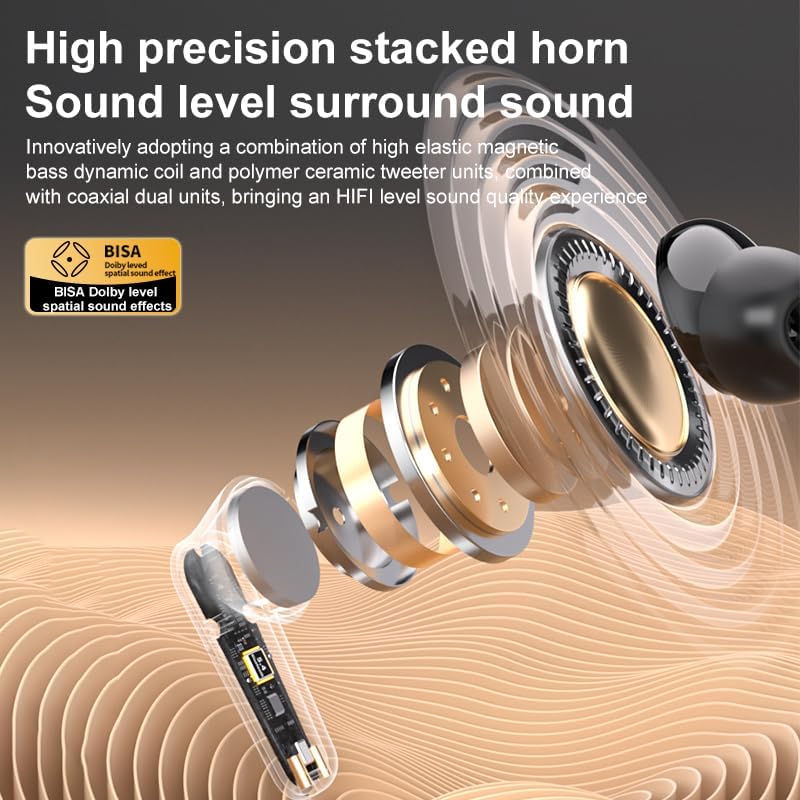
Whakaahua 8.1: Taipitopito view of the high-precision stacked horn and internal components for sound delivery.
9. Pūtāhui me te Tautoko
For warranty information or technical support, please refer to the warranty card included with your product or contact the manufacturer directly. Please have your model number (YYK-Q16 PRO) and purchase details ready when contacting support.
Manufacturer: UNVO
Ask a question about this manual
Ask about setup, troubleshooting, compatibility, parts, safety, or missing instructions. Manuals+ will review the question and use this page’s manual context to help answer it.