
1. Kupu Whakataki
This manual provides detailed instructions for the installation, operation, and maintenance of your ANNKE AU-DT81DX200-V1 4K 8-Channel Digital Video Recorder (DVR). This DVR is designed for security surveillance systems, offering 4K (8MP) high-definition live viewing and recording capabilities. It features advanced H.265+ video compression, AI human/vehicle detection, and supports various camera types for flexible integration.

Image 1.1: The ANNKE 4K 8CH DVR connected to a display, illustrating its 4K Ultra HD video capability.
2. Ihirangi mokete
Verify that all items listed below are included in your package. If any items are missing or damaged, contact ANNKE customer support.
- 1x ANNKE 4K 8CH DVR with 2TB Hard Drive
- 1x Taura HDMI 5.9 putu/1.8 m
- 1x 3.2 ft/1 m Ethernet Cable
- 1x Pūurutau Hiko
- 1x Kiore USB
- 1x Manual Kaiwhakamahi (tenei tuhinga)
- 1x Whakapiripiri Pakitara

Image 2.1: Visual representation of all components included in the ANNKE 4K 8CH DVR package.
3. Ka mutu te punahaview
The ANNKE AU-DT81DX200-V1 DVR is a hybrid 5-in-1 system, supporting various camera technologies. It can operate in two primary modes:
- Aratau DVR: Supports up to 8 BNC (TVI/AHD/CVI/CVBS) cameras and an additional 4 IP cameras.
- NVR Mode: Can be configured to support up to 12 IP cameras exclusively.
This flexibility allows for integration with existing analog systems while providing options for future IP camera expansion.
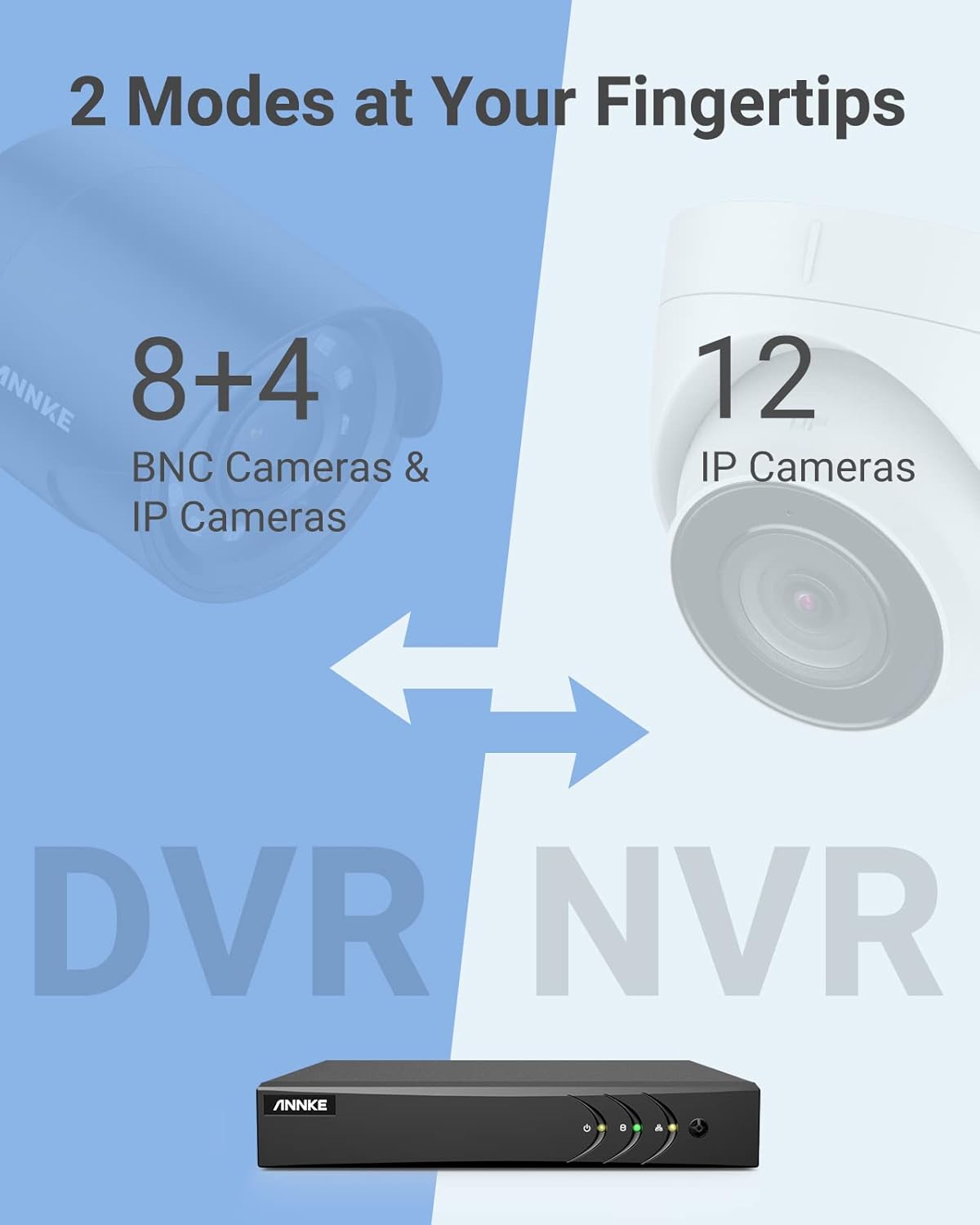
Image 3.1: Illustration of the DVR's dual operational modes, supporting both BNC and IP cameras or IP cameras exclusively.
4. Aratohu Whakauru
4.1 Tatūnga Tinana
- Tūhono Kāmera: Connect your security cameras to the BNC video input ports on the back of the DVR. For IP cameras, connect them to your network switch/router, and ensure the DVR is also connected to the same network via the Ethernet cable.
- Tūhono Aroturuki: Connect a monitor to the DVR's HDMI or VGA output port using the provided HDMI cable or a VGA cable (not included).
- Honoa te Kiore USB: Plug the USB mouse into one of the USB ports on the DVR.
- Hono Hono: Connect the power adapter to the DVR's power input and then plug it into a power outlet. The DVR will power on automatically.
4.2 Whirihoranga Tuatahi
I te tīmatanga tuatahi, ka ārahi te DVR i a koe i roto i te ruānuku tatūnga tuatahi. Whāia ngā tohutohu kei runga i te mata hei:
- Waihangatia he kupuhipa kaha mō te pūkete kaiwhakahaere.
- Whirihorahia ngā tautuhinga whatunga (e taunakitia ana te DHCP mō te nuinga o ngā kaiwhakamahi).
- Tautuhia te ra me te wa.
- Scan and add IP cameras if applicable.
5. Te whakahaere i te DVR
5.1 Ora View
I muri i te whakatūnga tuatahi, ka whakaatuhia e te DVR te ataata ora view from connected cameras. Use the USB mouse to navigate the interface. Right-click to access the main menu.
5.2 Te tuhi
The DVR is pre-configured for continuous recording. You can customize recording schedules, motion-triggered recording, or alarm-triggered recording via the main menu under Tuhituhi > Rārangi Mahi.
5.3 Whakahoki
Ki te review tuhia footage:
- Mai i te koiora view, pawhiri-matau ka kowhiri Whakahoki.
- Tīpakohia te kāmera (ngā kāmera) e hiahiatia ana me te rā.
- Use the timeline to navigate through recordings. Events (like motion detection) are often marked on the timeline for quick access.

Image 5.1: The DVR's playback interface, demonstrating how to locate and review recorded events on a timeline.
6. Āhuatanga Arā
6.1 Te Kimi Tangata/Waka AI
The DVR incorporates deep learning-based motion detection 2.0, which can differentiate between human and vehicle movements. This significantly reduces false alarms caused by environmental factors such as leaves or light changes.
- Whirihoranga: Enable and configure AI detection for each analog channel via the main menu under AI > Motion Detection 2.0.
- Ngā Takahanga Atamai: Supports line crossing and intrusion detection for specific areas.
- Matohi: Configure the DVR to send app push notifications, email alerts, or trigger a buzzer when human or vehicle motion is detected.
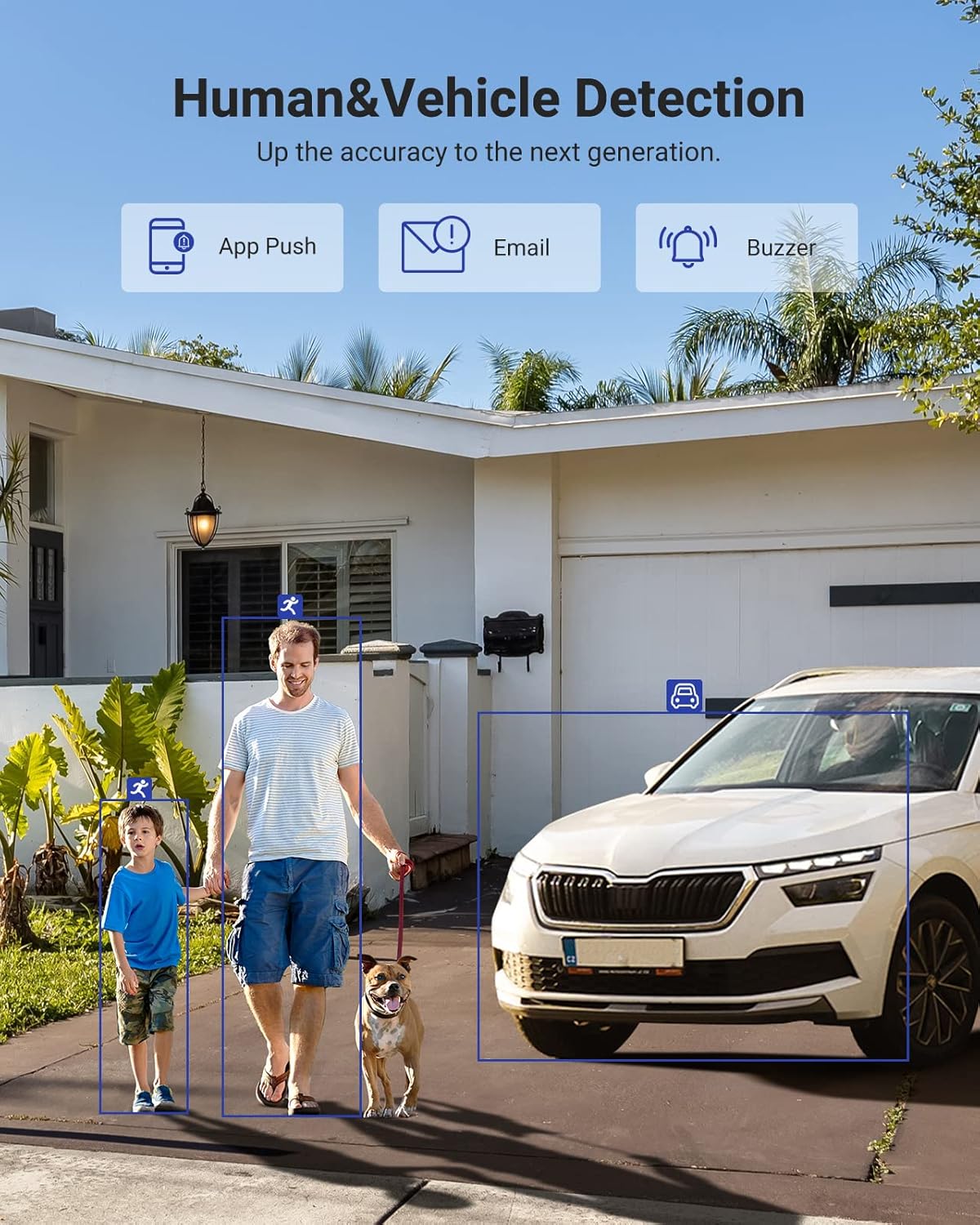
Image 6.1: Visual demonstration of the AI human and vehicle detection capability, showing how the system identifies and distinguishes between people and vehicles.
6.2 Uru Mamao
Access your DVR remotely from anywhere using the ANNKE Vision App or a web pūtirotiro.
- ANNKE Vision App: Download the app from the App Store (iOS) or Google Play Store (Android). Register an account and add your DVR by scanning the QR code or entering its serial number.
- Web Pūtirotiro: Access the DVR's web atanga ma te whakauru i tana wahitau IP ki a web pūtirotiro i runga i tō rorohiko.
- Hototahi: The system is compatible with various devices including smartphones, tablets, laptops, and personal computers. It also supports integration with Alexa for voice control.

Image 6.2: Remote access via the ANNKE Vision App, showing compatibility with mobile devices and Alexa.
7. Whakahaere Ataata
7.1 H.265+ Kōpeketanga Ataata
The DVR utilizes advanced H.265+ video compression technology. This technology significantly reduces file sizes, saving up to 80% of storage space compared to H.264 compression, while maintaining video quality. This allows for longer recording durations on the same 2TB hard drive.

Image 7.1: Comparison illustrating the storage efficiency of H.265+ compression versus H.264.
8. Hototahi
The ANNKE AU-DT81DX200-V1 is a versatile 5-in-1 hybrid DVR, designed to be compatible with a wide range of security cameras:
- HD TVI Input: Supports 8 MP@15 fps, 5 MP@20 fps, 3K@20 fps, 4 MP@30 fps.
- AHD Input: Supports 5 MP@20 fps, 4 MP@30 fps, 1080p@25 fps, 1080p@30 fps.
- HD CVI Input: Supports 4 MP@30 fps, 4 MP@25 fps, 1080p@25 fps, 1080p@30 fps.
- Tāuru CVBS: Supports PAL/NTSC standards.
- IPC Input: Supports up to 8MP IP cameras.
This broad compatibility ensures that the DVR can integrate with both older analog cameras and modern IP cameras, providing a flexible upgrade path for existing surveillance systems.

Image 8.1: The DVR's compatibility with various camera technologies, including TVI, CVI, AHD, and IP cameras.
9. Whakatakotoranga
| Āhuahira | Whakatakotoranga |
|---|---|
| Waitohu | ANNKE |
| Tau tauira | AU-DT81DX200-V1 |
| Hangarau Hononga | Waea |
| Whakataunga Hopu Ataata | 4K (8MP) |
| Te maha o nga hongere | 8 (Analog) + 4 (IP) or 12 (IP) |
| Kōpeketanga Ataata | H.265 Pro+/H.265 Pro/H.265/H.264+/H.264 |
| Supported Camera Types | TVI, AHD, CVI, CVBS, IPC |
| Nga waahanga AI | Human Detection, Vehicle Detection, Line Crossing, Intrusion Detection |
| Te Rokiroki Mahara | 2 TB HDD (Up to 10 TB supported) |
| Uru Mamao | ANNKE Vision App, Web Pūtirotiro |
| Pūrere Hototahi | Kāmera, Pona, Rorohiko Whaiaro, Waea Atamai, Papaaho |
| Puna Mana | Hiko Hiko |
| Tae | Pango |
| Te Ahu o te Tuemi | 17.13 x 12.4 x 3.86 inihi |
10. Tiaki
Regular maintenance ensures optimal performance and longevity of your DVR system.
- Te horoi: Puritia te DVR kia kore e puta he puehu. Whakamahia he kakahu ngohengohe, maroke hei horoi i te taha o waho. Kaua e whakamahi i ngā wai horoi.
- Whakahau: Me whakarite kia whakanohoia te DVR ki tetahi waahi whai hau kia kore e wera rawa. Kaua e aukati i nga whakatuwheratanga hau.
- Whakahōu Firmware: Tirohia te āpiha o ANNKE i ia wā website for firmware updates. Keeping your DVR's firmware updated can improve performance, add new features, and enhance security.
- Pūrua Raraunga: Regularly back up important video footage to an external storage device.
- Hauora Puku Maama: The DVR's menu may offer options to check the health status of the installed hard drive. Monitor this periodically.
11. Te Raru
E pā ana tēnei wāhanga ki ngā take noa ka pā mai ki a koe me tō DVR.
- Kore he Putanga Ataata:
- Tirohia ngā hononga taura HDMI/VGA ki te DVR me te mata.
- Me whakarite kua tautuhia te kaitirotiro ki te puna whakauru tika.
- Verify the DVR is powered on (power indicator light should be active).
- Kāore he Whakaaturanga Kāmera:
- Check camera power supply and video cable connections.
- For IP cameras, ensure they are on the same network as the DVR and properly added in the DVR's camera management settings.
- Verify camera compatibility with the DVR (refer to Section 8).
- Uru Mamao Kaore i te Mahi:
- Ensure the DVR is connected to the internet.
- Check network settings on the DVR (e.g., DHCP enabled, correct IP address).
- Verify the ANNKE Vision App is updated to the latest version.
- Ensure the DVR is properly added to your ANNKE Vision account.
- Ngā Whakaoho Nekehanga Hē:
- Adjust the sensitivity of motion detection in the DVR settings.
- Utilize the AI Human/Vehicle Detection feature (Section 6.1) to filter out irrelevant movements.
- Define specific detection zones to exclude areas with frequent non-threatening movement.
If you continue to experience issues, please contact ANNKE customer support.
12. Pūtāhui me te Tautoko
He iti noa te wā whakamana o ngā hua ANNKE. Tirohia te kāri whakamana kei roto i tō kete, tirohia rānei te paetukutuku ANNKE mana. webpae mo nga kupu whakamana me nga tikanga mo to rohe.
Mō te tautoko hangarau, ngā patai hua, ngā kereme whakamana rānei, whakapā atu ki te ratonga kiritaki a ANNKE mā tā rātou ratonga mana website or the contact information provided in your product documentation. Have your model number (AU-DT81DX200-V1) and purchase details ready when contacting support.
Āpiha ANNKE Webpae: www.annke.com