
1. Kupu Whakataki
The QOMO QPC 70 is an 8MP USB document camera designed for various applications, including classroom teaching, remote learning, and professional presentations. It features high-resolution imaging, adjustable LED lighting, autofocus, and image manipulation capabilities to enhance visual communication.
2. He aha kei roto i te Pouaka
Wewetehia te pouaka me te whakarite kei te noho katoa nga taonga:
- QOMO QPC 70 Document Camera
- Adapter USB-C
3. Nga Hua o te Hua
The QPC 70 document camera offers a range of features to support diverse educational and professional needs:
- Taumira Motuhake: Supports resolutions up to 3264x2448 (8MP) for clear image capture.
- Tirohanga Whakaritea: Features 3-level LED lights and 10-level image exposure control.
- Advanced Auto-Focus: Ensures documents and objects are always in sharp focus.
- Mahi Hurihuri Whakaahua: Allows for easy horizontal and vertical image inversion.
- High-Freedom Pivot: Multi-angle adjustable arm for flexible positioning and a maximum A3-sized viewawhe ing.
- Hototahitanga Maha-Pūnaha: Compatible with Windows, Mac, and Chrome OS.
- Pūorooro Matarua: Integrated for clear audio capture.

The QOMO QPC 70 document camera set up on a desk, connected to a laptop, demonstrating its use for displaying documents. Key features like high resolution, dual microphones, image flip, autofocus, and LED lighting are highlighted.

The QPC 70 document camera is shown in a classroom environment, highlighting its portability and suitability for various teaching scenarios.
4. Tatūnga
4.1 Whakaritenga Pūnaha
Ensure your computer meets the following operating system requirements:
- Windows (XP/7/8/9/10/11)
- Mac OS
- Chrome OS
4.2 Hononga Tinana
- Unfold the document camera arm and position it as desired.
- Connect the USB cable from the QPC 70 to an available USB port on your computer. If your computer only has USB-C ports, use the provided USB-C adapter.
- The camera should be automatically recognized by your operating system.
- Open your preferred video conferencing software (e.g., Zoom, Skype) or camera application.
- In the software settings, select "USB Camera" as your video input device.

The document camera is shown connected to a laptop, ready for use. This illustrates the simple plug-and-play setup.

Detail showing the USB and USB-C connectivity, highlighting the camera's versatile connection options and robust design features like screw-fixed joints and cable routing.
5. Nga Tohutohu Whakahaere
5.1 Adjusting the Camera Arm
The QPC 70 features a highly flexible arm that can be adjusted to various angles to capture different perspectives or objects. Carefully pivot the joints to achieve the desired height and angle. The arm can also be folded for portability and storage.

Illustration of the document camera's multi-angle adjustment, demonstrating its flexibility and how it can be folded for easy transport or storage.
5.2 Auto-Focus Function
The camera is equipped with an automatic focusing system. To ensure your document or object is clear, the camera will automatically adjust its focus. If manual adjustment is needed, use the focus controls on the camera head.
A visual representation of the auto-focus feature, showing how a blurry image is automatically sharpened by the camera, ensuring clarity for displayed content.
5.3 Mana rama rama
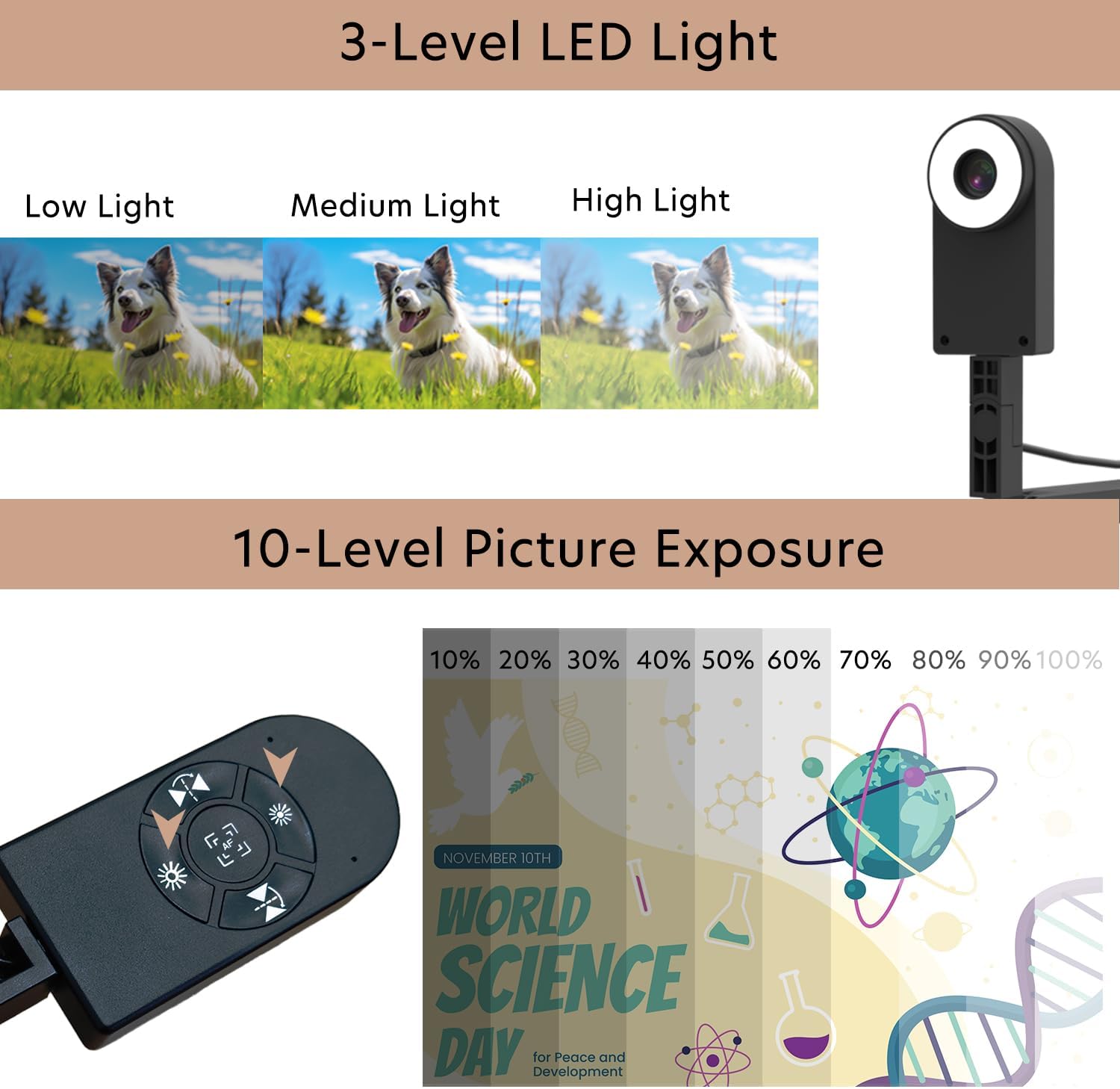
The QPC 70 has a built-in LED light with three adjustable levels (Low, Medium, High) to illuminate your documents or objects. Press the light button on the camera head to cycle through the brightness levels.

This image illustrates the three levels of LED lighting available on the camera, along with the 10-level picture exposure control, allowing users to optimize visibility in various lighting conditions.
5.4 Image Exposure Adjustment
The camera offers 10 levels of image exposure control. Use the exposure buttons on the camera head to adjust the brightness of the captured image, compensating for different ambient light conditions.
Refer to the image in section 5.3 for visual guidance on exposure controls.
5.5 Image Flip Function
The image flip function allows you to correct the orientation of your displayed content. Use the dedicated buttons on the camera head to horizontally or vertically invert the image as needed.
This image visually explains how to adjust the image orientation using the horizontal and vertical flip functions, showing examples of text and images before and after reversal.
5.6 Hototahi Pūmanawa
The QPC 70 is compatible with various operating systems and can be used with popular communication and presentation software:
- Pūnaha Whakahaere: Windows (XP/7/8/9/10/11), Android, Mac OS
- Nga tono: Zoom, YouTube, Facebook, Skype, Microsoft Teams, Messenger

He mutuview of the various operating systems and media platforms that are compatible with the QPC 70 document camera, including Zoom, YouTube, Facebook, Skype, Android, Windows, and Mac OS.
6. Tiaki
6.1 Te Whakapai me te Tiaki
- To clean the camera lens, use a soft, lint-free cloth specifically designed for optical surfaces. Avoid abrasive materials or harsh chemicals.
- For the camera body, wipe with a dry or slightly damp soft cloth. Do not use liquid cleaners directly on the device.
- Keep the device away from excessive dust, moisture, and extreme temperatures.
- When not in use, fold the camera arm and store it in a safe place to prevent damage.
7. Te Raru
If you encounter issues with your QPC 70 document camera, refer to the following table for common problems and solutions:
| Raruraru | Rongoa pea |
|---|---|
| No image displayed / Camera not detected |
|
| He koretake te whakaahua |
|
| He pouri rawa te ahua, he kanapa rawa ranei |
|
| Image is upside down or mirrored |
|
8. Whakatakotoranga
Detailed technical specifications for the QOMO QPC 70 document camera:
| Āhuahira | Taipitopito |
|---|---|
| Ingoa Tauira | QPC 70 |
| Whakataunga Tonu Whaihua | 8 MP (3264x2448) |
| Momo Mana Whakaaturanga | ā-ringa |
| Momo Arotahi | Arotahi aunoa |
| Atanga Pūmārō | USB 2.0, USB Type C |
| Tae | Pango |
| Taumaha Tūemi | 1.85 Pauna |
| Kaihanga | QOMO |
| Media Hanga-roto | Tuhinga Camera |
9. Nga Korero Whakaputanga
The QOMO QPC 70 Document Camera comes with a 1-tau pūtāhui mai i te ra o te hokonga. Ka kapi tenei whakamana i nga hapa hangahanga i raro i te whakamahinga noa. Tena koa pupurihia to tohu mo te hoko mo nga kereme whakamana.
10. Tautoko Kiritaki
For further assistance, technical support, or warranty inquiries, please contact QOMO customer service through their official website or the retailer where the product was purchased. Ensure you have your model number (QPC 70) and proof of purchase ready when contacting support.