
1. Kupu Whakataki
This manual provides detailed instructions for the installation, operation, and maintenance of your Olafus 2K QHD Outdoor Flood Light Camera. This device is designed to enhance your home security with advanced features including 2K QHD video, 360° panoramic view, motion detection alerts, two-way audio, and powerful adjustable floodlights. Please read this manual thoroughly before use and retain it for future reference.
2. Nga korero haumaru
- Ensure the power supply is disconnected before installation or maintenance to prevent electric shock.
- Me mahi te tāutanga e te tohunga hiko whai tohu, e ai rānei ki ngā ture hiko ā-rohe.
- Kaua e ngana ki te wetewete, ki te whakarerekē rānei i te taputapu. Tērā pea ka whakakorea te pūtāhui, ā, ka tūpono pea he mōrearea ki te haumaru.
- Puritia te taputapu mai i nga mea ka tahuna, pahū ranei.
- Operate the device within the specified temperature range of -20°C to 50°C (-4°F to 122°F).
- This product is waterproof (IP65 rated) but should not be submerged in water.
3. Ihirangi mokete
Manatokohia kei te noho nga waahanga katoa i roto i te kete:
- Olafus Flood Light Camera (Model 3-LBC65M)
- Maunga Paetahi
- Machine Screws (various sizes)
- Tiu Miihini Roa
- Expansion Rubber Plugs
- Nati Nati
- Hikoi Silicone
- EVA Gasket
- Pukapuka Kaiwhakamahi

Figure 3.1: Product dimensions and included accessories for installation.
4. Hua Neke Atuview
The Olafus Flood Light Camera combines a high-resolution security camera with powerful, adjustable floodlights. Key features include:
- 2K QHD Video: Ka hopu i te maamaa me te kiko o te footage.
- Te Panui Panui 360 ° View: Offers a 340° horizontal and 120° vertical rotation range for comprehensive coverage.
- Smart Auto-Tracking: Automatically tracks moving subjects within its field of view.
- Te Tirohanga Pō Tae Whakapai Ake: Provides vivid images even in low-light conditions.
- Rapunga Nekehanga Arā Atu Anō: 180° PIR motion sensor triggers instant mobile notifications.
- Ororongo Ara-rua: Ka taea te whakawhitiwhiti kōrero i te wā tūturu mā te kāmera.
- 55W Adjustable Lighting: Three independently adjustable heads (5500 lumens) controlled via the app.
- Rokiroki Hangawari: Supports secure cloud storage and local Micro SD card storage (up to 128GB).
- Dual Wi-Fi Connectivity: Compatible with both 2.4G and 5G Wi-Fi networks.
- Hoahoa parerangi: IP65 rated for outdoor use in various weather conditions.

Whakaatu 4.1: Neke Atuview of the Olafus 4MP Floodlight Camera's features.
5. Tatūnga
5.1 Tāuta
The floodlight camera is designed for wall mounting. Refer to the 'Product Size' diagram in Section 3 for dimensions and wiring details. Professional installation is recommended for electrical wiring.
- Choose a suitable outdoor location for mounting, ensuring a stable surface and access to power.
- Secure the mounting bracket to the wall using the provided screws and expansion plugs.
- Connect the Live Wire (L), Neutral Wire (N), and Ground Wire (N) from your electrical supply to the camera's corresponding wires using the wire nuts. Ensure connections are secure and insulated.
- Āpitihia te waeine kāmera ki te pūmau whakairi.

Figure 5.1: Installation steps for the floodlight camera.
5.2 Taupānga Tikiake me te Hononga
The Olafus Flood Light Camera operates with the Smart Life APP. Ensure your smartphone is connected to a 2.4GHz or 5GHz Wi-Fi network.
- Download the "Smart Life" APP from the App Store (iOS) or Google Play (Android), or scan the QR code provided in the product packaging.
- Rēhita, takiuru rānei ki tō pūkete Smart Life.
- Power on the floodlight camera.
- In the Smart Life APP, tap "Add Device" or the "+" icon.
- Follow the on-screen instructions to connect the camera to your Wi-Fi network. You may need to scan a QR code displayed on your phone with the camera.
- Kia honoa, ka puta te kāmera i te rārangi o tō pūrere.
5.3 Smart Home Integration (Alexa/Google Assistant)
The camera can be integrated with Amazon Alexa and Google Assistant for voice control and live view i runga i ngā pūrere hototahi.
Video 5.3.1: Instructions on how to connect the Smart Life camera with Amazon Alexa.
Video 5.3.2: Detailed guide on connecting the camera with Alexa for voice commands and live viewing.
To connect with Amazon Alexa:
- Ensure your Alexa device, phone, and floodlight camera are on the same Wi-Fi network.
- Open the Smart Life App, click "Me" (bottom right), then "Alexa" under "Third-Party Services".
- Click "Link to Amazon Alexa". This will redirect you to the Alexa App.
- In the Alexa App, click "Link" to enable the Smart Life skill.
- Once successfully linked, click "Done".
- Alternatively, open the Amazon Alexa App, click "More" (bottom right), then "Skills & Games".
- Rapua "Smart Life" and click on it.
- Click "ENABLE TO USE". This will redirect you to the Smart Life App.
- After clicking "Agree and link," you will be redirected back to the Amazon Alexa app.
- Click "Next" to discover devices. Once found, select the connected device and click "Next" to complete the setup.
You can now use voice commands like: "Alexa, show me the Security Camera" or "Alexa, turn on/off the Security Camera."

Figure 5.3: Voice control with Amazon Alexa for live camera feed.
6. Nga Tohutohu Whakahaere
6.1 Ora View me te tuhi
Access the live feed of your camera through the Smart Life APP. The camera provides 2K QHD resolution for clear images. You can switch between full-color night vision and infrared night vision modes.

Figure 6.1: Demonstrates 2K QHD Color Night Vision and Infrared Night Vision.

Figure 6.2: Illustrates the superior 2K QHD image quality.

Figure 6.3: Different night vision modes available.
6.2 Te Motini me nga Matohi
The camera features a 180° PIR motion sensor. When motion is detected, you will receive instant mobile notifications. The smart auto-tracking feature ensures that moving subjects remain in focus.
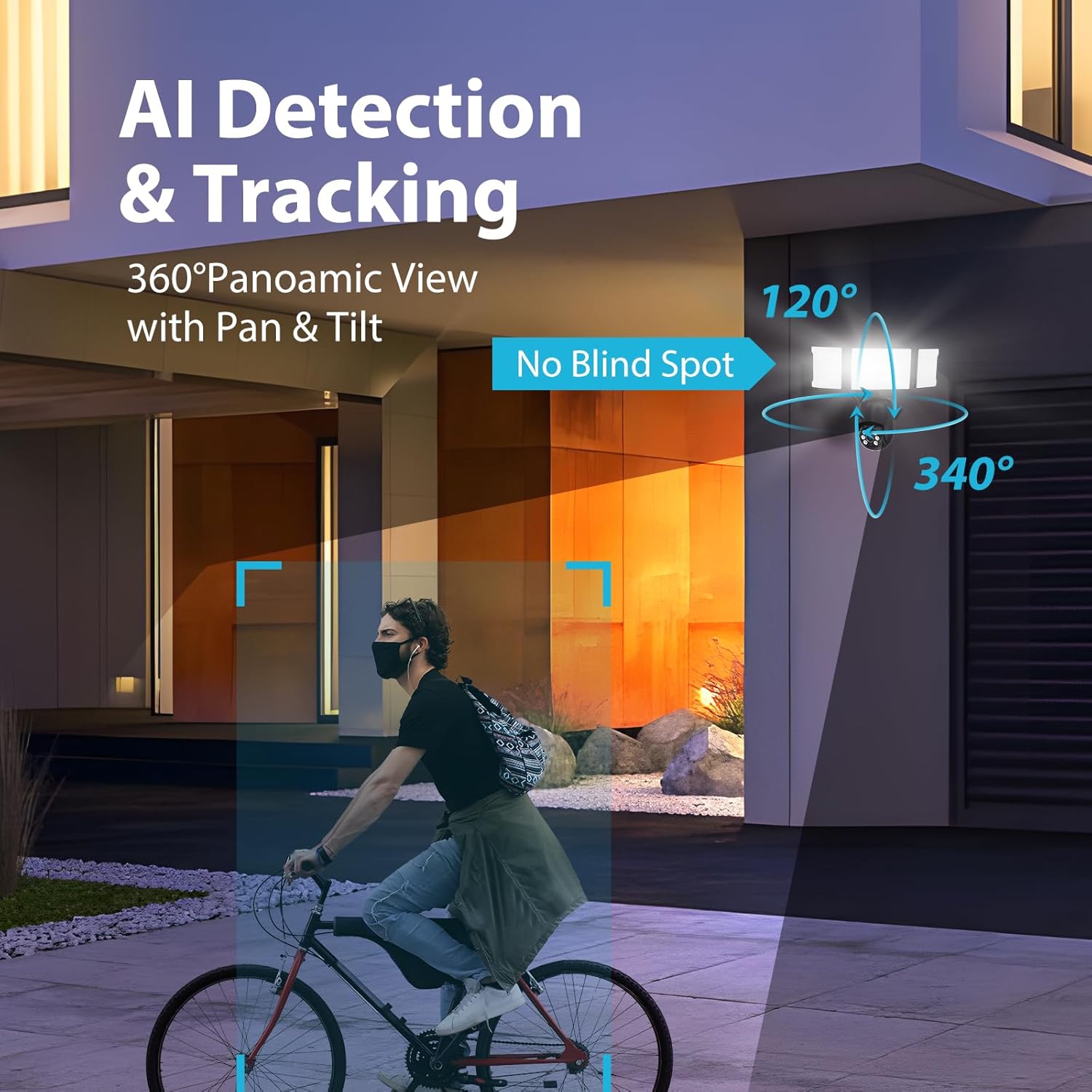
Figure 6.4: AI Detection & Tracking with panoramic view.

Figure 6.5: Motion detection alarm and mobile notification.

Figure 6.6: AI Lock and Tracking in action.

Figure 6.7: Motion detection triggering floodlights and notifications.
6.3 Ororongo Waa-rua
Utilize the built-in microphone and speaker for two-way communication. This allows you to speak to visitors or deter unwanted guests directly through the app.

Figure 6.8: Two-way audio for communication and deterrence.

Figure 6.9: Real-time two-way audio communication.
6.4 Mana Rama
The 55W floodlights (5500 lumens) can be adjusted for brightness and scheduled via the Smart Life APP. The three light heads are independently adjustable.

Figure 6.10: Adjustable lighting features and coverage.

Figure 6.11: Scheduling options for floodlight activation.
6.5 Storage Options and Playback
The camera supports both cloud storage and local storage via a Micro SD card (up to 128GB, not included). You can review non-stop recordings or event-triggered recordings.

Figure 6.12: Video playback interface and storage options.

Figure 6.13: Cloud and Micro SD card storage for recorded footage.
7. Tiaki
Mā te tiaki auau ka tino pai te mahi me te roa o te ora o tō kāmera rama waipuke.
- Te horoi: Gently wipe the camera lens and floodlight surfaces with a soft, damp kakahu. A ape i te kai horoi, te whakarewa ranei.
- Whakahōu Firmware: Periodically check the Smart Life APP for available firmware updates to ensure your device has the latest features and security enhancements.
- Nga Tikanga Taiao: The camera is IP65 waterproof, suitable for temperatures between -20°C and 50°C. Ensure proper drainage around the installation area to prevent water accumulation.

Figure 7.1: IP65 Waterproof rating and operating temperature range.
8. Te Raru
If you encounter issues with your Olafus Flood Light Camera, refer to the following common problems and solutions:
- Karekau te kamera e hono ana ki te Wi-Fi:
- Ensure your Wi-Fi network is 2.4GHz or 5GHz and stable.
- Tirohia kei te tika te kupuhipa Wi-Fi.
- Nekehia te kāmera kia tata atu ki te pouara Wi-Fi hei whakapai ake i te kaha o te tohu.
- Tīmataria anō te kāmera me tō pouara.
- Lights not turning off automatically:
- Check the light schedule and motion detection settings in the Smart Life APP.
- Ensure the motion sensor is not obstructed and its sensitivity is set appropriately.
- Te kounga ataata kino:
- Horoia te arotahi kamera.
- Ensure a strong Wi-Fi connection for optimal streaming.
- Check the resolution settings in the Smart Life APP.
- Karekau he matohi kitenga nekehanga:
- Verify motion detection is enabled in the Smart Life APP.
- Check the detection zone and sensitivity settings.
- Me whakarite kia whakahohea ngā whakamōhiotanga taupānga i runga i tō waea atamai.
9. Whakatakotoranga
| Āhuahira | Whakatakotoranga |
|---|---|
| Tau tauira | 3-LBC65M |
| Mahinga o roto/waho | Waho |
| Whakataunga Hopu Ataata | 2K (4 MP Effective) |
| Viewing Koki | 360 Ngā Tohu (340° whakapae, 120° poutū) |
| Puna Mana | Hiko Hiko |
| Kawa Hononga | Wi-Fi (2.4G & 5G hototahi) |
| Momo Kaiwhakahaere | Amazon Alexa, App |
| Momo Whakaeke | Maunga Taiepa |
| Wattage | 55 watts (5500 lumens) |
| Rauemi | Konumohe |
| Taumata Atete Wai | Parewai (IP65) |
| Te Waahi Mahi | -20°C ki te 50°C (-4°F ki te 122°F) |
| Momo Mahara Kohiko | Micro SD (tae atu ki te 128GB) |
| Hunga Hua | 9.5 x 5.7 x 10.7 inihi |
| Taumaha Tūemi | 2.93 pauna |
10. Pūtāhui me te Tautoko
Olafus provides a standard manufacturer's warranty for this product. For specific warranty details, please refer to the warranty card included in your package or contact Olafus customer support. If you require technical assistance or have questions not covered in this manual, please visit the official Olafus webpaetukutuku, whakapā atu ranei ki ta raatau roopu ratonga kaihoko.
Kaihanga: Olafus