
1. Kupu Whakataki
Kei roto i tēnei pukapuka ngā mōhiotanga nui mō te whakatūnga, te whakahaere, te tiaki, me te rapurongoā mō āu hapa ViewSonic IFP55G1 55-inch 4K UHD ViewBoard Interactive Display. Please read this manual thoroughly before using the product to ensure proper and safe operation.
Ko te ViewSonic IFP55G1 is a 55-inch 4K Ultra HD (3840x2160p) interactive display designed for educational and business environments. It features multi-point touch recognition, an OPS slot for external PCs, 10W dual speakers, and versatile connectivity options including HDMI, VGA, USB Hub, and USB-C inputs. Its OS-free design allows flexibility with various computing solutions.
Āhuatanga matua:
- Ultra HD Resolution: 55 Inch 4K Ultra HD (3840x2160p) interactive display for crisp visuals.
- Advanced Multi-Touch: Allows multiple users to write and interact simultaneously with fingers and passive pens.
- Hononga Hangawari: Equipped with a powerful quad-core processor and versatile ports including HDMI, VGA, RJ45, and USB.
- OS-Free Design: Provides enhanced security and flexibility to integrate with your preferred operating system via external PC or OPS device.
- Write-Away Technology: Enables instant writing with the stylus without extended setup.
2. He aha kei roto i te Pouaka
Manatokohia kei roto i tō kete ngā taonga katoa kua whakarārangihia i raro nei. Mēnā kua ngaro, kua pakaru rānei ētahi taonga, whakapā atu ki tō kaihoko i taua wā tonu.
- ViewSonic IFP55G1 Interactive Display
- 3m USB 2.0 touch cable x 1
- Touch pen (Passive pen) x 2 (VB-PEN-002)
- 3m taura hiko
- HDMI 2.0 cable 3m x 1
- Aratohu Timata Tere + Tauāki Tautukunga
- RS232 urutau
- Screw (wall mount 4)
- Pereti Kamera
- Remote control with AAA battery (Optional)
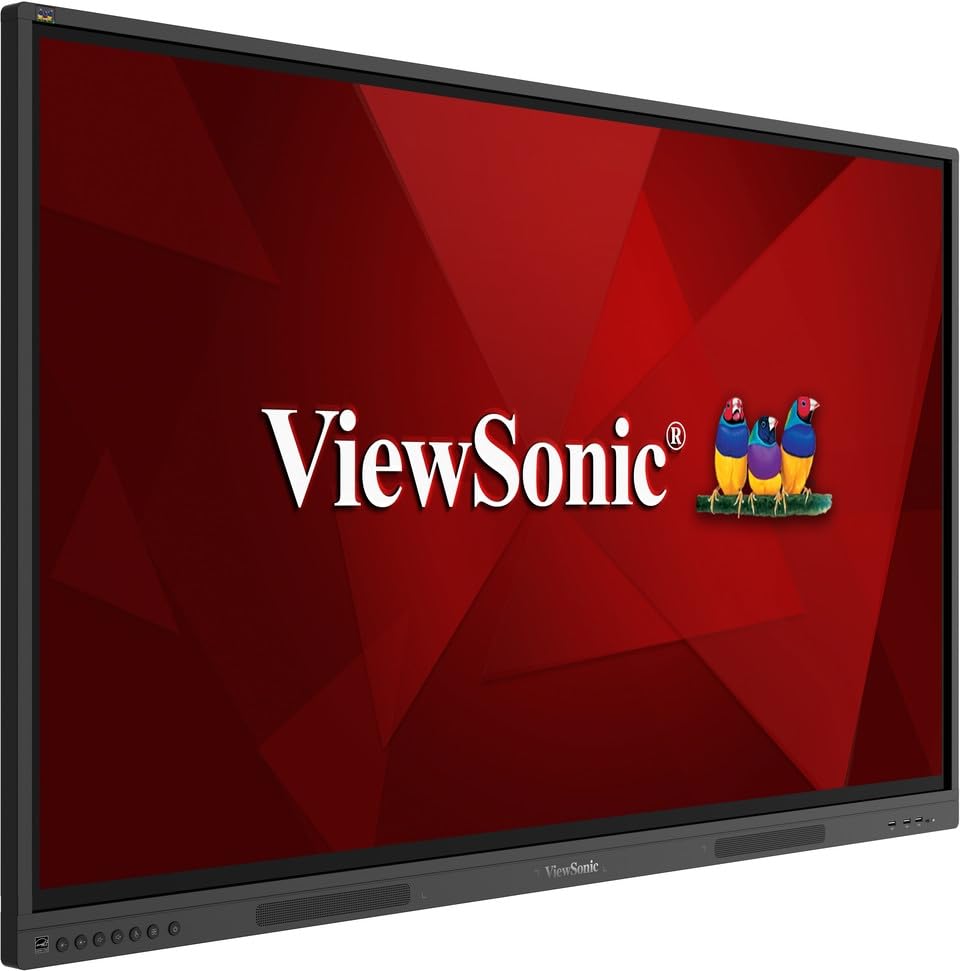
Atahanga: ViewSonic IFP55G1 55-inch ViewBoard Interactive Display, front view.
3. Tohutohu Tatūnga
3.1 Te Whakamau i te Whakaaturanga
The IFP55G1 can be wall-mounted or installed on a compatible mobile cart (sold separately). Ensure the mounting solution supports the display's weight (approximately 59.3 lbs / 26.9 kg) and dimensions (3.37 x 49.7 x 30.3 inches).
- For wall mounting, use the provided wall mount screws and ensure the wall structure is robust enough.
- Follow the instructions provided with your specific wall mount or mobile cart.
3.2 Hononga Pikitia
The display offers various ports for connecting external devices. Refer to the image below for port locations.

Whakaahua: Taha view o nga ViewSonic IFP55G1 interactive display showing various input ports including HDMI, VGA, and USB.
- Hononga Hiko: Connect the 3m power cable to the display and a grounded power outlet.
- Waitohu Ataata: Connect your external PC or media player to the display using an HDMI 2.0 cable (provided), VGA cable, or USB-C cable. The display has 3 HDMI ports, 1 VGA port, and USB-C connectivity.
- Taumahinga Pa: For interactive touch features with an external PC, connect the 3m USB 2.0 touch cable from the display's USB-B (Touch) port to a USB-A port on your PC.
- Wāhanga OPS: If using an optional ViewSonic Slot-in PC (OPS device), insert it into the dedicated OPS slot on the rear of the display. This provides an integrated computing solution.
- Whatunga: Honoa he taura Ethernet ki te tauranga RJ45 hei uru atu ki te whatunga waea.
- Pūrere USB: Use the available USB-A ports to connect USB drives, keyboards, mice, or other peripherals.

Whakaahua: Te ViewSonic IFP55G1 display demonstrating connectivity with various external devices, including laptops and mini PCs, highlighting its 'Bring Your Own Devices' capability.
4. Nga Tohutohu Whakahaere
4.1 Kei te Hiko / Weto
- Whakahiko: Press the power button located on the display's front or side panel, or use the remote control. The display will power on and show the input source.
- Weto Whakakore: Press the power button again. A confirmation message may appear; select 'Power Off'. For complete power disconnection, unplug the power cable.
4.2 Te Kowhiri i te Puna Whakauru
Use the 'Source' button on the display or remote control to cycle through available input sources (HDMI 1, HDMI 2, HDMI 3, VGA, USB-C, OPS).
4.3 Using Touch Functionality
Once the USB touch cable is connected to your external PC, the display will function as a multi-touch input device. You can use your fingers or the provided passive pens for interaction.
- Pa maihao: Use gestures similar to a tablet or smartphone for navigation, zooming, and drawing.
- Passive Pens: The two included passive pens (VB-PEN-002) allow for precise writing and drawing on the screen. The display's Write-Away technology enables instant use of the pens.

Image: A group of individuals collaborating around a ViewSonic IFP55G1 interactive display in a modern meeting room, demonstrating its multi-touch capabilities for instantaneous collaboration.
4.4 Mana Ororongo
The display features integrated 10W dual speakers. Adjust volume using the remote control or the buttons on the display panel.
5. Tiaki
5.1 Te Whakapai i te Whakaaturanga
- Mata: Me ata horoia te mata ki te kakahu ngohengohe, kore-puru. Mo nga tohu pakeke, kia ngawari dampen the cloth with water or a non-abrasive, ammonia-free screen cleaner. Do not spray cleaner directly onto the screen.
- Casing: Horoia te casinme te kakahu ngohengohe, maroke. Āta karohia te whakamahi i ngā matū kaha, i ngā rauemi whakakoi rānei.
5.2 Tiakitanga Whanui
- Avoid placing heavy objects on the display.
- Do not block ventilation openings on the rear of the display.
- Keep the display away from direct sunlight, heat sources, and excessive moisture.
6. Te Raru
Mena ka pa ki a koe nga raru o to ViewSonic IFP55G1, refer to the following common problems and solutions.
6.1 Kaore he Whakaatu / Mata Pango
- Ensure the power cable is securely connected to both the display and a working power outlet.
- Verify that the display is powered on (power indicator light should be active).
- Check that the video cable (HDMI, VGA, USB-C) is securely connected to both the display and the source device (PC, OPS).
- Select the correct input source using the 'Source' button on the display or remote control.
- Ensure the source device (PC, OPS) is powered on and outputting a video signal.
6.2 Touch Functionality Not Working
- Confirm the USB touch cable is securely connected from the display's USB-B (Touch) port to a USB-A port on your external PC.
- Ensure your external PC's operating system has the necessary drivers installed for touch input.
- Restart both the display and the connected PC.
6.3 Karekau he Oro
- Check the volume level on the display and the connected source device.
- Ensure the audio output from your source device is routed correctly to the display (e.g., via HDMI).
- If using an external audio system, ensure it is properly connected and powered on.
7. Whakatakotoranga
Kei raro nei ngā whakaritenga hangarau mō te ViewSonic IFP55G1 interactive display.
| Āhuahira | Whakatakotoranga |
|---|---|
| Waitohu | ViewSonic |
| Ingoa Tauira | IFP55G1 |
| Rahi Mata | 55 Inihi |
| Whakaatu Taumira Morahi | 3840x2160 Pika (4K UHD) |
| Whakatau Maori | 3840 x 2160 |
| Momo Whakaatu | LCD |
| Aspect Ratio | 16:9 |
| Tāuru Atanga Tangata | Mata pa |
| Hangarau Hononga | Ethernet, HDMI, USB Type C, VGA |
| Total Number of HDMI Ports | 3 |
| Tauranga USB katoa | 9 |
| Atanga Huaputa Ataata | Tauranga Whakaatu |
| Putanga Ororongo | Integrated 10W Dual Speakers |
| Rahi Tūemi (LxWxH) | 3.37 x 49.7 x 30.3 inihi |
| Taumaha Tūemi | 59.3 Pauna |
| Tae | Pango |
| Nga waahanga motuhake | All-in-one USB port, Anti Glare Display, Light Sensor, Speakers, Touchscreen |
| Pūrere Hototahi | Papamahi, Pona |
| UPC | 766907024654 |
8. Pūtāhui me te Tautoko
8.1 Nga Korero Whakaputanga
Ko te ViewSonic IFP55G1 interactive display comes with an industry-leading 3-tau iti pūtāhui on parts, labor, and backlight. Onsite warranty service may also be available. Please refer to the warranty card included in your package or visit the official ViewSonic website for detailed terms and conditions, and information on optional warranty extensions.
8.2 Tautoko Kiritaki
For technical assistance, product inquiries, or warranty claims, please contact ViewSonic's award-winning customer service team. Contact information can be found on the official ViewSonic webpaetukutuku, i roto rānei i te Aratohu Tīmata Tere i whakaratohia me tō hua.