1. Kupu Whakataki
This manual provides detailed instructions for the installation, operation, and maintenance of the QUASAR X99 H5 Motherboard. The X99 H5 is a robust solution designed for workstations and servers, supporting LGA 2011-3 socket processors, including Intel Xeon V3/V4 series. It features DDR4 REG ECC memory support in a Dual Channel configuration, ensuring reliable stability and high performance for demanding applications such as rendering, virtualization, and intensive data processing.
Key features include PCIe 16X slots for expansion, an M.2 NVMe slot for high-speed storage, and multiple SATA 3.0 ports for additional drives. High-speed USB 3.0 ports are also integrated for rapid data transfer and peripheral connectivity. Its well-planned layout simplifies system assembly and maintenance, while quality components contribute to operational longevity and stability.
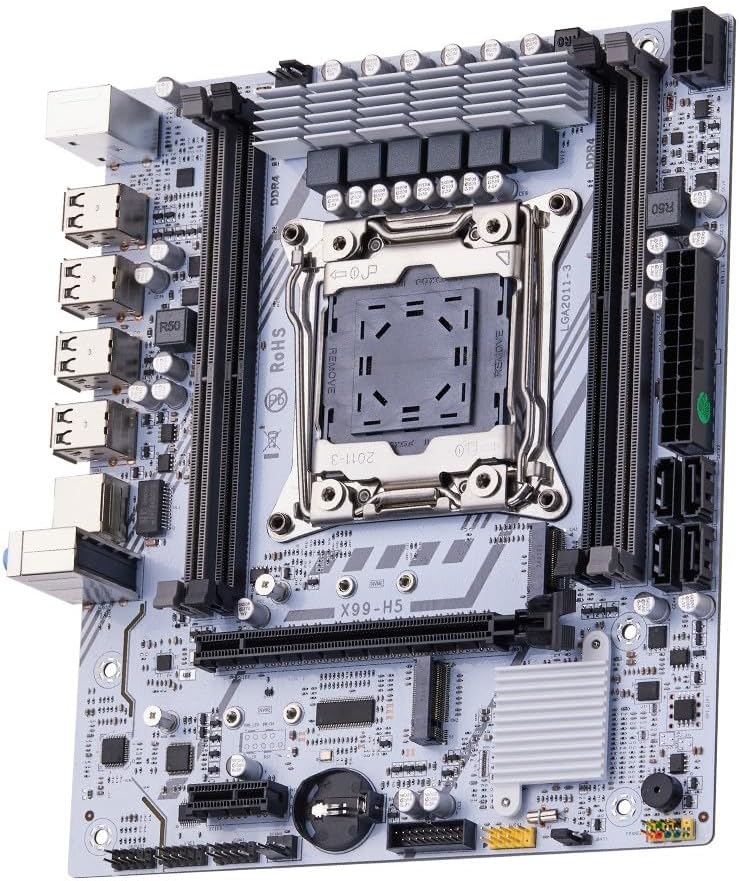
Whakaatu 1.1: Neke Atuview of the QUASAR X99 H5 Motherboard. This image displays the full motherboard, highlighting its compact and efficient design, including the CPU socket, memory slots, and various expansion ports.
2. Nga korero haumaru
Please read all safety instructions carefully before installing or operating the motherboard. Failure to follow these guidelines may result in personal injury, damage to the product, or damage to other components.
- Momotuhia i nga wa katoa te hiko mai i te putanga o te pakitara i mua i te whakauru, te tango ranei i etahi waahanga.
- Mauria he whitiki ringaringa ārai-pūmau, pā atu rānei ki tētahi mea whakarewa kua whenua hei tuku i te hiko pūmau i mua i te pā atu ki te papahoahoa, ki ētahi atu wāhanga rānei.
- Kia mau ki te papahoa papa ki ona tapa kia kore e pa ki nga waahanga tairongo.
- Me whakarite kia tika te hau i roto i te pouaka rorohiko hei ārai i te wera nui.
- Kaua e tukuna te papahoahoa ki te makuku, ki te wera nui ranei.
- Kaua e taea e nga tamariki.
3. Tatūnga me te Tāuta
3.1. Te Tautuhi Wae
Kia mōhio koe ki ngā wāhanga me ngā hononga o te papahoahoa i mua i te tīmatanga o te tāutanga.

Figure 3.1: Labeled diagram of the QUASAR X99 H5 Motherboard. This image indicates the location of key components such as the CPU socket, DDR4 memory slots, PCIe slots, M.2 NVMe slot, SATA ports, USB ports, and power connectors.
- LGA 2011-3 CPU Socket: For Intel Xeon V3/V4 processors.
- DDR4 Memory Slots (4x): Supports DDR4 REG ECC memory up to 128GB.
- PCIe 16X Slots: Mō ngā kāri whakairoiro me ētahi atu kāri whakawhānui.
- M.2 NVMe Slot: For high-speed solid-state drives.
- Tauranga SATA 3.0: For connecting traditional hard drives and SSDs.
- Tūhono Hiko ATX 24-pin: Tāuru mana matua.
- 8-pin CPU Power Connector: Additional power for the CPU.
- Ngā tauranga USB 3.0/2.0: For peripheral connectivity.
- Tauranga Itarangi Gigabit: Mo te hononga whatunga.
- Jacks Ororongo: Mo te ororongo whakauru/putanga.
- Ngā Tauranga PS/2: For legacy keyboard and mouse.
3.2. Rarangi Arowhai i mua i te whakaurunga
- Compatible CPU (Intel Xeon V3/V4 series, LGA 2011-3 socket).
- Compatible DDR4 REG ECC memory modules.
- ATX power supply unit.
- Computer case with ATX form factor support.
- Storage devices (M.2 NVMe SSD, SATA SSD/HDD).
- Graphics card (if CPU does not have integrated graphics or for dedicated performance).
- Screwdriver set, anti-static wrist strap.
3.3. Nga Taahiranga Whakamutunga
- Whakapaia te Take: Tāutahia te parepare I/O ki te tuwhera o muri o to pouaka rorohiko.
- Tāutahia te PTM:
- Open the CPU socket retention mechanism.
- Āta whakaritea te PTM ki te putanga, kia rite te tohu tapatoru o te PTM ki te tohu o te putanga.
- Tuhia ata te PTM ki roto i te turanga me te kore e akina.
- Close the retention mechanism to secure the CPU.
- Tāutahia te Matao CPU: Hoatuhia te whakapiri waiariki (mehemea kaore i te tono i mua) ka whakauru i te whakamatao CPU kia rite ki nga tohutohu a te kaihanga. Honoa te taura tahi PTM ki te pane CPU_FAN i runga i te papahoahoa.
- Tāuta Kōwae Pūmahara:
- Whakatuwheratia ngā topenga kei runga i ngā mokamoka mahara DDR4.
- Whakahāngaihia te kōhao o te wae mahara ki te kī i roto i te mokamoka.
- Press down firmly on both ends of the module until the clips snap into place. For Dual Channel configuration, refer to the motherboard's silkscreen for recommended slot pairing (e.g., A1 and B1).
- Maunga te Papamatua: Carefully place the motherboard into the computer case, aligning it with the standoffs. Secure the motherboard with screws.
- Tāutahia ngā Pūrere Rokiroki:
- For M.2 NVMe SSDs: Insert the M.2 SSD into the M.2 slot and secure it with the provided screw.
- For SATA drives: Connect SATA data cables from the motherboard's SATA ports to your drives. Connect power cables from the PSU to your drives.
- Tāuta Kāri Roha: Insert graphics cards or other PCIe expansion cards into the appropriate PCIe slots and secure them with the case's retention mechanism.
- Tūhono Tuku Hiko:
- Connect the 24-pin ATX power cable from the PSU to the motherboard.
- Connect the 8-pin CPU power cable from the PSU to the motherboard.
- Honoa ngā Taura o te Paewhiri o Mua: Connect the power button, reset button, HDD LED, power LED, and front panel USB/audio cables to their respective headers on the motherboard. Refer to the motherboard's silkscreen or a detailed diagram for correct pin assignments.
- Tūhono Pikitia: Tūhonohia tō mata, papapātuhi, kiore, me ētahi atu taputapu taapiri ki ngā tauranga I/O o muri.

Whakaahua 3.2: Whakatata view of the rear I/O panel of the QUASAR X99 H5 Motherboard. This image shows the PS/2 ports for keyboard and mouse, multiple USB ports, the Ethernet port, and the audio jacks.
4. Nga Tohutohu Whakahaere
4.1. Te Whakaara Tuatahi me te Tatūnga BIOS
- After connecting all components and power, press the power button on your computer case.
- I te wā e tīmata ana, pēhia tonutia te pātene DEL or F2 key (common BIOS entry keys) to enter the BIOS/UEFI setup utility. The exact key may vary; check your screen for prompts.
- I roto i te BIOS, manatokohia kua kitea tika ngā wāhanga katoa kua tāutahia (CPU, RAM, puku rokiroki).
- Whirihorahia te raupapa whakaara kia rite ki te kaupapa matua o ngā pāpāho tāutanga o tō pūnaha whakahaere (puku USB, DVD rānei).
- Tiakina ngā huringa ka puta atu i te BIOS. Ka tīmata anō te pūnaha.
4.2. Tāuta Pūnaha Whakahaere
Follow the instructions provided with your operating system (e.g., Windows, Linux) to complete the installation process. Ensure you install all necessary drivers for the motherboard's chipsets, network adapter, audio, and any other integrated components. Drivers are typically available on the manufacturer's website or included on a driver disc.
4.3. Tāuta Atekōkiri
For optimal performance and stability, install the latest drivers for your motherboard. These typically include:
- Ngā Atekōkiri Chipset
- LAN (Ethernet) Drivers
- Atekōkiri Ororongo
- USB Drivers (if specific ones are required)
- SATA/NVMe Storage Drivers
Visit the manufacturer's support website for the X99 H5 motherboard to download the most current drivers.
5. Tiaki
Mā te tiaki auau ka roa te ora me te mahi tino pai o tō papahoahoa me tō pūnaha.
- Tango Puehu: Periodically clean dust from inside your computer case, especially from fans, heatsinks, and the motherboard surface. Use compressed air or a soft brush. Ensure the system is powered off and unplugged before cleaning.
- Whakahōu BIOS/UEFI: Tirohia te kaihanga webpae mō ngā whakahōutanga BIOS/UEFI. Ka taea e ngā whakahōutanga te whakapai ake i te hototahitanga, te pumau, me te mahi. Whāia marietia ngā tohutohu whakahōu kia kore ai e pakaru te papahoahoa.
- Whakahōu Atekōkiri: Keep your system drivers updated to the latest versions.
- Whakaha Uepu: Whakaritea nga taura o roto kia pai te rere o te hau me te aukati i te pokanoa.
- Mana Taiao: Operate the system in a clean, dry, and well-ventilated environment. Avoid extreme temperatures and humidity.
6. Te Raru
Ko tenei waahanga e whakarato ana i nga otinga mo nga take noa ka pa ki a koe.
| Raruraru | Take pea | Rongoā |
|---|---|---|
| Kaore te punaha i te hiko. | No power, loose connections, faulty PSU. | Check power cable, 24-pin and 8-pin power connectors. Ensure PSU switch is ON. Test PSU if possible. |
| Karekau he whakaaturanga ki te aroturuki. | Loose graphics card, faulty RAM, incorrect monitor input. | Reseat graphics card and RAM modules. Check monitor cable and input source. Test with one RAM stick. |
| Ka tīmata anō te pūnaha i te wā kāore i te tūmanakohia. | Overheating, unstable power, faulty components. | Check CPU cooler installation. Ensure adequate case ventilation. Verify PSU stability. Run memory diagnostic. |
| Kaore i kitea te punaha whakahaere. | Incorrect boot order, unformatted drive, faulty drive. | Check BIOS boot order. Ensure storage drive is properly connected and formatted with an OS. |
| Kāore i te mōhiotia ngā pūrere USB. | Missing drivers, faulty port, device issue. | Install/update USB drivers. Try different USB ports. Test device on another system. |
If issues persist, consult the manufacturer's support resources or a qualified technician.
7. Whakatakotoranga
| Āhuahira | Taipitopito |
|---|---|
| Waitohu | Generic (Manufactured by Machinist) |
| Huinga Tauira | X99 H5 |
| Putunga PTM | LGA 2011-3 |
| Tukatuka Hototahi | Intel Xeon V3/V4 series |
| Hangarau Mahara | DDR4 REG ECC |
| Mahara Mahara | 4 x DDR4 DIMM slots (Dual Channel) |
| Mahara Max Tautokohia | 128 GB |
| Tere Karaka Mahara | Up to 3200 MHz (actual speed depends on CPU and memory modules) |
| Atanga Rokiroki | 1 x M.2 NVMe slot, Multiple SATA 3.0 ports |
| Roha Slots | PCIe 16X slots (number not specified, but typically at least one) |
| Whatunga | 1 x Tauranga Itarangi Gigabit |
| Tauranga USB | USB 3.0 and USB 2.0 ports (number not specified, but typically multiple) |
| Ororongo | Ngā Hononga Ororongo Whakauru |
| Tauwehe Puka | ATX (Dimensions: 30.5 x 24.4 cm) |
| Taumaha Hua | 1 Kirokaramu |
8. Pūtāhui me te Tautoko
Mō ngā mōhiohio pūtāhui me te tautoko hangarau, tirohia ngā tuhinga i whakaratohia me tō hoko, tirohia rānei te tari mana o te kaihanga. webpae. Puritia to tohu hoko mo nga kereme whakamana.
Typical support resources include:
- Online FAQs and Knowledge Base
- Driver and BIOS Download Section
- Customer Service Contact Information (Email/Phone)
When contacting support, please have your motherboard model (X99 H5) and any relevant error messages or system configurations ready.


