
BOTSLAB G980H 4 Channel
Pukapuka Kaiwhakamahi mō te Kāmera Papaaho 4 Hongere a BOTSLAB G980H
Model: G980H 4 Channel
Brand: BOTSLAB
1. Kupu Whakataki
Thank you for choosing the BOTSLAB G980H 4 Channel Dash Cam. This manual provides detailed instructions on how to install, operate, and maintain your dash cam to ensure optimal performance and longevity. Please read this manual thoroughly before using the product and keep it for future reference.
2. Hua Neke Atuview
2.1. Ihirangi mokete
Manatokohia ko nga mea katoa kei raro nei kei roto i to kete:
- Wae matua x 1
- Rear camera x 1 (6.5M)
- 3M Tape x 2
- Car charger x 1 (3.5M)
- 128GB TF Card x 1
- Kiriata hiko x 2
- Arataki Tere Tere x 1
- Pukapuka Kaiwhakamahi x 1
- Kari Whakatupato x 1
- Pae puri whakauru x 1

Image: All components included in the BOTSLAB G980H 4 Channel Dash Cam package, neatly arranged.
2.2. Nga waahanga matua
- 4 Channel Dash Cam: Records simultaneously with a 170° front camera, dual 120° side cameras, and a 150° rear camera, providing 560° coverage. The side cameras feature a detachable magnetic mount, allowing flexible configuration between 4-channel, 3-channel (4K+1080P*2), or dual dash cam (4K+1080P) modes.
- Aratau Waka 24/7: Offers three parking surveillance modes (requires hardwiring kit): Time-Lapse Recording (1 frame/sec), Sentry Mode (1-minute emergency video on front camera movement detection), and Collision Detection (1-minute video lock on impact).
- Matakitenga po: Equipped with F1.8 Aperture, 6 lenses, 940nm infrared LED, and Wide Dynamic Range (WDR) for clear, balanced footage i roto i nga ahuatanga marama iti.
- Voice Control & 3.18" Touch Screen: Allows hands-free operation via voice commands and easy settings adjustment through the 3.18" touchscreen. Features a 4-way split screen playback.
- GPS-i roto: High-precision GPS module records location, speed, and travel route. Compatible with [DVplayer] software for dynamic route animations and AR-enhanced interface in the Botslab App.
- 5.8GHz Wi-Fi: Provides 300% faster transfer speeds for instant 4K video transmission to your phone. Includes static-cling mounts and a free 128GB SD card.
- Āhuatanga Haumaru: Features an "8-second pre-recording function" activated by the high-precision G-sensor during collisions or abnormal vibrations, ensuring comprehensive event capture. Supports up to 512GB storage.
- Punga Nui: Ensures stable performance in extreme temperatures (-20°C to 70°C), prevents data loss during power cuts, and extends lifespan. Ideal for all-weather parking monitoring (requires hardwired kit).

Image: Illustrates the 3K Super HD view capturing all angles, including front, left, right, and rear camera feeds.

Image: Diagram showing the 560° field of view with 170° front, 120° left, 120° right, and 150° rear camera angles, eliminating blind spots.
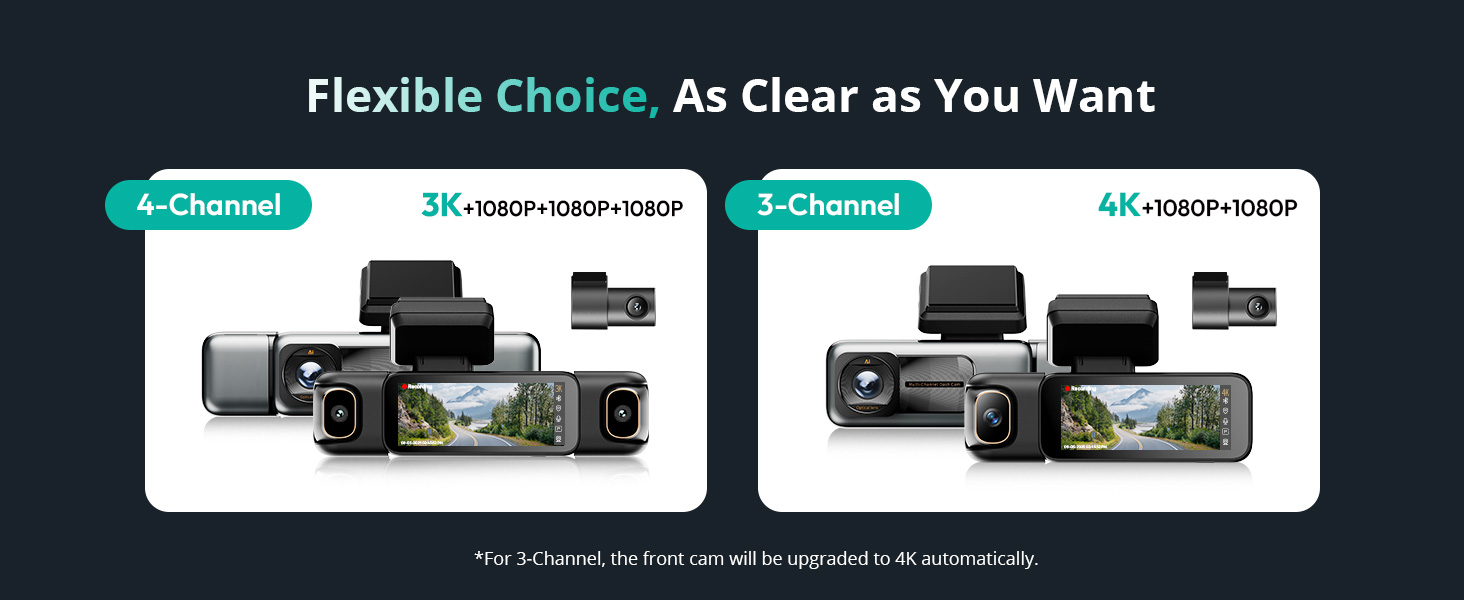
Image: Depicts the flexible choice between 4-channel (3K+1080P+1080P+1080P) and 3-channel (4K+1080P+1080P) configurations.

Image: Visual representation of the 24/7 Smart Parking Protection features, including Sentry Mode, Collision-Detected Recording, and Time-Lapse Recording.

Image: Diagram illustrating the 24/7 Smart Parking Monitor functionality, highlighting Sentry Mode, Collision-detected recording, and Time-lapse recording.
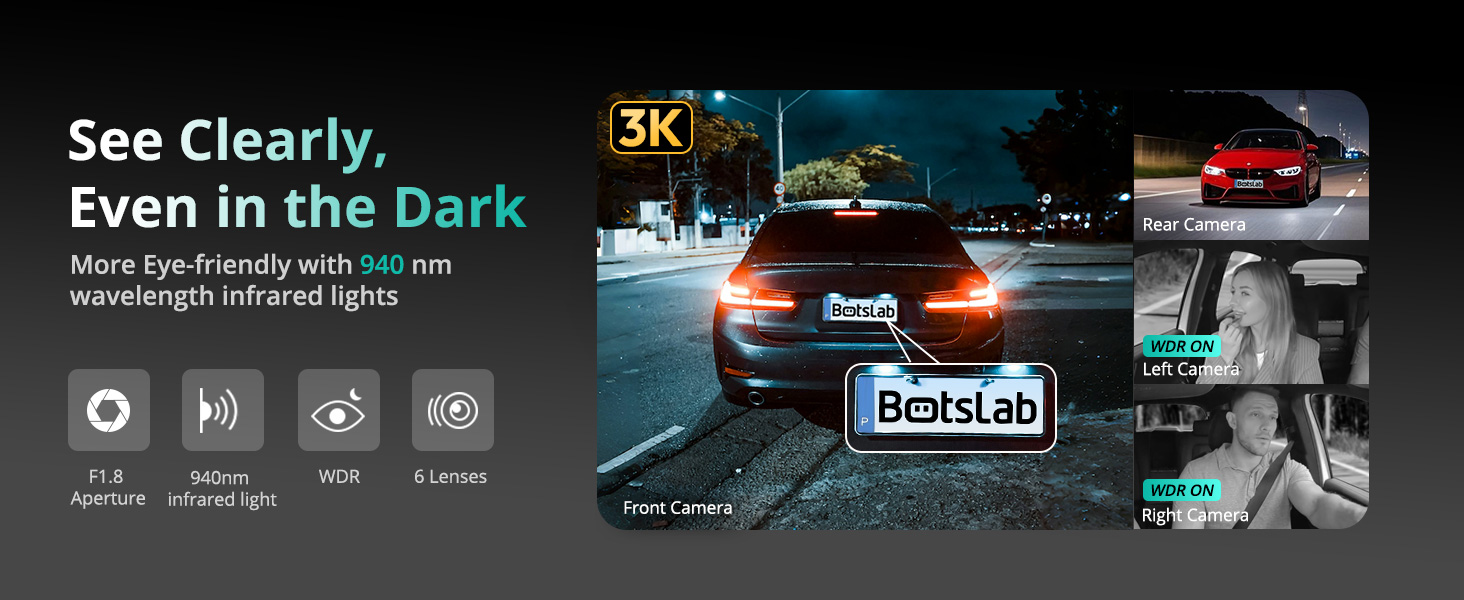
Image: Demonstrates the dash cam's ability to record clearly in the dark, highlighting F1.8 Aperture, 940nm infrared light, WDR, and 6 lenses.

Image: A hand interacting with the 3.18-inch touchscreen display of the dash cam, showing intuitive control.

Image: Illustrates various voice commands for hands-free operation, such as 'Take photo', 'Video start', and 'Turn on screen'.

Image: Shows the built-in GPS functionality tracking a drive on a map, with integration for Google Maps and real-time data display.

Image: Highlights the 5.8GHz Wi-Fi feature, emphasizing 5X faster data transfer speeds for quick preview and playback on a smartphone.

Image: Illustrates how the dash cam secures footage in emergencies, including 8 seconds of buffered recording before an event and subsequent emergency recording.

Whakaahua: Te hua matua view of the BOTSLAB G980H 4 Channel Dash Cam alongside a smartphone displaying its companion app interface.

Image: Shows the dash cam's snap-on design for side cameras and their 90-degree rotation capability, allowing users to choose their preferred view.
3. Tatūnga
3.1. Tāutanga
- Whakapaia te Matapihi: Clean the area on your windshield where the dash cam will be mounted. Apply the electrostatic film first to prevent adhesive residue.
- Tāutahia te Wāhanga Matua: Attach the main unit to the windshield using the provided 3M tape. Ensure it is positioned to capture the desired front view without obstructing your driving vision.
- Hono Hono: Plug the car charger into your vehicle's cigarette lighter socket and connect the other end to the main unit. Route the cable neatly using the installation pry bar to tuck it along the vehicle's interior trim.
- Tāutahia te Kāmera Whakamuri: Mount the rear camera on your rear windshield. Connect its cable to the main unit and route the cable discreetly.
- Attach Side Cameras: The side cameras attach magnetically to the main unit. Ensure they are securely snapped into place. Adjust their angles (90° rotation) to cover the left and right interior/exterior views rite hiahiatia.

Image: Diagram showing the easy installation process, including placement of the front camera, power connection, and rear camera.
3.2. Tatūnga Tuatahi
- Kōkuhu Kāri SD: Insert the provided 128GB TF card into the designated slot on the dash cam.
- Whakahiko: Start your vehicle to power on the dash cam. The device will automatically turn on and begin recording.
- Whakahōputuhia te Kaari SD: It is recommended to format the SD card upon first use and periodically thereafter to ensure stable recording performance. Access the settings menu via the touchscreen to find the format option.
- Adjust Basic Settings: Use the 3.18" touchscreen to set the date, time, video resolution, and other preferences.
4. Mahi
4.1. Tuhituhi Taketake
Once powered on, the dash cam automatically begins loop recording. Video files are saved to the SD card in segments. When the card is full, the oldest unlocked fileka tuhiruatia s.
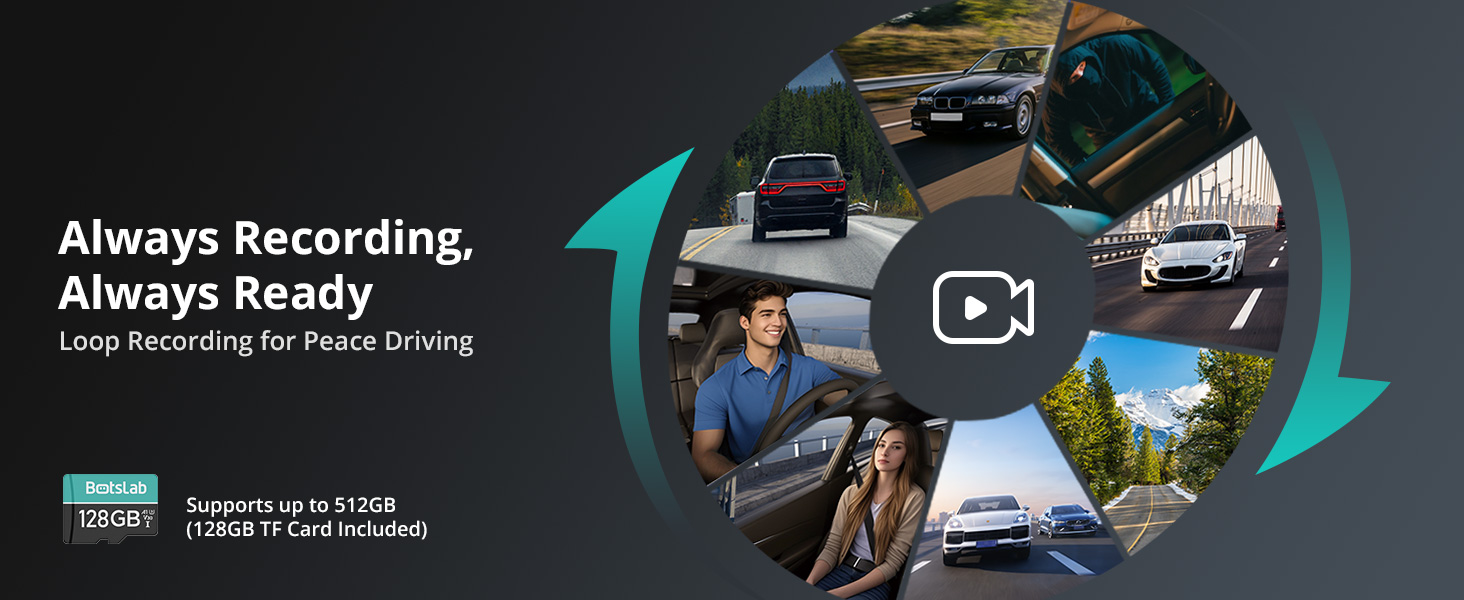
Image: Illustrates the continuous loop recording function, ensuring the dash cam is always ready to capture footage.
4.2. Mana Reo
The dash cam supports hands-free voice commands for common operations. Speak clearly and directly to the device:
- "Take photo"
- "Video start"
- "Turn on screen"
- "Turn off screen"
- "Show front camera"
- "Show rear camera"
- "Inside video"
- "Turn on audio"
- "Turn off audio"
4.3. Touch Screen Navigation
The 3.18" touchscreen allows for intuitive navigation and settings adjustment. Swipe and tap to access menus, review footage, and change camera views (including 4-way split screen playback).
4.4. Aratau Waka
To enable 24/7 parking surveillance, a dedicated hardwiring kit (ASIN: B0DT1633D2) is required. Once installed, you can select from:
- Papaanga Whaatea: Records at 1 frame per second to conserve storage while providing continuous monitoring.
- Sentry Mode: Automatically records a 1-minute emergency video when the front camera detects movement within 5 meters.
- Rapunga Tutukinga: Locks a 1-minute video upon impact to preserve crucial evidence.
4.5. Hononga Wi-Fi me te Taupānga
Connect your smartphone to the dash cam via 5.8GHz Wi-Fi for fast video transfer, live view, and playback. Download the Botslab App from your app store. The app also features a built-in video editor for sharing moments.

Image: Screenshot of the Botslab App showing its built-in video editor and sharing options for recorded footage.
4.6. Taumahinga GPS
The built-in GPS module accurately records your vehicle's location, speed, and travel route. Use the [DVplayer] software on your PC or the Botslab App to review driving paths with dynamic route animations and AR-enhanced data overlays.
4.7. Rekoata ohorere
The high-precision G-sensor detects collisions or abnormal vibrations. When triggered, it initiates emergency recording and includes an 8-second pre-recording buffer to capture the full event sequence.
5. Tiaki
5.1. Whakahaere Kaari SD
Regularly format the SD card (at least once a month) to prevent data corruption and ensure optimal recording performance. Back up any important footage i mua i te whakahōputu.
5.2. Te horoi
Use a soft, dry cloth to clean the dash cam's lenses and screen. Avoid using abrasive cleaners or solvents that could damage the device.
5.3. Super Capacitor Care
The super capacitor is designed for durability and performance in varying temperatures. No specific user maintenance is required for the super capacitor itself, but ensure the device is operated within its specified temperature range (-20°C to 70°C).
6. Te Raru
If you encounter issues with your BOTSLAB G980H Dash Cam, please refer to the following common problems and solutions:
| Raruraru | Rongoa pea |
|---|---|
| Karekau te kamera i te hiko. | Check the power connection to the car charger and ensure the vehicle's cigarette lighter socket is functioning. Try a different power source if available. |
| Ngā mutu tuhi, ngā foo rāneitagkua pirau a e. | Format the SD card. Ensure you are using a high-endurance SD card. Replace the SD card if the issue persists. |
| Te kounga ataata kino i te pō. | Ensure the lens is clean. Verify that WDR and night vision settings are enabled. |
| Kāore te mana reo e aro mai. | Speak clearly and ensure there is no excessive background noise. Check the microphone settings. |
| Nga take hononga Wi-Fi. | Restart the dash cam and your smartphone. Ensure you are within range of the dash cam's Wi-Fi signal. |
| Parking mode not activating. | Confirm that the hardwiring kit is correctly installed and connected. Check parking mode settings in the menu. |
If the problem persists after trying these solutions, please contact BOTSLAB customer support for assistance.
7. Whakatakotoranga
| Āhuahira | Taipitopito |
|---|---|
| Hunga Hua | 6.02 x 5.39 x 3.94 inihi |
| Taumaha Tūemi | 1.03 pauna |
| ASIN | B0F8W7CWHK |
| Tauira Tuemi | G980H 4 Channel |
| Pūhiko | 1 nga pākahiko Lithium Ion e hiahiatia ana. |
| Te Ra Tuatahi Wātea | Haratua 16, 2025 |
| Kaihanga | BOTSLAB |
| Whenua Taketake | Haina |
| Waitohu | BOTSLAB |
| Ingoa Tauira | G980H 4 Channel Dash Cam |
| Takotoranga | Te taha taraiwa |
| Momo Ratonga Taikaha | Waka |
| Hangarau Hononga | Ahokore |
| Āhuahira Motuhake | 4 Channel |
| Whakataunga Hopu Ataata | 3K |
| Nga Waahanga kei roto | Blu-ray (Note: This appears to be an error in the source data, typically refers to the included SD card or manual) |
| Momo Whakaeke | Wall (Note: This appears to be an error in the source data, typically refers to windshield mount) |
| Tae | hiriwa |
8. Pūtāhui me te Tautoko
8.1. Nga Korero Whakaputanga
BOTSLAB offers a 365-Day Quality Guarantee for this product. This warranty covers manufacturing defects and ensures the product meets quality standards for one year from the date of purchase.
8.2. Tautoko Kiritaki
For any technical assistance, inquiries, or support needs, BOTSLAB is committed to providing comprehensive customer service:
- Āwhina Hangarau Mō Te Wā Katoa: Access ongoing technical support for the lifespan of your product.
- 30-Ra Whakahoki Koreutu: Enjoy a hassle-free return policy within 30 days of purchase.
- 48 Hours Fast Support: Expect a prompt response to your support queries within 48 hours.
You can reach BOTSLAB customer support through the following channels:
- 24 Hours Live Chat: Download the Botslab APP, register and sign in, then navigate to Me > Support > Live Chat.
- Webpae: Visit the official BOTSLAB webpae i global.botslab.com
- Īmēra: Send your inquiries to Service@botslab.com
- Botslab Users Group: Join the community on Facebook for peer support and updates.

Image: Provides contact information for BOTSLAB customer support, including live chat via app, website, email, and Facebook group.
Ask a question about this manual
Ask about setup, troubleshooting, compatibility, parts, safety, or missing instructions. Manuals+ will review the question and use this page’s manual context to help answer it.