
1. Neke atu i teview
The Roku Select Series HD TV provides a streamlined entertainment experience. This 32-inch 720p HD television integrates the Roku operating system for easy access to streaming content, live TV, and various applications. It features a voice remote for convenient control and includes technologies like Bluetooth Headphone Mode and Dolby Audio for enhanced sound.
Nga waahanga matua
- Rere Maeneene: Fast Wi-Fi and quick app launches for immediate entertainment access.
- Extensive Content: Access to thousands of streaming apps, free movies, shows, and live TV channels.
- Mata Kāinga Whakaritenga: Organize apps and content for personalized viewing.
- Automatic Software Updates: Ensures access to the latest features and applications.
- Whakauru Whare Ataata: Compatible with Roku Voice, Siri, Alexa, and Google Assistant for voice control. Supports Apple AirPlay for content sharing.
- Clear HD Picture: 720p HD resolution with Roku Smart Picture technology for optimized visuals.
- Mamao reo: Search, play, and control streaming with voice commands.
- Ororongo Whakarei: Designed for clear speech and louder sound with Dolby Audio technology.
- Aratau Paneoro Nihokikorangi: Private listening with wireless headphones.
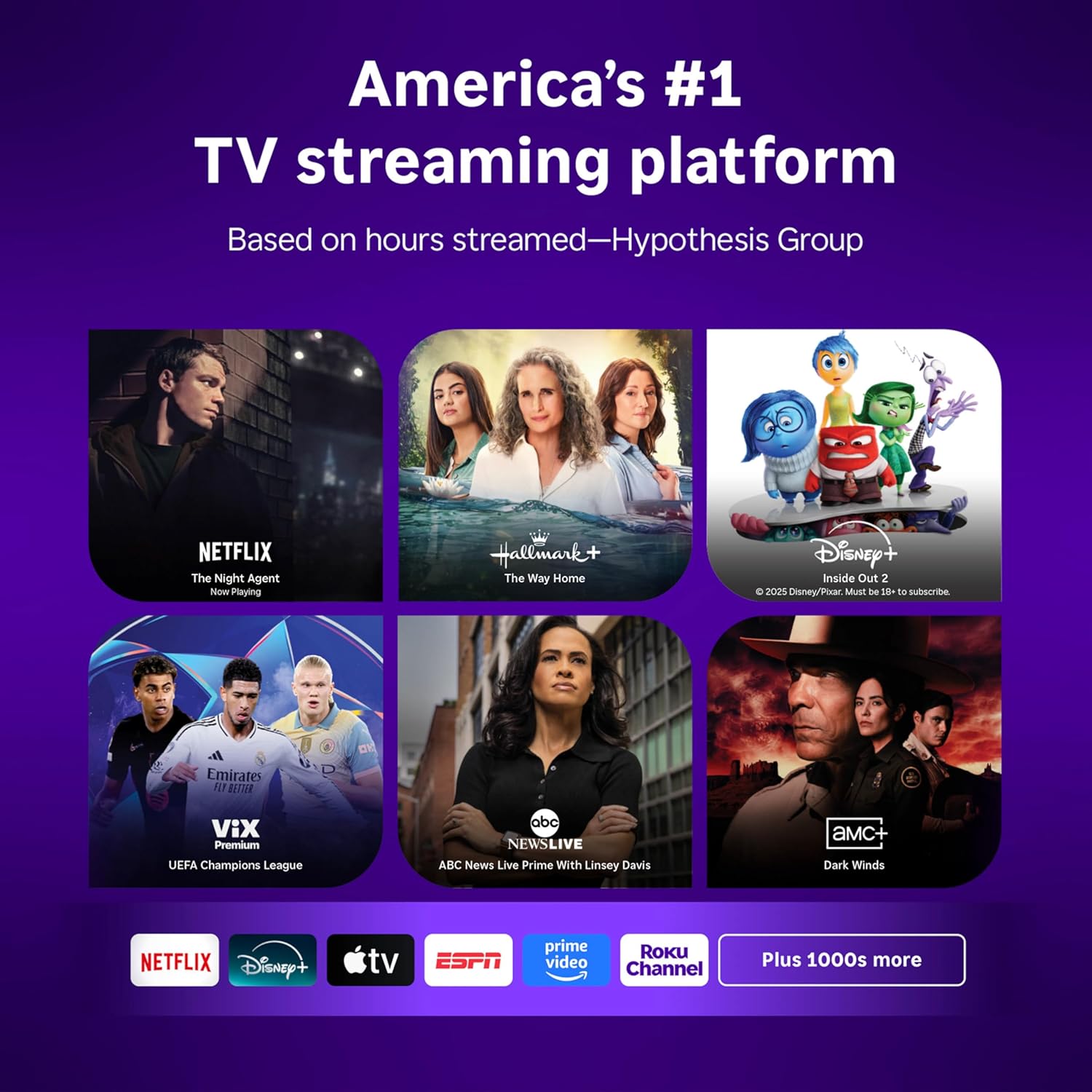
Image: Roku 32-inch Select Series HD Smart TV with included remote control.
2. He aha kei roto i te Pouaka
Manatokohia kei te noho nga waahanga katoa i mua i te haere ki te tatūnga.
- Roku Select Series 32" HD TV
- Ngā tūnga me ngā tīwiri
- Roku Voice Remote with batteries (2 AAA)
- Waea Hiko
- Pukapuka Kaiwhakamahi (tenei tuhinga)

Image: Contents of the Roku Select Series TV packaging.
3. Tatūnga
3.1 Te Wetewete
Kia ata tangohia te pouaka whakaata me nga taputapu katoa mai i te kete. Pupuritia te putunga mo te kawe waka me nga hiahia ratonga.
3.2 Te Whakapiri i te Tu
- Whakanohoia te mata pouaka whakaata ki runga i te mata ngawari, ma kia kore ai e pakaru.
- Tiarohia te turanga pouaka whakaata me nga kohao wiri kei raro o te pouaka whakaata.
- Whakaorangia nga turanga ma te whakamahi i nga wiri kua whakaratohia. Me whakarite kia mau tonu.
3.3 Hononga Pikitia
Honoa o taputapu ki nga tauranga e tika ana kei muri o te pouaka whakaata.
- HDMI: Connect up to three HDMI devices (e.g., cable box, gaming console, Blu-ray player) to the HDMI ports.
- USB: Use the USB port for media playback or connecting compatible accessories.
- Optical (S/PDIF): Mo te hono ki te punaha ororongo o waho.
- Taputapu Tahana: Tūhonohia te taura hiko ki te pouaka whakaata, katahi ki te putanga pakitara.
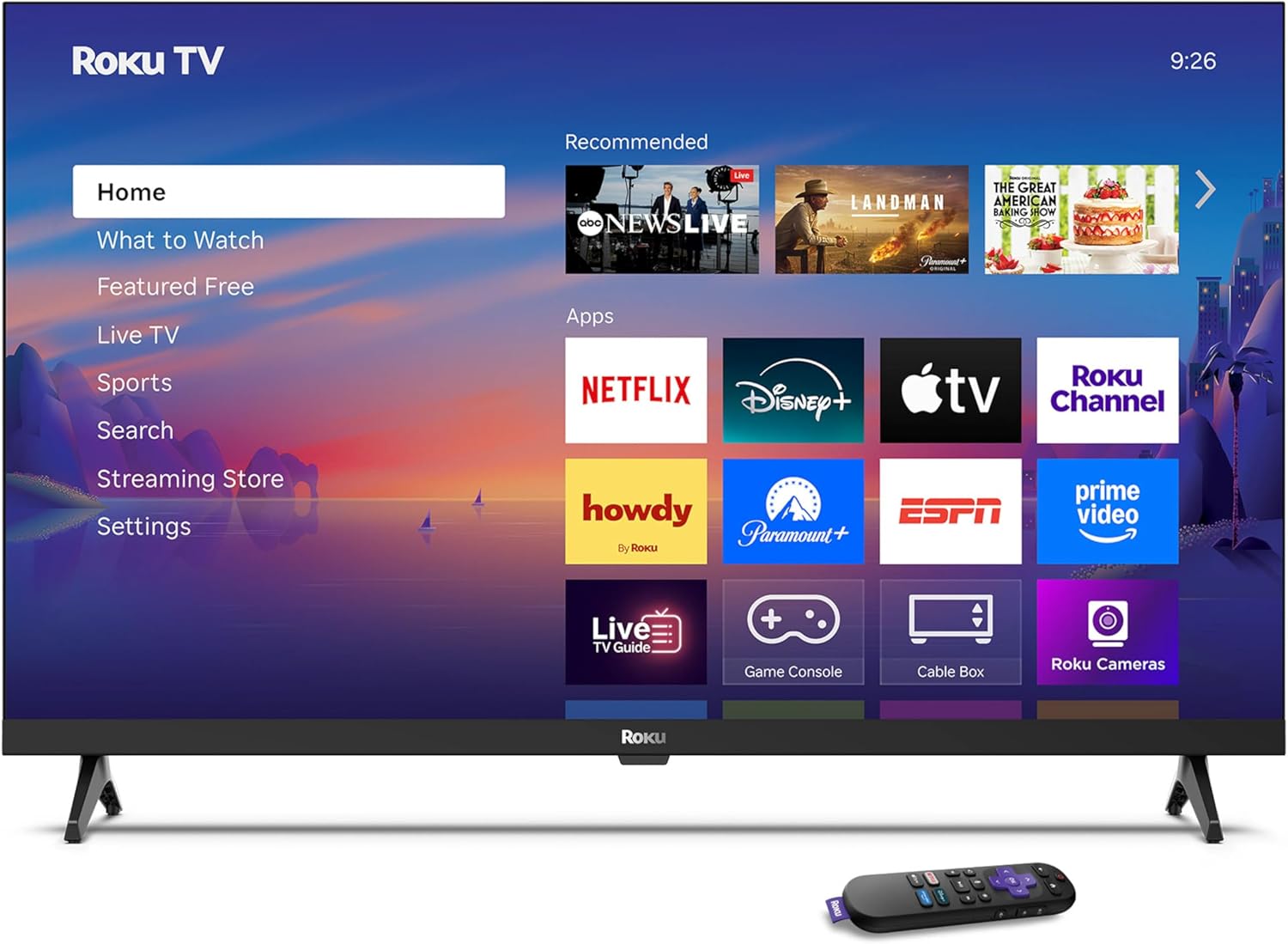
Image: Rear panel connections including HDMI, USB, and optical ports.
3.4 Te Hiko Tuatahi me te Hononga Whatunga
- Plug in the TV and press the power button on the remote or TV.
- Whāia ngā tohutohu kei te mata hei tīpako i tō reo, hei hono atu hoki ki tō whatunga Wi-Fi.
- Activate your Roku account or create a new one.
Ataata: Kua mutuview of the Roku TV operating system, demonstrating its user interface and features. This video is provided by Roku, Inc.
4. Nga Tohutohu Whakahaere
4.1 Using the Voice Remote
The Roku Voice Remote allows for intuitive control of your TV and streaming content.
- Rapu Reo: Press and hold the voice button and speak your command to search for content, launch apps, or control playback.
- Whakaterenga: Use the directional pad to move through menus and select items.
- Pokatata Taupānga: Mā ngā pātene motuhake ka tere te uru atu ki ngā ratonga roma rongonui.

Image: Features of the Roku Voice Remote, highlighting voice control and shortcut buttons.
4.2 Te whakatere i te Mata Kāinga
The Roku Home Screen provides access to all your installed apps, inputs, and settings.
- Kāinga: Returns you to the main home screen.
- He aha hei Maataki: Discover recommended content.
- TV Ora: Access free live television channels.
- Toa Rerema: Browse and add new streaming channels.
- Tautuhinga: Adjust TV and system preferences.

Image: The Roku TV home screen interface.
4.3 Te Whakatikatika Pikitia me nga Tautuhinga Oro
Whakaritehia to viewte wheako me te whakarongo ma te tahua tautuhinga.
- Aratau Pikitia: Select from predefined modes like Standard, Vivid, Sports, or Movie. Roku Smart Picture automatically optimizes settings.
- Aratau Oro: Kōwhiri tangi profiles or enable features like Night Mode for reduced volume fluctuations.
- Aratau Paneoro Nihokikorangi: Pair your wireless headphones for private audio.

Image: Picture mode settings on the Roku TV.

Image: Bluetooth Headphone Mode in use.

Image: Dolby Audio technology for clear sound.
5. Tiaki
5.1 Te horoi i te Mata
Hei horoi i te mata o te pouaka whakaata, murua mārire ki te kakahu ngohengohe, maroke, kore-miro. Mō ngā tohu uaua, horoia mārire.ampen te kakahu ki te wai, ki te otinga horoi mata-haumaru ranei. A ape i te whakamahi i nga matū kino, i nga taonga abrasive ranei.
5.2 Whakahōu Pūmanawa
Your Roku TV automatically receives software updates when connected to the internet. These updates provide new features, performance improvements, and bug fixes. Ensure your TV remains connected to the internet for optimal performance.
6. Te Raru
If you encounter issues with your Roku TV, refer to the following common solutions:
- Kore Mana: Me mohio kua honoa te taura hiko ki roto i te pouaka whakaata me te putanga hiko mahi. Whakamātauria he putanga kē.
- Kore Pikitia/Oro: Verify that the correct input source is selected. Check all cable connections (HDMI, audio). Restart the TV by unplugging it for 30 seconds and plugging it back in.
- Mamao Kaore i te Mahi: Replace the AAA batteries in the remote. Ensure there are no obstructions between the remote and the TV. For voice remote issues, re-pair the remote if necessary (refer to Roku support for specific steps).
- Nga Take Hononga Whatunga: Restart your Wi-Fi router and modem. Go to the TV's settings menu, then Network, and try reconnecting to your Wi-Fi network.
- App Not Loading/Crashing: Try restarting the app. If the issue persists, remove the app from the home screen, restart the TV, and then re-add the app from the Streaming Store.
7. Whakatakotoranga
| Āhuahira | Taipitopito |
|---|---|
| Rahi Mata | 32 Inihi |
| Hangarau Whakaatu | LED |
| Whakatau | 720p |
| Rere tāmata | 60 Hz |
| Nga waahanga motuhake | Bluetooth Headphone Mode, Dolby Audio, Voice Remote |
| Hangarau Hononga | Nihokikorangi, Wi-Fi |
| Tauranga HDMI Tapeke | 3 |
| Tauranga USB katoa | 1 |
| Whakauru Ororongo | HDMI |
| Pūnaha Mahi | Roku OS |
| Momo Whakaeke | Maunga Ripanga, Maunga Taiepa |
| VESA Maunga Paerewa | 200 x 200 mm |
| Rahi Hua (D x W x H) | 7"D x 28.3"W x 18.3"H |
| Taumaha Tūemi | 7.5 Pauna |
| Tau tauira | 32R2D5 |
| UPC | 829610008974 |
8. Nga Korero Whakaputanga
8.1 Rarangi Whaiti
Roku warrants the hardware against defects in materials and workmanship under normal use for a period of one (1) year from the date of purchase ("Warranty Period"). If Roku determines that the device’s hardware is defective during the Warranty Period, Roku’s sole obligation, and your exclusive remedy, will be to either repair or replace the unit with either a new or rebuilt device, at its option. This warranty applies if the product is used in accordance with the provided documentation.
8.2 Kaupapa Whakahoki
You may return a device for any reason:
- Within thirty (30) days from the date of purchase from Roku.
- Within the applicable return period if purchased from an authorized reseller or distributor.
Additional details regarding product returns can be found on the Roku support site.
9. Tautoko
For further assistance, troubleshooting guides, and frequently asked questions, please visit the official Roku support webpae: