
1. Kupu Whakataki
This manual provides essential instructions for the safe and effective use of your Integral Crypto-197 USB 3.0 Hardware Encrypted Flash Drive. The Crypto-197 series offers robust data security with FIPS 197 certified 256-bit AES hardware encryption, ensuring your sensitive information remains protected. This device is designed for durability, featuring a rugged, double-layer waterproof construction. Please read this manual thoroughly before using the device.

Image: Three Integral Crypto-197 USB flash drives, showcasing the compact and secure design.
2. Nga korero haumaru
- Do not attempt to disassemble or modify the device. This may void the warranty and compromise security features.
- Keep the device away from extreme temperatures, direct sunlight, and strong magnetic fields.
- Avoid dropping the device or subjecting it to severe impacts, despite its rugged design.
- Ensure the USB port on your computer is clean and free of debris before inserting the drive.
- Always safely eject the drive from your computer before removing it to prevent data corruption.
3. Tatūnga
3.1 Initial Connection and Password Creation
- Insert the Integral Crypto-197 drive into an available USB 3.0 (or 2.0) port on your computer.
- The drive will be detected as a CD-ROM drive containing the setup application. This is a 'Zero Footprint' design, meaning no software installation is required on the host computer.
- Run the setup application from the virtual CD-ROM.
- Follow the on-screen prompts to create your initial password. This password must be alphanumeric, 8-16 characters long, and strong.
- Once the password is set, the secure partition of the drive will become accessible.

Image: A password entry screen on a laptop, illustrating the secure entry process for the drive. Data cannot be accessed without the correct high-strength alphanumeric 8-16 character password.
3.2 Zero Footprint Technology
The Crypto-197 drive utilizes 'Zero Footprint' technology, meaning all encryption and decryption processes are performed directly on the USB flash drive itself. This eliminates the need for any software installation on the host computer, enhancing security and portability.

Image: A diagram illustrating the hardware encryption chip embedded within the USB flash drive, highlighting the 'Zero Footprint' security architecture.
4. Whakahaere i te Pūrere
4.1 Accessing and Storing Data
- Insert the drive and enter your password as prompted.
- Once unlocked, the secure partition will appear as a removable drive in your computer's file kaihōpara.
- Tōia ka taka files into this partition to store them securely. All data transferred to this partition is automatically encrypted by the hardware.
- Hei tiki files, simply open the secure partition and copy them to your desired location.
4.2 Password Protection and Brute Force Attack Defense
The Integral Crypto-197 is equipped with brute-force attack password protection. If an incorrect password is entered six consecutive times, the drive will automatically wipe all data, rendering it inaccessible and protecting your information from unauthorized access.

Image: Hands typing on a laptop keyboard, illustrating the concept of brute force attack password protection. The text indicates that data is securely destroyed after 6 failed login attempts.
4.3 Autolock Feature
The drive features an automatic data encryption (Autolock) function. Data is automatically encrypted when the drive is removed from the PC or if the PC enters screensaver mode, ensuring continuous protection.

Image: The Integral Crypto-197 drive, highlighting its 'Autolock' feature for automatic data encryption and its multi-lingual interface supporting 24 languages.
4.4 Data Security Applications
The Integral Crypto-197 is suitable for various applications requiring high data security, including business, personal, healthcare, financial, security, and legal sectors.
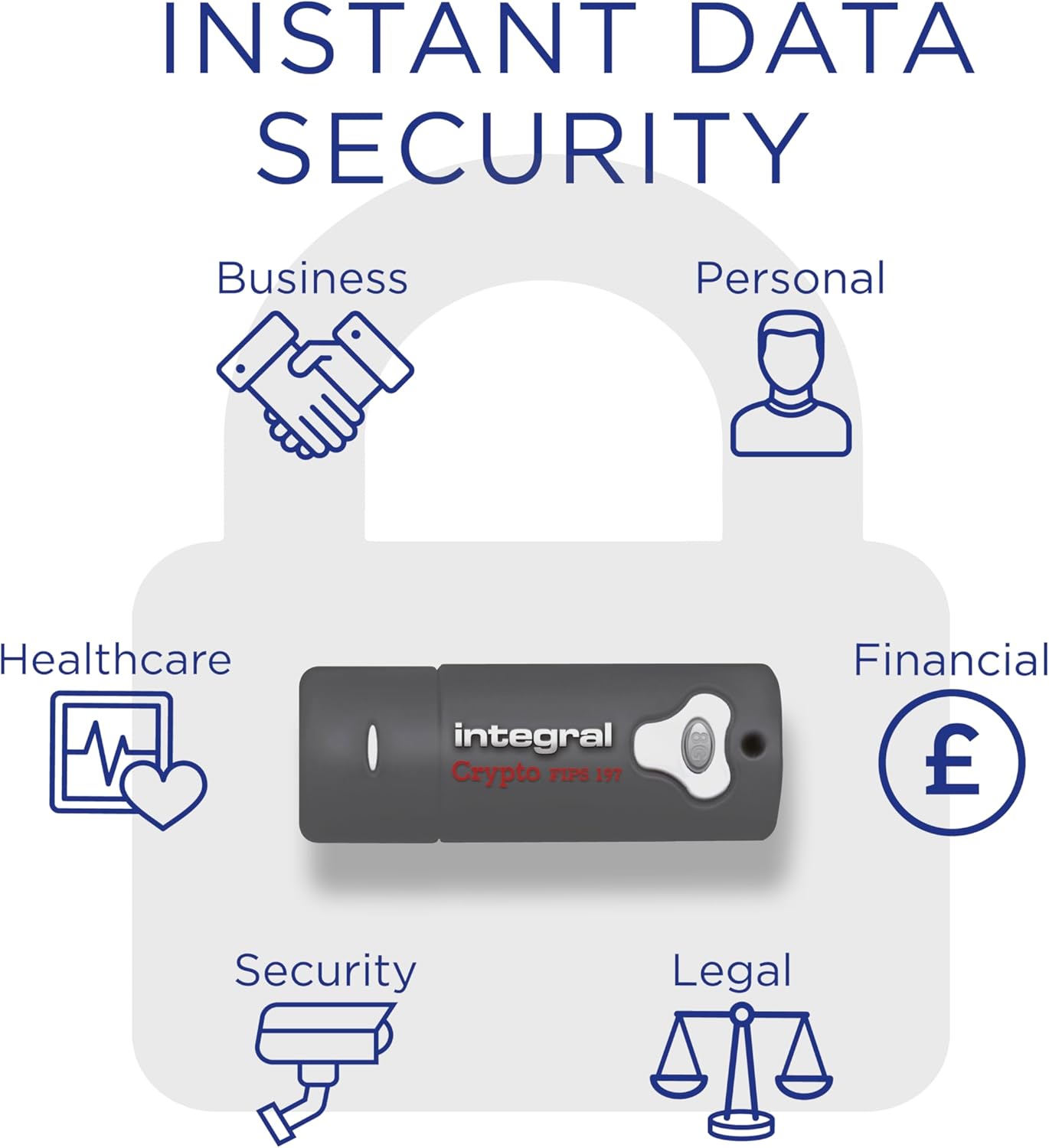
Image: A visual representation of the Integral Crypto-197 drive's applicability across various sectors such as business, personal use, healthcare, finance, security, and legal, emphasizing instant data security.
5. Tiaki
5.1 Tiaki Tinana
The Crypto-197 features a rugged double-layer waterproof design, consisting of a rubber casing and a hardened inner case. While designed for durability, proper care is still recommended:
- Keep the USB connector clean and free from dust or moisture.
- Wipe the exterior with a soft, dry cloth if needed. Avoid harsh chemicals.
- Ensure the cap is securely placed when not in use to protect the connector.

Image: A diagram illustrating the rugged double-layer waterproof construction of the Integral Crypto-197 drive, featuring a rubber casing and a hardened inner case for enhanced durability.
5.2 Pūrua Raraunga
While the Crypto-197 offers robust security, it is always recommended to maintain backups of critical data on separate storage devices or cloud services to prevent data loss due to unforeseen circumstances.
6. Te Raru
- Kaore i te Mohiotia te Puku:
Ensure the drive is fully inserted into the USB port. Try a different USB port or computer. Check your computer's Device Manager (Windows) or System Information (macOS) to see if the device is listed. - Cannot Access Secure Partition:
Ensure you are running the correct setup application from the virtual CD-ROM partition. Double-check your password entry. Remember that 6 failed attempts will wipe the drive. - Whakawhiti Raraunga Puturi:
Ensure you are using a USB 3.0 port for optimal performance. USB 2.0 ports will operate at slower speeds. - Kupuhipa kua warewaretia:
Due to the hardware encryption and security features, there is no password recovery option. If the password is forgotten, the data on the drive cannot be accessed. The drive may need to be reset, which will erase all data.
7. Whakatakotoranga
- Tauira: Integral Crypto-197
- Raukaha: 8GB (as per product description)
- Whakamuna: AES 256-bit Whakamuna Taputapu
- Tiwhikete: FIPS 197 Certified
- Atanga: USB 3.0 (whakamuri hototahi ki te USB 2.0)
- Parenga Kupuhipa: Brute-Force Attack Defense (6 failed attempts wipe data)
- Āhuatanga: Autolock, Multi-lingual interface (24 languages)
- Mauroa: Rugged Double-Layer Waterproof Design
- Hototahitanga Pūnaha Whakahaere: Dual OS - PC & Mac Compatible
- Ahu: Tata ki te 4 x 3 x 0.5 inihi (Ngā Ahu Puka)
- Taumaha: Tata ki te 3.2 hekere (Taumaha Tuemi)
7.1 FIPS Certification Explained
FIPS 197 is a high-level information security standard approved by the US Government that tests and checks the strength of the encryption algorithms within the device. The Crypto-197 is certified to this standard, ensuring robust data protection.

Image: A chart explaining FIPS certification, detailing FIPS 197 and various levels of FIPS 140-2, clarifying the security standards for encrypted devices.
7.2 Whakatauritenga Hua

Image: A comparison table outlining features across various Integral Encrypted USB Drives, including FIPS validation, password protection, rugged design, encryption type, and compatibility.
8. Pūtāhui me te Tautoko
8.1 Nga Korero Whakaputanga
The Integral Crypto-197 USB Flash Drive typically comes with a 2-year warranty. Please refer to the packaging or the official Integral webpae mo nga kupu whakamana me nga tikanga e pa ana ki to rohe.
8.2 Tautoko Kiritaki
For technical assistance, troubleshooting, or warranty claims, please visit the official Integral Memory website or contact their customer support directly. Contact information can usually be found on the product packaging or their webpae.