
1. Kupu Whakataki
Thank you for choosing the Ctronics CTIPC-980 4K 8MP PTZ Outdoor WiFi Security Camera. This manual provides detailed instructions for the installation, operation, and maintenance of your new security camera. Please read this manual thoroughly before use to ensure proper functionality and safety.
The CTIPC-980 camera offers advanced surveillance features including 4K Ultra HD resolution, intelligent human, vehicle, and animal detection, dual-band WiFi connectivity, and comprehensive 360° panoramic coverage. Its robust IP66 weatherproof design ensures reliable performance in various outdoor conditions.
2. Ihirangi mokete
Please check the package contents upon receipt. If any items are missing or damaged, contact Ctronics customer support.
- Ctronics CTIPC-980 4K 8MP PTZ Outdoor WiFi Security Camera
- Pūurutau Hiko
- Whakaeke Miro Hoko
- Kete parewai
- Pukapuka Kaiwhakamahi

Image: The Ctronics CTIPC-980 camera with its included accessories, such as the power adapter and mounting kit.
3. Nga Hua o te Hua
- 4K Ultra HD Resolution: Captures clear and detailed images at 3840x2160P (8 Megapixels) with a 3.6mm Starlight lens.
- Matakitenga Ake Po: Offers three modes:
- Te tirohanga matakite a te po: Black and white images using infrared LEDs.
- Tirohanga Po Tae: Full-color images in low light conditions using the built-in spotlight.
- Ataata Ataata Po: Automatically switches from IR to color night vision upon detection of motion.
- Rapunga Maamaa: Accurately identifies humans, vehicles, and animals, reducing false alarms by up to 95%.
- Te aukati kaha: Built-in siren and spotlights activate automatically upon detection to deter intruders.
- Hononga WiFi Takirua-Rohe: Supports both 2.4GHz and 5GHz WiFi for stable and faster network connection.
- 360° Panoramic Coverage: Pan 355° horizontally and Tilt 90° vertically for comprehensive area monitoring.
- Ororongo Ara-rua: Communicate directly through the camera using the integrated microphone and speaker.
- Kōwhiringa Rokiroki Hangarau: Supports local storage via a MicroSD card (up to 256GB), Ctronics Cloud storage, and FTP.
- Hototahi Whānui: Accessible via the Ctronics Pro app on iOS and Android devices, and HiP2P client on Windows and Mac.
- IP66 parerangi: Designed to withstand harsh outdoor weather conditions.

Image: The camera's intelligent detection feature identifying a child, a dog, and a car in a driveway, with a notification showing "Human Recognition Warning".

Image: Comparison of IR night vision (black and white), color night vision (full color with spotlight), and smart night vision (activates spotlight on motion) from the Ctronics camera.
4. Tatūnga
4.1 Tāutanga Tinana
- Kōwhiria he Tauwāhi: Kōwhiria he wāhi pai mō waho, he mārama hoki view of the area you wish to monitor. Ensure it is within range of your WiFi network and has access to a power outlet.
- Whakapiki: Use the provided mounting screw kit to securely attach the camera to a wall or ceiling. The camera supports both wall and ceiling installation.
- Hononga Hiko: Connect the camera to the power adapter and plug it into a power outlet. Ensure the power cable is routed safely and protected from the elements using the waterproof kit.
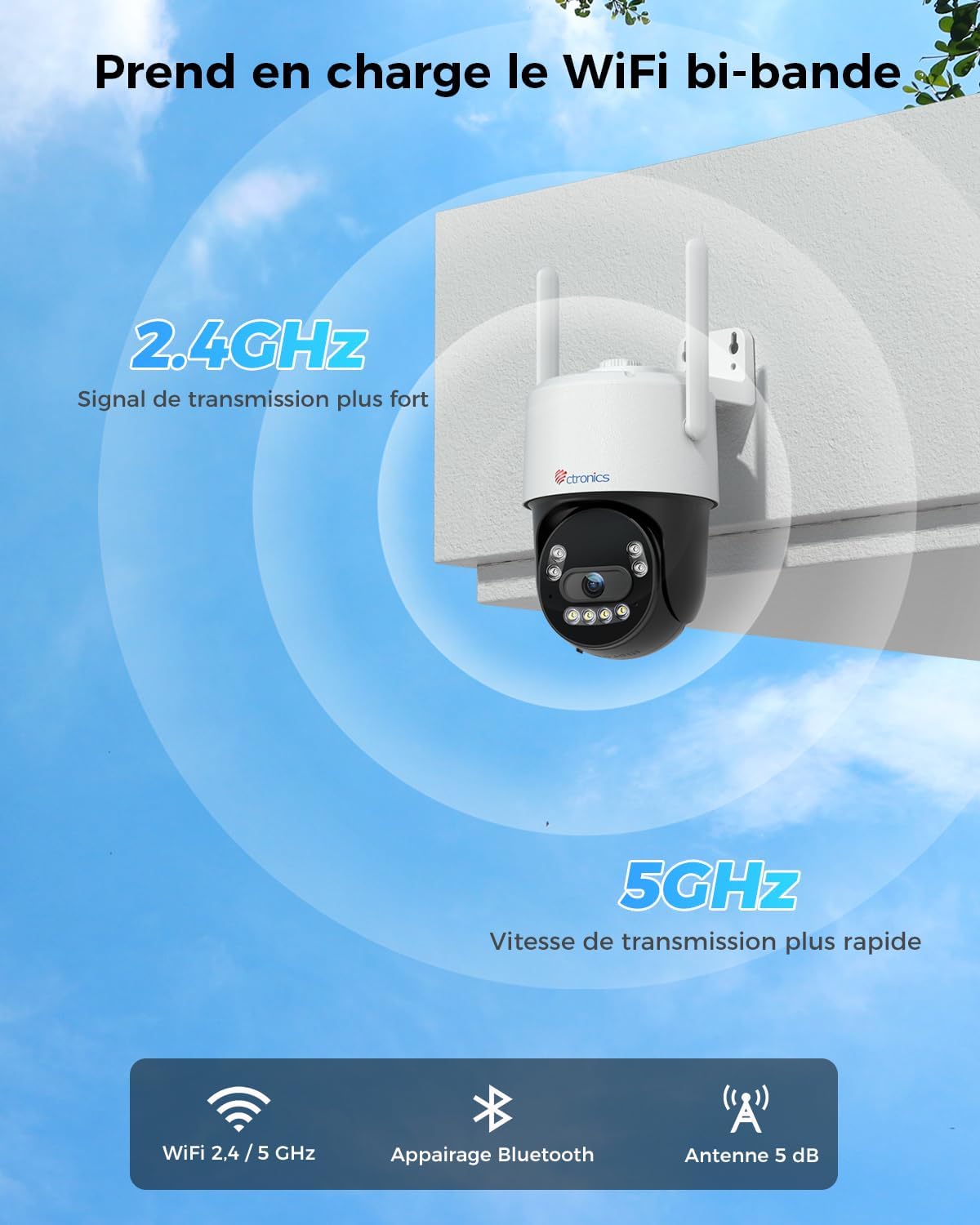
Image: The Ctronics camera securely mounted on an exterior wall of a building, demonstrating a typical installation scenario.
4.2 Tāutanga Taupānga me te Hononga Whatunga
- Tikiake i te Taupānga: Rapua "Ctronics Pro" in your mobile device's app store (iOS or Android) and download the application.
- Waihanga Pūkete: Open the Ctronics Pro app and follow the on-screen instructions to create a new user account.
- Tāpiri Kāmera:
- Te hiko i runga i te kamera.
- I roto i te taupānga, pāwhiritia te ata "+" hei tāpiri i tētahi pūrere hou.
- Select your camera model or scan the QR code on the camera.
- Follow the in-app instructions for Bluetooth pairing for quick setup.
- Connect the camera to your WiFi network. The CTIPC-980 supports both 2.4GHz and 5GHz bands. Choose the appropriate network and enter the password.
- Kia honoa, ka puta te kāmera i te rārangi o tō pūrere.

Image: The Ctronics camera illustrating its dual-band WiFi capability, showing stronger 2.4GHz signal and faster 5GHz speed.
5. Nga Tohutohu Whakahaere
5.1 Ora View
Open the Ctronics Pro app and tap on your camera from the device list to access the live video feed. You can view the feed in real-time from anywhere with an internet connection.
5.2 PTZ Mana
I runga i te ora view screen, use the directional controls to pan (rotate horizontally up to 355°) and tilt (rotate vertically up to 90°) the camera lens to adjust your viewkoki.
5.3 Ororongo Waa-rua
Tap the microphone icon in the app to speak through the camera's built-in speaker. Tap the speaker icon to listen to audio from the camera's surroundings. This allows for real-time communication with visitors or to deter unwanted guests.

Image: A person using the Ctronics Pro app on a smartphone to communicate via the camera, showing a live feed of a child and a car with speech bubbles indicating two-way conversation.
5.4 Te Rekoata me te Purei
The camera can record continuously or based on motion detection. Recorded footage can be accessed and played back through the Ctronics Pro app. Navigate to the playback section to view historical recordings.
5.5 Aratau Matakitenga Po
You can configure the night vision mode in the camera settings:
- Aratau Whero (IR): Ka whakarato i nga whakaahua pango me te maama i roto i te pouri tino.
- Aratau Tae Katoa: Utilizes the built-in spotlight to capture color images at night.
- Aratau Maama: The camera operates in IR mode and automatically switches to full-color mode with the spotlight activated when motion is detected.
5.6 Te Kimi Atamai me ngā Whakatūpato
Enable intelligent detection for humans, vehicles, or animals in the app settings. When an event is detected, the camera can:
- Send push notifications to your mobile device.
- Activate the built-in siren.
- Turn on the integrated spotlights.

Image: An intruder being deterred by the camera's activated siren and spotlight, with a notification showing "Human Recognition Warning".
5.7 Kōwhiringa Rokiroki
The CTIPC-980 offers multiple storage solutions for your recordings:
- Kāri MicroSD: Insert a MicroSD card (up to 256GB, not included) into the designated slot for local 24/7 recording. The oldest footagKa tuhia anōtia te e ina kī tonu te kāri.
- Ctronics Cloud Storage: Subscribe to Ctronics Cloud service for secure off-site storage. A free trial may be available.
- FTP: Configure FTP settings in the app to upload recordings to your own FTP server.

Image: The Ctronics camera with a MicroSD card being inserted, illustrating the various storage options including TF card, cloud storage, and FTP support.
6. Tiaki
- Te horoi: Horoia te arotahi me te whare o te kāmera i ia wā ki te wai ngohengohe,amp he kakahu hei whakarite kia mārama te kounga o te ahua. Kaua e whakamahi i ngā matū kino.
- Whakahōu Firmware: Check the Ctronics Pro app periodically for available firmware updates. Keeping your camera's firmware up-to-date ensures optimal performance and security.
- Hurihanga Hiko: Mena ka raru te kamera, ngana ki te paihikara hiko ma te wetewete me te whakahoki ano i te urutau hiko.
7. Te Raru
| Raruraru | Take pea | Rongoā |
|---|---|---|
| Kaamera tuimotu | No power, WiFi disconnected, poor signal. | Check power connection. Restart camera and router. Ensure camera is within WiFi range. Reconfigure WiFi in the app. |
| Te kounga whakaahua kounga | Te arotahi paru, iti te marama, te bandwidth whatunga. | Clean the lens. Ensure adequate lighting or proper night vision mode. Check internet speed. |
| Nga whakaoho pohehe | Sensitivity too high, environmental factors (e.g., moving branches). | Adjust detection sensitivity in the app. Define specific detection zones to exclude irrelevant areas. |
| Cannot connect to 5GHz WiFi | Incorrect WiFi password, router settings, distance. | Verify WiFi password. Ensure your router supports 5GHz and it's enabled. Move camera closer to the router. Try 2.4GHz if 5GHz connection remains unstable. |
| Karekau he ororongo | Microphone/speaker disabled, app volume low. | Check audio settings in the app. Ensure your phone's volume is up. |
8. Whakatakotoranga
| Āhuahira | Taipitopito |
|---|---|
| Tau tauira | CTIPC-980 |
| Waitohu | Ctronics |
| Whakatau | 4K Ultra HD (3840x2160P), 8 Megapixels |
| Arotahi | 3.6mm Starlight Lens |
| Awhe Pan/Tilt | Pan: 355°, Titaha: 90° |
| Matakitenga Po | IR, Color, Smart (with 4 IR LEDs) |
| Hononga WiFi | 2.4GHz / 5GHz Rorohiko-Rua |
| Ororongo | Ororongo Rua-Waahi (Hauorooro me te Tukuoro) |
| Kōwhiringa Rokiroki | MicroSD Card (up to 256GB), Cloud Storage, FTP |
| Te kimi | Te Kimi Tangata, Waka, Kararehe |
| Whakatauranga Taurangi | IP66 |
| Whakauru Mana | 12 Volts, 12 Wati |
| Ahu (L x W x H) | 10 x 5 x 10 cm (whakatata) |
| Pūnaha Whakahaere | iOS, Android, Windows, Mac |

Image: Displays the Ctronics camera's compatibility with iOS, Android, Windows, and Mac operating systems, showing the app interface on a laptop, desktop monitor, tablet, and smartphone.
9. Pūtāhui me te Tautoko
Ctronics products come with a standard warranty. For detailed warranty information, please refer to the warranty card included in your package or visit the official Ctronics website. If you encounter any issues or have questions regarding your CTIPC-980 camera, please contact Ctronics customer support through their official webpaetukutuku, ngā taipitopito whakapā rānei i whakaratohia i roto i te taupānga.
Whaimana Webpae: www.ctronics.com