
1. Hua Neke Atuview
The SVITOO P108 is a 12-inch Android tablet designed for versatile use, from entertainment to productivity. It features a 2K Full HD display, an Octa-Core processor, ample RAM and storage, and a long-lasting battery.

Image 1.1: The SVITOO P108 tablet showcasing its 2K display, dual-band Wi-Fi, Bluetooth 5.0, GPS, 30GB RAM (6+24), 128GB ROM, 8800mAh battery, T7250 processor, Android 16, and 13MP rear / 8MP front cameras.
Ihirangi mōkī:
- SVITOO P108 Tablet x 1
Tahora Pūrere:

Image 1.2: A detailed diagram illustrating the location of the volume buttons, power button, front camera, flashlight, rear camera, 3.5mm headphone jack, TF card slot, Type-C port, and microphone on the SVITOO P108 tablet.
- Pātene Rōrahi: Whakatikatikahia te taumata putanga oro.
- Pātene Hiko: Turn the device on/off, or put it to sleep/wake it up.
- Kāmera Mua: Mo nga waea ataata me te whaiaro.
- Kāmera Whakamuri: Hei hopu whakaahua me ngā ataata.
- rama rama: E whakarato ana i te māramatanga mō te kāmera o muri.
- 3.5mm Jack Paneoro: Honoa ngā pane whakarongo waea.
- Kāniwha Kāri TF: Whakauruhia he kāri microSD hei whakawhānui i te rokiroki.
- Momo-C Port: Mo te utu me te whakawhiti raraunga.
- hopuoro: For audio input during calls or recordings.
- Kaikorero: Mo te putanga ororongo.
2. Tatūnga Tuatahi
2.1 Te Whakataki i te Papa
Before first use, fully charge your tablet. Connect the provided USB Type-C cable to the tablet's Type-C port and the other end to a compatible power adapter. The battery indicator on the screen will show charging status.
2.2 Kei te Hiko / Weto
- Hei Whakahiko: Press and hold the Power button until the SVITOO logo appears.
- Hei Whakaweto: Press and hold the Power button until the power options appear on the screen, then select "Power Off".
- Hei Tīmata anō: Pēhia te pātene Mana me te pupuri kia puta rā anō ngā kōwhiringa mana, kātahi ka tīpako i te "Tīmata Anō".
2.3 Whirihoranga Tuatahi
Upon first power-on, follow the on-screen prompts to set up your tablet. This includes selecting your language, connecting to a Wi-Fi network, setting up your Google account, and configuring basic security settings.
2.4 Te Whakauru i tētahi Kāri MicroSD
To expand storage, insert a microSD card into the TF Card Slot. Ensure the tablet is powered off before inserting or removing the card. Gently push the card until it clicks into place.
3. Te Mahi i te Papa
3.1 Te whakatere i te Atanga Android
The tablet runs on Android 15, offering a user-friendly interface. Swipe up from the bottom to access the app drawer, swipe down from the top for notifications and quick settings, and use the navigation buttons (back, home, recent apps) at the bottom of the screen.
3.2 Whakaaturanga Whakaaturanga
The 12-inch 2K Full HD display (2000x1200 resolution) provides a clear and vibrant viewing experience. The screen has a 5:3 aspect ratio and 380 nits brightness.
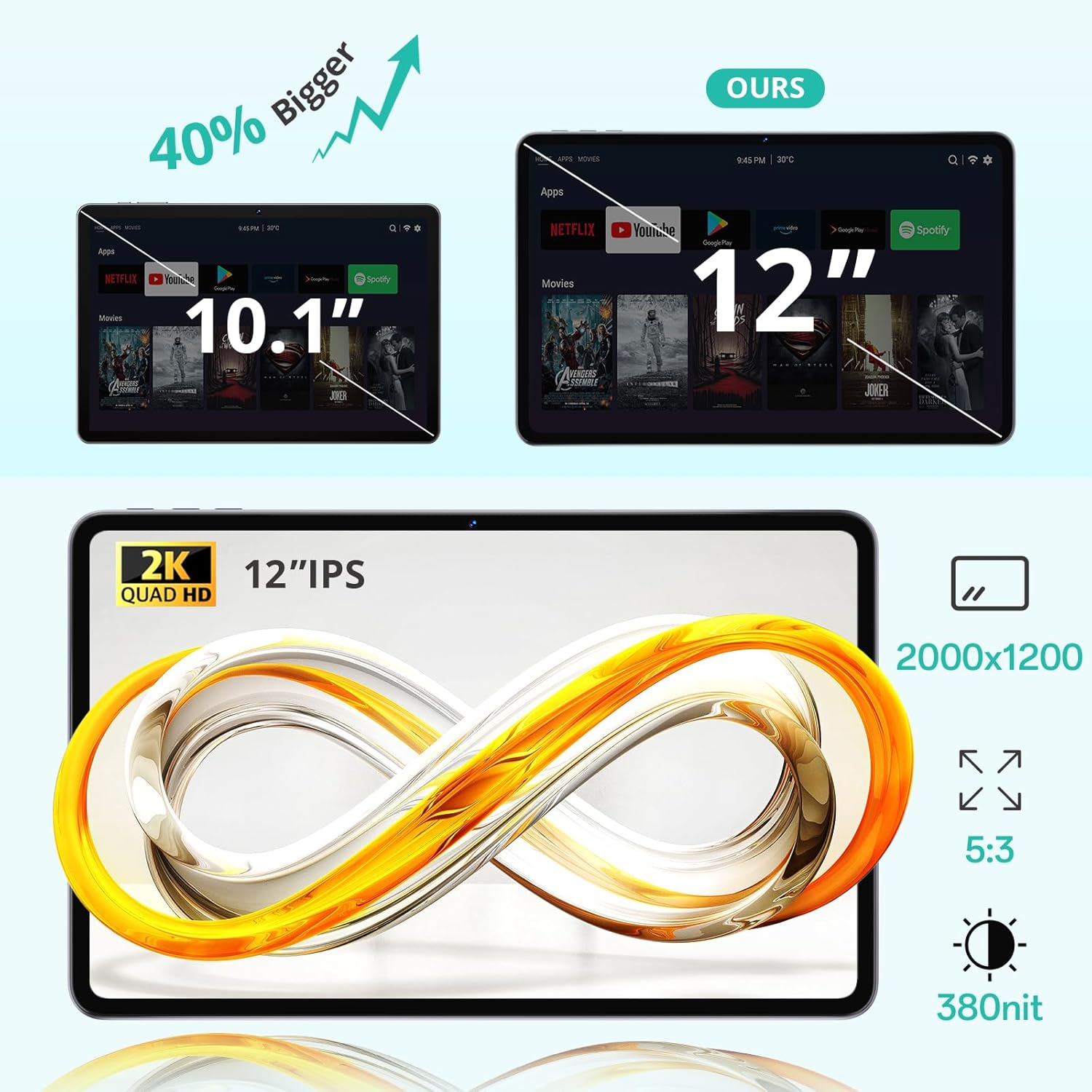
Image 3.1: The 12-inch display of the SVITOO P108 tablet, highlighting its 2K Quad HD resolution of 2000x1200, 5:3 aspect ratio, and 380 nit brightness, shown alongside a size comparison to a 10.1-inch tablet.
3.3 Tautoko Widevine L1
The tablet supports Widevine L1, enabling high-definition streaming from popular services like Netflix, YouTube, and Prime Video. This ensures a premium viewing experience with crisp visuals.

Image 3.2: The SVITOO P108 tablet displaying a high-definition image, indicating Widevine L1 support for streaming content from platforms such as Disney+, Netflix, YouTube, and Prime Video.
3.4 Multitasking with Split-Screen
Utilize the split-screen feature to run two applications simultaneously. This enhances productivity, allowing you to watch videos while chatting or browse the web while taking notes.

Image 3.3: Step-by-step guide on how to activate split-screen mode on the tablet, showing how to tap the recent apps button, select an app, and choose 'Split screen' to open a second app alongside it.
3.5 Aratau Pānui
The tablet offers a dedicated reading mode that reduces blue light and optimizes brightness for a more comfortable and eye-friendly reading experience.

Image 3.4: The tablet displaying text in reading mode, emphasizing features like reduced blue light, optimized brightness, and overall eye-friendliness.
3.6 Parental Controls and Child-Friendly Interface
The tablet includes features for parental controls, allowing parents to manage content, screen time, and ensure a safe browsing environment for children. A child-friendly interface is also available for educational content.

Image 3.5: The tablet displaying a child-friendly interface with educational content and parental control options, indicating features like child-safe browsing and screen time management.
4. Tiaki me te Tiaki
4.1 Te horoi i te Papa
Whakamahia he kakahu ngohengohe, kore-raro hei horoi i te mata me te tinana o te papa. Mo nga kohukohu pakeke, paku dampHoroia te kakahu ki te wai, ki te wai horoi mata rānei. Āta karohia te whakamahi i ngā matū kaha, i ngā rauemi whakakoi rānei.
4.2 Tiaki Pūhiko
The tablet is equipped with an 8000 mAh lithium-ion battery. To prolong battery life:
- A ape i te wera nui.
- Kaua e tukua te pākahiko kia mimiti i nga wa katoa.
- Whakamahia te rihi taketake, te rihi hototahi whaimana ranei.

Image 4.1: The tablet highlighting its 8800mAh battery, with icons indicating usage times for video, music, web browsing, and standby.
4.3 Whakahōu Pūmanawa
Regularly check for and install software updates to ensure optimal performance, security, and access to the latest features. Go to Tautuhinga> Pūnaha> Whakahou Pūnaha ki te tirotiro mo nga whakahou.
5. Te Raru
5.1 Papa Kāore e Tahuri Ana
- Me whakarite kua utaina te pākahiko. Honoa te rihi ka tatari mo etahi meneti i mua i te ngana ki te hiko ano.
- Patohia me te pupuri i te paatene Hiko mo te 10-15 hēkona hei mahi i te whakaara ano.
5.2 Puturi te Mahi
- Katia nga tono papamuri kore e tika.
- Clear cache for frequently used apps (Settings > Apps > [App Name] > Storage > Clear Cache).
- Me whakarite he rawaka te waahi rokiroki e waatea ana.
- Tīmataria anō te papa.
5.3 Nga Take Hononga Wi-Fi
- Toggle Wi-Fi off and on in Quick Settings.
- Tīmataria anō tō pouara Wi-Fi.
- Forget the network and reconnect (Settings > Network & internet > Wi-Fi > [Network Name] > Forget).
5.4 Mata Karekau e aro
- Me tīmata anō mā te pupuri i te pātene Mana mō te 10-15 hēkona.
- Me whakarite kia ma te mata, kia kore hoki he makuku.
6. Whakatakotoranga
| Āhuahira | Taipitopito |
|---|---|
| Ingoa Tauira | P108 |
| Rahi Whakaatu | 12 Inihi |
| Taumira Mata Max | 2000 x 1200 Pika |
| Pūnaha Mahi | Android 15 |
| Tukatuka | Unisoc T606 Octa-Core (1.8 GHz) |
| RAM | 6 GB (whakaroha ki te 24 GB) |
| Rokiroki | 128 GB (expandable via microSD up to 1TB) |
| Pūhiko Raukaha | 8000 mah |
| Ora Pūhiko | Up to 8 hours (general use) |
| Kāmera Whakamuri | 13 MP |
| Kāmera Mua | 5 MP |
| Hononga | Wi-Fi (2.4G/5G, 802.11ac/b/g/n), Bluetooth 5.0, GPS |
| Tauranga | 1x USB Type-C, 1x 3.5mm Audio Jack, 1x TF Card Slot |
| Ahu | 28.23 x 17.84 x 0.98 cm |
| Taumaha | 940 g |
| Nga waahanga motuhake | Widevine L1, GPS |
7. Pūtāhui me te Tautoko
7.1 Nga Korero Whakaputanga
The SVITOO P108 tablet comes with a pūtāhui kaihanga kotahi tau. Ka kapi tenei raihana i nga hapa o nga rawa me nga mahi i raro i te whakamahinga noa. Tena koa pupurihia to tohu mo te hoko mo nga kereme whakamana.
7.2 Tautoko Kiritaki
For technical assistance, troubleshooting, or warranty inquiries, please contact SVITOO customer service. Support is available 24 hours a day, 7 days a week. Please refer to the contact information provided with your purchase or on the official SVITOO webpae.